
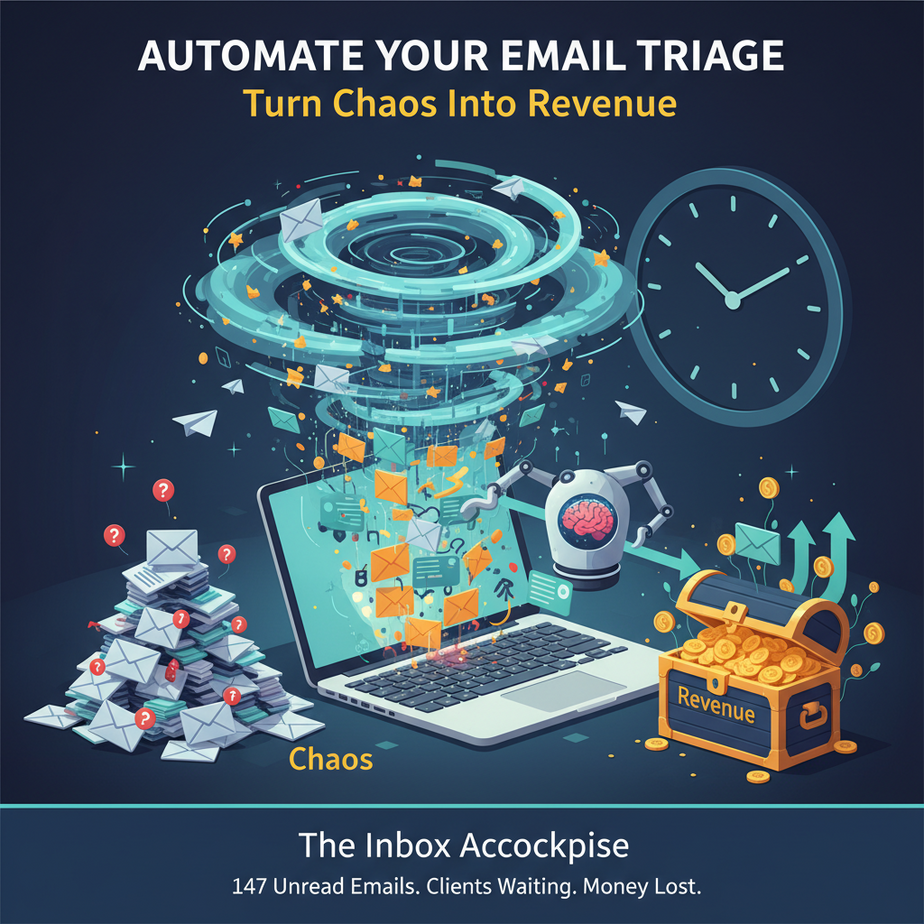
The Inbox Apocalypse
Imagine this: You open your laptop, take a sip of coffee, and see 147 unread emails. Your heart sinks. There are 12 client inquiries, 47 newsletters you never signed up for, 8 “urgent” notes that aren’t, and 1 message that actually contains money. You spend the next 45 minutes playing “email whack-a-mole” – reading, deleting, archiving, forwarding. This isn’t communication; it’s a part-time job no one hired you for. It’s like running a kindergarten classroom where every child is screaming for attention simultaneously.
Why This Matters
Let’s talk real numbers. The average professional spends 2.5 hours a day on email. That’s 625 hours a year – a full 78 working days. If you’re a business owner, that’s 78 days you’re not closing deals, building products, or talking to actual humans. An automated triage system isn’t just about organization; it’s about reclaiming 15% of your entire year. It replaces the unpaid intern who was sorting your mail but vanished when they needed actual experience.
What This Tool Actually Is
Think of this as a digital bouncer for your inbox. It scans every incoming email, decides who gets in, who goes to the VIP section, and who gets tossed to the curb. It doesn’t replace human conversation – it triages it. It’s not a magic “answer everything” bot. It’s a sorting hat that tells you where to focus your energy first. This is the foundation that later lets you build agents that actually respond, but first, we need to know what’s worth responding to.
Prerequisites
Here’s the honest truth: if you can copy and paste, you can do this. I’m not going to lie and say it requires a computer science degree. You’ll need:
- A Gmail account (Google Workspace accounts work even better)
- 15 minutes of focused time – no phone, no Slack notifications
- Curiosity and patience – your first automation might feel like training a new puppy
If you’ve ever used a smartphone app, you have the skill level required. This is about logic, not coding.
Step-by-Step Tutorial: Building Your Email Bouncer
We’re using a no-code tool called n8n (pronounced “nate-in”). It’s like Lego for automations – drag, drop, connect. It has a generous free tier and connects to everything. Download it or use their cloud version.
Step 1: Create Your First Workflow
Open n8n and create a new workflow. Name it “Email Triage”. This is your factory floor where the magic happens.
Step 2: Trigger – The Email Inlet
Add a Gmail Trigger node. Connect your Gmail account. This is the loading dock – every email comes in here first. In the configuration, set it to poll every 5 minutes. No need to be faster; email isn’t instant messaging.
Step 3: The Decision Engine – Your Intern’s Brain
Add a Switch node after the trigger. This is where we make decisions. We’ll set up three routes:
- URGENT: Contains “urgent”, “deadline”, or comes from key clients (you’ll list their domains)
- OPPORTUNITY: Contains “proposal”, “contract”, “quote”, or is from your CRM-verified leads
- EVERYTHING ELSE: Everything that doesn’t fit above
Step 4: Route to Labels/Folders
For each route, add a Gmail node to modify the label. Here’s the copy-paste logic for the URGENT route:
// Check for urgent keywords
const urgentKeywords = ['urgent', 'deadline', 'emergency', 'asap', 'critical'];
const subject = items[0].json.subject || '';
const body = items[0].json.body || '';
const hasUrgent = urgentKeywords.some(kw =>
  subject.toLowerCase().includes(kw) || body.toLowerCase().includes(kw)
);

// Check sender domain
const sender = items[0].json.from || '';
const importantDomains = ['@clientcompany.com', '@yourprimarydomain.com'];
const isImportant = importantDomains.some(domain => sender.includes(domain));

if (hasUrgent || isImportant) {
  return { json: { urgent: true } };
}

return { json: { urgent: false } };
Step 5: The Archive & Log
Create a path for “EVERYTHING ELSE”. This route should:
1. Move email to a label called “Auto-Reviewed”
2. Log it to a Google Sheet with date, sender, and subject
3. Skip the inbox entirely
This is your digital filing cabinet. Out of sight, out of mind, but searchable forever.
Step 6: Test with Real Emails
Send yourself test emails:
– One with “URGENT: Meeting tomorrow”
– One from a client’s domain
– One random newsletter
Watch your workflow execute in real-time. The first time you see an email auto-move based on rules you wrote, you’ll feel like a wizard.
Complete Automation Example: The Consultant’s Income Generator
Meet Sarah, a marketing consultant drowning in inbound requests. Her inbox has become a black hole where good leads disappear. She implements our triage system with one extra twist:
- Trigger: New email arrives
- Filter 1: Is it from a @gmail.com or @yahoo.com? (Probably not a business)
- Filter 2: Does it contain “price”, “cost”, or “quote”?
- Route A (Qualified Lead): Send to a personalized response with a Calendly link, create a row in her CRM
- Route B (Cold Inquiry): Send a templated response asking for a project brief, log in database
- Route C (Noise): Archive after 24 hours if no reply
Result: Sarah now spends 15 minutes/day on email instead of 2.5 hours. Her qualified lead response time went from 4 hours to 4 minutes. She closed two more clients last month because her best inquiries didn’t get lost in the noise.
Real Business Use Cases (5 Quick Wins)
1. E-commerce Store Owner
Problem: “Where’s my order?” emails flood the inbox.
Solution: Auto-reply with tracking info, label as “Customer Service,” forward complex cases to the shipping manager.
2. Freelancer
Problem: Proposals sitting in inbox while deadlines approach.
Solution: Flag all proposals, auto-remind you 2 days before deadline if not moved to “Active Projects.”
3. Real Estate Agent
Problem: Missed hot leads among time-waster questions.
Solution: Separate “open house inquiries” (route to CRM) from “just curious” (auto-guide to website).
4. Recruitment Agency
Problem: 500+ resumes in one folder.
Solution: Scan for required skills, auto-tag by role, forward to appropriate recruiter in CC field.
5. Startup Founder
Problem: Investor emails buried under everyone else.
Solution: Whitelist all @vc.com domains, auto-forward to your phone as SMS, archive after 5 minutes.
Common Mistakes & Gotchas
Over-engineering: Don’t try to catch every scenario. Start with 3 rules, then add one each week. Perfection is the enemy of “it’s working.”
False Positives: Always have a manual override. Create an “Emergency Override” rule: if an email contains “sorry to bother you personally,” ignore all automation. Humans notice when machines act like humans.
Scaling: When you hit 100+ emails/day, upgrade to n8n’s paid plan ($15/month). At that point, this system is saving you 50+ hours/month – that’s a 300x ROI.
How This Fits Into a Bigger Automation System
This triage system is the front door to your automation mansion. It connects to:
- CRM: Qualified leads auto-populate as contacts
- Calendar: “Meeting scheduled” emails auto-create events
- Voice Agents: High-priority emails trigger a text message from your AI assistant
- Multi-agent workflows: When a proposal email arrives, it doesn’t just get triaged – it triggers a research agent to pull relevant data from your past projects
- RAG systems: Every archived email becomes searchable knowledge for future queries
Tomorrow, we’ll build the “Request Handler” – the bot that actually responds to those emails you’re now triaging. It’s the next logical step in our automation academy course.
What to Learn Next
You’ve just built the brain. Now let’s give it a voice. In the next lesson, we’ll create an AI email responder that drafts intelligent replies based on your triage system. It will learn your writing style, reference your existing calendar, and even negotiate meeting times. But for now, celebrate: your inbox will never be the same again. Go send yourself an urgent email and watch the magic happen.
“,
“seo_tags”: “email automation, inbox management, business productivity, no-code automation, n8n tutorial”,
“suggested_category”: “AI Automation Courses





