
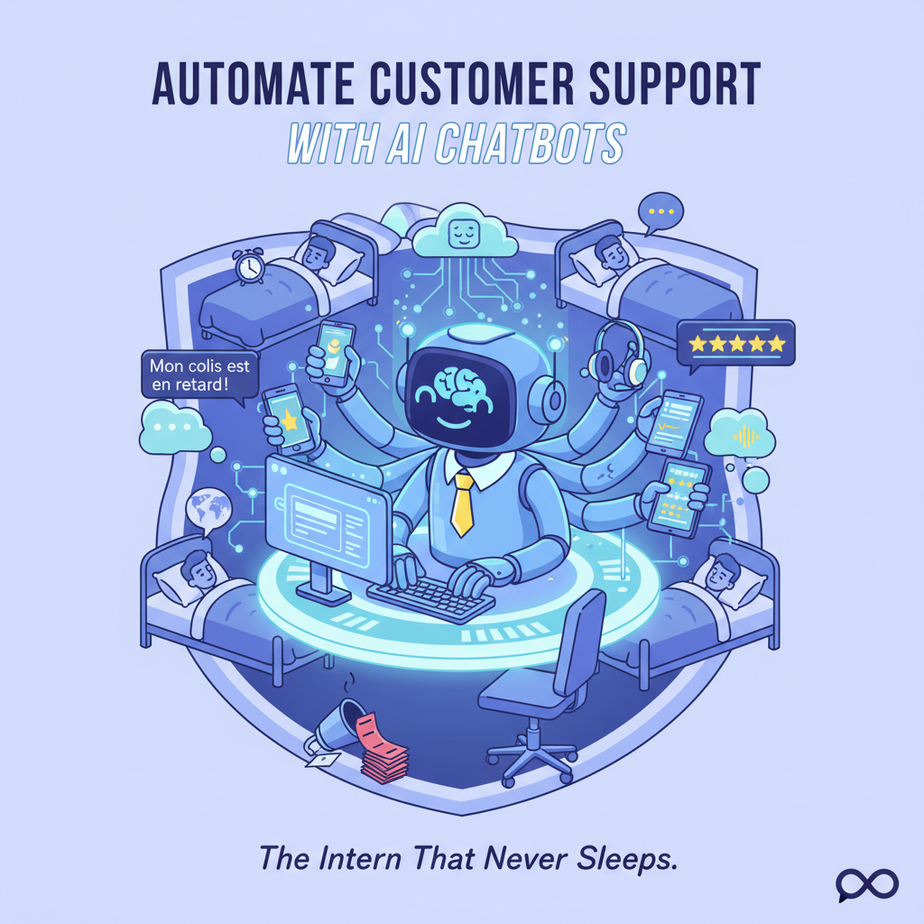
Hook: The 3 AM Meltdown
It’s 3 AM. You’re awake. Not because you’re partying, but because your phone is buzzing with customer support tickets. A customer from Brussels is mad about their delayed package. Another from Chicago is asking how to download an invoice. A third wants to know if you ship to New Zealand. Your human team is asleep. Your competitors might be, too. But your customers? They’re awake. And they’re tweeting their frustration.
This is the reality for most businesses. Support is a cost center that never closes. You’re either understaffed, overworked, or both. Hiring more people is expensive. Training them is time-consuming. Burnout is inevitable. But what if you could clone your best support agent, make them work 24/7, and never have to pay overtime? That’s not science fiction—it’s your new AI chatbot intern.
Why This Matters: Your Bot is Your Profit Center
Customer support isn’t just about answering questions. It’s about retention. A happy customer buys again. A frustrated one leaves a scathing review. Speed matters. According to Microsoft’s customer service research, 58% of consumers switch companies due to poor customer service. That’s a leaky bucket you can’t afford.
An AI chatbot automates the boring, repetitive 80% of support queries. That frees your human team to handle the complex 20% that requires empathy and deep expertise. Suddenly, your support costs drop. Your response times go from hours to seconds. Your team focuses on high-value problems. You scale customer support without scaling headcount. This isn’t just an efficiency tool—it’s a competitive moat.
What This Actually Is: A Smart Triage System
Your AI chatbot is a rule-based and generative AI system that:
- Greets customers instantly
- Understands natural language questions
- Fetches answers from your knowledge base (FAQs, product docs)
- Resolves common issues (order status, password reset, basic how-to)
- Escalates complex issues to a human agent with full context
- Learns from past conversations to improve over time
It does NOT:
- Replace human empathy for sensitive issues (complaints, emergencies)
- Make critical business decisions (refunds, policy changes)
- Work without a well-structured knowledge base (garbage in, garbage out)
Think of it as the ultimate first-line support agent. It’s not here to think—it’s here to fetch, match, and route. It’s your digital receptionist that actually knows the answer.
Prerequisites: You Don’t Need to Be a Coder
If you can write an email, you can build this chatbot. Seriously. Here’s all you need:
- A knowledge base: Your FAQ page, product docs, or even a well-organized Google Doc with answers to common questions.
- A chatbot platform: We’ll use Make (formerly Integromat) because it’s visual and has a generous free tier. No coding required.
- An AI model: We’ll use OpenAI’s GPT-3.5 via the API. It’s cheap, powerful, and easy to connect.
- 30 minutes of focus: That’s it. You’ll have a working bot by the end of this tutorial.
Don’t be intimidated. We’re not building a self-driving car. We’re building a helpful intern who knows your company handbook.
Step-by-Step Tutorial: Build Your Support Bot
Step 1: Prepare Your Knowledge Base
Create a simple text file (or a Google Sheet) with Q&A pairs. Format matters less than clarity. Each question should map directly to an answer. Example:
Q: What is your shipping policy?
A: We ship globally via DHL Express. Orders over $100 ship free. Delivery takes 3-5 business days. See full policy at: yourwebsite.com/shipping

Q: How do I reset my password?
A: Go to yourwebsite.com/login and click 'Forgot Password'. You'll receive a reset link in your email within 5 minutes.

Q: Can I return an item after 30 days?
A: Our return window is 30 days from delivery. For special circumstances, please contact support@yourbusiness.com.
Keep it organized. This is your chatbot’s brain.
Step 2: Set Up Your Make.com Scenario
- Sign up for a free account at make.com.
- Create a new scenario.
- Search for and select the Webhook module as your trigger. This will be the entry point for your chatbot (e.g., from a website widget or Facebook Messenger).
Step 3: Connect the AI Brain
- Add a new module after the Webhook. Search for OpenAI (GPT-3.5).
- Connect your OpenAI account (you’ll need an API key from their developer portal).
- Configure the module:
- Prompt: “You are a helpful customer support assistant. Use the following information to answer questions accurately. If you don’t know the answer, say ‘Let me connect you to a human agent.'”
- System Message: Paste your Q&A pairs from Step 1 here.
- User Message: Select the data from your Webhook module (the customer’s question).
Step 4: Add a Human Escalation Route
- Add a router module after OpenAI.
- Create two routes:
- Route 1 (Auto-resolved): If the AI’s response doesn’t contain “human agent,” send the answer back via Webhook Response.
- Route 2 (Escalation): If the AI says “human agent,” send the conversation transcript to your team’s Slack channel or helpdesk (like Zendesk).
Step 5: Deploy & Test
- Turn on your scenario. Make.com will give you a unique webhook URL.
- Connect this URL to your website chat widget (most platforms like Drift or Intercom allow custom webhook connections).
- Test it! Ask your chatbot: “How long does shipping take?” Watch it respond instantly with your pre-written answer.
Complete Automation Example: The E-Commerce Scenario
Let’s walk through a real flow:
Customer: “Hi, my order #12345 hasn’t arrived yet. Can you check the status?”
- Webhook Trigger: Captures the message and order number.
- OpenAI Module: Checks knowledge base for “order status” and finds the answer: “To check your order status, visit yourwebsite.com/track and enter your order number.”
- Router: Confirms answer is non-complex → Route 1.
- Webhook Response: Sends the tracking instructions back to the chat widget.
- Time: Total time from question to answer: 2 seconds.
If the question was, “My order arrived damaged, what do I do?” the AI might respond with a refund policy, but you’d likely want a human for damage claims. Your bot would escalate to the support team’s Slack with the full conversation, and a human picks it up within minutes—not hours.
Real Business Use Cases
1. E-Commerce Store: Handles 100+ daily “Where’s my order?” and “What’s the return policy?” queries. Reduces support tickets by 60%, letting the human team handle returns and disputes.
2. SaaS Startup: Answers “How do I integrate with Zapier?” and “Why am I getting an error code 500?” based on product docs. Frees founders to focus on product development, not repetitive troubleshooting.
3. Local Restaurant: Chatbot on Facebook Messenger answers “What are your hours?”, “Do you have vegan options?”, and “Can I book a table for 8?” Integration with a reservation system (like Calendly) handles bookings automatically.
4. Freelance Consultant: Uses a chatbot on their website to qualify leads. It answers basic service questions, collects project details, and only routes high-intent leads to your calendar. It’s a gatekeeper that sells for you.
5. Online Course Creator: Chatbot on the course platform answers “How do I download the workbook?” and “When is the next live session?” It drastically reduces student support emails, increasing satisfaction and completion rates.
Common Mistakes & Gotchas
Mistake 1: The Knowledge Base is Messy. If your Q&A is vague or outdated, your bot will give wrong answers. Spend 2 hours cleaning it up first. Quality in = quality out.
Mistake 2: No Escalation Path. Never let the bot guess. If it’s unsure, it must hand off to a human. A frustrated customer talking to a dead-end bot is a lost customer.
Mistake 3: Ignoring Tone. Your bot should sound like your brand. A fintech startup’s bot shouldn’t use slang if your voice is formal. Craft the system prompt to reflect your brand voice.
Mistake 4: Forgetting to Train Your Team. When the bot escalates, your humans need context. Ensure your escalation includes the full chat history. Otherwise, you’re making the customer repeat themselves.
Mistake 5: Set It and Forget It. Review logs weekly. What questions did it fail to answer? Add those to your knowledge base. A chatbot is a living system, not a one-time setup.
How This Fits Into a Bigger Automation System
Your support chatbot is a node in a larger customer experience machine. Here’s how it connects:
- CRM Integration: When a logged-in user chats, pull their customer profile (purchases, history) from your CRM (like HubSpot or Airtable) to give personalized answers.
- Email & Workflow: After a chat, automatically send a satisfaction survey or a follow-up email with relevant resources.
- Voice Agents: This same logic can power a phone-based AI assistant. The same knowledge base answers calls and texts.
- Multi-Agent Systems: This chatbot can be one agent in a swarm. One agent qualifies leads, another handles support, a third schedules demos. They work together.
- RAG (Retrieval-Augmented Generation): For advanced cases, connect your chatbot to your entire company knowledge base (internal wikis, Slack archives) using vector databases. This is your next step in the course.
Right now, you’re building the foundation. Once your support is automated, you can layer on sales, onboarding, and feedback loops.
What to Learn Next: The Lead Qualification Machine
You’ve just automated your first line of defense. Now, let’s automate your first line of offense. In the next lesson, we’ll build a Lead Qualification Chatbot that doesn’t just answer questions—it asks them.
This bot will interview potential customers, score their intent, and only book sales calls with qualified leads. It’s like having a 24/7 sales development representative (SDR) that never gets tired.
Imagine: A visitor comes to your site. The bot asks 5 smart questions, gives them a custom recommendation, and adds them to your CRM as a “Hot Lead” with a scheduled call. Your sales team only talks to people who are ready to buy.
You’re building an automated sales engine, one module at a time. The support bot was Module 1. Module 2 is coming. Keep your configuration handy—you’ll build upon it.
Now, go deploy your bot. Your first intern is ready for duty. And remember: it doesn’t ask for a raise.
“,
“seo_tags”: “AI Chatbot, Customer Support Automation, AI for Business, Make.com Tutorial, OpenAI API, Business Automation, SaaS Automation, E-commerce Support”,
“suggested_category”: “AI Automation Courses





