
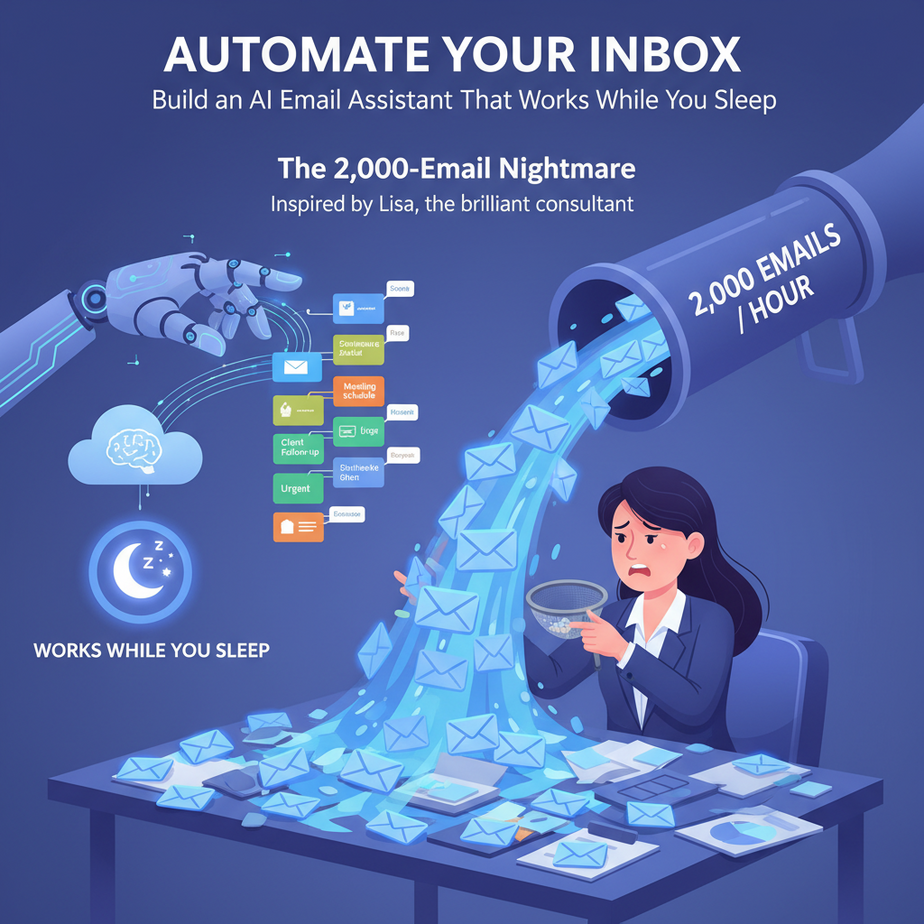
The 2,000-Email Nightmare
I once had a client—a brilliant consultant named Lisa—who told me she spent 10 hours every Friday just sorting her inbox. “It’s like trying to drink from a firehose,” she said, “except the firehose is made of PDF attachments and passive-aggressive meeting invites.”
Her inbox wasn’t a communication tool; it was a digital anxiety chamber. Critical proposals were buried between spam and “FYI” emails. Responses to hot leads were delayed. And every time she tried to batch her work, another 47 emails would cascade in.
We built her an AI email assistant. Within a week, her inbox was silent, her critical emails were highlighted, and her responses were drafted in her voice. She went from spending half her day on email to 15 minutes. That’s not optimization—that’s liberation.
Why This Matters: Your Inbox is a Leaky Bucket
Your inbox is where opportunities go to die. A missed email can be a missed client. A slow reply can be a lost deal. A buried invoice can be a cash-flow headache.
Manual email management is a terrible use of human brainpower. It’s like using a spacesuit to mow the lawn. We have better tools for this. An AI email assistant doesn’t just filter spam—it understands context. It knows that an email from your biggest client is urgent, that a job application is important, and that a newsletter can wait until Saturday.
It replaces the chaos of a junior intern who tries to sort everything by subject line. It gives you superhuman focus by handling the noise so you can handle the signal. This isn’t about reading emails faster; it’s about never having to read unimportant emails again.
What This Automation Actually Is
This is a rules-based AI that lives on your email server. It reads every incoming email, understands its intent, and takes action based on your predefined rules.
What it does:
- **Categorizes** emails: VIP, Project, Newsletter, Spam, Meeting, etc.
- **Drafts responses** using your tone for routine questions.
- **Flags critical emails** (invoices, contracts, client questions) for immediate attention.
- **Files attachments** into cloud folders automatically.
- **Sends alerts** for time-sensitive requests.
What it does NOT do:
- It does NOT send emails autonomously (you can set this to “draft” mode).
- It does NOT replace strategic communication.
- It does NOT have emotional intelligence—it follows rules.
Think of it as a diligent but literal intern who never sleeps. It follows your SOPs perfectly, every single time.
Prerequisites: What You Need (Be Honest)
This isn’t “plug and play,” but it’s close. You need:
- A Gmail account (or Outlook/IMAP—I’ll show Gmail as it’s most common).
- 15 minutes of setup time.
- The willingness to think about what you want your inbox to do.
- A free automation tool account (like Make.com or Zapier—this uses Make.com).
**If you’ve never used an automation tool:** That’s okay. We’ll build one step at a time. Imagine building with Lego blocks instead of writing code. If you’ve ever set up a vacation auto-responder, you’re 80% of the way there.
**If you’re nervous about AI:** Good. Start small. We’ll set this up in “draft” mode first, so you review everything before it goes out. You’re in control.
Step-by-Step Tutorial: Build Your First Email Assistant
Step 1: The Setup (Your Digital Foundation)
First, go to Make.com (formerly Integromat). Sign up for a free account. They give you 1,000 operations per month—plenty for email automation.
Next, connect your Gmail. On the left panel, click the blue “+” button and search for “Gmail.” Follow the prompts to authorize Make.com to access your email. Important: You’re only giving it permission to read and manage your emails—nothing else. This is a standard OAuth connection.
Once connected, you’ll see your Gmail account listed. That’s your communication channel established.
Step 2: The Brain—Creating Your Rules
Think like a programmer for a moment. What rules should your assistant follow? Let’s define a simple, powerful set:
- **VIP Emails:** From your key clients or partners? Flag them.
- **Meeting Requests:** If the subject contains “meeting,” “call,” or “zoom,” label it “Action: Schedule.”
- **Invoices/Receipts:** Look for keywords like “invoice,” “receipt,” or “payment due.”
- **Newsletters:** From known media or mailing lists? Mark as “Read” and archive.
- **Auto-Draft Responses:** For common questions like “What’s your availability?” draft a polite response.
Step 3: The Build—Creating Your First Scenario
A “Scenario” in Make.com is your automation workflow. Click “Create a new scenario.”
Search for “Gmail” and select the trigger: “Watch Mailbox.” This means the scenario will run whenever a new email arrives. Don’t worry—your old emails won’t be processed. Only new ones from now on.
Connect your Gmail account and set the filter to “INBOX.”
Now, add your first rule. Click the “+” button after the Gmail module and search for “Router.” A Router is like a traffic cop—it decides which path the email takes based on your rules.
Click the Router and add a filter. We’ll start with one simple rule. For example, filter emails where the “From” email contains your VIP client’s domain, like “acme.com.”
For that branch, add an action: Gmail → “Apply Label.” Choose a label like “VIP – Critical.”
Add another branch: Filter emails where the subject contains “invoice.” Action: Gmail → “Add Star” and “Apply Label” with “Financial: Invoice.”
Step 4: Adding the AI Brain (Without Writing a Line of Code)
For drafting responses, we’ll use a simple AI text generator. In Make.com, add a module called “Text Parser” or use a scenario that calls a simple AI API. Let’s use a simple example with a generic AI text generator module (available in Make.com).
For the “common questions” branch, we’ll add an AI text module. The prompt is key. Example prompt for a “What’s your availability?” email:
Subject: Inquiry about services
From: potential.client@email.com

I\'m interested in your services. What\'s your availability next week?

Draft a polite, professional response in 2-3 sentences. My name is Lisa. Suggest a 30-minute call. Keep it friendly but concise.
The AI will generate a draft. Then, add a Gmail “Create Draft” action. The email body will be the AI output. You set it to “draft” mode, so it sits in your drafts folder for you to review.
Step 5: Test and Activate
Save your scenario. Turn on the “Scheduling” so it runs automatically. You can test by sending yourself an email that matches your rules. Watch the scenario run in real-time. It’s like watching your intern get to work.
Complete Automation Example: The Freelancer’s Dream
Let’s build a complete, practical workflow for a freelance designer named Alex.
Goal: Never miss a new client inquiry, auto-draft a friendly response, and flag project deadlines.
Step 1: The Trigger
Alex uses Gmail. We set a “Watch Mailbox” module in Make.com on his primary inbox.
Step 2: The Router with 3 Paths
- Path A (New Client): Email subject contains “quote,” “estimate,” “project,” or “question about” his design work.
Action:
– Apply Label: “Lead: New”
– Run a Text Generator AI Module with this prompt:Write a warm, 3-sentence reply thanking them for their interest, asking for project details, and suggesting a 30-minute discovery call. Tone: professional but friendly.
– Create a Gmail Draft from the AI output. Address it back to the sender. - Path B (Project Update): Email is from a client already in the “Active Projects” label, and contains keywords like “feedback,” “revision,” or “please review.”
Action: Apply Label “Action: Review Required.” Add a star. Send a Slack notification (if using) or simply flag it. - Path C (Everything Else): For all other emails, the router sends them to a simple filter. If the sender is a newsletter (e.g., from Mailchimp, Substack), apply Label “Newsletter” and mark as read. Everything else stays in inbox with a label “To Sort.”
Step 3: The Daily Digest (Optional but Powerful)
Set a second, separate scenario to run once per day (e.g., 8 AM). Use a “Search Mail” module to find all emails labeled “Lead: New” or “Action: Review Required” that haven’t been seen. Then, use a Gmail module to “Send Email” to Alex’s phone (via his email-to-SMS) with a list. Subject: “Your Daily AI Summary.” Body: List of emails to focus on.
Result: Alex opens his inbox in the morning, sees a clean list of 3-5 critical emails, and has pre-drafted responses for all new leads. He spent 10 minutes instead of 2 hours.
Real Business Use Cases (Beyond Freelancers)
- Small Law Firm: Categorizes intake forms, flags court deadlines, and auto-responds to “Do you handle [X] case?” with a draft explanation.
- E-commerce Store Owner: Filters “order” emails for immediate processing, flags “refund” requests for urgent review, and archives shipping notifications.
- Real Estate Agent: Identifies new leads (emails from Zillow/MLS), auto-drafts a “Thank you for your inquiry” response, and files property PDFs into a client folder.
- Non-Profit Coordinator: Flags donation receipts, auto-replies to volunteer sign-ups, and separates event RSVPs from general newsletters.
- Consultant: Groups emails by project phase (Discovery, Proposal, Execution), auto-drafts follow-up emails after meetings, and files invoices in a financial folder.
Common Mistakes & Gotchas
- Over-Automation: Don’t auto-send emails. Always start in draft mode. You can switch to auto-send once you trust the rules.
- Keyword Overload: Start with 3-5 simple rules. Adding 20 keywords will make your system brittle and miss nuances.
- Ignoring the “Learning Loop”: Your assistant needs maintenance. Review its decisions weekly. If it mislabels something, tweak the rule.
- Privacy Paranoia: You’re not giving the AI “your password.” You’re using secure OAuth tokens, just like logging in with Google. It’s safer than many desktop apps.
- Scalability Cost: On Make.com’s free plan, 1,000 operations is enough for ~500 emails/month (if you’re smart about rule complexity). Monitor it.
How This Fits Into a Bigger Automation System
This email assistant is a **gateway drug**. It’s the first module in a massive operational pipeline.
Think of it this way:
- It feeds your CRM: That “Lead: New” label can trigger a scenario that creates a contact in your CRM (like HubSpot or Airtable) automatically.
- It connects to your calendar: A flagged “meeting” email can check your Google Calendar availability and suggest slots in the response.
- It’s the input for voice agents: Imagine a voice agent (like those you’ll learn in a future lesson) that reads your daily digest aloud on your commute.
- It’s a data source for RAG (Retrieval-Augmented Generation): Your labeled emails become a training set. Later, you can build a system that answers questions like, “What did the Acme project timeline say?” by searching your own email history.
- It’s the first step in a Multi-Agent Workflow: Your email assistant (Agent 1) identifies a project request and automatically creates a draft proposal. It then hands that draft to another agent (Agent 2) for a quality check, and then to Agent 3 (your accounting tool) to generate an invoice draft.
This isn’t just about emails. It’s about creating a nervous system for your business operations.
What to Learn Next: The Natural Progression
You’ve just built a machine that thinks about your email. That’s no small feat. You’ve learned to design logic flows, use AI for specific tasks, and create a system that saves you time every single day.
Now, where does this go?
The next logical step is to **turn information into action.** In our next lesson, we’ll learn how to connect this email system to a **spreadsheet or database**. We’ll automatically log every lead from your inbox into a tracker, calculate follow-up dates, and build a visual dashboard of your pipeline.
Because an inbox that’s organized is great. But an inbox that automatically builds your business intelligence is a weapon.
Stay tuned. Your automation journey has only just begun.
“,
“seo_tags”: “AI email automation, email management, business automation, workflow automation, AI assistant, Gmail automation, Make.com tutorial, inbox zero, freelancer automation, productivity tools”,
“suggested_category”: “AI Automation Courses





