
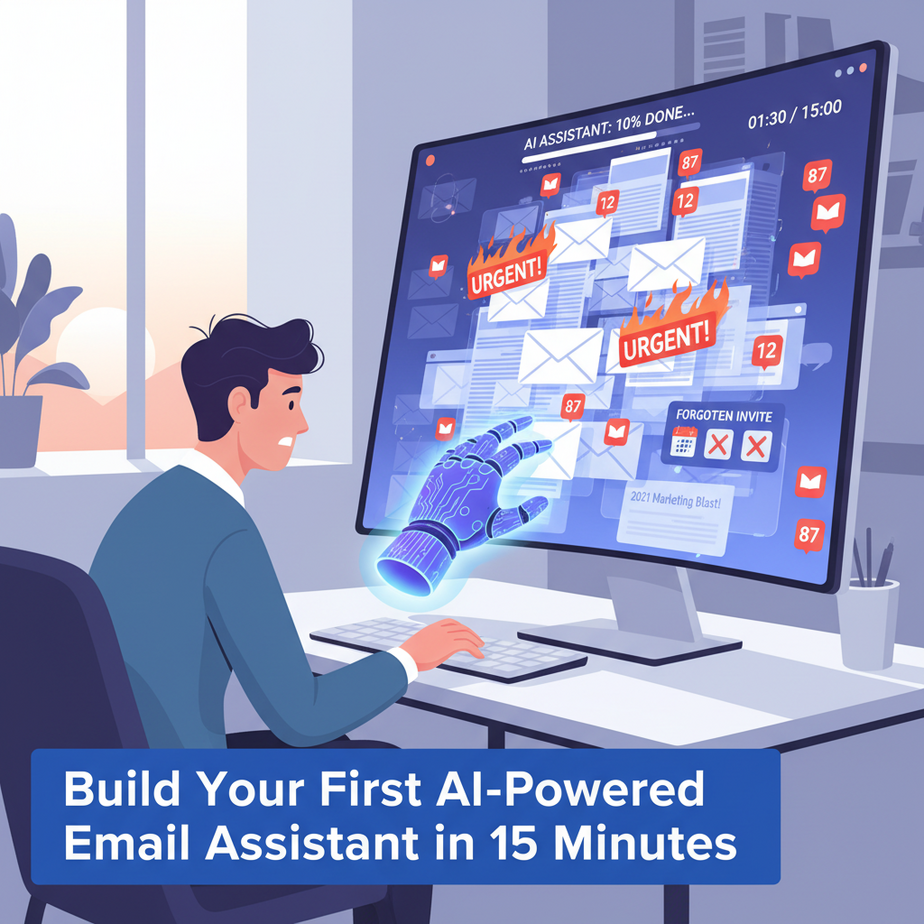
The 87 Unread Emails Problem
You sit down Monday morning. Your inbox is a war zone. 87 unread messages. 12 flagged as “urgent.” A marketing email from 2021. Three calendar invites you forgot. Your brain starts to scramble.
Enter the intern. But your intern is expensive, slow, and burns out. What if you had a tireless, digital intern that reads every email, understands context, and drafts human-quality responses?
That’s what we’re building today. This isn’t magic—it’s automation. And it’s your first real AI agent.
Why This Changes Everything (For Real)
If you’re a founder, a freelancer, or anyone who communicates, email is where your business happens. But manual email management is a tax on your brain. It steals focus, kills momentum, and makes you feel like a glorified secretary.
Here’s the impact of this automation:
Time Saved: The average professional spends 2.6 hours a day on email. Our assistant cuts that to 30 minutes of review. That’s 15+ hours a week back.
Scale: You can now handle 5x the email volume without hiring. This is how small teams punch above their weight.
Mental Sanity: No more “Is this important?” anxiety. The system tells you what matters.
Who does this replace? The part-time virtual assistant who needs training. The intern who misses nuance. The stress of a disorganized inbox.
What We’re Building: The AI Email Triage System
What it IS: An AI agent that connects to your Gmail, reads incoming emails, classifies them (e.g., “Urgent,” “Info,” “Promotion”), and drafts a reply if needed.
What it’s NOT: It’s not a magical black box that sends emails without your oversight. You still review and approve. It’s not a spam filter (though it can help). It’s not a full customer service bot—yet. That’s for a later lesson.
Core Tech Stack: We’ll use n8n (a visual workflow tool), Gmail API, and OpenAI’s GPT-4 (for the brains). Total cost? Pennies per email.
Prerequisites: The Brutally Honest Truth
You need:
1. A Gmail account (any free Gmail works).
2. An n8n cloud account (free tier available at https://n8n.io).
3. An OpenAI API key (you get $5–18 free credit).
4. Zero coding knowledge. This is a click-and-drag interface.
If you’ve never used n8n, that’s fine. It’s like building with digital Lego blocks. We’ll start with one small brick.
Step-by-Step: Build Your Email Triage System
Step 1: Set Up Your Gmail Trigger
1. Log into your n8n workspace.
2. Click “New Workflow.”
3. Search for the Gmail node. Add it.
4. Select “On New Email” as the trigger.
5. Connect your Gmail account. You’ll be asked to authorize n8n.
6. Set the “Label” to “Inbox” (so it only watches new messages).
7. Test it: Send yourself an email. You should see the data in n8n.
Why this step? Without a trigger, there’s no workflow. This is the start of your automation factory.
Step 2: Send the Email to GPT for Classification
1. Add an OpenAI node after the Gmail trigger.
2. Select “Message” as the operation.
3. In the “System Prompt,” paste:
You are a professional email assistant. Read the email and classify it as ONE of: "Urgent", "Info", "Promotion", or "Other". Respond ONLY with the classification.4. In the “Message” field, add the email content from the previous node. Use this JSON path: {{$json.bodyText}}
5. Set model to gpt-3.5-turbo (cheaper and fast).
Test it. The AI should reply with just a word: “Urgent,” “Info,” etc.
Why? This is where the “intelligence” happens. The AI is now making judgment calls.
Step 3: Route Based on Classification
1. Add an IF node after the OpenAI node.
2. In “Conditions,” create one branch: “If value contains ‘Urgent’.”
3. For the “Else” branch, add another condition: “If value contains ‘Info’.”
4. Add an extra branch for “Promotion” and “Other.”
Why? This creates your sorting logic. Now the system behaves differently for different types.
Step 4: Draft a Reply for Info Emails
1. In the “Info” branch, add another OpenAI node.
2. Use this prompt:
You are drafting a polite, professional reply to an email. Keep it under 3 sentences. Ask if they need anything else. Do not commit to anything specific.3. Pass the original email content to this prompt.
4. Add a Gmail node to “Create Draft” and map the AI’s response to the email body.
5. For “Urgent” emails, use a Google Sheets node to log the email address and subject (for follow-up).
Why? You’re now creating a draft without writing a word. This is where you save 10 minutes per email.
Step 5: Add a Final Review Step
1. Add a Webhook node at the end.
2. Configure it to send a summary to a Slack channel or your phone via SMS (using Twilio).
3. Include: “Email from [Sender]. Classification: [Urgent]. Draft link: [Gmail draft link].”
Why? You should NEVER let AI send emails unsupervised. This gives you a dashboard view.
Publish your workflow. That’s it. You’ve built an AI email assistant.
Complete Automation Example: The Freelancer’s Life
Scenario: Sarah, a freelance designer, gets 50+ emails daily—client requests, invoices, newsletters, and strangers pitching services.
Her Old Workflow: Open Gmail, read, categorize, draft, send, forget, panic.
New Workflow with Our Assistant:
- 9:00 AM: 12 new emails hit. The AI instantly labels 2 as “Urgent” (client checking on deliverables), 5 as “Info” (invoices, questions), 5 as “Promotion.”
- Action: The “Urgent” emails are logged to a priority sheet and ping her Slack. The “Info” emails get draft replies queued in her Gmail. The “Promotion” emails are archived.
- 9:15 AM: Sarah reviews only the urgent alerts and approves the draft replies with one click.
- Result: Instead of 90 minutes of email chaos, she spends 15 minutes on triage. The rest of her day is spent on actual client work.
Her business grows because she’s not drowning. This is automation as leverage.
5 Real Business Use Cases (You Can Use These Tomorrow)
1. The Real Estate Agent
Problem: Flooded with leads from Zillow, Redfin, and direct inquiries. Misses hot leads in the noise.
Solution: Classify emails as “Hot Lead” (budget, timeline mentioned) vs. “Info Seeker.” Auto-draft a response with a calendar link for hot leads.
2. The E-commerce Store Owner
Problem: Order questions, returns, and spam all look the same.
Solution: Label “Order Issue,” “Return Request,” “Spam.” Auto-draft return instructions or shipping updates.
3. The Solo Attorney
Problem: Client emails must be handled carefully but quickly.
Solution: Flag emails with words like “urgent,” “deadline,” or “counsel” for immediate attention. Draft a “We received your message” reply to all others.
4. The Marketing Agency
Problem: New client pitches get buried under daily ops.
Solution: Scan subject lines for “proposal,” “RFQ,” “services.” Auto-forward these to the account director and draft a “Thanks for your interest” email.
5. The Student (Yes, Seriously)
Problem: Class announcements, group project emails, and professor deadlines mixed with university spam.
Solution: Label by class. Auto-draft “Noted” replies. Flag deadline emails to a to-do list.
Common Mistakes & Gotchas
1. Over-Automation: Don’t let AI send emails without review. You’ll break relationships. Always draft, never send.
2. Ignoring Edge Cases: Emails in other languages? Humor? Sarcasm? The AI will misclassify. Start with English-only and expand later.
3. Cost Creep: OpenAI charges per token. One long email can cost $0.05. Use gpt-3.5-turbo for classification, not gpt-4.
4. Not Labeling Clearly: Your classification prompt is everything. If you’re too vague, you get garbage. Test with 50 real emails first.
5. Forgetting the Human: This is a tool, not a replacement. You still need to read, think, and connect.
How This Fits Into Your Bigger Automation System
This email triage system is the entry point of your AI business infrastructure. Here’s the bigger picture:
Next Steps (Where This Leads):
- CRM Connection: If an email is from a known lead, log it automatically in HubSpot or Airtable.
- Voice Agent: Turn urgent emails into a phone call from your AI voice agent.
- Multi-Agent System: One agent reads, another drafts, a third schedules a meeting.
- RAG (Retrieval-Augmented Generation): Connect your email database to answer “What did I say to Client X last month?” using only your past emails.
Think of today’s lesson as building the mailroom for your AI office. Tomorrow, we’ll build the receptionist (voice) and the archivist (RAG).
What to Learn Next
You’ve built an intelligent filtering system. Now, let’s make it act on that intelligence.
In our next lesson, we’ll connect this email triage to your calendar. The AI will automatically schedule meetings based on email requests, check your availability, and send calendar links—all without you touching a calendar app.
You’re not just automating email. You’re automating decision-making. And that’s where real power lives.
Go deploy your assistant. I’ll be here when you’re ready to level up.
“,
“seo_tags”: “AI email automation, Gmail assistant, n8n workflow, OpenAI API, automate email sorting, AI for business, workflow automation”,
“suggested_category”: “AI Automation Courses





