
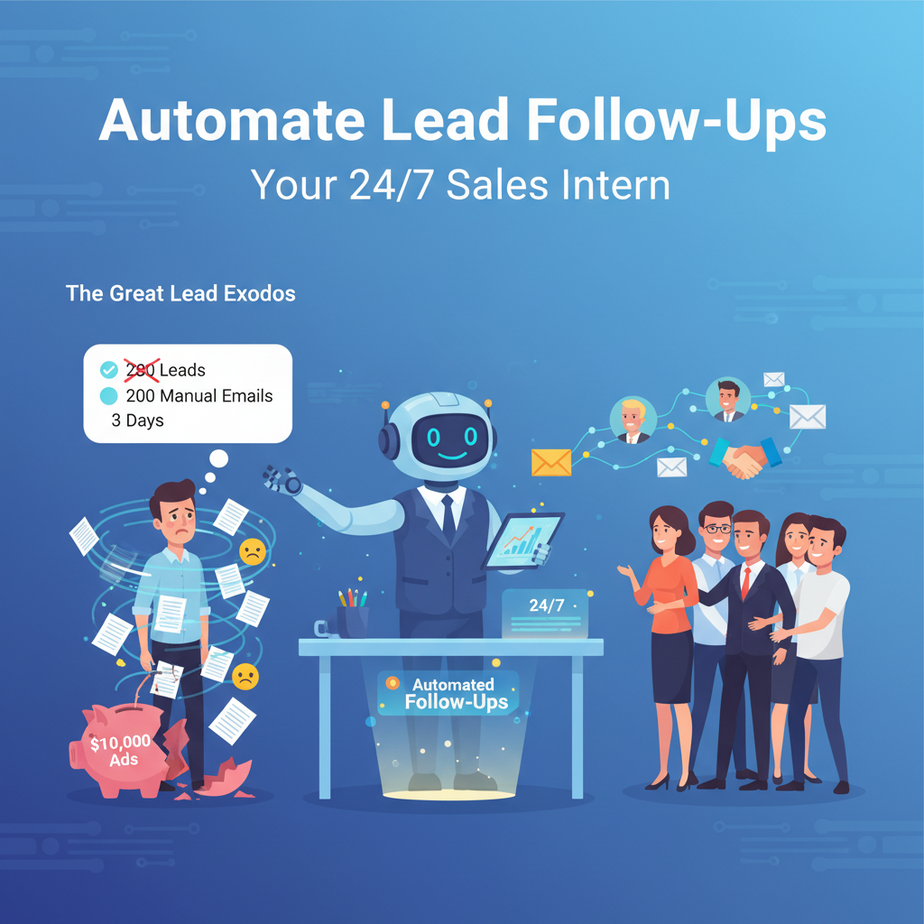
Hook: The Great Lead Exodus
Let me tell you a story. Meet Alex, a founder who just launched a B2B SaaS tool. He spent $10,000 on ads. He got 200 leads. He sent 200 manual emails over three days. By day four, he was exhausted, his fingers ached, and his inbox was a ghost town. Only 12 people replied. The rest? They vanished into the digital ether.
Alex didn’t fail because his product was bad. He failed because he treated his leads like a to-do list, not a garden. You need to water them, nurture them, and do it consistently. Doing that manually is a recipe for burnout and lost revenue.
Today, we fix that.
Why This Matters
Automated lead follow-up is the difference between a chaotic sales process and a predictable revenue engine.
- Time & Sanity: Replaces the soul-crushing grind of sending the same email 200 times. You get back 10-15 hours a week.
- Scale: You can follow up with 2,000 leads as easily as 20. Your capacity is no longer limited by your personal energy.
- Consistency: Human sales reps forget. They procrastinate. An automated system is a relentless, polite robot that never misses a follow-up.
We’re building an intern who finds prospects, crafts a custom message, and sends it on a schedule. This isn’t a blasting tool; it’s a precision instrument.
What This Tool / Workflow Actually Is
Our system is a simple, three-part pipeline:
- The Lead Finder: It scans a source (like a spreadsheet, a database, or a public directory) for potential prospects.
- The Personalization Engine: It uses a basic AI model to craft a unique first-line for each lead, referencing their company or role.
- The Sender: It logs into your email (like Gmail via an App Password) and sends the message at a set time.
What it DOES NOT do: It doesn’t spam. It doesn’t scrape data from protected websites. It doesn’t replace your first meeting. It handles the first, repetitive touchpoint.
Prerequisites
Honest Check: This requires no coding, but it does require a willingness to follow steps. You need:
- A Google account (for Gmail).
- A simple list of leads (a spreadsheet with names, companies, and emails is perfect).
- An account on a tool like Zapier, Make, or n8n. We’ll use a conceptual example that works across them.
Feeling nervous? Don’t be. You’re about to give your busy brain a raise. Let’s build the machine.
Step-by-Step Tutorial: Building the Automated Follow-Up System
We’ll build this in a visual automation platform (like Zapier/Make). The logic is universal.
Step 1: The Setup (The Intern’s Desk)
1. Create a new automation (called a ‘Zap’ or ‘Scenario’).
2. Set the trigger: This starts the automation. Choose “Schedule” to run daily at 10 AM. This ensures consistent execution.
Step 2: The Lead Source (The Prospect List)
1. Add an action: “Find Rows in Google Sheets.”
2. Connect your Google account and point it to a spreadsheet named “New Leads.”
3. The sheet should have columns: Name, Company, Role, Email, Sent.
4. Set a filter: Find rows where the Sent column is “No.”
# Sample Spreadsheet Data
Name        | Company     | Role        | Email                | Sent
Jane Doe    | Acme Corp   | Marketing   | jane@acme.com        | No
John Smith  | Beta Inc    | Sales Lead  | john@beta.io         | No
Sam Lee     | Gamma Co    | Founder     | sam@gamma.io         | Yes
Step 3: The Personalization Engine (Crafting the Message)
1. Add a new action: “Text Formatter.” We’ll do simple personalization without AI first, for simplicity. Use a formula to insert variables.
2. For the email body, use dynamic data from the sheet:
Subject: Question about {{Company}}

Hi {{Name}},

I saw that {{Company}} is doing great work in the {{Role}} space. My name is [Your Name], and I help companies like yours achieve [Benefit].

Would you be open to a quick 15-minute chat next week?

Best,
[Your Name]
Pro Tip: Later, you can integrate an AI API (like OpenAI) to generate a custom first line referencing a recent news article about their company.
Step 4: The Sender (The Delivery)
1. Add a Gmail action: “Send Email.”
2. Connect your Gmail account. Important: Use an “App Password” for security. Do not use your main password directly in the tool.
3. Populate the fields:
– To: {{Email}} (from the spreadsheet row)
– Subject: Question about {{Company}}
– Body: {{The email text from Step 3}}
4. Add a final action: “Update Spreadsheet Row.” Change the Sent column for this row to “Yes.”
Step 5: Test & Activate
1. Run a test. Pick one lead row and run the automation manually. Check your Gmail “Sent” folder.
2. If it works, turn the automation ON. Your new intern has started work.
Complete Automation Example: The Agency Lead Nurturer
Let’s walk through a realistic scenario. You run a design agency. You collected 50 emails from a webinar.
Day 1 (9:00 AM): The automation runs. It picks 10 leads from your “Webinar Leads” sheet where `Sent = “No”`. It personalizes the message for each, referencing their company’s website color palette (you pre-loaded a column with notes). It sends the email.
Day 2 (9:00 AM): It picks the next 10 leads. The first 10 are already marked “Sent.” The system is now spacing out your outreach.
Day 5: A lead replies. You handle it personally. The automation has done the hard work of sowing the seeds. You’re now farming conversations.
This isn’t magic. It’s scheduled, consistent, and personalized work.
Real Business Use Cases
- Freelancer (Web Developer): Uses LinkedIn export to find local businesses. Automates a follow-up email offering a free website audit.
- B2B Startup Founder: Uses an industry directory to find potential partners. Automates the first intro email, saving 5 hours per week.
- E-commerce Store Owner: Syncs with abandoned cart data. Sends a personalized “Did you forget something?” email 1 hour after abandonment.
- Consultant: After a conference, adds 100 new contacts to a sheet. The automation sends a thank-you and a resource over two weeks, nurturing the lead.
- Real Estate Agent: Uses a list of expired listings. Automates a gentle, informational email about their marketing plan.
Common Mistakes & Gotchas
- Personalization Flaws: Using `{{First_Name}}` without a fallback can lead to “Hi ,”. Always have a default like “Hi there,” if the data is missing.
- Spam Filters: Sending too fast is a red flag. Use a delay action (“Wait 2 minutes”) between emails within the same batch.
- Forgetting to Update Status: If your automation fails to mark a lead as “Sent,” you’ll spam the same person. Test your update action thoroughly.
- Over-Automation: Don’t automate the *entire* sales process. The goal is to get a reply, so switch to a human for the conversation.
How This Fits Into a Bigger Automation System
This single automation is a powerful module in a larger revenue engine.
- CRM Integration: Instead of a Google Sheet, connect directly to your CRM (HubSpot, Salesforce). The lead source could be a form submission on your website.
- Multi-Agent Workflow: This email system is the “Greeter.” Once a lead replies, a different automation can notify you via Slack and log the conversation in your CRM.
- Voice Agent Future: Imagine this: a lead books a meeting via your Calendly link (from the email). A voice agent can now make a pre-meeting call to confirm, saving you another 10 minutes.
- RAG System Connection: For a more advanced version, the personalization engine could pull in the latest news about the lead’s company from a vector database (like Pinecone), creating hyper-relevant messages.
What to Learn Next
You’ve just built the first robotic arm on your sales assembly line. The foundation is set. Next, we’re going to teach this intern to think smarter and act faster.
In the next lesson, we’ll introduce AI-Powered Lead Scoring. Your automation will not just follow up; it will *prioritize*. It will analyze lead data and focus your attention on the 20% of leads that are 80% likely to convert.
You’re not just building an automated system; you’re building an intelligent revenue partner. The course continues. Your turn to build.
“,
“seo_tags”: “AI automation, lead follow-up, sales automation, business productivity, no-code tools, Zapier workflow, email automation, small business tools”,
“suggested_category”: “AI Automation Courses





