
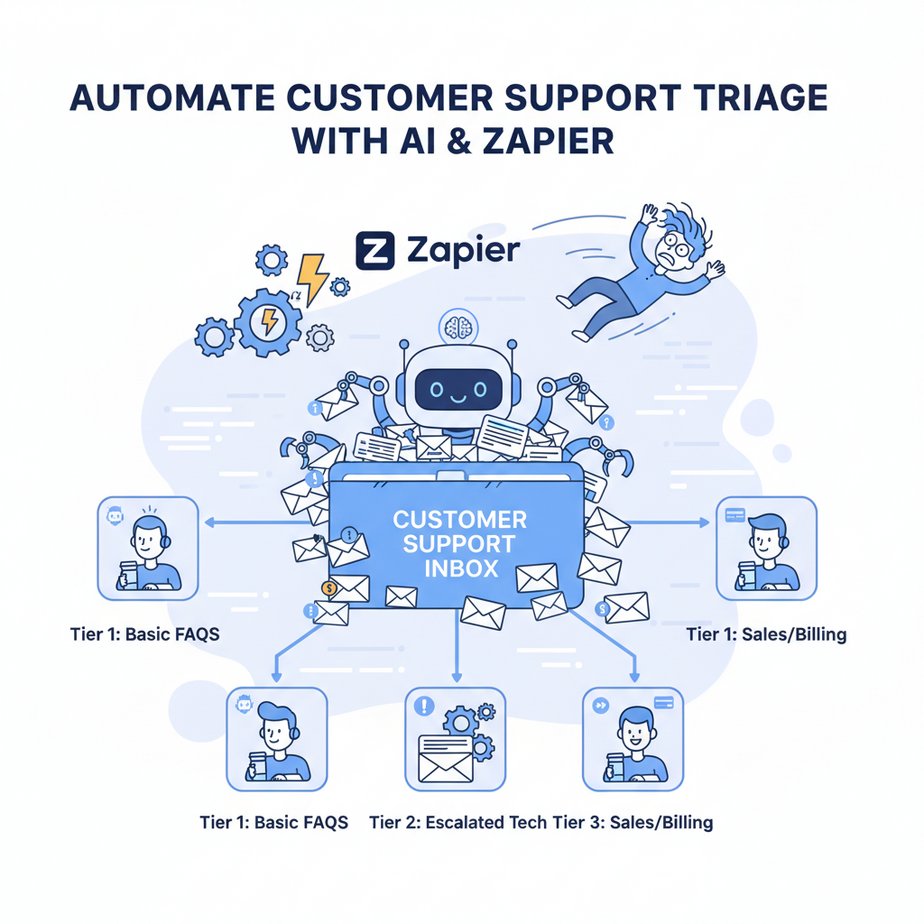
The Case of the Overwhelmed Intern and the Exploding Inbox
Picture this: It’s Monday morning. Your support inbox looks like a digital landfill, overflowing with requests ranging from “MY ACCOUNT IS ON FIRE!” to “Just wanted to say hi.” And there’s Kevin, your new intern, whose primary job function seems to be staring blankly at the screen, occasionally forwarding an email to “whoever deals with that.” Kevin means well, bless his heart, but he’s slow, he misses urgent stuff, and frankly, he’s probably spent the last hour perfecting his paper airplane technique.
Sound familiar? That mountain of unsorted customer inquiries isn’t just an intern’s headache; it’s a customer experience nightmare. Slow response times lead to frustrated customers, missed opportunities, and eventually, a hit to your bottom line. What if you could clone Kevin, but make him 1000x faster, perfectly accurate, and incapable of getting distracted by cat videos?
Why Having an AI Triage Your Inbox Matters More Than Kevin’s Paper Planes
This isn’t just about saving Kevin from carpal tunnel. This is about transforming your entire customer support operation from a reactive, chaotic mess into a proactive, efficient machine. By automating customer support triage with AI, you’re not just sorting emails; you’re:
- Slashing Response Times: Urgent issues hit the right desk (or Slack channel) instantly. No more waiting for Kevin to finish his coffee.
- Boosting Customer Satisfaction: Customers get to the right person faster, leading to quicker resolutions and happier interactions.
- Reducing Staff Burnout: Your human support team can focus on solving complex problems, not playing digital postman.
- Saving Money: Less time spent on manual sorting means more efficient use of your team’s valuable hours. Or, you know, no more paying Kevin.
- Scaling Effortlessly: Whether you get 10 emails or 10,000, your AI intern doesn’t complain about overtime.
This workflow replaces the tedious, error-prone manual process of reading, categorizing, and forwarding every single incoming customer request. It’s like having a hyper-efficient, perpetually caffeinated robot working for you 24/7, making sure nothing slips through the cracks.
So, What Exactly IS This “AI Triage” Thing?
At its core, this workflow uses two powerful tools working in tandem:
- AI (Specifically, a Large Language Model like OpenAI’s GPT): Think of this as the super-smart brain that can read, understand, and interpret the content of your customer emails. It’s not replacing your human support team; it’s acting as the ultimate digital gatekeeper, figuring out what each email is REALLY about.
- Zapier: This is our digital factory floor, the magical glue that connects different apps and automates workflows. Zapier will be the traffic cop, taking the email, sending it to the AI brain, getting the classification back, and then routing it to the correct department or person.
What it does: It reads incoming customer support messages, identifies their core intent (e.g., “billing issue,” “technical bug,” “feature request,” “urgent complaint”), and then automatically routes them to the appropriate team or system.
What it does NOT do: It does NOT write entire customer responses (yet – that’s another lesson!), it doesn’t solve the problem, and it doesn’t replace the need for human empathy and problem-solving skills. It just makes sure the right problem lands on the right desk, faster.
Prerequisites: What You’ll Need to Get Started (Don’t Panic!)
Relax, this isn’t rocket science, nor does it require you to dust off your old C++ textbooks. We’re talking about basic accounts and a willingness to click a few buttons.
- A Zapier Account: You can start with a free trial, but for anything beyond basic testing, you’ll likely want a paid plan as these automations can run frequently.
- An OpenAI Account with API Access: This is where our AI brain lives. You’ll need to generate an API key. OpenAI offers free credits to start, and then it’s usage-based, usually very affordable for text classification.
- An Email Inbox: Where your customer support requests currently land (e.g., Gmail, Outlook, or a custom domain email).
- A Destination for Triaged Requests: This could be a specific Slack channel, another email address, a dedicated column in a project management tool (like Trello or Asana), or even a CRM system. For this tutorial, we’ll keep it simple and use Slack and a specific email address.
No coding required. Seriously. If you can copy-paste and follow instructions, you’re golden.
Step-by-Step Tutorial: Building Your AI Customer Support Intern
Let’s build this beast. We’re going to create a “Zap” in Zapier that listens for new emails, sends the content to OpenAI for classification, and then routes it accordingly.
Step 1: Set Up Your Zapier Trigger (New Email)
- Log in to Zapier and click "Create Zap."
- Choose App & Event: Search for “Email by Zapier” or your specific email app (e.g., “Gmail”). We’ll use Gmail for this example.
- Trigger Event: Select “New Email.”
- Connect your Gmail Account: Follow the prompts to connect your Gmail account.
- Set Up Trigger: Specify which inbox or folder to monitor (e.g., your support inbox).
- Test Trigger: Send a test email to your support inbox and then click “Test trigger.” Zapier should find your test email. This confirms the connection.
Step 2: Send Email Content to OpenAI for Classification
- Add an Action: Click the "+" to add a new action step.
- Choose App & Event: Search for “OpenAI.”
- Action Event: Select “Conversation” or “Send Prompt” (depending on the exact OpenAI integration version, “Conversation” usually offers more flexibility).
- Connect your OpenAI Account: You’ll need your API key from OpenAI (found in your OpenAI dashboard). Paste it when prompted.
- Set Up Action: This is where the magic happens – we craft the prompt for our AI intern.
Role: You are a highly efficient customer support triage AI for a technology company. Your task is to categorize incoming customer emails precisely into one of the following categories: 'Billing Issue', 'Technical Support', 'Product Feature Request', 'General Inquiry', 'Urgent Bug Report'.

Instructions:
- Read the customer email carefully.
- Select ONLY one of the provided categories that best fits the email's intent.
- If the email seems critical or indicates a system outage, use 'Urgent Bug Report'.
- Do NOT output any additional text, explanations, or conversational phrases. ONLY the category name.

Customer Email:
{{2__Body_Plain}}

Category:
Explanation of the prompt:
Role:Gives the AI context and persona.Instructions:Guides the AI on how to behave and what to output. This is crucial for consistent results.Customer Email:We map the “Body Plain” field from our Gmail trigger (it might be{{2.payload.body.plain}}or similar depending on your trigger, Zapier will show you the exact field). This inserts the actual email content.Category:This is a little trick to “prime” the AI to output just the category name.
- Test Action: Click “Test step.” OpenAI should process your test email and return one of your specified categories.
Step 3: Route Based on AI Classification Using “Paths”
Now that our AI has classified the email, we need Zapier to act on it. We’ll use Zapier’s “Paths” feature, which lets you create different workflows based on conditions.
- Add a New Step: Click the "+" and search for “Paths by Zapier.”
- Choose your first Path: Let’s call this “Path A: Billing Issue.”
- Set Up Rules for Path A: We want this path to execute ONLY if the AI classified the email as “Billing Issue.”
(Text) "choices__0__message__content" (from OpenAI step) (Exactly matches) "Billing Issue"Important: The field name from OpenAI (e.g., choices__0__message__content) might vary slightly based on the model and Zapier integration version. Zapier’s field selector will show you the correct one from your test step.
- Add Actions to Path A (e.g., Send to Slack Channel):
- Click the "+" inside Path A.
- Choose “Slack” as the app.
- Action Event: “Send Channel Message.”
- Connect your Slack account.
- Set up message: Select your “#billing” channel. For the message text, you can combine elements from the original email and the AI’s classification:
NEW BILLING ISSUE DETECTED!

Category: {{OpenAI Output}}

From: {{Original Email From Address}}
Subject: {{Original Email Subject}}
Body: {{Original Email Body Plain}}

Link to original email: {{Original Email Permalink}}
(Again, use Zapier’s field picker to get the exact variable names.)
- Repeat for other Categories: Go back to your main Zap, add another Path for “Technical Support,” “Product Feature Request,” etc., with corresponding rules and actions (e.g., sending to #tech-support Slack channel, forwarding to a specific email, or creating a ticket in a CRM).
- Add a “Catch-All” Path (Optional but Recommended): Create a final path for “General Inquiry” or “Unclassified.” This ensures no email gets lost if the AI returns something unexpected. You might route these to a “#general-support” channel for manual review.
- Turn on your Zap! Once all paths and actions are configured, hit that “Publish” button.
Complete Automation Example: The “TechGadget Co.” Support System
Let’s walk through a full scenario for a fictional online store, “TechGadget Co.,” selling smart home devices.
Goal: Automate incoming customer emails to specific teams (Billing, Tech, Product) and flag urgent issues.
- Incoming Email: A customer sends an email to
support@techgadgetco.comwith the subject “My new smart bulb isn’t connecting!” and a body describing the troubleshooting steps they’ve tried. - Zapier Trigger (Gmail): Zapier detects this new email in the
support@techgadgetco.cominbox. - OpenAI Action: The email body is sent to OpenAI with our prompt. OpenAI analyzes it and returns:
Technical Support. - Zapier Paths:
- Path A (Billing) is skipped.
- Path B (Technical Support) is triggered because the AI output matches.
- Path B Actions:
- Slack Message: A message is immediately posted to the
#tech-support-alertsSlack channel: - Email Forward: The original email is also forwarded to
techteam@techgadgetco.com. - CRM Ticket (Optional): A new ticket is automatically created in TechGadget Co.’s CRM (e.g., HubSpot, Zendesk) with the category “Technical Support” and all relevant email details.
- Outcome: Within seconds of the email arriving, the technical support team is notified via Slack and email, and a formal ticket is logged, all without a human lifting a finger (or making a paper airplane).
NEW TECH SUPPORT ISSUE!
Category: Technical Support
From: customer@example.com
Subject: My new smart bulb isn't connecting!
Body: (full email body here)
Link to original email: (Gmail link)Real Business Use Cases for AI Support Triage
This exact automation pattern is incredibly versatile. Here are 5 examples:
-
E-commerce Store (like TechGadget Co.)
Problem: Customers email about orders, returns, product questions, or payment issues. Manual sorting leads to delays and frustrated buyers.
Solution: AI classifies into “Order Status,” “Return Request,” “Product Inquiry,” “Billing.” Routes to shipping team, customer service, product specialists, or finance, ensuring correct handling.
-
SaaS Company (Software as a Service)
Problem: Users report bugs, ask for new features, need help with onboarding, or have account questions. Jumbling these leads to slow bug fixes and missed feature opportunities.
Solution: AI classifies into “Bug Report,” “Feature Request,” “Onboarding Help,” “Account Management.” Routes to engineering, product management, customer success, or sales teams respectively.
-
Consulting or Agency Firm
Problem: Inquiries range from new business proposals, existing client updates, general questions, or invoicing. These need to go to different departments.
Solution: AI classifies into “New Business Lead,” “Client Project Update,” “General Inquiry,” “Invoice Query.” Routes new leads to sales, updates to project managers, and billing queries to accounting.
-
Real Estate Agency
Problem: Potential buyers or tenants email about property showings, maintenance requests for existing properties, or general agent inquiries. Timely responses are key.
Solution: AI classifies into “Showing Request,” “Maintenance Issue,” “Agent Inquiry,” “Property Information.” Routes showing requests to agents, maintenance to property management, and general questions to administrative staff.
-
Healthcare Provider (e.g., Dental Office)
Problem: Patients email about appointment scheduling, insurance questions, medical records requests, or urgent issues. HIPAA compliance and speed are critical.
Solution: AI classifies into “Appointment Request,” “Insurance Query,” “Medical Records,” “Urgent Medical Question.” Routes to reception for scheduling, billing for insurance, admin for records, and flagged urgent emails to on-call nurses/doctors.
Common Mistakes & Gotchas (Don’t Be “That Guy”)
Building automations is fun, but like any powerful tool, there are ways to mess it up. Avoid these pitfalls:
- Vague AI Prompts: If your prompt isn’t crystal clear about categories and output format, the AI will get confused. “Categorize this” is bad. “Output ONLY one of these exact terms: ‘Billing Issue’, ‘Technical Support’” is good.
- Overlapping Categories: If “Billing Issue” and “Payment Problem” are both options, the AI might flip a coin. Keep your categories distinct.
- No “Catch-All” Path: What happens if the AI returns something completely unexpected? Always have a default path (e.g., “General Inquiry” or “Review Manually”) to prevent emails from disappearing into the void.
- Insufficient Testing: Don’t just test one email! Send emails covering all your categories, including ambiguous ones, to ensure your paths work as expected.
- Ignoring Rate Limits: OpenAI and Zapier have usage limits. If you process thousands of emails per hour, check your plan and potential costs.
- Sensitive Data Concerns: While generally secure, consider the sensitivity of the data you’re sending to third-party services like OpenAI. For highly regulated industries, consult legal counsel.
How This Fits Into a Bigger Automation System (The Grand Plan)
This AI-powered triage system is just the first domino in a much larger automation factory. Think of it as the highly trained foreman, directing traffic. Here’s how it connects to the bigger picture:
- CRM Integration: Instead of just sending to Slack, your “Technical Support” path could automatically create a new ticket in Zendesk or Intercom, linking it to the customer’s existing record.
- Automated Responses: Once an email is triaged, the next step could be to have another AI agent *draft* a personalized initial response based on the category and common FAQs. (Hint: That’s a future lesson!)
- RAG (Retrieval Augmented Generation): If the AI classifies an email as “Product Question,” a follow-up action could be to retrieve relevant product documentation from your knowledge base and include it in an automated response draft.
- Sentiment Analysis: Before routing, the AI could also analyze the sentiment (positive, negative, urgent) and prioritize emails that are highly negative or critical, regardless of category.
- Multi-Agent Workflows: This triage agent could hand off the email to a “billing agent” AI to check a customer’s subscription status, or a “tech agent” AI to look up common troubleshooting steps.
- Voice & Chatbots: The exact same AI classification logic can be applied to transcribed voice calls or live chat conversations, ensuring consistent triage across all channels.
Your AI triage system acts as the central nervous system, ensuring information flows correctly before more complex, specialized AI agents or human teams take over.
What to Learn Next: From Sorting to Solving
Congratulations! You’ve successfully deployed your first AI intern, and your support inbox is now a beacon of order. No more bewildered Kevins, no more exploding inboxes.
But sorting is just the beginning, isn’t it? What if, after identifying a “Technical Support” email, your system could then automatically *suggest* the right answer based on your knowledge base? Or even *draft* that answer? What if it could not only sort but also *resolve* simple issues without human intervention?
In our next lesson, we’re going to dive into the powerful world of AI-Powered Knowledge Retrieval and Smart Reply Generation. We’ll teach your AI to not just identify the problem, but to start finding the solutions. Get ready to turn your AI intern into a junior support agent!





