
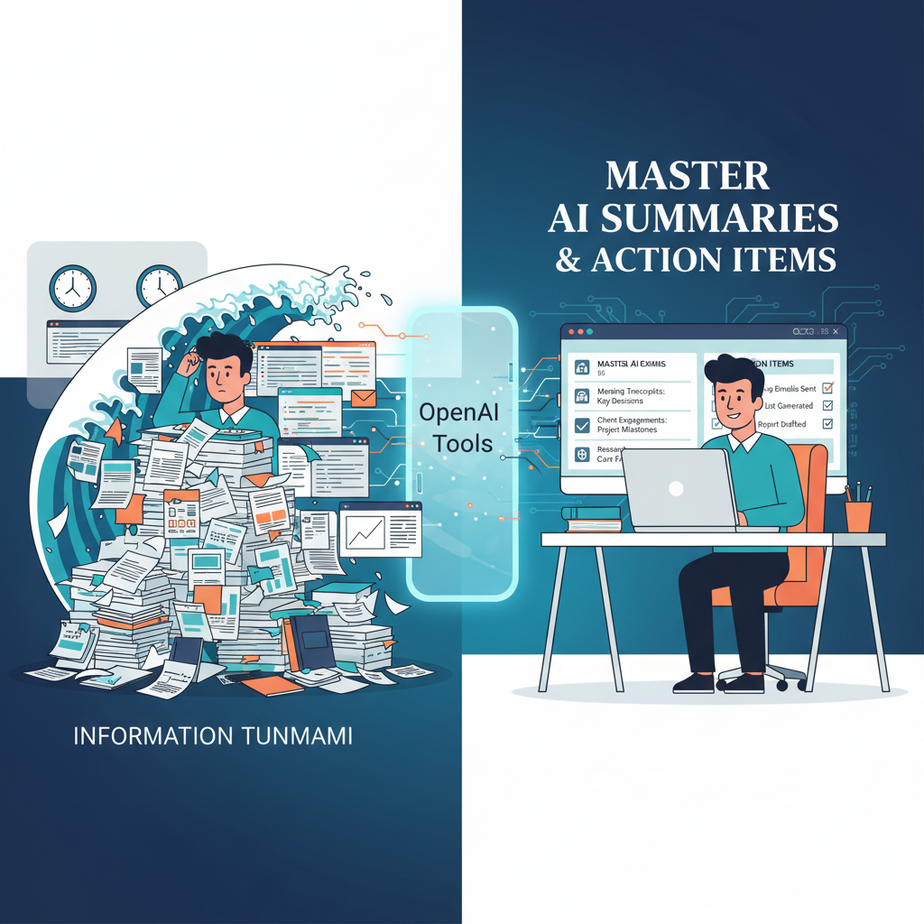
The Information Tsunami and Your Overwhelmed Intern
Picture this: It’s 4:30 PM on a Friday. Your desk looks like a paper recycling plant exploded. You’ve got meeting transcripts, client emails, competitor reports, and internal memos piled high. Each one, a tiny time bomb ticking down until Monday morning, demanding to be read, understood, and acted upon.
You probably think, “I need a team of highly-caffeinated interns to sift through this mountain of text and tell me what actually matters.” You’d pay good money for someone to just cut through the noise, give you the TL;DR, and hand you a bulleted list of things you actually need to DO.
Well, good news. Your new intern just arrived. It doesn’t drink coffee, never complains about overtime, and processes information at the speed of light. Its name? OpenAI’s Function Calling (now simply called ‘Tools’). And today, we’re going to put it to work.
Why This Matters: Your Business Needs a Robot Brain for Information
Let’s be brutally honest: most of us are terrible at extracting critical information quickly and consistently from long-form content. We skim, we miss details, we get distracted. This isn’t just a personal failing; it’s a massive drain on business resources.
Imagine:
- Saving countless hours: Instead of reading every word of a 50-page report, get the executive summary and key action items in seconds.
- Better decision-making: With structured, concise information, you make faster, more informed choices, reducing analysis paralysis.
- Scaling your operations: What if you could process hundreds of customer feedback emails or meeting transcripts per day, extracting trends and tasks, without hiring a single person?
- Eliminating costly errors: Reduce the chance of missing a crucial deadline or client request buried deep in a long email thread.
This isn’t about replacing human intelligence; it’s about offloading the grunt work. It’s about giving your most expensive resource (your brain, your employees’ brains) the superpower to focus on strategy, creativity, and actual problem-solving, rather than acting as glorified text parsers. Think of it as installing a high-speed data extraction and summary module directly into your business’s operating system.
What This Tool / Workflow Actually Is: Giving AI a Schema for Action
Alright, let’s cut through the jargon. OpenAI’s ‘Function Calling’ (or ‘Tools’ as they’re now called) isn’t some magical, sentient AI. It’s a sophisticated way to tell the AI, “Hey, if you see information that fits this specific structure, I want you to give it back to me in that structure, like you’re preparing to call a function.”
Here’s what it actually does:
- Structured Output: Instead of just getting a free-form summary (which can still be useful), you get a JSON object with clearly defined fields like
summary,action_items(as a list),sentiment, etc. - Intent Recognition: The AI tries to understand if the user’s request (or the content’s implications) aligns with one of the ‘tools’ you’ve defined.
- Parameter Extraction: If it decides a tool is relevant, it extracts the necessary information from the input text to fill the parameters of that tool.
What it does NOT do:
- Invent information: If the information isn’t in the text you provide, the AI won’t hallucinate it. It can only work with what’s given.
- Understand context beyond the prompt: It’s not browsing the internet or reading your mind. It’s a powerful pattern matcher trained on vast amounts of text.
- Execute code directly: The AI only *suggests* a function call with arguments. You, the developer, are responsible for actually receiving that suggestion and acting on it. This is a crucial safety mechanism.
Think of it like training a very smart, very fast intern to fill out a specific form for you every time they read a document. You give them the blank form (the tool definition), and they read the document, fill in the blanks, and hand it back to you. You then decide what to do with the filled form.
Prerequisites: Your Toolkit for This Automation
Before we dive in, you’ll need a couple of things. Nothing scary, I promise. This isn’t brain surgery, it’s just telling a fancy calculator what to do.
- An OpenAI API Key: You can get one from platform.openai.com/api-keys. Make sure you have some credits!
- Python 3.7+: Our examples will be in Python because it’s super versatile and widely used. If you don’t have it, a quick Google search for ‘install python’ will get you set up in minutes.
- The OpenAI Python Library: Install it with
pip. - A Text Editor: VS Code, Sublime Text, even Notepad (if you’re feeling retro).
That’s it! Even if you’ve never touched Python before, you’ll be able to copy-paste the code, understand the logic, and make it work. Consider this your baptism by AI fire.
Step-by-Step Tutorial: Defining Your Robot’s Job Description
Let’s get our hands dirty. The core idea is to define a ‘tool’ (a function) that describes *what kind of structured data* we want back from the AI. Then, we send the AI some text and ask it to use our tool.
Step 1: Install the OpenAI Python Library
Open your terminal or command prompt and run:
pip install openaiStep 2: Set Up Your API Key
It’s best practice to set your API key as an environment variable, but for this tutorial, we’ll put it directly in the script. Just remember to replace YOUR_OPENAI_API_KEY with your actual key.
Step 3: Define Your AI’s ‘Tool’ (Job Description)
This is where we tell the AI what kind of output we expect. We’ll define a tool called extract_meeting_notes that takes a summary and a list of action_items, each with a task and an optional assignee.
tools = [
    {
        "type": "function",
        "function": {
            "name": "extract_meeting_notes",
            "description": "Extracts a concise summary and a list of actionable tasks from meeting transcripts or any textual content.",
            "parameters": {
                "type": "object",
                "properties": {
                    "summary": {
                        "type": "string",
                        "description": "A concise summary of the main points and decisions discussed."
                    },
                    "action_items": {
                        "type": "array",
                        "description": "A list of specific, actionable tasks identified, including who is responsible (if mentioned) and a clear description of the task.",
                        "items": {
                            "type": "object",
                            "properties": {
                                "task": {
                                    "type": "string",
                                    "description": "Description of the action to be taken."
                                },
                                "assignee": {
                                    "type": "string",
                                    "description": "Name of the person responsible for the action item, if specified. Defaults to 'Unassigned' if not found.",
                                    "default": "Unassigned"
                                }
                            },
                            "required": ["task"]
                        }
                    }
                },
                "required": ["summary", "action_items"]
            }
        }
    }
]
Why this structure?
type: "function": This is how OpenAI knows you’re defining a callable function.nameanddescription: Crucial for the AI to understand what your tool *does* and when to use it. Be clear and descriptive!parameters: This is the JSON schema definition for the arguments your function expects. It’s like telling the AI, “Fill in these blanks.”type: "object": Means the parameters will be a dictionary.properties: Defines the keys in that dictionary (summary,action_items).type: "array"/items: This tells the AI thataction_itemsshould be a list, and each item in that list should conform to another specific object structure (task,assignee).required: Specifies which parameters absolutely must be filled.
Step 4: Call the OpenAI API with Your Tool
Now, let’s send some text to the AI and tell it to use our defined tool.
import os
from openai import OpenAI
import json

# Replace with your actual API key
client = OpenAI(api_key=os.environ.get("OPENAI_API_KEY"))

# Your tool definition from Step 3
tools = [
    {
        "type": "function",
        "function": {
            "name": "extract_meeting_notes",
            "description": "Extracts a concise summary and a list of actionable tasks from meeting transcripts or any textual content.",
            "parameters": {
                "type": "object",
                "properties": {
                    "summary": {
                        "type": "string",
                        "description": "A concise summary of the main points and decisions discussed."
                    },
                    "action_items": {
                        "type": "array",
                        "description": "A list of specific, actionable tasks identified, including who is responsible (if mentioned) and a clear description of the task.",
                        "items": {
                            "type": "object",
                            "properties": {
                                "task": {
                                    "type": "string",
                                    "description": "Description of the action to be taken."
                                },
                                "assignee": {
                                    "type": "string",
                                    "description": "Name of the person responsible for the action item, if specified. Defaults to 'Unassigned' if not found.",
                                    "default": "Unassigned"
                                }
                            },
                            "required": ["task"]
                        }
                    }
                },
                "required": ["summary", "action_items"]
            }
        }
    }
]

# The text we want to process
long_text_input = """
Meeting Minutes - Project Alpha Kickoff
Date: October 26, 2023
Attendees: Sarah (Project Lead), John (Dev Team), Emily (Marketing), David (Sales)

Discussion:
Sarah opened the meeting, emphasizing the critical timeline for Project Alpha. John provided an update on the backend API development, stating it's 80% complete but needs final testing. Emily presented the initial marketing strategy, focusing on a Q1 2024 launch. David raised concerns about competitor product 'Gamma' and suggested we differentiate more clearly on feature X.

Decisions:
1. Launch date confirmed for February 15, 2024.
2. Marketing campaign to focus on 'ease of integration' as primary differentiator.
3. Budget for Q1 marketing increased by 15%.

Action Items:
- John: Complete API testing by Nov 10. Document any remaining bugs.
- Emily: Revise marketing copy to highlight 'ease of integration' by Nov 15. Create a social media plan by Nov 20.
- Sarah: Schedule a follow-up meeting with legal regarding new feature X compliance by Nov 5.
- Everyone: Review competitor Gamma's latest update by Nov 3.
"""

# The system message guides the AI's behavior
# The user message provides the content to process
messages = [
    {"role": "system", "content": "You are a helpful assistant designed to extract structured information from text."},
    {"role": "user", "content": f"Please summarize the following text and extract all action items: {long_text_input}"}
]

# Make the API call
response = client.chat.completions.create(
    model="gpt-4-1106-preview", # Or gpt-3.5-turbo-1106, gpt-4-turbo-preview
    messages=messages,
    tools=tools, # Pass our defined tools
    tool_choice={"type": "function", "function": {"name": "extract_meeting_notes"}} # Force the model to use our specific tool
)

# Process the response
response_message = response.choices[0].message

if response_message.tool_calls:
    tool_call = response_message.tool_calls[0]
    if tool_call.function.name == "extract_meeting_notes":
        # Parse the JSON string arguments into a Python dictionary
        function_args = json.loads(tool_call.function.arguments)

        summary = function_args.get("summary")
        action_items = function_args.get("action_items")

        print("\
--- Extracted Summary ---")
        print(summary)

        print("\
--- Extracted Action Items ---")
        for item in action_items:
            print(f"- Task: {item['task']} (Assignee: {item.get('assignee', 'Unassigned')})")
    else:
        print("Model chose an unexpected tool.")
else:
    print("No tool call was made. Model generated a regular response:")
    print(response_message.content)
Explanation of the API Call:
client.chat.completions.create(...): This is the actual API endpoint for chat models.model="gpt-4-1106-preview": We’re using a newer model optimized for function calling. You can also usegpt-3.5-turbo-1106for a cheaper and faster (though sometimes less accurate) option.messages: This is the conversation history. It includes asystemmessage to guide the AI’s persona and ausermessage containing our request and the text to process.tools=tools: We pass our list of tool definitions.tool_choice={"type": "function", "function": {"name": "extract_meeting_notes"}}: This is important! We’re explicitly telling the AI to *force* the use of ourextract_meeting_notestool. If you omit this, the AI might choose not to use any tool if it doesn’t think it’s relevant, or if you had multiple tools, it would choose the most appropriate one. For this lesson, we want to guarantee it uses ours.
Step 5: Process the AI’s Response
The AI doesn’t *call* the Python function itself. It returns a response that *looks like* a function call. It’s up to us to parse that response.
The key part of the response is response.choices[0].message.tool_calls. If this exists, it means the AI decided to use one of your tools. Inside, you’ll find the function.name it chose and the function.arguments as a JSON string. We then json.loads() this string to get a Python dictionary we can work with.
Complete Automation Example: Project Update Digest
Let’s run the code from Step 4. Imagine you’re a project manager, and your team member, Sarah, just sent a massive email update. You need the summary and action items, pronto.
Input Email (long_text_input):
Meeting Minutes - Project Alpha Kickoff
Date: October 26, 2023
Attendees: Sarah (Project Lead), John (Dev Team), Emily (Marketing), David (Sales)

Discussion:
Sarah opened the meeting, emphasizing the critical timeline for Project Alpha. John provided an update on the backend API development, stating it's 80% complete but needs final testing. Emily presented the initial marketing strategy, focusing on a Q1 2024 launch. David raised concerns about competitor product 'Gamma' and suggested we differentiate more clearly on feature X.

Decisions:
1. Launch date confirmed for February 15, 2024.
2. Marketing campaign to focus on 'ease of integration' as primary differentiator.
3. Budget for Q1 marketing increased by 15%.

Action Items:
- John: Complete API testing by Nov 10. Document any remaining bugs.
- Emily: Revise marketing copy to highlight 'ease of integration' by Nov 15. Create a social media plan by Nov 20.
- Sarah: Schedule a follow-up meeting with legal regarding new feature X compliance by Nov 5.
- Everyone: Review competitor Gamma's latest update by Nov 3.
Expected Output from Running the Python Script:
--- Extracted Summary ---
The Project Alpha kickoff meeting covered critical timelines, API development status (80% complete, needs testing), initial Q1 2024 marketing strategy, and concerns about competitor Gamma. Key decisions include a launch date of Feb 15, 2024, focusing marketing on 'ease of integration', and a 15% budget increase for Q1 marketing.

--- Extracted Action Items ---
- Task: Complete API testing by Nov 10. Document any remaining bugs. (Assignee: John)
- Task: Revise marketing copy to highlight 'ease of integration' by Nov 15. (Assignee: Emily)
- Task: Create a social media plan by Nov 20. (Assignee: Emily)
- Task: Schedule a follow-up meeting with legal regarding new feature X compliance by Nov 5. (Assignee: Sarah)
- Task: Review competitor Gamma's latest update by Nov 3. (Assignee: Everyone)
See that? In mere seconds, you’ve got a structured summary and a clear list of who needs to do what, by when. No more squinting at paragraphs, no more missed tasks. This is like having a hyper-efficient virtual assistant dedicated solely to keeping you on track.
Real Business Use Cases: Beyond Meeting Notes
This automation isn’t just for project managers. The core idea – structured extraction from unstructured text – is a goldmine for almost any business. Here are a few examples:
-
Consulting Firm: Client Feedback & Project Scope
Problem: Consultants receive long client emails, workshop transcripts, or survey responses. Manually sifting through these to identify specific requirements, pain points, and deliverables for project proposals is time-consuming and prone to human error.
Solution: Use an OpenAI tool to extract client requirements, stated problems, desired outcomes, and key stakeholders from these documents. The structured output can then be directly fed into a proposal generator or project management software, ensuring no detail is missed and speeding up proposal creation.
-
E-commerce Support: Customer Issue Prioritization
Problem: High volume of customer support tickets, chat logs, or product reviews. Identifying critical, recurring issues or urgent customer complaints requires manual review by support agents, leading to slower response times and delayed issue resolution.
Solution: Define a tool to extract the customer’s core problem, product/order ID, sentiment (positive/negative/neutral), urgency level, and suggested next steps (e.g., ‘escalate to tech’, ‘refund required’). This allows for automated routing, faster agent triage, and rapid identification of widespread product issues.
-
Legal Services: Contract Analysis & Due Diligence
Problem: Lawyers spend immense amounts of time reviewing contracts, legal briefs, or case notes to identify specific clauses, obligations, deadlines, and potential risks. This is highly repetitive and critical work where mistakes are costly.
Solution: An OpenAI tool can be defined to extract specific contract terms (e.g., ‘termination clause’, ‘payment terms’, ‘governing law’), key dates, responsible parties, and any identified red flags from legal documents. This doesn’t replace legal review but provides a rapid first pass, highlighting critical sections for human attention.
-
Marketing Agency: Campaign Performance & Competitor Insights
Problem: Analyzing numerous social media comments, campaign reports, or competitor press releases to gauge sentiment, identify trends, and extract actionable marketing insights is tedious and often results in subjective interpretations.
Solution: Develop a tool to summarize campaign feedback, extract product mentions, identify common customer questions, and pinpoint competitor strategies or new feature announcements. This allows marketing teams to quickly adapt campaigns, respond to customer sentiment, and stay ahead of the curve.
-
Internal Communications / HR: Employee Feedback & Policy Digests
Problem: Processing large volumes of anonymous employee feedback forms, summarizing lengthy company policy documents, or distilling town hall meeting transcripts into concise, actionable insights for management.
Solution: Use a tool to summarize feedback by department or theme, identify common concerns, extract policy changes, or list action items from internal meetings. This streamlines communication, helps HR understand employee sentiment quickly, and ensures policy updates are easily digestible.
Common Mistakes & Gotchas: Don’t Trip Over the Wires!
Even though we’re talking about smart AI, it’s still a tool, and like any tool, you can use it incorrectly. Here are some common pitfalls beginners run into:
- Vague Tool Descriptions: If your
descriptionfor the tool or its parameters is unclear, the AI won’t know when or how to use it. Be explicit! Tell it exactly what the tool does and what each parameter represents. “A list of things to do” is bad. “A list of specific, actionable tasks, including the responsible person and a clear verb-noun description” is good. - Expecting Miracles (or External Knowledge): The AI is working with the text you give it. If a document doesn’t mention an assignee for a task, it can’t invent one. If it doesn’t mention a deadline, it won’t pull one out of thin air. It will try to infer or use defaults if provided, but it’s not a psychic.
- Overloading the Prompt: While powerful, there are limits to how much text you can send (the ‘context window’). If you’re trying to summarize a 300-page novel in one go, you’ll hit token limits. Break down large documents, or consider RAG systems (which we’ll cover in future lessons!) to feed relevant chunks.
- Ignoring
tool_choice: If you have multiple tools or just want to see if the AI *thinks* a tool is appropriate, you can settool_choice="auto". But for deterministic behavior (always use this tool if possible), explicitly force it as we did withtool_choice={"type": "function", "function": {"name": "your_tool_name"}}. If you omit it entirely, the AI might just generate a natural language response. - Not Handling No Tool Calls: Always check if
response_message.tool_callsexists. The AI might decide (especially withtool_choice="auto") that none of your tools are appropriate and just give you a regular text response. Your code needs to gracefully handle this. - Not Iterating on Definitions: Your first tool definition might not be perfect. Run it with various inputs, examine the output, and refine your descriptions and parameters for better accuracy. It’s an iterative process!
How This Fits Into a Bigger Automation System: The Assembly Line of Action
What we’ve built today is a powerful little robot that can read documents and fill out a specific form. But in a real automation factory, this robot doesn’t work in isolation. It’s a key station on a much larger assembly line.
- CRM Integration: Once you’ve extracted action items from a client meeting transcript, you wouldn’t just print them. You’d push them directly into your CRM (e.g., Salesforce, HubSpot) as tasks associated with that client or deal.
- Email Automation: Imagine an incoming email. Our summarizer tool processes it, extracts action items, and then another automation kicks in: it drafts a reply summarizing your understanding and confirming the action items, while simultaneously creating tasks in your project management system.
- Project Management Systems (PMS): The action items we extracted today can be automatically created as tasks in Jira, Asana, Trello, Monday.com, or ClickUp, complete with assignees and due dates. No more manual data entry!
- Voice Agents & Chatbots: If a customer calls your support line and their conversation is transcribed, this same tool can process the transcript to quickly identify their issue, sentiment, and required follow-up, guiding your human agent or even a follow-up email.
- RAG (Retrieval Augmented Generation) Systems: Before summarizing, a RAG system could retrieve relevant internal documents or knowledge base articles, feeding *that* combined context to our summarization tool for richer, more accurate summaries and action items.
- Multi-Agent Workflows: This summarization agent could be one of many. One agent summarizes, another analyzes sentiment, a third checks for compliance issues, and a fourth aggregates all this into a final report.
This single tool is the intelligent parsing engine that converts messy human language into structured, machine-readable data, which is the fuel for almost every subsequent business automation.
What to Learn Next: From Extraction to Execution!
Today, you’ve learned how to give your AI intern a very specific job: structured summarization and action item extraction. You’ve turned unstructured chaos into actionable, organized data. That’s a huge step!
But what good are action items if they just sit in a text file? In the next lesson, we’re going to take this a step further. We’ll explore how to take those beautifully extracted action items and turn them into *actual tasks* in a project management system. We’ll learn how to integrate Python with popular APIs like Asana or Trello, effectively closing the loop and transforming an extracted task into an assigned, tracked, and executable project item.
Get ready to make your automation even more powerful. The robots aren’t just summarizing anymore; they’re *doing* the paperwork for you. Stay tuned!





