
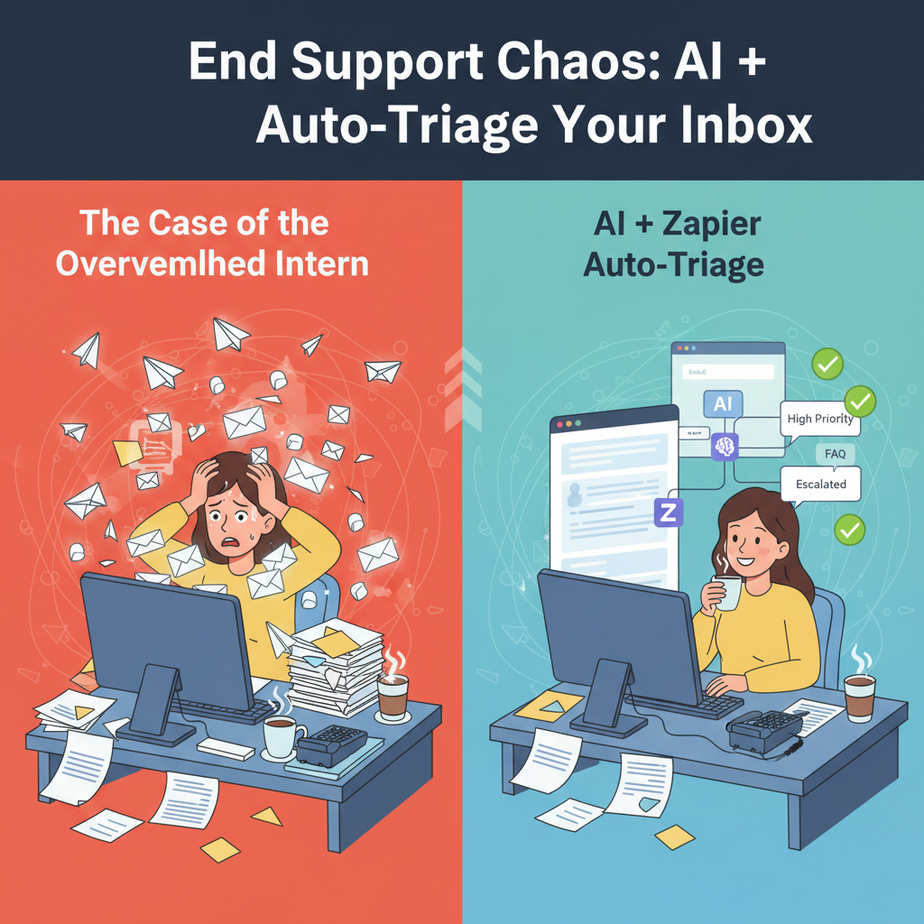
The Case of the Overwhelmed Intern (and How We Fixed It)
Once upon a time, in a not-so-faraway land, I had an intern. Let’s call her Sarah. Sarah’s job was simple: manage the customer support inbox. Simple, right? Ha. Her days quickly devolved into a scene straight out of a slapstick comedy – emails piling up faster than she could open them, urgent requests getting buried under spam, and the entire system slowly grinding to a halt.
She was spending 80% of her time just *sorting* emails. Is this a billing question? A tech support ticket? A refund request? A love letter to our product manager (true story, don’t ask)? She was a human router, and frankly, a terribly inefficient one. Her brain, a beautiful, complex neural network designed for problem-solving, was being used as a glorified IF-THEN statement. It was a tragedy.
Then I stepped in, with a mischievous glint in my eye and a plan involving digital robots. We fired the human router (metaphorically, Sarah was promoted) and replaced her with something far more efficient, tirelessly accurate, and immune to unhinged fan mail: an AI-powered triage system. Today, I’m going to show you how to build it.
Why This Matters: Reclaim Your Sanity, Scale Your Business
Look, whether you’re a solopreneur drowning in client emails, a small business owner trying to keep customers happy, or a rising startup scaling faster than your team can keep up, customer support is often the first bottleneck. It’s the place where goodwill goes to die if not handled promptly and efficiently.
Here’s the brutal truth:
- Time is money: Every minute spent manually reading, categorizing, and forwarding an email is a minute NOT spent closing a sale, building a product, or enjoying a decent cup of coffee.
- Customer churn: Slow response times mean frustrated customers. Frustrated customers leave. Simple as that.
- Team burnout: Your support team (or just *you*) gets swamped with repetitive, low-value sorting tasks, leading to exhaustion and mistakes.
- Missed opportunities: Important leads or urgent issues get buried, costing you revenue or reputation.
This automation replaces the manual grunt work of email triage. It’s like having a hyper-efficient, multilingual, always-on intern whose sole purpose is to read every incoming message, understand its intent, and route it to the right department or person – all before you’ve even finished your first sip of espresso. It allows you to scale your support operations without hiring an army of human routers, ensuring critical messages get to the right eyes, right now.
What This Tool / Workflow Actually Is
At its core, this workflow is about leveraging Artificial Intelligence’s uncanny ability to understand natural language, combined with a powerful automation platform to take action. Think of it as a two-part symphony:
- The Brain (AI): We’re going to use a large language model (like the ones from OpenAI) as our chief categorizer. It reads the incoming message, comprehends its context, and assigns it a label (e.g., ‘Billing’, ‘Technical Support’, ‘Sales Lead’).
- The Hands & Feet (Zapier): Zapier is our maestro. It listens for new incoming messages (from Gmail, Zendesk, a contact form, you name it), sends the message to our AI brain, receives the category back, and then performs specific actions based on that category. These actions could be creating a ticket, sending an email, notifying a team on Slack, or even adding a row to a spreadsheet.
What it does: Accurately categorizes incoming text, triggers specific actions based on those categories, and saves countless hours of manual sorting.
What it does NOT do: It’s not a magical customer service agent that can fully resolve complex issues (yet). It’s a triage specialist, a highly skilled sorter. It also doesn’t replace the human touch for sensitive or unique interactions, but it sets your human team up for success by giving them only the most relevant, pre-sorted tasks.
Prerequisites: Let’s Get Our Toolkit Ready
Don’t sweat it, this isn’t rocket science. If you can click a mouse and type a sentence, you’ve got this. Here’s what you’ll need:
- A Zapier Account: You’ll need at least a Starter plan to use multi-step Zaps and Paths. (Don’t worry, the free trial is usually enough to build and test this).
- An OpenAI Account: You’ll need API access and some credits. Even a few dollars will get you a very long way for this kind of classification. Get your API key ready.
- An Incoming Message Source: This could be a shared Gmail inbox, a contact form (like Typeform or Google Forms), a help desk system (like Zendesk, Intercom, or Gorgias), or even a Slack channel. Pick one you want to automate.
- Destination Tools: Where do you want the categorized messages to go? Think project management tools (Trello, Asana, Jira), other help desk systems, Slack, Google Sheets, or another email address.
Reassurance for the nervous: If you’ve never touched an API or built a ‘bot’ before, good. That’s why you’re here. We’re breaking it down into tiny, digestible steps. You’ll be fine.
Step-by-Step Tutorial: Building Your AI Triage Bot
Alright, let’s roll up our sleeves. We’re going to build a Zap (that’s what Zapier calls an automation) that watches for new emails, sends their content to OpenAI for classification, and then takes action based on what OpenAI says.
Step 1: Set Up Your Trigger (The ‘Eyes’ of Our Bot)
This is where our bot ‘sees’ new information. For this example, let’s use Gmail for simplicity, but you can swap this for any incoming message source.
- Log in to Zapier and click ‘Create Zap’.
- Search for ‘Gmail’ and select it as your Trigger app.
- Choose ‘New Email’ as the Trigger Event.
- Connect your Gmail account. Make sure it’s the inbox where your support emails land (a dedicated support@yourcompany.com is ideal).
- Test the trigger. Send a dummy email to that inbox so Zapier has some data to pull in.
Step 2: Send to the AI Brain (OpenAI) for Classification
Now we feed the email content to our AI for its genius insights.
- Add a new step (+) after your Gmail trigger.
- Search for ‘OpenAI’ and select it as your Action app.
- Choose ‘Send Prompt’ as the Action Event.
- Connect your OpenAI account using your API key. (If you don’t have one, go to platform.openai.com/api-keys).
- Configure the Action:
- Model: Choose a recent, capable model like
gpt-3.5-turboorgpt-4o. - User Message: This is where you craft your prompt. This is crucial! Here’s a powerful template:
- Model: Choose a recent, capable model like
You are an expert customer support agent whose sole job is to classify incoming customer inquiries.
Classify the following email message into one of these categories:
- Billing Issue
- Technical Support
- Product Inquiry
- Refund Request
- Partnership Opportunity
- General Question
- Spam

Only respond with the category name and nothing else. If the category is unclear, respond with 'General Question'.

Email message:
{{2.Body Plain}}
Why this prompt works:
- Role-playing: We tell the AI what it is (‘expert customer support agent’).
- Clear instructions: ‘Classify… into one of these categories.’
- Strict output format: ‘Only respond with the category name and nothing else.’ This is vital for Zapier to parse.
- Fallback: ‘If unclear, respond with ‘General Question’.’ Prevents errors.
- Dynamic input:
{{2.Body Plain}}pulls the plain text body from your Gmail trigger.
- Test this step. You should see OpenAI return one of your defined categories based on your test email.
Step 3: Branching Logic with Paths (The ‘Hands’ of Our Bot)
This is where the magic happens – Zapier takes different actions based on the AI’s classification.
- Add another step (+).
- Search for ‘Paths by Zapier’ and select it.
- You’ll now have ‘Path A’ and ‘Path B’ (you can add more). Each path is a separate branch of logic.
Step 4: Configure Each Path
Let’s set up ‘Path A’ for ‘Billing Issue’ as an example. You’ll repeat this for each category.
- Click on ‘Path A’.
- Name Your Path: Rename ‘Path A’ to ‘Billing Issue’.
- Define the Rule: This is the condition for this path to run.
- For ‘Continue only if…’, select the output of your OpenAI step (e.g., ‘2. Choices Text’).
- Choose the condition ‘Text Contains’.
- Enter ‘Billing Issue’ (exactly as you defined it in your prompt).
- Click ‘Continue’. Zapier will tell you if your test email would have followed this path.
- Add Action Steps for This Path: Now, what should happen if it IS a ‘Billing Issue’?
- Inside ‘Path A’, click the ‘+’ to add an action.
- Example: ‘Create Card in Trello’.
- Connect your Trello account.
- Configure the action:
- Board: Your ‘Customer Support’ board.
- List: ‘Billing Issues’.
- Name:
{{2.Subject}}(the email subject) - Description:
{{2.Body Plain}}(the email body) - Add a due date or assign a team member if applicable.
- Repeat Steps 1-4 for each category you defined in your OpenAI prompt (e.g., ‘Technical Support’ Path B, ‘Product Inquiry’ Path C, etc.).
Pro-Tip: Always include a ‘General Question’ or ‘Uncategorized’ path as your last resort, with a default action like sending it to a human supervisor for review.
Turn your Zap ‘On’, and watch your support chaos become organized efficiency!
Complete Automation Example: The E-commerce Support Robot
Let’s walk through a full, practical example for an imaginary e-commerce store, ‘Gadgetopia’, that gets hundreds of emails a day.
The Problem:
Gadgetopia’s single support inbox is a nightmare. Refund requests are slow, tech issues go to the wrong person, and basic product questions overwhelm the team. Customers are getting frustrated, and the support staff is burnt out.
The Automation Goal:
Automatically classify incoming support emails into ‘Refund Request’, ‘Product Inquiry’, ‘Shipping Issue’, or ‘Technical Support’, and route them to the correct team/system.
The Workflow:
-
Trigger: New Email in Gmail (support@gadgetopia.com)
App: Gmail Event: New Email Account: support@gadgetopia.com -
Action: Send Email Body to OpenAI for Classification
App: OpenAI Event: Send Prompt Model: gpt-4o (or gpt-3.5-turbo) User Message: You are an expert customer support agent for Gadgetopia. Classify the following customer email into one of these categories: - Refund Request - Product Inquiry - Shipping Issue - Technical Support - Other Only respond with the category name and nothing else. If the category is unclear, respond with 'Other'. Email: {{2.Body Plain}} -
Action: Paths by Zapier
Each path checks the output of the OpenAI step (e.g.,
{{3.Choices Text}}) for a specific category.Path A: Refund Request
    Continue if: {{3.Choices Text}} (Text Contains) 'Refund Request'

    Action 1: Create Trello Card
    App: Trello
    Event: Create Card
    Board: Gadgetopia Support
    List: Refunds - Urgent
    Name: Refund for {{2.Subject}}
    Description: From: {{2.From Email}}. {{2.Body Plain}}
    Assignee: Refunds Team Lead
Path B: Product Inquiry
    Continue if: {{3.Choices Text}} (Text Contains) 'Product Inquiry'

    Action 1: Send Gmail Email (Auto-reply)
    App: Gmail
    Event: Send Email
    To: {{2.From Email}}
    From: support@gadgetopia.com
    Subject: Re: {{2.Subject}} - Product Info
    Body: Hi there! Thanks for your inquiry. For immediate answers to common product questions, please check our FAQ: [Link to FAQ]. A team member will follow up shortly!

    Action 2: Create Slack Channel Message
    App: Slack
    Event: Send Channel Message
    Channel: #product-inquiries
    Message Text: New Product Inquiry from {{2.From Name}} ({{2.From Email}}): {{2.Subject}} - Please assist!
Path C: Shipping Issue
    Continue if: {{3.Choices Text}} (Text Contains) 'Shipping Issue'

    Action 1: Create Ticket in Gorgias (or Zendesk/Intercom)
    App: Gorgias
    Event: Create Ticket
    Subject: Shipping Issue: {{2.Subject}}
    Customer Email: {{2.From Email}}
    Message: {{2.Body Plain}}
    Tags: shipping, urgent
Path D: Technical Support
    Continue if: {{3.Choices Text}} (Text Contains) 'Technical Support'

    Action 1: Create Issue in Jira
    App: Jira
    Event: Create Issue
    Project: Customer Support
    Issue Type: Task
    Summary: Tech Support: {{2.Subject}}
    Description: From: {{2.From Email}}. {{2.Body Plain}}
    Assignee: Dev Team Lead
Path E: Other (Catch-all)
    Continue if: {{3.Choices Text}} (Text Contains) 'Other'

    Action 1: Send Gmail Email to Supervisor
    App: Gmail
    Event: Send Email
    To: supervisor@gadgetopia.com
    Subject: Uncategorized Email: {{2.Subject}}
    Body: An incoming email was classified as 'Other'. Please review. Original message from {{2.From Email}}: {{2.Body Plain}}
Result: Gadgetopia’s support inbox is now magically sorted. Refunds are handled faster, product questions get instant FAQ links, shipping issues are escalated, and tech problems go straight to engineering. Sarah (the intern, now happily managing a specific support channel) can focus on actual problem-solving, not routing.
Real Business Use Cases (Beyond the Inbox)
This same AI + Zapier triage pattern can be adapted to almost any business that deals with incoming text-based information.
-
SaaS Company: Feature Request Triage
- Problem: Feature requests, bug reports, and general feedback all land in the same inbox or form. Valuable insights get lost.
- Solution: AI classifies submissions into ‘Feature Request’, ‘Bug Report’, ‘General Feedback’, ‘Urgent Issue’. Zapier then creates tasks in Jira/Asana (for bugs/features), sends feedback to a dedicated Slack channel, and alerts relevant teams for urgent issues.
-
Freelance Marketing Agency: Lead & Project Intake
- Problem: New client inquiries come via web form, email, and social DMs. It’s hard to distinguish hot leads from casual questions or spam.
- Solution: AI classifies inquiries as ‘New Lead’, ‘Existing Client Inquiry’, ‘Partnership Request’, ‘Spam’. Zapier adds ‘New Leads’ to a CRM (e.g., HubSpot/Pipedrive) with a ‘Hot Lead’ tag, notifies the sales team, and sends ‘Existing Client Inquiries’ to the project manager.
-
Online Course Creator: Student Support & Engagement
- Problem: Students ask questions about course content, technical platform issues, and billing. It’s difficult to direct them to the right resources quickly.
- Solution: AI classifies questions from a forum or email into ‘Content Question’, ‘Technical Issue’, ‘Billing Inquiry’, ‘Feedback’. Zapier directs content questions to a course TA or auto-responds with relevant module links, creates help desk tickets for technical issues, and forwards billing questions to the admin.
-
Real Estate Agency: Property Inquiry Filtering
- Problem: Many inquiries come in about listings, but some are serious buyers, some are just browsing, and some are property owners looking to sell.
- Solution: AI classifies form submissions/emails into ‘Serious Buyer Inquiry’, ‘General Property Browsing’, ‘Seller Inquiry’, ‘Rental Inquiry’. Zapier adds serious buyers to a CRM lead pipeline, sends automated info packets to general browsers, and routes seller inquiries directly to an agent.
-
Non-Profit Organization: Volunteer & Donor Management
- Problem: Incoming emails contain volunteer applications, donation pledges, event RSVPs, and general information requests, which need to be processed by different departments.
- Solution: AI classifies emails into ‘Volunteer Application’, ‘Donation Pledge’, ‘Event RSVP’, ‘Information Request’. Zapier adds volunteer details to a database, logs donation pledges, updates event attendee lists, and sends info requests to the communications team.
Common Mistakes & Gotchas (Learn from My Scars)
No automation is perfect out of the box. Here are some pitfalls I’ve stumbled into so you don’t have to:
- Vague or Ambiguous Prompts: ‘Classify this email’ is not enough. You need to be explicit about the categories and what to do with unclear inputs (like my prompt above).
- Forgetting a Catch-All Path: What happens if the AI returns something unexpected, or if you didn’t define a category? Always have a ‘General’ or ‘Uncategorized’ path that sends the message to a human for review. Otherwise, messages might disappear into the digital ether.
- Over-Reliance on AI for Sensitive Data: While AI is great for triage, be cautious with personally identifiable information (PII) or highly sensitive data. For medical or legal inquiries, AI can classify, but the actual handling should always be human-led, with appropriate security measures.
- Not Testing Enough Edge Cases: Test with short emails, long emails, emails with attachments (AI won’t see attachment content), emails in different languages (if applicable), and even intentionally ambiguous emails.
- Ignoring AI Model Updates: AI models evolve. What worked perfectly with
gpt-3.5-turbomight be even better (or slightly different) withgpt-4o. Periodically review your prompts and model choices. - Zapier Task Limits: If you get hundreds or thousands of emails a day, keep an eye on your Zapier task usage. You might need to upgrade your plan or optimize your Zaps.
How This Fits Into a Bigger Automation System
This AI-powered triage system isn’t just a standalone party trick; it’s a foundational component of a truly robust automation ecosystem. Think of it as the highly trained dispatcher in your digital operations center. Here’s how it connects:
- CRM Integration: Once an inquiry is classified as a ‘New Lead’, Zapier can immediately create a contact in your CRM (Salesforce, HubSpot, Zoho), assign it to a sales rep, and even trigger a welcome email sequence.
- Advanced Email & Communication: Beyond simple auto-replies, the AI can then feed the classified intent into a more sophisticated email automation platform (like Mailchimp, ActiveCampaign) to trigger highly personalized drip campaigns or even to draft initial responses that a human agent can quickly review and send.
- Voice Agents & Chatbots: The same classification logic you used for emails can be adapted for live chat (via tools like Intercom) or even for intelligent voice agents, guiding users through IVR systems based on their spoken intent.
- Multi-Agent Workflows: This is where things get truly exciting. Your triage AI (Agent 1) classifies the query. Then, a second AI agent (Agent 2) could analyze the classified query, pull relevant information from your knowledge base (using RAG – Retrieval Augmented Generation, which we’ll cover later), and draft a comprehensive response. Agent 3 could then review it.
- RAG Systems: By classifying the query first, you tell a RAG system *exactly* where in your knowledge base to look for answers. A ‘Technical Support’ query can be directed to the technical documentation section, ignoring marketing materials, resulting in far more accurate and relevant automated replies.
This basic triage system is the first domino. Once it falls, an entire chain reaction of productivity and efficiency can follow.
What to Learn Next: From Sorting to Solving
Congratulations, you’ve just built a lean, mean, email-sorting machine! You’ve taken the first critical step in automating customer communication, freeing up invaluable human time and ensuring important messages never get lost.
But we’re just getting started. Knowing *what* an email is about is great. Knowing *how to instantly respond* to it is even better.
In our next session, we’ll dive into building automated response systems. We’ll explore how to leverage AI to not just classify, but to *draft intelligent, personalized replies* using your existing knowledge base. Imagine an AI that not only knows it’s a ‘shipping issue’ but can also tell the customer their package is delayed by 2 days and offer a discount – all automatically!
Get ready to turn your triage bot into a fully fledged, semi-autonomous support agent. Your future self (and your customers) will thank you. Stay curious, stay building. Professor Ajay, signing off.





