
Hook
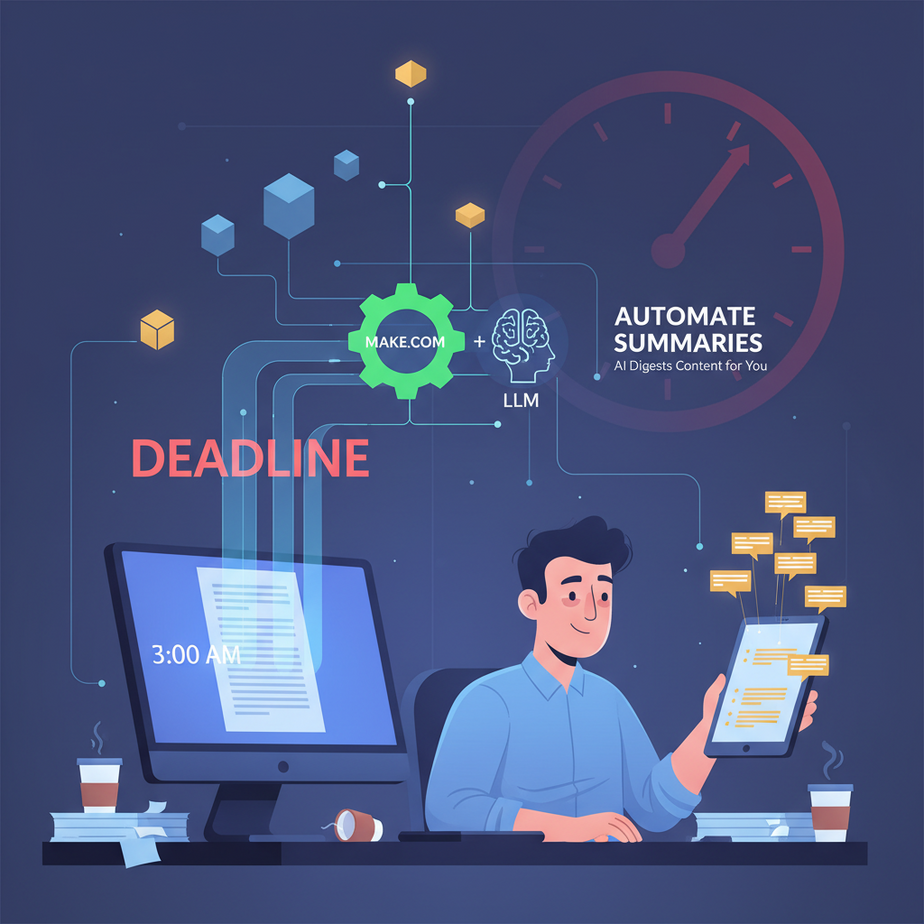
Imagine this: It’s 3 AM. You’re staring at a screen, blurry-eyed, fueled by cold coffee and the sheer terror of an approaching deadline. Your task? Digesting a hundred pages of market research, distilling client feedback from fifty emails, or summarizing a week’s worth of industry news… and then turning all that into a concise, actionable report or snappy social media posts. You feel less like a sharp business owner and more like a human content blender, constantly running on overdrive, but only producing chunky, indigestible pulp.
Sound familiar? We’ve all been there. It’s the drudgery of information overload, the mental equivalent of sifting through a gigantic pile of LEGOs just to find that one specific red brick. And frankly, it’s a colossal waste of your most precious asset: your brainpower.
What if I told you that you could delegate this mind-numbing work to a tireless, always-awake, digital intern who not only reads faster than you but also highlights the critical stuff perfectly, every single time? And it costs less than your daily coffee habit?
Why This Matters
Let’s cut to the chase. In the information age, content is currency. But currency buried under a mountain of fluff is worthless. Whether you’re a content creator, a business owner sifting through customer reviews, a market researcher, or just someone trying to keep up with your industry, the ability to rapidly understand and repurpose information is no longer a luxury—it’s a superpower.
This isn’t about just saving time. This is about reclaiming your time for high-value strategic thinking, for creative work that AI can’t do (yet). This automation replaces:
- Your exhausted brain: No more manual skimming, highlighting, or trying to remember key points.
- That expensive, overwhelmed intern: Who, let’s be honest, probably missed a few things anyway.
- Missed opportunities: Because you didn’t have time to digest that crucial report or respond to that trend.
- The “TL;DR” problem: You can instantly provide concise versions of anything, making your communication clearer and more impactful.
Imagine transforming a 2000-word article into a 200-word summary, 5 bullet points, and 3 social media captions – all in about 15 seconds. That’s not magic, that’s just smart automation. That’s money, scale, and sanity delivered on a silver platter.
What This Tool / Workflow Actually Is
At its core, this workflow is about leveraging a powerful Large Language Model (LLM) – like the brains of ChatGPT – and orchestrating its actions using a “digital factory floor” tool called Make.com (formerly Integromat).
- Large Language Models (LLMs): Think of an LLM as that ridiculously smart, hyper-efficient intern who has read every book, article, and tweet ever published. You feed it a big chunk of text and give it an instruction – “Summarize this,” “Extract the key points,” “Rewrite this for a 10-year-old.” It then processes that text and spits out exactly what you asked for. It understands context, nuance, and intent, allowing for incredibly flexible summarization.
- Make.com: This is our digital factory manager. It’s a visual automation platform that connects different apps and services. Want to grab new articles from an RSS feed? Make.com does it. Want to send that article to an LLM? Make.com handles it. Want to take the LLM’s summary and post it to Slack, save it to a Google Sheet, or email it to your team? Make.com is your guy. It’s the glue that holds your automation pipeline together, making sure each step happens in the right order, at the right time.
What it does: It takes long-form text (articles, emails, reports, meeting transcripts) and transforms it into concise, actionable summaries or repurposed content based on your specific instructions. It saves you time, enhances understanding, and enables content repurposing at scale.
What it does NOT do: It doesn’t write entirely new, creative content from scratch (not in this specific lesson, anyway – that’s for later!). It doesn’t fact-check the original source for accuracy (garbage in, garbage out, Professor Ajay always says). And it doesn’t magically understand your business context without you telling it what to look for via clear instructions (prompts). It’s a powerful tool, but it needs your guidance.
Prerequisites
Alright, aspiring automation wizard, let’s get our toolkit ready. Don’t worry, these aren’t complex.
- A Make.com Account: You can start with their free tier. It gives you enough operations to play around and build your first automation. Go sign up if you haven’t already: make.com
- An OpenAI API Key: We’ll be using OpenAI’s GPT models for the LLM part. You’ll need to create an account and generate an API key. You might need to add some billing info, but initial usage is often free or very low cost. Head over to: platform.openai.com (Once logged in, look for API keys under your profile.)
- Basic Internet Literacy: If you can click buttons and copy-paste, you’re golden.
- A Brain: For giving clear instructions to your AI intern. This is the most important prerequisite.
Reassure nervous readers: No coding required. None. Zip. Nada. We’re building this with visual drag-and-drop tools. If you can order a custom coffee, you can build this.
Step-by-Step Tutorial: Building Your First AI Summarizer in Make.com
Let’s get our hands dirty (digitally speaking, of course). We’re going to build a simple scenario: you give it some text, it gives you a summary.
Step 1: Log in to Make.com and Create a New Scenario
- Go to make.com and log in.
- In the left sidebar, click on “Scenarios.”
- Click the big blue button that says “Create a new scenario.” This is your blank canvas.
Step 2: Add Your Trigger – “Tools: Set multiple variables” (for testing)
For our first test, we’ll manually feed it text. Later, we’ll hook it up to real-world sources.
- You’ll see a circle with a question mark. Click it.
- Search for “Tools” and select it.
- Choose the module “Set multiple variables.” This allows us to define some input data directly in Make.com.
- Configure the module:
- Click “Add item.”
- For Variable name, type
Input_Text. - For Variable value, paste a long paragraph of text you want to summarize. For example:
"The quick brown fox jumps over the lazy dog. This sentence is often used to test typewriters and computer keyboards because it contains all letters of the English alphabet. It's a classic pangram. However, in modern usage, it's also a great way to illustrate simple text processing tasks, like summarization. We could imagine this representing a paragraph from a longer article about linguistic curiosities or even a snippet from a company memo about efficient communication, demonstrating how even short texts can benefit from AI processing to extract core messages." - Click “OK.”
Step 3: Add the OpenAI Module
This is where the magic (aka LLM) happens.
- Click the “+” button next to your “Set multiple variables” module.
- Search for “OpenAI” and select it.
- Choose the module “Create a Completion.” (Don’t worry, ‘Completion’ is just OpenAI’s term for generating text based on a prompt).
- If this is your first time, you’ll need to “Add” a connection.
- Give your connection a name (e.g., “My OpenAI Connection”).
- Paste your OpenAI API Key here. (Starts with
sk-… You got this from platform.openai.com). - Click “Save.”
- Now, configure the OpenAI “Create a Completion” module:
- Method: “Chat” (this is the modern way to interact with GPT models).
- Connection: Select the connection you just created.
- Model: Choose a recent GPT model, e.g.,
gpt-3.5-turboorgpt-4o. For cost-effectiveness,gpt-3.5-turbois a great starting point. - Messages: This is where you tell the AI what to do. Click “Add item.”
- Role: Select
User. - Content: This is your prompt. This is where you give instructions and provide the text to summarize. Here’s a powerful, yet simple prompt:
"Please summarize the following text into a maximum of 5 bullet points. Focus on the main ideas and key takeaways. Text: {{1.Input_Text}}"- Explanation:
{{1.Input_Text}}is how Make.com pulls the text you defined in the previous “Set multiple variables” module. The1.refers to the first module in your scenario.
- Explanation:
- Role: Select
- Temperature: Keep it at
0.7for now. (Higher temperature means more creative, lower means more factual/deterministic). - Click “OK.”
Step 4: Run a Test!
- At the bottom of the screen, click the “Run once” button.
- Watch the modules execute. If all goes well, green checkmarks will appear.
- Click on the OpenAI module (the second one) to inspect its output. Look for the “Output” section, specifically
choices[] > message > content. This is your summary!
Congratulations, you just built your first AI summarization robot! Give yourself a pat on the back.
Complete Automation Example: Summarize New Articles from an RSS Feed and Send to Slack
Now, let’s build something truly useful. We’ll set up an automation that:
- Monitors an RSS feed for new articles (e.g., industry news).
- Grabs the full content of the article.
- Sends it to our OpenAI LLM for summarization.
- Posts the summary to a specific Slack channel.
Scenario Setup:
- New Scenario: Create a new scenario in Make.com.
- Module 1: RSS – Watch RSS Feed Items
- Click the central question mark, search for “RSS,” and select “Watch RSS Feed Items.”
- Feed URL: Enter an RSS feed URL for a blog or news site you follow. For example, for a tech blog:
https://www.theverge.com/rss/index.xml(Find your favorite industry blog’s RSS feed, usually by searching “sitename RSS feed”). - Choose where to start: Select “From now on” for production, or “All” for initial testing (be careful, it might process many items!).
- Click “OK.”
- Module 2: HTTP – Get a File (to fetch full article content)
- Click the “+” next to the RSS module.
- Search for “HTTP” and select “Get a File.”
- URL: Map the URL of the article from the RSS feed. Click in the URL field, and you’ll see variables from the RSS module. Choose
Link(orURLdepending on the feed). It should look like{{1.link}}. - Click “OK.”
- Module 3: Tools – Get an element from HTML (to extract clean text)
- The HTTP module gets the entire HTML page. We only want the text.
- Click the “+” next to the HTTP module.
- Search for “Tools” and select “Get an element from HTML.”
- HTML: Map the output of the HTTP module. It will be something like
{{2.data}}. - CSS Selector: This is a bit tricky, but often effective. We want the main content of the article. Common selectors are
article,.entry-content,.post-content,main,#content. You might need to inspect the webpage’s HTML to find the exact selector for your chosen RSS feed’s articles. For a general approach, let’s tryarticle.article - Return value type: Select
Text. - Click “OK.”
- Module 4: OpenAI – Create a Completion (our summarizer)
- Click the “+” next to the Tools module.
- Search for “OpenAI” and select “Create a Completion.”
- Connection: Use your existing OpenAI connection.
- Model:
gpt-3.5-turbo(orgpt-4oif you prefer). - Messages: Add an item.
- Role:
User. - Content:
"Please summarize the following article into a concise executive summary (approx. 3-4 sentences) and also provide 3-5 key bullet points. Do not include any introductory or concluding remarks, just the summary and bullet points. Article Title: {{1.title}} Article Link: {{1.link}} Article Content: {{3.text}}"- Here,
{{1.title}}and{{1.link}}come from the RSS module.{{3.text}}comes from our “Get an element from HTML” module. This makes the prompt much richer.
- Here,
- Role:
- Click “OK.”
- Module 5: Slack – Create a Message
- Click the “+” next to the OpenAI module.
- Search for “Slack” and select “Create a Message.”
- Connection: If you don’t have one, click “Add.” You’ll be prompted to authorize Make.com to access your Slack workspace. Choose your workspace and grant permissions.
- Channel Type:
Public ChannelorPrivate Channel(select the one you want to post to). - Channel: Select the specific channel (e.g.,
#general,#ai-news). - Text: This is what will appear in Slack. Map the OpenAI output:
"New Article Summary: Title: {{1.title}} Link: {{1.link}} {{4.choices[] > message > content}}"- The
{{4.choices[] > message > content}}is the actual summary generated by OpenAI.
- The
- Click “OK.”
- Schedule and Test:
- Save your scenario.
- Click “Run once” to test it. If you selected “From now on” for the RSS, it might not find new items immediately. You might need to temporarily change the RSS module to “All” for a full test, then revert.
- Once confident, turn the scenario “ON” with the toggle switch at the bottom. It will now automatically check your RSS feed and post summaries to Slack!
You now have a fully automated content digestion and sharing system. Imagine the possibilities!
Real Business Use Cases (Beyond Slack Notifications)
This core summarization engine is incredibly versatile. Here are just a few ways businesses are using it:
- Content Marketing Agency:
- Problem: Clients need fresh content ideas and quick social media posts, but reading every long-form article on industry trends is time-consuming.
- Solution: An automation that watches key industry blogs (RSS feeds), summarizes new articles into 3 social media captions (LinkedIn, Twitter, Instagram story snippet), and saves them to a Google Sheet for easy client approval and scheduling. This replaces hours of manual content repurposing.
- SaaS Company (Customer Support/Product Feedback):
- Problem: Drowning in customer support tickets, survey responses, or feature requests. Hard to identify recurring themes quickly.
- Solution: An automation that feeds new support tickets (from Zendesk, Intercom, or email) or survey responses (from Typeform, SurveyMonkey) into the LLM. The LLM summarizes each interaction, extracts key sentiment (positive/negative), and identifies the core issue. These summaries are then saved to a CRM or a central dashboard, enabling product teams to spot trends faster.
- Consultant / Analyst:
- Problem: Constantly reviewing lengthy client reports, industry whitepapers, or legal documents to extract crucial points for strategic advice.
- Solution: A workflow where documents (uploaded to Google Drive, Dropbox, or attached to emails) are automatically sent to the LLM. The LLM summarizes key findings, identifies action items, or even extracts specific data points, then compiles these into a “briefing document” (Google Doc, Notion page) for the consultant.
- E-commerce Store Owner:
- Problem: Hundreds or thousands of product reviews, making it impossible to read them all and understand what customers love/hate about a product.
- Solution: An automation that scrapes new product reviews (from Shopify, Amazon, etc.) or fetches them via API. Each review is summarized by the LLM to extract sentiment and specific mentions (e.g., “poor battery life,” “great screen,” “comfortable fit”). These insights are aggregated into a dashboard, guiding product improvements or marketing copy adjustments.
- Real Estate Agent:
- Problem: Keeping up with local market reports, property listings, and news articles about zoning changes or new developments.
- Solution: An automation that monitors local real estate news sites (RSS), government planning portals, and new property listings. The LLM summarizes critical updates (e.g., “new zoning approved for area X,” “average house price increased by Y% in Z district,” “key features of new listing at address A”). These summaries are compiled into a daily digest email or Slack channel, keeping the agent informed without them having to read dozens of full articles.
Common Mistakes & Gotchas
Even Professor Ajay’s most brilliant students trip up sometimes. Here are the common pitfalls:
- “Garbage In, Garbage Out” (GIGO): If the text you feed the LLM is low quality, irrelevant, or poorly structured, your summary will reflect that. Make sure the content extraction (e.g., the HTTP + Get element from HTML steps) is clean.
- Token Limits: LLMs have limits on how much text they can process at once (input + output). Very long articles might get truncated or cause errors.
- Solution: For super long articles, consider splitting them into chunks before sending to the LLM and then combining summaries (more advanced, we’ll cover later!). Or, for very basic summarization, just take the first X paragraphs.
- Vague Prompts: “Summarize this” is okay, but “Summarize this for a busy CEO, focusing on financial implications and actionable next steps, in exactly 3 bullet points” is much better. Be specific with your instructions, audience, format, and length constraints.
- Over-reliance on “Default” Settings: Don’t just stick with
gpt-3.5-turboifgpt-4oproduces consistently better results for your specific task, especially if the value of the output is high. Experiment with different models and temperatures. - Connection Failures: Your API key expires, your Slack token gets revoked, or a website changes its HTML structure, breaking your “Get an element from HTML” selector.
- Solution: Regularly check your Make.com scenario history for errors. Set up email alerts for scenario failures.
- Data Privacy/Security: If you’re summarizing sensitive client data, ensure your chosen LLM and API service comply with your privacy requirements (e.g., GDPR, HIPAA). OpenAI, for instance, has data usage policies for API calls. Always review these.
How This Fits Into a Bigger Automation System
Think of this summarization engine as a crucial component in a larger AI-powered factory. It’s a specialized robot on the assembly line, but it rarely works in isolation.
- CRM Integration: Summarize customer interactions (emails, call transcripts) and push key sentiment/action items directly into Salesforce, HubSpot, or Pipedrive.
- Email & Marketing: Automatically draft email subject lines or short email bodies based on summarized content. Segment customers based on summarized feedback and trigger targeted email campaigns.
- Voice Agents / Chatbots: Summarize ongoing conversations for a human agent to quickly get context when they take over from a bot.
- Multi-Agent Workflows: Imagine a “content agent” that first summarizes an article, then a “social media agent” that takes the summary and generates multiple posts, and finally a “scheduling agent” that publishes them. The summarization step is foundational.
- RAG (Retrieval Augmented Generation) Systems: Summaries can be indexed and searched more efficiently. Before asking a complex question, a RAG system might first summarize relevant documents to extract key information, then use those summaries to formulate a precise answer. This reduces the LLM’s workload and improves accuracy.
This simple summarization step, while powerful on its own, becomes an absolute powerhouse when chained with other automations. It’s the first step to turning raw data into structured, actionable intelligence across your entire business.
What to Learn Next
You’ve just built your first content-digesting robot, and it’s already saving you hours. But what if that robot could not just summarize, but create brand-new content based on those summaries? What if it could write entire articles, emails, or even sales pitches?
In our next lesson, we’re going to level up. We’ll dive into:
- Advanced Prompt Engineering: How to write prompts that reliably generate diverse content types beyond just summaries (e.g., blog outlines, ad copy, email drafts).
- Content Generation & Variation: Using LLMs to produce multiple versions of marketing copy from a single input.
- Connecting to Content Management Systems: Automatically publishing generated content to WordPress, Webflow, or Notion.
Get ready to transform your content creation process from a manual grind into an automated flow. You’ve mastered the art of information digestion. Now, let’s master the art of information creation. The factory gates are always open.
“,
“seo_tags”: “AI automation, content summarization, LLM, Make.com, OpenAI, business productivity, content repurposing, no-code automation, workflow automation, AI tools”,
“suggested_category”: “AI Automation Courses





