
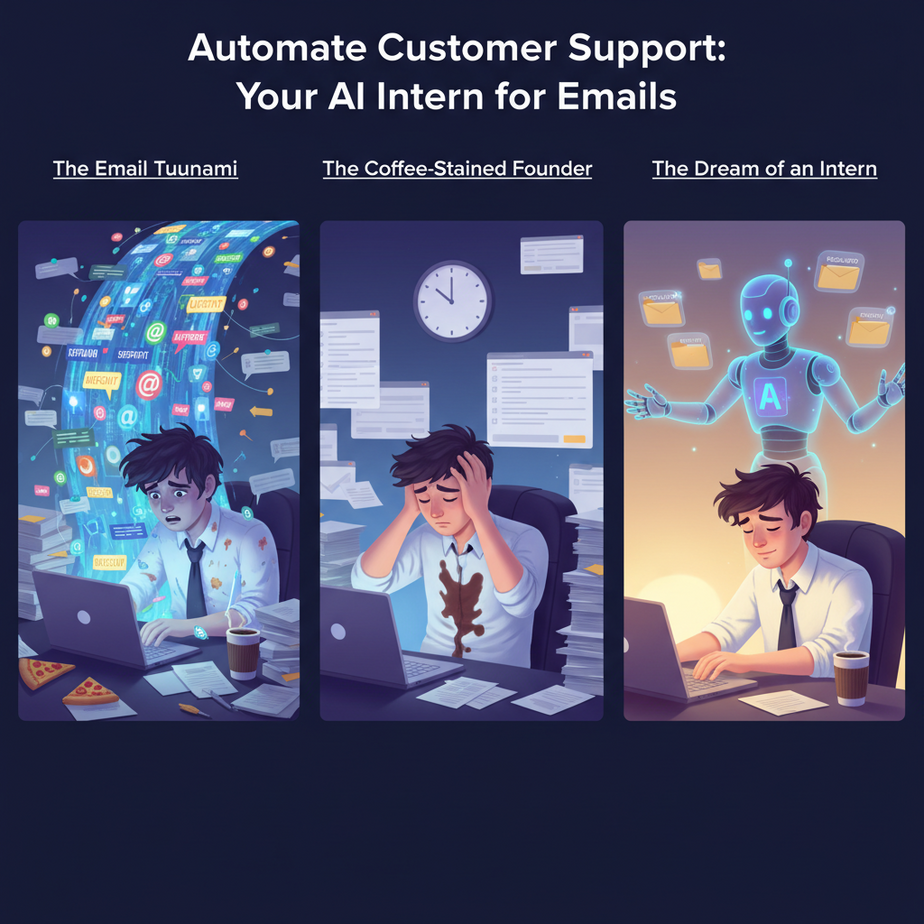
The Email Tsunami, The Coffee-Stained Founder, and The Dream of an Intern
Picture this: It’s 3 AM. You’re staring at the ceiling, wondering if you actually replied to that refund request from yesterday, or if it’s still languishing in your inbox, accusing you with its unread status. Your coffee machine has seen more action than a supercomputer in a hacker movie, and your fingers are cramped from typing the same five answers to the same ten questions, every single day. You dream of a world where someone, anyone, could just handle the grunt work, the repetitive replies, the ‘where’s my order?’ inquiries.
Good news, sleepy founder. That dream isn’t just a dream. It’s an automation, and it’s easier to set up than your morning espresso machine (and far less messy). Today, we’re going to build you an AI intern. It won’t ask for coffee breaks, complain about the office temperature, or accidentally delete your spreadsheet. It will just… draft emails. Over and over. While you get some sleep.
Why Having a Robot Intern For Your Inbox Matters (Beyond Your Sanity)
Let’s be brutally honest. Manual customer support for common questions is a soul-crushing time sink. Every minute spent typing ‘Your order is on its way, tracking number XYZ123’ is a minute NOT spent strategizing, innovating, or, you know, living. Here’s why automating this makes an immediate impact:
- Reclaim Your Time (and Life): If you answer 20 repetitive emails a day, and each takes 3 minutes, that’s an hour of your day gone. Poof. Multiply that by a week, a month. Imagine getting that back.
- Scale Without Hiring: Need to handle 50, 100, 500 inquiries? Your AI intern doesn’t get tired, ask for a raise, or demand health benefits. It scales with your needs.
- Faster Response Times = Happier Customers: We live in an instant gratification world. A customer waiting 24 hours for a simple answer is a customer who might churn. An AI can reply in seconds.
- Consistency and Accuracy: Your AI won’t have an ‘off’ day. It will deliver consistent, pre-defined information every time, reducing human error.
This isn’t just about saving a few bucks on an actual intern; it’s about giving yourself the superpower to focus on growth while the robots handle the boring stuff. It’s replacing chaos with order, and sleepless nights with actual, honest-to-goodness sleep.
What This Automation Actually Is (And What It Isn’t)
At its core, what we’re building is a simple, intelligent loop: An incoming email triggers a command to an AI, which then drafts a response, and that response gets sent back as a reply. Think of it as a super-fast, super-efficient game of email tennis, but your AI is the pro player returning every serve.
What it DOES:
- Reads incoming emails (or parts of them).
- Understands the gist of the inquiry.
- Drafts a polite, relevant, and helpful response based on your instructions.
- Can insert dynamic data (like a tracking number, if available).
- Operates 24/7 without complaint.
What it DOES NOT do (yet!):
- Replace human empathy or complex problem-solving.
- Handle emotionally charged or highly sensitive issues without human oversight.
- Negotiate contracts or make sales decisions (unless explicitly programmed, and even then, usually with a human check).
- Spontaneously understand new, unseen business concepts without training or context.
- Make you coffee. Sorry.
This is your smart email draft assistant, not a fully autonomous CEO. For now. Give it time.
Prerequisites: The Tools You’ll Need (No Ph.D. Required)
Relax, aspiring automation wizard. You don’t need to dust off your old coding textbooks or sacrifice a weekend to learn Python. This setup is proudly low-code/no-code. If you can click buttons and copy-paste text, you’re golden.
Here’s your shopping list:
- A Business Email Account: Gmail, Outlook 365, or any email service that integrates with automation platforms. (Gmail is widely supported and free for personal use, paid for business).
- An Automation Platform Account: I recommend Zapier for its sheer ease of use and vast integrations. There are alternatives like Make.com, but we’ll stick with Zapier for this lesson. You’ll need a paid Zapier plan for multi-step Zaps, but they usually have a free trial to get you started.
- An OpenAI API Key: This is how we’ll tap into the AI’s brain. You’ll need an account at platform.openai.com and some credit loaded to use their API. They charge per token, which is usually pennies per request for text generation.
- Basic Internet Savvy: You can navigate websites, understand forms, and differentiate between a subject line and email body. That’s it.
See? No exotic ingredients. Just common tools and a dash of your brilliant human curiosity.
Step-by-Step Tutorial: Building Your First AI Email Responder
Alright, grab your virtual screwdriver. We’re building this thing. We’re going to create a ‘Zap’ in Zapier that monitors your email, sends the content to OpenAI, gets a drafted response, and then sends it back as a reply. Simple as that.
Step 1: Get Your Keys & Accounts Ready
- Sign up for Zapier: If you don’t have one, head to zapier.com and create an account. Start a free trial if needed.
- Get your OpenAI API Key:
- Go to platform.openai.com and sign up or log in.
- Once logged in, click on your avatar in the top right corner and select ‘API keys’.
- Click ‘Create new secret key’. Copy this key immediately and save it somewhere secure (like a password manager). You won’t be able to see it again! This key is like your robot’s brain access code – treat it carefully.
- Make sure you have some credits loaded. OpenAI usually gives some free credits to start, but for ongoing use, you’ll need to add a payment method.
Step 2: Create a New Zap in Zapier
- Log into your Zapier account.
- Click the big, friendly ‘Create Zap’ button on the left sidebar.
Step 3: Set Up the Trigger – ‘New Email’
This tells Zapier what to look for to start our automation.
- In the ‘Trigger’ box, search for ‘Gmail’ (or your email provider). Select it.
- For ‘Event’, choose ‘New Email’.
- Click ‘Continue’.
- Connect your Gmail account. Follow the prompts to authorize Zapier to access your emails. Choose the specific email address you want to monitor.
- For ‘Label/Mailbox’, select ‘Inbox’. You can get more specific later, but ‘Inbox’ is a good start.
- Click ‘Continue’.
- Click ‘Test trigger’. Zapier will look for a recent email in your inbox. This is important to get sample data for the next steps. Make sure you have a few emails in your inbox, maybe even send one to yourself for testing.
- Once it finds an email, click ‘Continue’.
Step 4: Set Up Action 1 – Send Email to OpenAI
Now we’re telling the AI what to do with the email content.
- In the ‘Action’ box, search for ‘OpenAI’. Select it.
- For ‘Event’, choose ‘Send Prompt’.
- Click ‘Continue’.
- Connect your OpenAI account. When prompted, paste the API key you saved earlier.
- Click ‘Continue’.
- Now for the magic: ‘Set up action’. This is where we craft the prompt for our AI intern.
- Model: Choose a recent, capable model like
gpt-3.5-turboorgpt-4o(gpt-3.5-turbo is cheaper and often fast enough). - User Message: This is your instruction to the AI. This is where you tell it *how* to draft the response. This is called ‘prompt engineering’.
You are a helpful...: Sets the AI’s persona and goal.[Your Company Name]: IMPORTANT! Replace this placeholder with your actual company name.Subject: {{2.Subject}}andBody: {{2.Body Plain}}: These are ‘data pills’ from Zapier. Click on the fields (where it says{{2.Subject}}) and you’ll see a dropdown of data from your trigger email (Step 2). Select ‘Subject’ and ‘Body Plain’ (for plain text body) from the incoming email data. This feeds the actual customer email content to the AI.Drafted Reply:: This tells the AI to start its output immediately with the reply.- Leave other settings as default for now, or experiment with ‘Temperature’ (lower = more deterministic, higher = more creative).
- Click ‘Continue’.
- Click ‘Test step’. Zapier will send your sample email to OpenAI and show you the drafted response. Read it. Does it look good? Great!
- Click ‘Continue’.
Here’s a good starter prompt. Copy-paste this and then add the dynamic email content:
You are a helpful and polite customer support assistant for [Your Company Name]. Your goal is to draft concise, helpful, and professional email responses.

The customer's email is below. Please draft a reply from [Your Company Name]. Do not make up information that is not implied or directly available. If you don't know the answer, politely state that you are looking into it and will get back to them.

---
Subject: {{2.Subject}}
Body: {{2.Body Plain}}
---

Drafted Reply:
Explanation:
Step 5: Set Up Action 2 – Send the AI-Drafted Reply via Email
Now we take the AI’s response and use it to reply to the original sender.
- In the new ‘Action’ box (click the ‘+’ to add another action), search for ‘Gmail’ (or your email provider) again. Select it.
- For ‘Event’, choose ‘Send Email’.
- Click ‘Continue’.
- Ensure your correct Gmail account is selected (the same one from the trigger).
- Click ‘Continue’.
- Now, ‘Set up action’:
- To: Click the field and select
{{2.From Email}}. This ensures the reply goes back to the original sender. - Subject: You can use something like
Re: {{2.Subject}}. This keeps the conversation thread intact. - Body: Click the field and select the output from your OpenAI step. It will likely be something like
{{4.choices__0__message__content}}or similar, representing the AI’s drafted reply. - From Name: Your Name or Your Company Name.
- Reply To: Leave blank or use your business email.
- Include Original Email: Choose ‘No’ to keep the email clean, or ‘Yes’ if you prefer.
- To: Click the field and select
- Click ‘Continue’.
- Click ‘Test step’. This will actually send an email using the AI’s draft! Be careful with this. You might want to temporarily set the ‘To’ field to your *own* email address during testing to avoid spamming a real customer. Once you’re happy, change it back to
{{2.From Email}}. - Click ‘Publish Zap’ to turn it on!
Congratulations, you’ve just built your first AI email responder! Take a moment to bask in the glow of automation. That’s hours of your life you just reclaimed.
Complete Automation Example: The E-commerce Shipping Update Bot
Let’s say you run an online store selling custom-made widgets. Your #1 repetitive question is always, “Where’s my order?” Here’s how our Zap handles it:
Scenario:
Customer sends an email with the subject: “Order Status for #WIDGET123” and body: “Hi, I ordered a custom widget last week, order number #WIDGET123. Can you tell me when it will ship? Thanks!”
Zapier Configuration Walkthrough:
- Trigger (Gmail – New Email):
- Monitors ‘support@yourwidgets.com’ inbox.
- Captures the incoming email.
- Action 1 (OpenAI – Send Prompt):
Model:
gpt-3.5-turboUser Message:
You are a helpful and polite customer support assistant for WidgetWorks. Your goal is to draft concise, helpful, and professional email responses. When asked about order status, please confirm receipt of the order and state that custom widgets typically ship within 5-7 business days from order placement. If a tracking number is not provided in the email, state that it will be sent once the order ships. Do not make up information that is not implied or directly available.

The customer's email is below. Please draft a reply from WidgetWorks.

---
Subject: {{2.Subject}}
Body: {{2.Body Plain}}
---

Drafted Reply:
Output from OpenAI (example):
Subject: Re: Order Status for #WIDGET123 Hi there, Thank you for reaching out to WidgetWorks about your order #WIDGET123. We've received your order and our team is busy crafting your custom widget! Our custom widgets typically ship within 5-7 business days from the date of order placement. You will receive a separate email with your tracking information as soon as your order ships. We appreciate your patience! Best regards, The WidgetWorks Team - Action 2 (Gmail – Send Email):
- To:
{{2.From Email}}(e.g., customer@example.com) - Subject:
Re: {{2.Subject}}(e.g., Re: Order Status for #WIDGET123) - Body:
{{4.choices__0__message__content}}(the AI’s drafted response above) - From Name: WidgetWorks Support
- To:
And just like that, the customer gets an instant, helpful, and perfectly polite reply, while you’re off building more awesome widgets (or, you know, sleeping).
Real Business Use Cases (Your New AI Intern’s Resume)
This same core automation can be adapted for a multitude of businesses. Here are just a few examples:
- E-commerce Store:
- Problem: Constant inquiries about shipping times, return policies, or product availability.
- Solution: The AI automatically drafts replies based on a pre-programmed knowledge of shipping zones, return FAQs, and stock levels (if fed into the prompt).
- Freelancer / Consultant:
- Problem: Initial client inquiry emails asking about rates, services offered, or scheduling availability.
- Solution: The AI drafts a polite introductory email, outlines basic services/rates, and suggests booking a discovery call via a provided link.
- SaaS Startup:
- Problem: Repetitive questions about password resets, feature functionality, or basic troubleshooting steps.
- Solution: The AI identifies keywords in the email and drafts a response linking to relevant knowledge base articles or FAQ pages.
- Local Service Business (e.g., Plumber, Electrician):
- Problem: Incoming service requests via email during off-hours, asking for quotes or appointment availability.
- Solution: The AI drafts an immediate acknowledgment, states business hours, and provides a link to an online booking system or a phone number for emergencies.
- Content Creator / Influencer:
- Problem: A flood of emails asking for collaboration opportunities, specific content requests, or common questions about their niche.
- Solution: The AI drafts replies that politely decline irrelevant requests, provide standard collaboration terms, or direct fans to their public FAQs.
Common Mistakes & Gotchas (Don’t Trip Over the Wires)
Even though this is simple, there are a few common pitfalls to watch out for:
- The ‘Garbage In, Garbage Out’ Prompt: Your AI is only as good as your instructions. A vague prompt like “Reply to this email” will yield vague, unhelpful responses. Be specific, give it a persona, and tell it exactly what information to prioritize.
- Forgetting the Human Touch: This automation is for *repetitive* tasks. Don’t use it for sensitive, complex, or highly personalized interactions. Always have a human in the loop for anything requiring true empathy or nuanced problem-solving.
- API Key Security: Never share your OpenAI API key! If it gets compromised, someone could run up huge bills on your account. Treat it like your social security number.
- Rate Limits & Costs: While usually cheap, an extremely high volume of emails could incur higher costs from OpenAI. Keep an eye on your usage dashboard. Also, APIs have rate limits; too many requests too fast can temporarily block you (though this is rare for a simple email responder).
- Over-Automating: Just because you *can* automate a reply doesn’t mean you *should*. Don’t automate replies to close personal contacts, or situations where a truly thoughtful, human response is paramount.
- Testing is Crucial: Before you publish, always test your Zap thoroughly. Send dummy emails, check the AI’s drafts, and make sure the final email is formatted correctly.
How This Fits Into a Bigger Automation System (The Grand Plan)
Today, you’ve built a single, powerful automation. But this is just one brick in your automated business fortress. Think of it like this:
- CRM Integration: That AI-generated email reply? It could also be logged in your CRM (like Salesforce, HubSpot, or Zoho) so you have a complete history of customer interactions.
- Knowledge Base Feeder: The questions your AI is answering frequently could highlight gaps in your public FAQ or internal knowledge base. You can even automate the AI to suggest new FAQ entries based on common queries.
- Human Escalation: If the AI can’t answer a question confidently (e.g., it detects high sentiment, or keywords indicating a complex issue), it can automatically flag the email, assign it to a human agent in your help desk software, or even draft a message saying, “My human colleague will get back to you shortly.”
- Multi-Agent Workflows: This simple setup is the precursor to multi-agent systems. Imagine one AI agent summarizing the email, a second agent searching your internal documents for an answer (using RAG – more on this later!), and a third agent drafting the reply.
- Voice Agents: The same AI logic you used for email replies can be adapted for voice bots answering phone calls or website chatbots.
This is just the beginning. You’ve taught your first robot intern a valuable skill. Soon, you’ll have a whole factory of them, working tirelessly in the background while you conquer new frontiers.
What to Learn Next: Making Your Robots Smarter (And Remembering Things)
You’ve seen how powerful a simple AI can be for routine tasks. But what if your AI intern needed to remember past conversations? Or access a massive, constantly updated library of your specific company documents to give even more accurate answers?
That, my friend, is where Retrieval Augmented Generation (RAG) comes in. In our next lesson, we’re going to dive into how to give your AI assistants a photographic memory and an internal library. We’ll explore how to connect them to your own unique data, allowing them to answer questions with precision and context that generic AI models simply can’t match.
Get ready to unleash the true potential of your AI automation systems. The academy continues, and you’re just getting started.





