
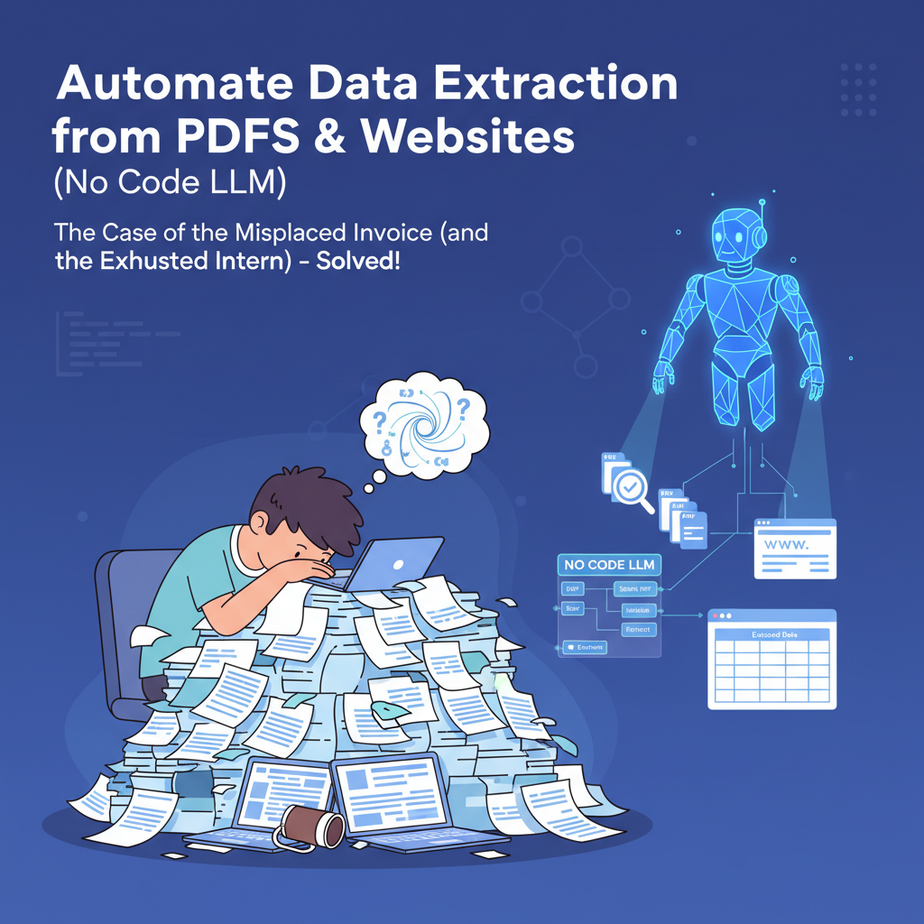
The Case of the Misplaced Invoice (and the Exhausted Intern)
Picture this: It’s 2 AM. Somewhere in a dimly lit office, a poor intern named Kevin is surrounded by a towering inferno of invoices. His task? Extracting the invoice number, vendor name, amount due, and due date from each and every single one, then tediously typing them into a spreadsheet. His eyes are glazed over, fueled by stale coffee and the ever-present hum of the fluorescent lights. He’s made 17 mistakes, cried twice, and contemplated a career change to professional competitive napping.
Kevin’s predicament isn’t unique. Businesses globally drown in unstructured data – PDFs, web pages, scanned documents, emails – all containing precious nuggets of information trapped in formats that resist easy automation. Historically, this meant hiring an army of Kevins, building complex regex patterns, or investing in expensive, finicky OCR (Optical Character Recognition) software that often needed a data scientist to coax into submission.
But what if Kevin could simply wave a magic wand (or, you know, click a few buttons) and have a super-smart robot do all the mind-numbing extraction for him?
Why This Matters: Unleashing Your Business From Data Jail
You don’t need to be a large corporation to feel the sting of manual data entry. Every minute spent copying and pasting is a minute lost for strategic thinking, customer engagement, or actual revenue-generating work. This isn’t just about saving Kevin’s sanity; it’s about:
- Time Savings: What takes a human an hour might take an AI 10 seconds. Multiply that by dozens, hundreds, or thousands of documents.
- Accuracy: Robots don’t get tired or distracted. They follow instructions (if you give them the right ones).
- Scalability: Need to process 10 documents or 10,000? Your AI assistant doesn’t complain about overtime.
- Unlocking Insights: Once data is structured, it can be analyzed, visualized, and used to make better business decisions.
This isn’t about replacing your entire team; it’s about giving them superpowers. It’s about transforming manual, repetitive tasks into automated flows, allowing your humans to focus on tasks that actually require human creativity and judgment. Think of it as upgrading your intern from a data entry clerk to a strategic analyst.
What This Tool / Workflow Actually Is: Your LLM as a Data Hound
At its core, this workflow turns a Large Language Model (LLM) into an incredibly flexible, context-aware data extraction engine. Instead of writing rigid rules for where data should be (e.g., "look for a number after ‘Invoice #:’"), you simply tell the LLM what kind of information you want, and it figures out how to get it from the text you provide.
What it DOES:
- Reads unstructured text from documents (like the content of a PDF or a webpage).
- Understands the context of the information within that text.
- Extracts specific pieces of information you define (e.g., names, dates, amounts, addresses).
- Formats that extracted data into a structured, machine-readable format, usually JSON.
- Works across various document types and layouts, adapting dynamically.
What it DOES NOT do:
- It doesn’t "see" a PDF like a human. It processes the text content of the PDF. If your PDF is a scanned image without underlying text, you’ll need an OCR step first to convert the image to text.
- It’s not a mind-reader. You need to be clear about what you want it to extract.
- It’s not perfect. LLMs can "hallucinate" or misinterpret complex or ambiguous text, so a review step is often wise for critical data.
- It doesn’t automatically integrate with all your systems out of the box; you’ll use no-code platforms for that.
Essentially, we’re giving the LLM a job description: "Your mission, should you choose to accept it, is to find X, Y, and Z in this document and give it back to me in a neat JSON package."
Prerequisites: Gearing Up Your Automation Station
Don’t worry, we’re keeping this strictly "no-code" friendly. You won’t need to dust off your old Python books (unless you want to, you overachiever).
- A Computer and Internet Access: Obviously. Preferably one that doesn’t sound like a jet engine when you open more than two tabs.
- An LLM API Key: We’ll be using OpenAI for this example, specifically their GPT-4 (or GPT-3.5 Turbo if you’re on a budget). You’ll need to sign up for an account, add a payment method, and generate an API key. This is how your automation "talks" to the AI.
- A No-Code Automation Platform Account: My personal favorites for this kind of work are Zapier or Make (formerly Integromat). Both have generous free tiers or trial periods to get you started. We’ll use Zapier for our main example due to its widespread adoption.
- A Sample Document (PDF or Webpage): Have a few PDFs or URLs ready that contain the kind of information you want to extract. For PDFs, make sure they have selectable text (not just scanned images). If they are scanned, you’ll need an OCR tool first – many Zapier/Make integrations can help with this (e.g., PDF.co, Docparser).
- A Google Sheet (or similar database): To store your newly extracted, structured data.
Feeling a bit nervous about "API keys"? Don’t be. It’s just a digital handshake. I’ll walk you through it. It’s simpler than assembling IKEA furniture.
Step-by-Step Tutorial: Teaching Your Robot to Read
Let’s get practical. We’ll set up the core "brain" of our operation: the LLM prompt. This is where you tell the AI exactly what you want.
1. Get Your LLM API Key (OpenAI Example)
- Go to platform.openai.com and sign up or log in.
- Once logged in, navigate to "API keys" (usually found under your profile icon in the top right, then "API keys").
- Click "Create new secret key." Name it something descriptive like "Data Extraction Automation."
- IMPORTANT: Copy this key immediately. You will not be able to see it again! Treat it like your online banking password. Keep it safe.
2. Understand the "System Prompt" for Extraction
The magic sauce is in how you instruct the LLM. We use a "system prompt" to set the LLM’s role, and then a "user prompt" to feed it the actual document text. For structured data extraction, we’ll ask the LLM to output its findings in JSON format.
Here’s a template for a powerful extraction prompt:
You are an expert data extraction bot. Your task is to extract specific information from the provided text and return it as a JSON object.

Instructions:
- Read the entire document carefully.
- Extract the following fields:
  - "invoice_number": The unique identifier for the invoice.
  - "vendor_name": The name of the company issuing the invoice.
  - "amount_due": The total amount to be paid, including currency symbol.
  - "due_date": The date the invoice is due, in YYYY-MM-DD format.
  - "items": An array of objects, where each object contains "description" and "quantity" for line items.
- If a field is not found, return null for that field.
- Ensure the output is valid JSON.

Example Output Format:
{
  "invoice_number": "INV-2023-01-001",
  "vendor_name": "Acme Corp",
  "amount_due": "$1,250.00",
  "due_date": "2023-11-15",
  "items": [
    { "description": "Consulting Services", "quantity": 1 },
    { "description": "Software License", "quantity": 5 }
  ]
}

Now, extract the data from the following text:
Why this prompt works:
- Role Setting: "You are an expert data extraction bot" primes the LLM for its job.
- Clear Instructions: Explicitly lists the fields you want.
- Desired Format: "Return it as a JSON object" is critical.
- Error Handling: "If a field is not found, return null" prevents the LLM from hallucinating data.
- Example Output: This is arguably the most important part! It gives the LLM a crystal-clear target for the structure and data types it should produce.
3. Simulating the Extraction (Manual Test)
Before connecting to a no-code platform, let’s test this prompt manually using OpenAI’s Playground. This is like a sandbox for your AI experiments.
- Go to platform.openai.com/playground.
- Ensure the mode is set to "Chat."
- Select a model like "gpt-4" or "gpt-3.5-turbo."
- In the "System" message box, paste the first part of our prompt (everything *before* "Now, extract the data from the following text:").
- In the "User" message box, paste the actual text content of your sample PDF or webpage. (For a quick test, copy some text from an online invoice example or a Wikipedia page.)
- Click "Submit."
- Observe the JSON output. If it’s not perfect, tweak your prompt, making instructions even more specific or adding more examples.
Complete Automation Example: Resume Data to Google Sheets (via Zapier)
Let’s put this into action. Imagine you’re an HR recruiter. You receive dozens of resume PDFs daily, and you need to quickly pull out key information like name, email, previous roles, and skills into a Google Sheet for easy filtering and follow-up. Kevin is now free to pursue his napping career.
Goal: Automatically extract contact info (name, email, company, role, skills) from new resume PDFs uploaded to Google Drive and log it in a Google Sheet.
Tools: Google Drive, Zapier, OpenAI (GPT-4), Google Sheets
-
Set Up Your Google Sheet
Create a new Google Sheet named "Resume Database." Add the following column headers in the first row:
- Name
- Phone
- Company
- Role
- Skills
-
Set Up Your Google Drive Folder
Create a new folder in your Google Drive, e.g., "New Resumes." This is where you’ll drop your PDF resumes.
-
Create a New Zap in Zapier
Log into Zapier (zapier.com) and click "Create Zap."
-
Step 1: Trigger – New File in Google Drive
- App: Google Drive
- Event: New File in Folder
- Choose Account: Connect your Google Drive account.
- Drive: My Google Drive
- Folder: Select the "New Resumes" folder you created.
- Test Trigger: Upload a sample PDF resume to your "New Resumes" folder, then test the trigger. Zapier should find your sample file.
-
Step 2: Action – Extract PDF Text Content (Zapier Utilities or PDF.co)
This is the crucial step to get the raw text from the PDF. Zapier offers a few ways:
- Option A (Zapier’s Built-in "Formatter" – for text files): If your "PDFs" are actually just text documents saved as .pdf, or if you’re pulling from a web page, you might use a Zapier "Formatter" or "Web Scraper by Zapier" to get the content directly.
- Option B (Recommended for actual PDFs): Use an app like PDF.co or Docparser.
- App: PDF.co (you’ll need to connect your PDF.co account)
- Event: PDF to Text
- Input File: Map the "File (Exists but not shown)" or "File (Direct Link)" output from your Google Drive trigger.
- Test Action: This should extract the text content from your sample resume PDF. You’ll see the extracted text in the test results.
For this example, let’s assume you’ve successfully extracted the text content from the PDF in this step. The output variable will likely be something like
text_contentorparsed_text. -
Step 3: Action – Send Text to OpenAI for Extraction
- App: OpenAI
- Event: Send Prompt
- Choose Account: Connect your OpenAI account using the API key you generated earlier.
- Model: gpt-4 (or gpt-3.5-turbo if you prefer)
- User Message: This is where we combine our extraction prompt with the extracted PDF text.
You are an expert resume data extraction bot. Your task is to extract specific information from the provided resume text and return it as a JSON object. Instructions: - Read the entire resume carefully. - Extract the following fields: - "name": The full name of the candidate. - "email": The candidate's email address. - "phone": The candidate's phone number. - "current_company": The name of their current or most recent employer. - "current_role": Their current or most recent job title. - "skills": A comma-separated list of key technical or soft skills. - If a field is not found, return null for that field. - Ensure the output is valid JSON. Example Output Format: { "name": "Jane Doe", "email": "jane.doe@example.com", "phone": "+1 (555) 123-4567", "current_company": "Tech Solutions Inc.", "current_role": "Senior Software Engineer", "skills": "Python, AWS, Docker, Kubernetes, Agile, Problem Solving" } Now, extract the data from the following resume text:[Map the 'text_content' or 'parsed_text' output from Step 2 here]
- Test Action: Send a test. The OpenAI action should return a JSON object with the extracted resume data.
-
Step 4: Action – Parse JSON Output (Zapier Formatter)
The LLM gives us JSON, but Zapier needs to understand it as individual fields.
- App: Formatter by Zapier
- Event: Text → Extract Pattern (No, wait! Use "Utilities" for "Parse JSON" if available, or just map directly if Zapier’s "Create Spreadsheet Row" can handle dot notation)
- Actually, for direct mapping, often you don’t need a separate parse step if the next app can interpret dot notation. But for clarity, let’s assume we need to parse it cleanly.
- App: Formatter by Zapier
- Event: Utilities → Parse JSON (If available in your Zapier plan. If not, the ‘Create Spreadsheet Row’ step can often handle direct mapping from OpenAI’s JSON output using dot notation like `choices__0__message__content.name`.)
- JSON String: Map the raw JSON output from your OpenAI "Send Prompt" step. It’s usually something like `choices__0__message__content`.
- Test Action: This will turn the JSON string into separate, accessible data fields.
-
Step 5: Action – Add Row to Google Sheet
- App: Google Sheets
- Event: Create Spreadsheet Row
- Choose Account: Connect your Google Sheets account.
- Spreadsheet: Select "Resume Database."
- Worksheet: Select "Sheet1" (or whatever your sheet tab is named).
- Map Fields: Now, map the parsed data from Step 4 (or directly from OpenAI’s output if you skipped the Formatter step) to your Google Sheet columns:
- Name: Map to `name` from the parsed JSON.
- Email: Map to `email`.
- Phone: Map to `phone`.
- Company: Map to `current_company`.
- Role: Map to `current_role`.
- Skills: Map to `skills`.
- Test Action: This will add a new row to your Google Sheet with the extracted data.
-
Turn On Your Zap!
Once tested, turn on your Zap. Now, every time you drop a new PDF resume into your Google Drive folder, the AI robot will automatically extract the key information and update your spreadsheet. Kevin can finally get some sleep.
Real Business Use Cases (Beyond Resumes)
The resume example is just the tip of the iceberg. This core "LLM data extraction" technique can be applied across almost any industry.
-
E-commerce Retailer: Automating Product Catalog Updates
- Problem: Receiving new product information from suppliers in various PDF or web-based catalogs. Manually entering product names, SKUs, descriptions, prices, and features into the e-commerce platform is slow and error-prone.
- Solution: Automate the process by having an LLM extract these specific fields from supplier PDFs/webpages and then push the structured data into an inventory management system or directly to product listings.
-
Real Estate Agency: Streamlining Property Listings
- Problem: Gathering property details (address, number of bedrooms/bathrooms, square footage, amenities, price, agent contact) from various listing portals or received PDF brochures.
- Solution: An LLM can scan property description text (from a URL or PDF) to extract these key data points, then automatically populate internal CRM or public listing platforms, saving agents hours of data entry.
-
Legal Firm: Accelerating Contract Review & Summarization
- Problem: Manually reviewing lengthy legal documents (contracts, court filings) to identify parties, effective dates, key clauses, and obligations.
- Solution: An LLM can be prompted to identify and extract specific contractual terms, party names, dates, or even summarize critical clauses into a structured format for quick review by legal professionals.
-
Financial Services: Processing Expense Reports & Invoices
- Problem: Employees submitting expense reports or invoices in various formats (scanned receipts, PDF invoices) requiring manual entry of dates, vendors, amounts, and categories.
- Solution: Use an LLM to extract transaction details from these documents. The extracted data can then feed into accounting software or expense tracking systems, reducing manual reconciliation errors and speeding up reimbursement.
-
Healthcare Provider: Automating Patient Record Updates
- Problem: Receiving patient intake forms, referral letters, or lab results as PDFs that contain critical demographic information, medical history, or diagnostic codes that need to be entered into an Electronic Health Record (EHR) system.
- Solution: An LLM can be trained with a specific prompt to extract patient names, dates of birth, addresses, relevant medical codes, or medication details from these documents, helping to automate data entry into the EHR while flagging records for human review.
Common Mistakes & Gotchas: Navigating the Data Extraction Minefield
Even with an AI sidekick, there are pitfalls. Here’s what to watch out for:
- Vague Prompts: "Extract info" is not an instruction. "Extract ‘invoice_number’ as a string, ‘amount_due’ as a decimal with currency, and ‘due_date’ in YYYY-MM-DD format" is. Be brutally specific, especially with desired data types and formats.
- Missing Example Output: Without a clear JSON example, the LLM might invent its own structure. Always provide one!
- Poor Quality Input: If your PDF is a low-resolution scan, the OCR might fail to extract accurate text, and "garbage in, garbage out" applies. The LLM can only work with the text it’s given.
- Token Limits: LLMs have limits on how much text they can process at once. Very long documents (think 100+ page contracts) might need to be chunked into smaller pieces.
- Hallucinations & Inaccuracies: LLMs are creative. Sometimes they might "fill in the blanks" if data is genuinely missing or ambiguous. Always consider a human review step for critical data, especially in high-stakes environments.
- Cost Management: API calls to powerful LLMs (like GPT-4) cost money. Monitor your usage, especially during testing, to avoid sticker shock.
- Security & Privacy: Be extremely cautious with sensitive data (PII, PHI, financial records). Ensure your LLM provider and automation platform comply with relevant data privacy regulations (GDPR, HIPAA) and that you understand their data retention policies.
How This Fits Into a Bigger Automation System: The Data Extraction Factory
This data extraction technique isn’t a standalone trick; it’s a foundational component for advanced automation pipelines.
- CRM Enrichment: Extracted contact details from resumes or lead forms can automatically update or create new records in Salesforce, HubSpot, or your custom CRM.
- Automated Email Responses: Extracting keywords or intent from incoming emails can trigger specific automated responses, or route emails to the correct department.
- Database Population: Feeding structured data directly into SQL databases, NoSQL stores, or Google Sheets for reporting, analytics, and business intelligence.
- Multi-Agent Workflows: One AI agent extracts the data, a second agent analyzes it (e.g., "Is this invoice past due?"), and a third agent takes action (e.g., "Send a follow-up email to the vendor.").
- RAG (Retrieval-Augmented Generation) Systems: Imagine extracting key facts from an internal knowledge base document, then using those facts to ground an LLM’s response to a customer query, ensuring accuracy and relevance.
- Dynamic Form Prefill: Extracting details from a client’s existing document to prefill a new form, saving them time and reducing errors.
Think of it as setting up a precision factory line. The raw material (unstructured documents) enters, your LLM robot processes it, and perfectly formed, structured data emerges, ready for the next stage of your business operation.
What to Learn Next: Building Your Data Empire
You’ve just transformed an LLM into a powerful, no-code data extraction machine. This is a monumental leap in automating tedious, manual work. But this is just the beginning.
Next up in our course, we’ll dive deeper into more advanced prompt engineering techniques, specifically focusing on handling edge cases, implementing robust error checking for your extracted data, and even exploring how to chain multiple LLM calls for more complex analytical tasks.
We’ll also look at methods for data validation – how do you ensure the extracted data is actually correct before it hits your critical systems? Because even the smartest robots sometimes need a sanity check. Get ready to build more intelligent, resilient automation systems that truly move the needle for your business.
Stay tuned, and keep automating!





