
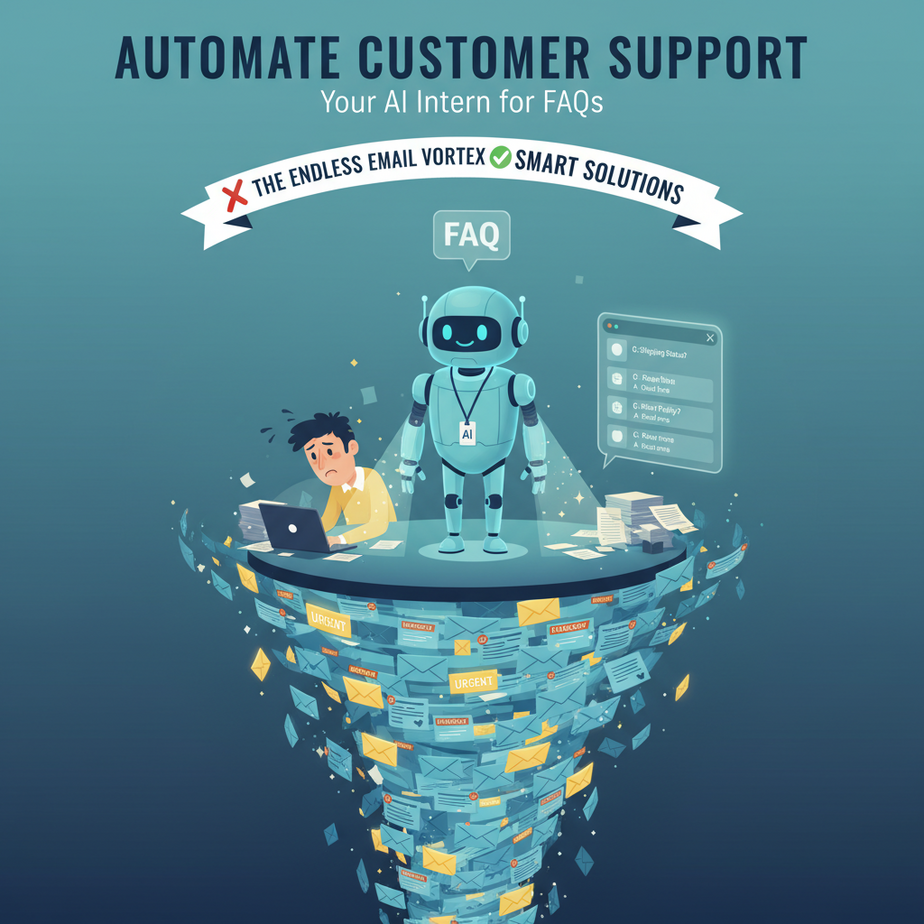
The Case of the Endless Email Vortex
Alright, gather ’round, because today we’re tackling a monster that has devoured more small business owners, freelancers, and even seasoned entrepreneurs than a black hole on a caffeine binge: The Endless Email Vortex. You know the one. It starts subtly, a few innocent “How do I reset my password?” or “What are your shipping times?” emails. Then, like a gremlin fed after midnight, it multiplies. Soon, you’re spending hours, perhaps even entire days, glued to your inbox, typing the same answers, copy-pasting links, and feeling your soul slowly evaporate into the digital ether.
I once knew a chap, a brilliant baker who made artisanal sourdough. He spent more time answering “Do you deliver?” than he did kneading dough. His business was thriving, but his spirit? Crushed under the weight of repetitive communication. He was effectively running a high-end bakery and a full-time, extremely inefficient customer support center, all by himself. He needed an intern, a robot intern, one that didn’t demand coffee breaks or complain about repetitive tasks.
Today, we’re building that robot intern. We’re going to automate the initial wave of customer support, freeing you from the tyranny of the FAQ email and letting you get back to what you do best: running your business (or baking award-winning bread).
Why Letting a Robot Handle FAQs Matters More Than You Think
“But Professor Ajay,” you might muse, “I like talking to my customers!” And bless your optimistic heart, you should! But there’s a difference between genuine human connection and acting like a human router for basic information. This isn’t about replacing you; it’s about replacing the grunt work, the soul-crushing repetition that leads to:
- Wasted Time: Every minute you spend answering a basic question is a minute you’re NOT innovating, marketing, or, you know, actually living.
- Delayed Responses: If you’re bogged down, your response times suffer. Slow responses mean frustrated customers, and frustrated customers often become ex-customers.
- Burnout: Constantly answering the same questions is mind-numbingly boring. It drains your energy and enthusiasm for your business.
- Lost Revenue: When you’re busy with admin, you miss opportunities. When customers leave due to slow service, that’s direct revenue loss.
- Scaling Headaches: Try to scale a business when you’re the bottleneck for every simple query. It’s like trying to win a marathon with your shoelaces tied together.
This automation steps in as your always-on, always-patient, super-fast first-line support agent. It takes the dull, repetitive questions off your plate, ensuring customers get immediate answers, and you get your sanity back. Think of it as upgrading from a manual switchboard to a fiber optic network.
What This AI Workflow Actually Is (and Isn’t)
At its core, this workflow is a smart message router. It intercepts incoming customer queries, sends them to a sophisticated AI brain for analysis and response generation, and then delivers that AI-crafted answer back to the customer.
What it DOES:
- Automatically answer common questions (FAQs) based on provided information.
- Provide quick, consistent responses 24/7.
- Qualify simple requests or direct users to appropriate resources.
- Save you significant time and mental energy.
What it DOES NOT do (and you shouldn’t expect it to):
- Handle deeply emotional or highly complex customer issues requiring human empathy and judgment.
- Access proprietary or secure customer data (unless explicitly integrated and secured, which is a more advanced topic).
- Replace your human touch for critical customer interactions.
- Magically read your mind or invent information it hasn’t been given.
We’re building a highly efficient, super-smart filter and first responder, not a sentient replacement for your entire customer service department.
Prerequisites: What You Need to Get Started
Relax, this isn’t rocket science, nor does it require you to dust off your old C++ textbooks. This is firmly in the “no-code” camp, meaning you’ll be clicking buttons, not writing lines of code. Here’s your shopping list:
- A Zapier (or Make.com/Activepieces) Account: This is our digital glue, connecting different apps. A free trial is usually enough to get this setup going.
- An OpenAI Account: This is where our AI brain lives. You’ll need an API key and probably a few dollars of credit in your account (they usually give you some free credits to start). Don’t worry, these AI calls are incredibly cheap for basic text generation.
- An Email Account (e.g., Gmail) OR a Form Tool (e.g., Google Forms, Typeform): This is where your customer queries will originate.
- A Tiny Bit of Patience: You’re learning a new skill. Embrace the process!
That’s it. No coding expertise, no fancy servers. Just a few accounts and a willingness to automate the tedious.
Step-by-Step Tutorial: Building Your First AI Support Agent
Let’s get our hands dirty (metaphorically speaking, of course). We’ll set up a simple workflow: A customer emails a question, our AI answers it, and the answer is emailed back.
Step 1: Get Your OpenAI API Key
- Go to platform.openai.com and log in or create an account.
- Click on your profile icon in the top right, then select “View API keys.”
- Click “Create new secret key.” Copy this key immediately and save it somewhere secure. You won’t see it again. Treat this key like your private vault code.
Step 2: Set Up Your Zapier Workflow (Zap)
Log into Zapier (or your chosen automation platform). We’re going to create a new “Zap.”
Step 3: Choose Your Trigger (Incoming Customer Query)
This is where the automation starts. We’ll use Gmail for this example.
- In Zapier, search for and select “Gmail” as your App.
- Choose “New Email” as your Trigger Event.
- Connect your Gmail account.
- For “Label/Mailbox,” select an inbox or label where you want to monitor support requests (e.g., “Inbox” or a specific “Support” label you create).
- Test your trigger. Send yourself a test email to that inbox so Zapier can find a sample to work with. This is crucial for configuring the next steps.
Step 4: Add an Action: Send the Query to OpenAI
Now, we send the incoming email’s body to our AI brain.
- Click the “+” button to add an action step.
- Search for and select “OpenAI” as your App.
- Choose “Send Prompt” or “Conversation” as your Action Event (depending on the OpenAI Zapier app version, it might be named slightly differently, but the goal is to send text and get a response).
- Connect your OpenAI account. You’ll paste your secret API key from Step 1 here.
- Configure the action:
- User Message: Click into this field and select “Body Plain” from the Gmail trigger step. This sends the customer’s email content to OpenAI.
- Model: Choose a model like
gpt-3.5-turboorgpt-4for better quality. - System Message: This is where you give your AI its personality and instructions. This is called “prompt engineering.” For customer support, you want to instruct it to be helpful, concise, and to stick to facts.
Here’s a sample System Message (copy-paste this into the “System Message” field):
You are a helpful and polite customer support assistant for [Your Business Name]. Your goal is to answer common customer questions accurately and concisely. If you don't know the answer or the question is complex, state that you've forwarded the query to a human agent and they will be in touch shortly. Stick strictly to the information provided in the prompt or commonly known facts about [Your Business Name]. Keep your answers under 150 words.Important: Replace `[Your Business Name]` with your actual business name! This context is vital.
- Test this action. Zapier will send the sample email body to OpenAI with your prompt and show you the generated response. Check if the AI’s answer makes sense.
Step 5: Add Another Action: Send the AI’s Response Back
Finally, we use the AI’s generated response to reply to the customer.
- Click the “+” button to add another action step.
- Search for and select “Gmail” again as your App.
- Choose “Send Email” as your Action Event.
- Select your connected Gmail account.
- Configure the email:
- To: Select “From Email” from your initial Gmail trigger step. This ensures you reply to the original sender.
- Subject: You can append “Re:” to the original subject or create a new one, e.g.,
Re: {{1.Subject}} - Automated Response from [Your Business Name](Zapier will let you select this dynamic field). - Body: Crucially, select “Choices Text” or “Message Content” from your OpenAI action step. This is the AI’s generated answer.
- Add a polite closing, e.g., “If you need further assistance, please reply to this email, and a human agent will be happy to help.”
- Test this action. Zapier will send a test email with the AI’s response to your original test email.
Step 6: Turn on Your Zap!
If all tests pass and you’re happy with the results, turn on your Zap. Congratulations! You now have an AI intern handling your basic customer support!
Complete Automation Example: The “Where’s My Widget?” Responder
Let’s make this concrete. Imagine you run “WidgetWorks,” an online store selling amazing widgets. You’re constantly bombarded with emails like “Where’s my order?” or “How do I use this widget?”
Scenario: Customer asks “Where is my order?”
- Trigger: New email arrives in WidgetWorks’ support inbox. Subject: “Order Status Inquiry,” Body: “Hi, I ordered a red widget last week and haven’t received it. My order number is WW12345. Can you tell me where it is?”
- Action 1 (OpenAI – System Message):
You are a customer service bot for WidgetWorks, an online store selling high-quality widgets. Your primary task is to provide order status updates based on tracking links. If an order number is provided, ALWAYS include a direct link to our tracking portal, appending the order number to the URL. If the customer asks about returns, direct them to widgetworks.com/returns. If the question is about how to use a product, direct them to widgetworks.com/manuals. If the question is not an order status, return, or usage guide, please state that you will forward to a human. Keep responses concise and helpful. - Action 1 (OpenAI – User Message): The incoming email body: “Hi, I ordered a red widget last week and haven’t received it. My order number is WW12345. Can you tell me where it is?”
- AI Response (from OpenAI):
Hello! Thanks for reaching out to WidgetWorks. You can track your order WW12345 directly at our tracking portal: https://widgetworks.com/track?order=WW12345. Please allow 1-2 business days for tracking information to update after shipment. If you have any further questions, simply reply to this email, and a human agent will assist you. - Action 2 (Gmail): Sends an email back to the customer with the AI-generated response.
Boom! Instant, accurate, and helpful response, without you lifting a finger. The customer is happy, and you’re free to focus on finding new widget suppliers.
Real Business Use Cases (Beyond Email)
This core automation principle isn’t just for email. It’s a foundational block for countless business types:
-
E-commerce Store: Auto-replying to product inquiries
Problem: Customers constantly ask about product dimensions, materials, or compatibility. Your inbox is flooded with easily answerable questions.
Solution: Set up a workflow where new messages from your product page contact form (e.g., Typeform) trigger an OpenAI prompt. The AI, fed with your product catalog data (or simply instructed from a well-crafted prompt), answers the specific product question and links to the relevant product page or FAQ section.
-
SaaS Company: First-line support for common technical questions
Problem: Your support team spends too much time on password resets, “how-to” questions for basic features, or linking to documentation.
Solution: Integrate this AI into your helpdesk (e.g., Zendesk, Freshdesk via Zapier). When a new ticket comes in with specific keywords, the AI provides an initial response with links to help articles or troubleshooting guides. If the AI can’t confidently answer, it tags the ticket for human review.
-
Consulting/Service Business: Lead Qualification & Information Distribution
Problem: You get generic inquiries like “Tell me about your services” that require a lot of back-and-forth just to understand what the prospect needs.
Solution: A form submission (e.g., Google Form) asking for service inquiry details triggers the AI. The AI analyzes the inquiry, provides a general overview of relevant services, asks qualifying questions, and perhaps even links to your calendar for a discovery call, saving you hours of initial email exchanges.
-
Real Estate Agent: Instant Property Info & Tour Scheduling
Problem: Potential buyers constantly text or email asking about specific property features, school districts, or open house times.
Solution: Incoming text messages (via Twilio/Zapier) or email inquiries about a property trigger the AI. The AI, given a database of property details (via the prompt or a basic lookup), provides immediate answers and a link to schedule a viewing, keeping leads engaged while you’re busy.
-
Online Course Creator: Student Support & Resource Guidance
Problem: Students frequently ask questions already answered in the course material, discussion forums, or FAQs, creating support overload.
Solution: Integrate the AI with your course platform’s messaging system or a dedicated support email. The AI processes student questions, directing them to the exact lecture, module, or document where the answer resides, fostering self-sufficiency and reducing your workload.
Common Mistakes & Gotchas (Don’t Be That Guy)
Even with simple automations, there are pitfalls. Here’s how to avoid them:
- The “Generic Bot” Prompt: If your system message is too vague, your AI will give generic, unhelpful answers. Be specific about its role, tone, and the information it can (and cannot) provide.
- Over-Reliance & No Escalation: Never, ever, automate critical issues without a human fallback. Your AI should always know when to say, “This is beyond my capabilities; I’m escalating to a human.” Build this into your system message.
- “Hallucination” Issues: AI sometimes invents facts. This is why a good system message that tells it to stick to *provided* info is crucial. For truly accurate responses, you’ll eventually want to integrate a knowledge base (more on that in future lessons!).
- Cost Blindness: While cheap, high volumes of complex requests to advanced models (like GPT-4) can add up. Monitor your OpenAI usage. For simple FAQs,
gpt-3.5-turbois usually more than sufficient. - Ignoring Feedback: Just because it’s automated doesn’t mean it’s perfect. Periodically review the AI’s responses. Are they helpful? Are they accurate? Adjust your prompts as needed. It’s a learning process.
How This Fits Into a Bigger Automation System
This AI-powered first responder isn’t a standalone island; it’s a vital component in a larger, interconnected automation ecosystem. Think of it as the highly efficient receptionist in your digital office:
- CRM Integration: After the AI responds, the original query and the AI’s answer can be logged in your CRM (e.g., HubSpot, Salesforce) under the customer’s profile. This provides context for future human interactions.
- Email Marketing & Segmentation: If the AI identifies a certain type of query (e.g., “interested in X product”), that information can be used to segment your audience and trigger targeted email campaigns.
- Voice Agents & Chatbots: The exact same OpenAI prompt logic can power a voice agent on your phone system or a chatbot on your website, providing consistent answers across all channels.
- Multi-Agent Workflows: For complex queries, this AI can be configured to hand off to *another* specialized AI agent (e.g., one trained specifically on returns, another on technical support) before escalating to a human. This creates a powerful multi-layered support system.
- RAG Systems (Retrieval Augmented Generation): Instead of relying only on the prompt, you can connect your AI to a database of your company’s documents (FAQs, knowledge base, product manuals). This allows the AI to *retrieve* relevant information and then *generate* a precise answer based on your actual data, dramatically improving accuracy. We’ll dive deep into RAG later, but know that this basic setup is the first step.
This single automation, seemingly simple, unlocks immense possibilities for scaling your operations and creating a truly intelligent business.
What to Learn Next: Building Your Knowledge Base
You’ve just built your first AI intern for customer support. It’s a great start. But what if you want it to answer questions about your *specific* products, policies, or even the obscure details of your artisanal sourdough process, without having to cram all that into a single system message?
Our next lesson will dive into how to give your AI brain a persistent memory and a comprehensive understanding of your unique business. We’ll explore how to feed it an entire library of your company’s knowledge, turning it from a general smart assistant into a hyper-specialized expert. Get ready to build your very own AI-powered knowledge base!





