
Hook
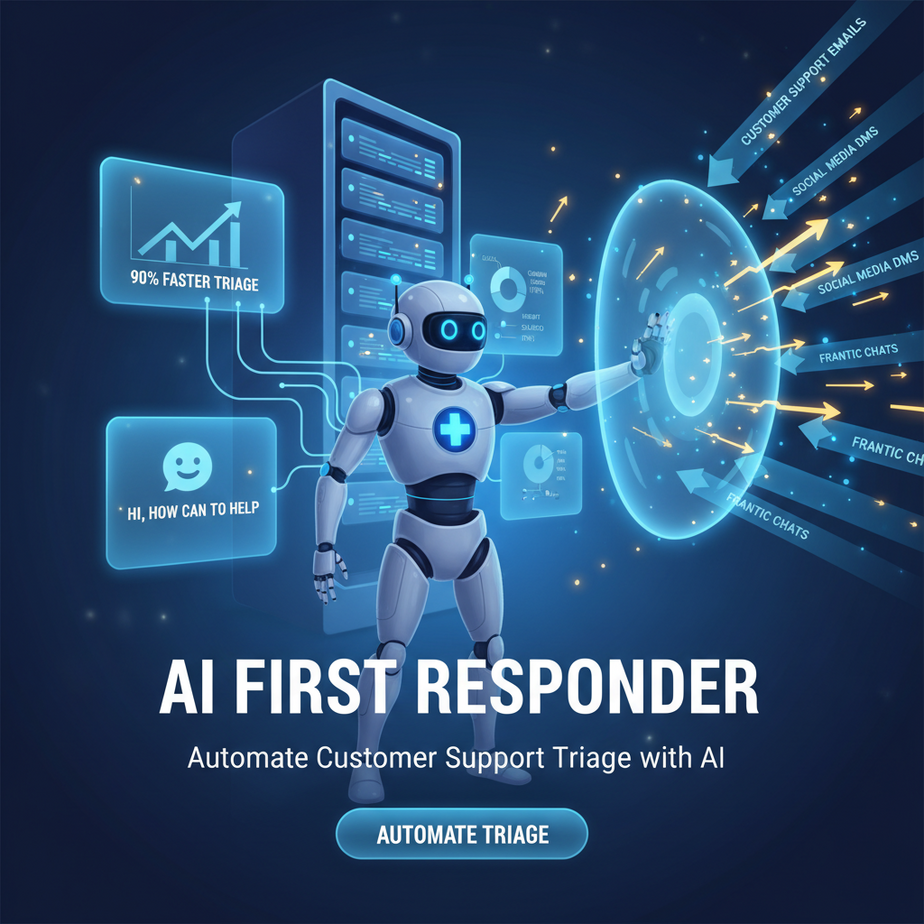
Picture this: It’s Monday morning. Your inbox just exploded like a poorly maintained pressure cooker. Hundreds of customer support emails, social media DMs, and frantic DMs are all screaming for attention. Sarah from Accounting wants to know why her login isn’t working for the third time this month. Mark from Sales needs a priority feature request escalated NOW. And then there’s that one email… a critical bug report buried under 50 ‘where’s my order?’ queries. Your support team, bless their cotton socks, looks like they’re trying to put out a forest fire with a watering can. Sound familiar? That’s the sound of manual triage, my friend. It’s slow, it’s soul-crushing, and it’s costing you a fortune.
Why This Matters
Look, every minute your best support agents spend manually sifting through incoming messages, categorizing them, and deciding who gets what, is a minute they’re NOT solving actual customer problems. It’s like having your top surgeons sorting mail instead of operating. This isn’t just about efficiency; it’s about survival. Slow response times lead to angry customers, churn, and a reputation that smells faintly of burnt toast. Automating your customer support triage means:
- Lightning-Fast Prioritization: Critical issues hit the right desk instantly, not after 4 hours of human digging.
- Reduced Workload: Your human team focuses on problem-solving, not data entry. It’s like giving them a squadron of tiny robot interns who never complain.
- Consistent Routing: No more ‘who handles this?’ debates. The AI is a neutral, tireless dispatcher.
- Scalability: Handle 100 tickets or 10,000 without having to hire a new army of human sorters. This is how you grow without spontaneously combusting.
This isn’t about replacing your support team. It’s about giving them superpowers so they can actually DO their job, instead of just prepping for it.
What This Tool / Workflow Actually Is
Today, we’re building an AI-powered ‘first responder’ for your customer support. Think of it as a highly intelligent bouncer at the club of your support inbox. When a new message comes in, this bouncer quickly reads it, understands the vibe, and directs it to the right queue or person – instantly. What it is:
- An automation workflow that connects your incoming support channels (email, ticketing system) to an AI language model.
- The AI reads the content of the message and classifies it based on urgency, topic, and intent.
- It then uses that classification to trigger subsequent actions: update a ticket, notify a specific team, assign a priority level.
What it is NOT:
- It’s not a full-blown customer service chatbot that holds conversations (we’ll get to that later, don’t you worry).
- It’s not going to write the perfect response for every ticket (again, future lessons).
- It’s not a magic bullet that makes all your customer service problems disappear if your product is terrible. It just makes the good stuff flow better.
Our goal is to build a smart, silent assistant that keeps your support pipeline clear and ensures urgent issues are never left waiting in the digital wilderness.
Prerequisites
Alright, fearless automator, here’s what you’ll need. Don’t sweat it if some of these sound new – we’re keeping it simple.
- A Zapier Account: This is our digital glue, connecting everything without a single line of code. A free account will get you started, but a paid one opens up more possibilities.
- An OpenAI Account: This gives us access to the brain of our operation. You’ll need an API key. You might have some free credits to start, or you might need to add a payment method.
- An Incoming Channel: This could be a shared email inbox (like support@yourcompany.com), a ticketing system (like Zendesk, Jira Service Management, Freshdesk), or even a form submission tool.
- An Outgoing Channel: Where do you want the classified info to go? A new row in Google Sheets, an updated ticket in your ticketing system, a Slack notification?
No coding experience? Good. That’s why we’re here. If you can click buttons and copy-paste text, you can do this.
Step-by-Step Tutorial
Let’s build this beast. We’ll use Zapier as our orchestration layer because it’s fantastic for beginners.
Step 1: Set Up Your Trigger (The Incoming Mailman)
First, we need to tell Zapier when to start working. This is your ‘trigger’ event.
- Log in to Zapier and click ‘Create Zap’.
- Search for your incoming channel. For this example, let’s use Gmail (new email). If you use Zendesk, search for Zendesk.
- Choose ‘New Email’ as the Event.
- Connect your Gmail account.
- Select the specific inbox or label you want Zapier to monitor (e.g., your support inbox).
- Test the trigger. Zapier will pull in a recent email. Make sure it’s representative of a customer support query.
Step 2: Prepare the AI Prompt (Giving the Robot Its Instructions)
The AI needs clear instructions. Think of it like training a new intern – specific, unambiguous, and with examples if possible. We’ll use Zapier’s built-in ‘Formatter by Zapier’ or ‘Code by Zapier’ (for slightly more advanced prompt assembly) if needed, but often, you can build the prompt directly in the AI step.
For now, let’s assume we’re crafting the prompt directly in the AI action.
Step 3: Add an AI Action (The Brain of the Operation)
Now, let’s bring in the AI.
- Click the ‘+’ button to add a new step.
- Search for OpenAI (or ‘AI by Zapier’ if you prefer their simpler interface for common tasks).
- Choose ‘Send Prompt’ or ‘Conversation’ as the Event.
- Connect your OpenAI account (you’ll need your API key from platform.openai.com).
- In the ‘Prompt’ field, this is where the magic happens. We’ll tell the AI exactly what to do.
Here’s a prompt template you can copy-paste. This is the ‘code’ for our AI intern:
You are an expert customer support triage agent. Your task is to analyze an incoming customer message and classify it based on its urgency and primary topic.

The customer message is:
---
{{1.Body Plain}}
---

Your output should be a JSON object with two keys:
1.  "urgency": (low, medium, high, critical)
2.  "topic": (billing, technical_issue, feature_request, general_inquiry, refund, shipping)

Example output for a high urgency, technical issue:
{
  "urgency": "high",
  "topic": "technical_issue"
}

Provide ONLY the JSON object. Do not add any extra text or explanations.
Explanation:
{{1.Body Plain}}is Zapier’s way of injecting the actual email body from Step 1 into our prompt.- We’re giving the AI a clear role, a clear task, and a very specific output format (JSON). This makes it easy for Zapier to understand the AI’s response.
- The example helps guide the AI to the desired output.
Step 4: Parse the AI’s Response (Understanding the Robot’s Report)
The AI will return a JSON object. We need to extract the ‘urgency’ and ‘topic’ from it.
- Add another step.
- Search for Formatter by Zapier.
- Choose ‘Text’ as the Event.
- Choose ‘Extract Pattern’ or ‘Split Text’ if you have a non-JSON output, but for JSON, ‘Webhooks by Zapier‘ -> ‘Retrieve Poll’ or using the ‘Code by Zapier‘ step with a simple JSON parse often works best for advanced parsing if Formatter isn’t enough. However, for simple key-value pairs, Zapier’s subsequent steps can often directly access `{{3.Choices Text (urgency)}}` or `{{3.Choices Text (topic)}}` if the OpenAI step correctly identified the JSON. Let’s assume the OpenAI step’s output is directly usable for `urgency` and `topic` fields for simplicity in Zapier. If not, a ‘Code by Zapier’ step with `JSON.parse(inputData.ai_output)` would be necessary.
Let’s simplify and assume the OpenAI step’s output is structured such that Zapier can access `urgency` and `topic` directly from its ‘Choices Text’ or similar output fields after a successful run.
Step 5: Act on the Classification (Routing the Mail)
Now, based on what the AI said, we take action. This often involves ‘Paths by Zapier’ or ‘Filters by Zapier’ to create conditional logic.
- Add a new step.
- Search for Paths by Zapier. This lets you create different branches for different scenarios.
- Create a ‘Path A’ for ‘High Urgency’ and a ‘Path B’ for ‘Low Urgency’ (or as many as you need).
- In Path A (e.g., ‘High Urgency’):
- Set the rule: `{{OpenAI Output: urgency}}` (the urgency field from step 3) `(Text) Contains` `high` or `critical`.
- Add an action inside Path A: e.g., ‘Slack‘ -> ‘Send Channel Message’. Customize the message to alert your priority support team with details from the original email and the AI’s classification.
- Add another action: e.g., ‘Zendesk‘ -> ‘Update Ticket’ or ‘Create Ticket’. Set the priority to ‘Urgent’ and assign it to the correct high-priority queue.
- In Path B (e.g., ‘Low Urgency’):
- Set the rule: `{{OpenAI Output: urgency}}` `(Text) Contains` `low` or `medium` or `general_inquiry`.
- Add an action inside Path B: e.g., ‘Zendesk‘ -> ‘Create Ticket’. Set the priority to ‘Normal’ and assign it to the general support queue.
- Continue adding actions as needed based on ‘topic’ as well. For example, a ‘billing’ topic might go to a specific finance support team.
Test each path thoroughly! Send test emails that fit your different categories to ensure the AI classifies them correctly and the actions fire as expected.
Complete Automation Example
Let’s bring it all together for a SaaS company.
Scenario: A SaaS company uses Gmail for customer support inquiries and Zendesk for ticketing. They want to ensure critical bug reports are immediately escalated to the engineering team and finance-related questions go directly to billing, while general inquiries are routed normally.
Zap Setup:
- Trigger: Gmail – New Email
– Monitors `support@saascompany.com`. - Action: OpenAI – Send Prompt
– Prompt: (uses the template from above, adapted for specific topics like `technical_issue`, `billing`, `feature_request`, `general_inquiry`).
– Input: The body of the new email from Gmail. - Logic: Paths by Zapier
– Path A: Critical Technical Issue
– Rule: `{{OpenAI Output: urgency}}` contains `critical` AND `{{OpenAI Output: topic}}` contains `technical_issue`
– Action 1: Slack – Send Channel Message to `#eng-alerts` with email details and a direct link to the Zendesk ticket (once created).
– Action 2: Zendesk – Create Ticket with priority ‘Urgent’, status ‘New’, assignee ‘Engineering Team’, tags ‘critical_bug’.
– Action 3: Gmail – Send Reply (optional, an automated ‘we’ve received your critical bug report and are escalating immediately’ message).
– Path B: Billing Question
– Rule: `{{OpenAI Output: topic}}` contains `billing`
– Action 1: Zendesk – Create Ticket with priority ‘Normal’, status ‘New’, assignee ‘Billing Team’, tags ‘billing_query’.
– Path C: General Inquiry / Feature Request
– Rule: (Catch-all for anything not in A or B) `{{OpenAI Output: topic}}` contains `general_inquiry` OR `feature_request`
– Action 1: Zendesk – Create Ticket with priority ‘Low’, status ‘New’, assignee ‘Support Team’, tags ‘general_inquiry’.
Now, when a customer emails `support@saascompany.com`, an AI instantly classifies it, and within seconds, it’s either sitting in the engineering team’s Slack with a high-priority Zendesk ticket, or routed calmly to billing or general support. Your human team never even sees the initial triage, just the categorized, ready-to-solve problems.
Real Business Use Cases (MINIMUM 5)
-
E-commerce Store
Problem: Drowning in “where’s my order?” emails mixed with urgent refund requests or damaged product complaints. Support agents waste time manually separating them.
Solution: AI classifies incoming emails by topic (shipping inquiry, refund request, damaged item, product question). Urgent topics like ‘damaged item’ or ‘refund request’ automatically create high-priority tickets and notify a specific team, while ‘shipping inquiries’ might trigger an automated response with tracking info (advanced, but possible!) or go to a lower-priority queue.
-
SaaS Company
Problem: Bug reports, feature requests, and simple ‘how-to’ questions all land in the same inbox, causing engineers to spend time on basic questions or critical bugs to be missed.
Solution: AI categorizes messages as ‘bug_report’, ‘feature_request’, ‘how_to_guide’, ‘account_issue’. Bug reports (especially if urgent) go to engineering, feature requests go to product management, and how-to guides go to the general support team or trigger an automated link to the knowledge base.
-
Real Estate Agency / Property Management
Problem: Urgent maintenance requests (burst pipe!) get lost among general inquiries about listings or lease renewals.
Solution: AI identifies ‘urgent_maintenance’, ‘general_inquiry’, ‘lease_renewal’, ‘viewing_request’. ‘Urgent_maintenance’ tickets are immediately routed to the maintenance team’s on-call phone or emergency dispatch system via SMS/call, while others are scheduled for follow-up.
-
Online Course Provider
Problem: Students ask technical questions about the platform, content questions, or billing questions, all mixed together.
Solution: AI classifies ‘technical_platform’, ‘course_content’, ‘billing’, ‘certificate_issue’. Technical questions go to the dev team, content questions to the course instructor, and billing to the admin team.
-
Marketing Agency
Problem: New lead inquiries, existing client requests, and spam emails clutter the inbox, making it hard to prioritize. Missing a new lead could cost a big contract.
Solution: AI distinguishes ‘new_lead’, ‘existing_client_request’, ‘spam’. New leads immediately create a CRM entry, assign a salesperson, and trigger a notification. Existing client requests are routed to their account manager, and spam is automatically archived.
Common Mistakes & Gotchas
Even the sharpest robot can stumble if you don’t set it up right. Here are some pitfalls to avoid:
- Vague Prompts: ‘Summarize this email’ is not good enough. Be excruciatingly specific about what you want (e.g., ‘Summarize this email in 3 bullet points, identifying the customer’s core problem and desired outcome.’).
- Insufficient Output Formatting: If you ask for a JSON object but don’t explicitly tell the AI to *only* output JSON, you’ll get extra fluff that breaks your Zapier parsing. Be firm: ‘Provide ONLY the JSON object. Do not include any other text.’
- Not Testing Edge Cases: What if the email is entirely blank? What if it’s in a different language? What if it’s passive-aggressive and the urgency isn’t obvious? Test these scenarios.
- Over-Reliance: AI is powerful, but it’s not sentient (yet). Don’t automate decisions that require human empathy or legal expertise without a human review layer.
- Rate Limits & Costs: OpenAI isn’t free forever. Monitor your API usage. A busy support inbox can quickly chew through credits if not managed.
- Security/Privacy: Be mindful of sending sensitive customer data through external AI services. For highly regulated industries, consult legal and compliance first. Often, you can redact PII before sending to the AI.
- Ignoring AI Confidence: Some AI models can give you a confidence score. Don’t always trust a low-confidence classification. Send those to a human for review.
How This Fits Into a Bigger Automation System
What we’ve built today is a crucial piece of your automation puzzle – the initial sorting hat. But imagine what else it can connect to:
- CRM Integration: Once classified, the AI can enrich customer profiles in Salesforce, HubSpot, or Zoho with tags like ‘frequent_technical_issues’ or ‘high_value_customer_flag’ based on historical data or the current query.
- Automated Responses: A general inquiry about pricing? After classification, an AI could draft a polite, personalized response linking to your pricing page, ready for a human to approve and send.
- Voice Agents: This same classification logic can power the initial routing for an AI voice agent, ensuring callers get to the right department without hitting a confusing IVR menu.
- Multi-Agent Workflows: Our ‘first responder’ is just one agent. What if a second AI agent, specialized in drafting responses, takes over after triage? Or a third agent specialized in searching your knowledge base for solutions? We’re talking digital SWAT teams.
- RAG Systems: Connect this triage system to a Retrieval Augmented Generation (RAG) system. The AI identifies the problem, then immediately pulls relevant solutions from your private knowledge base before even handing it to a human.
This is how you build a factory, not just a single robot. Each piece you learn fits into a larger, more powerful system.
What to Learn Next
You’ve just built your first AI-powered support agent! You’ve transformed your support chaos into order, and probably saved your human team countless hours and a few gray hairs. But we’re just getting warmed up.
Next up, we’re going to dive into advanced AI prompting techniques. We’ll learn how to craft prompts that not only classify but also *extract specific data* from messages, turning unstructured text into structured gold. Think of it as teaching your robot intern to not just sort mail, but also highlight the important bits and fill out a spreadsheet for you. Get ready to level up your automation game even further. This is a course, not just a collection of tricks, and the next lesson builds directly on the power you just unleashed.





