
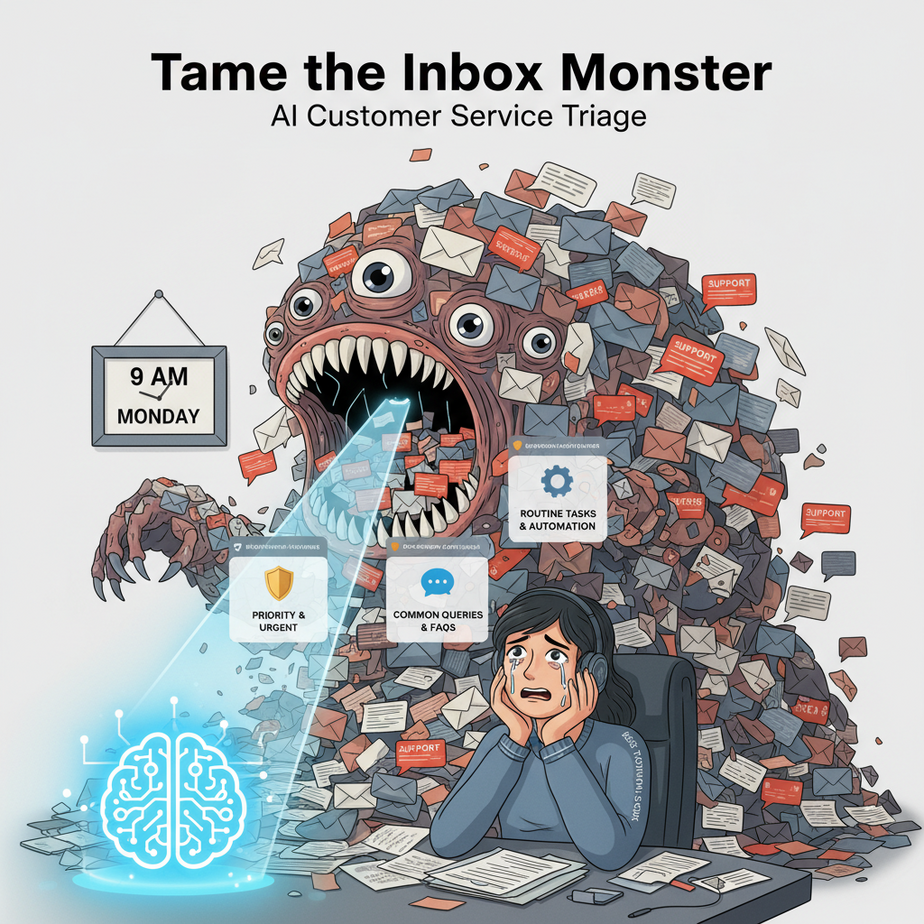
The Inbox Monster: Why Your Customer Support Team Is Crying
Picture this: It’s Monday morning, 9 AM. Your customer support intern, bless their cotton socks, stares at an inbox with 347 unread emails. Three-hundred-and-forty-seven. Some are urgent bug reports, some are ‘where’s my order?’ queries, some are enthusiastic (but ultimately spammy) partnership proposals, and at least a dozen are from an angry customer who thinks their cat ordered 50 pounds of artisanal tuna.
The intern, let’s call her Sarah, is already mentally compiling her ‘two weeks notice’ letter. This isn’t what she signed up for. And frankly, it’s not what your business needs either. Critical issues get buried, simple questions take ages to answer, and by the time you respond, that angry cat owner has already tweeted about you. Yikes.
Today, we’re going to give Sarah (and your entire support team, and your customers, and your sanity) a superhero. We’re going to build an AI system that takes that snarling, chaotic inbox monster and turns it into a perfectly organized, politely purring kitten. A really smart, fast kitten.
Why This Matters: Stop Drowning, Start Scaling
This isn’t just about making an intern’s life easier (though that’s a noble goal). This is about transforming your entire customer service operation. Think about it:
- Speed of Response: Urgent issues get flagged and sent to the right person instantly, not after Sarah’s third coffee.
- Customer Satisfaction: Customers feel heard and valued when their specific issue is acknowledged quickly and directed appropriately. No more generic ‘we received your email’ messages when they explicitly asked for a refund.
- Reduced Operational Costs: Less time spent manually sorting means fewer hours for basic tasks, allowing your human agents to focus on complex problem-solving – the stuff only humans can (and should) do.
- Scalability: As your business grows, your inbox doesn’t have to become a black hole. This system scales with you, handling thousands of emails with the same robotic efficiency.
- Data Insights: By categorizing every interaction, you gain valuable insights into common customer pain points, product issues, or frequently asked questions. Hello, product roadmap gold!
In short, you replace the manual, error-prone, soul-crushing work of a human sifting through emails with an automated, lightning-fast AI assistant. It’s like upgrading from a dusty filing cabinet to a holographic librarian who understands intent.
What This Tool / Workflow Actually Is: Your AI Inbox Butler
At its core, this workflow is a smart dispatcher for your incoming customer communications. It’s an intelligent pipeline that:
- Intercepts every new message (email, chat, social DM).
- Reads and Understands the message content using AI.
- Categorizes the intent (e.g., ‘Refund Request,’ ‘Technical Issue,’ ‘Sales Inquiry,’ ‘General Question’).
- Extracts Key Information (e.g., Order ID, Product Name, Customer Name, Account Number).
- Determines Urgency (‘High,’ ‘Medium,’ ‘Low’).
- Takes Action based on these insights: routes to the right team, creates a pre-filled ticket in your support system, or triggers an automated initial response.
What it IS NOT: This is not a full-blown AI chatbot that has a philosophical debate with your customer. It’s not here to solve complex problems independently. It’s a triage specialist – it sorts, prioritizes, and directs. It’s the highly organized pit crew, not the race car driver. It focuses on the repeatable, predictable intelligence tasks so your human team can focus on the nuanced, empathetic, high-value interactions.
Prerequisites: You Don’t Need a PhD, Just a Browser
Relax. You don’t need to be a coding wizard or have a server farm in your basement. If you can click buttons and copy-paste, you’re 90% there. Here’s what you’ll need:
- An AI API Key: This is your golden ticket to the AI’s brain. I recommend an OpenAI API key (start with a free trial, then move to a paid plan – the costs are usually pennies for this kind of work). Think of it like a pay-as-you-go electricity bill for AI intelligence.
- An Automation Platform: Tools like Zapier or Make.com (formerly Integromat) are your digital glue. They connect different apps without writing a single line of code. We’ll use them to link your inbox to the AI and then to your chosen destination (e.g., a CRM, a Slack channel, another email).
- A Support Inbox: Whether it’s a dedicated Gmail account, a Zendesk/Intercom inbox, or just your general ‘contact us’ email.
- Optional: A Support/CRM System: Zendesk, Freshdesk, HubSpot, Salesforce, or even a simple Google Sheet. This is where your AI-sorted data might end up.
That’s it! No compilers, no command lines (unless you want to dabble, but it’s not mandatory today). Just your web browser and a willingness to automate the heck out of things.
Step-by-Step Tutorial: Building Your Inbox Butler
Step 1: The Inbox Monitor – Catching the Incoming Wave
First, we need to tell our automation platform (let’s assume Zapier for simplicity) to listen for new customer messages.
- Log in to Zapier (or Make.com) and click ‘Create Zap’ (or ‘Create a new Scenario’ in Make).
- Choose Your Trigger App: This will be where your customer messages originate. Most commonly:
- Gmail: Select ‘New Email’ as the Event.
- Zendesk/Intercom/Freshdesk: Select ‘New Ticket’ or ‘New Conversation.’
- Facebook Pages: Select ‘New Message’ for DMs.
- Connect Your Account: Follow the prompts to connect your Gmail, Zendesk, etc., account.
- Test Your Trigger: Send a test email to your support address. Zapier will fetch it, confirming it’s working. This ensures the AI has something to read.
Step 2: The AI Analyst – Understanding the Message
Now, we send the content of that message to our AI.
- Add an Action Step: In Zapier, click the ‘+’ to add an Action.
- Choose ‘OpenAI’ as your Action App.
- Choose ‘Send Prompt’ or ‘Conversation’ as your Event. (If using Make.com, it might be a ‘Text & Images Generator’ module with OpenAI).
- Connect Your OpenAI Account: You’ll need your OpenAI API key here. It looks like
sk-xxxxxxxxxxxxxxxxxxxxxxxxxxxxxxxxxxxxxxxx. Keep it safe; it’s like a password for AI. - Craft Your Prompt: This is the most crucial part. This tells the AI exactly what you want it to do. We want it to categorize, extract, and determine urgency, and we want it to give us a structured output (JSON is perfect for machines).
You are an expert customer service agent specialized in triaging incoming customer messages. Your goal is to accurately categorize the customer's intent, extract key details, and determine the urgency of their request.

Analyze the following customer message and respond ONLY with a JSON object. Do not include any other text or explanation.

JSON Schema:
{
  "category": "String (e.g., 'Refund Request', 'Technical Support', 'Sales Inquiry', 'General Question', 'Billing Issue', 'Feature Request')",
  "urgency": "String (e.g., 'High', 'Medium', 'Low')",
  "extracted_details": {
    "order_id": "String or Null",
    "product_name": "String or Null",
    "customer_name": "String or Null",
    "account_number": "String or Null",
    "problem_summary": "String (a brief summary of the core problem)",
    "language": "String (e.g., 'en', 'es', 'fr')"
  }
}

Customer Message:
---
{{[Your Trigger App].Body Plain}}
---
Explanation of the Prompt:
- System Role: ‘You are an expert customer service agent…’ This helps the AI adopt the correct persona.
- Clear Goal: ‘accurately categorize… extract… determine urgency.’ No ambiguity.
- Strict Output Format: ‘respond ONLY with a JSON object. Do not include any other text or explanation.’ This is vital for automation – we need clean, parseable data.
- Defined Schema: We explicitly tell it what keys and value types to expect. This makes parsing incredibly reliable.
- Input Placeholder:
{{[Your Trigger App].Body Plain}}is Zapier’s way of inserting the actual email body from Step 1.
- Choose Your Model: For basic triage, a fast model like
gpt-3.5-turbois usually sufficient and cost-effective. For extremely nuanced cases,gpt-4might be better, but it’s slower and more expensive. - Test This Step: Run a test. The AI should return a clean JSON object based on your test email.
Step 3: The Decision Maker – Parsing and Logic
Now that the AI has given us structured data, we can use it to make decisions.
- Add an Action Step (or Path in Zapier / Router in Make): Choose ‘Formatter by Zapier’ (or ‘Text Parser’ in Make.com).
- Choose ‘Utilities’ > ‘Line Itemizer’ or ‘Text’ > ‘Extract Pattern’ (for JSON parsing): In Zapier, the ‘Utilities’ app with ‘Run Javascript’ can parse JSON, or the new ‘Code by Zapier’ or even just directly access the JSON in subsequent steps if it’s well-formed. For Make.com, the ‘JSON’ module is perfect. The key is to access the values from the JSON output from the AI.
- Set Up Conditional Logic: This is where the magic happens. In Zapier, you’d add a ‘Path’ step. In Make, a ‘Router’ with ‘Filters.’ Examples:
- Path A Filter:
(OpenAI Category) Exactly matches 'Refund Request' AND (OpenAI Urgency) Exactly matches 'High' - Path B Filter:
(OpenAI Category) Exactly matches 'Technical Support' - Path C Filter:
(OpenAI Category) Exactly matches 'General Question'
Each path will then lead to different actions.
- Path A Filter:
Step 4: The Action Taker – Doing What Needs to Be Done
Finally, based on the category and urgency, we take concrete steps.
- Inside Each Path (or after each filter): Add further Action Steps.
- Examples of Actions:
- Create a New Ticket: Choose your support system (Zendesk, HubSpot, Freshdesk) and the ‘Create Ticket’ event. Map the AI’s extracted details (e.g.,
problem_summaryfor ticket subject,customer_namefor requester,categoryfor ticket type,urgencyfor priority). - Send an Internal Notification: Send a Slack message to the #refunds channel with the extracted order ID and summary.
- Send an Automated Email Response: Use Gmail or your email marketing tool to send a tailored ‘we got your refund request’ email, including the
order_idfrom the AI. - Add to a Google Sheet: For simple tracking, create a new row with all the AI-extracted data.
- Create a New Ticket: Choose your support system (Zendesk, HubSpot, Freshdesk) and the ‘Create Ticket’ event. Map the AI’s extracted details (e.g.,
- Test Each Path: Ensure the entire workflow fires correctly for different types of test emails.
Complete Automation Example: E-commerce Refund Dispatcher
Let’s make this concrete for a fictional online store, ‘WidgetWorks.’ Their support inbox is overwhelmed with refund requests and general queries.
- Trigger: New Email in Gmail (support@widgetworks.com)
A customer, Jane Doe, sends an email:
Subject: Refund for Order #WW-7890 Hi, I received my order WW-7890 yesterday, but the "Super Widget Pro" arrived damaged. Can I please get a refund or a replacement? I'm pretty upset about this. Thanks, Jane Doe - Action 1: OpenAI – Send Prompt
Zapier sends Jane’s email body to the OpenAI API with our triage prompt.
- OpenAI Response:
{ "category": "Refund Request", "urgency": "High", "extracted_details": { "order_id": "WW-7890", "product_name": "Super Widget Pro", "customer_name": "Jane Doe", "account_number": null, "problem_summary": "Customer received damaged product and wants a refund/replacement for order WW-7890.", "language": "en" } } - Action 2: Zapier Paths (Conditional Logic)
Zapier sees `category: “Refund Request”` and `urgency: “High”`. It directs the workflow down the ‘High Urgency Refund’ path.
- Path: ‘High Urgency Refund’ Actions:
- Action A: Create Ticket in Zendesk
A new high-priority ticket is created in Zendesk, assigned to the ‘Returns & Refunds’ group.
- Subject:
Refund Request - Order #WW-7890 - Jane Doe(using extracted details) - Description:
Customer received damaged Super Widget Pro. Wants refund/replacement. Summary: Customer received damaged product and wants a refund/replacement for order WW-7890. - Priority:
High - Tags:
refund, damaged_item, WW-7890
- Subject:
- Action B: Send Slack Notification
A message is posted to the #customer-returns Slack channel:
🚨 NEW HIGH URGENCY REFUND REQUEST! 🚨 Order: WW-7890 Customer: Jane Doe Product: Super Widget Pro Summary: Damaged item, wants refund/replacement. Zendesk Ticket: [Link to newly created Zendesk ticket] - Action C: Send Automated Email Response (via Gmail)
An email is sent back to Jane Doe (customer), personalized with her name and order ID:
Subject: Re: Refund for Order #WW-7890 - We're on it!

Hi Jane,

Thanks for reaching out about your order #WW-7890. We're so sorry to hear your Super Widget Pro arrived damaged.

Our returns team has been immediately notified and they will review your request and get back to you personally within 2 hours with options for a refund or replacement.

You can track your request here: [Link to Zendesk customer portal if applicable]

We appreciate your patience!
The WidgetWorks Team
- Action A: Create Ticket in Zendesk
If Jane’s email had been a ‘General Question,’ a different path would have fired, perhaps creating a lower-priority ticket and sending a generic ‘we’ll get back to you within 24 hours’ email.
Real Business Use Cases: Beyond the Inbox
This same AI triage logic can be applied to almost any business dealing with incoming inquiries.
- E-commerce Store (as above):
Problem: Overwhelmed with ‘where’s my order?’, ‘return request,’ and ‘product question’ emails, delaying responses and frustrating customers.
Solution: AI triages emails into categories like ‘Shipping Inquiry,’ ‘Return/Refund,’ ‘Product Info,’ ‘Technical Issue.’ Shipping inquiries get an instant reply with tracking info (if available) and a link to the tracking page. Return requests create high-priority tickets for the returns team. Product questions get routed to sales or a knowledge base. All with relevant details pre-filled.
- SaaS Company (Software as a Service):
Problem: Bug reports get mixed with feature requests, billing questions, and password reset requests. Developers are constantly interrupted by basic account issues.
Solution: AI categorizes messages as ‘Bug Report,’ ‘Feature Request,’ ‘Account Issue,’ ‘Billing Question.’ Bug reports automatically create tickets in Jira/Trello for the dev team, including error messages from the email body. Account issues trigger an automated password reset link or FAQ. Billing questions go directly to accounting. Feature requests are logged in a product feedback tool.
- Consulting Firm / Agency:
Problem: New client inquiries (high value) often get buried under general questions, vendor pitches, and existing client support requests.
Solution: AI identifies ‘New Project Inquiry’ with extracted details like budget, industry, and timeline. These trigger immediate notifications to the sales team and schedule a follow-up. Existing client support goes to the account manager. Vendor pitches are filtered to a ‘Partnerships’ folder for review once a week.
- Healthcare Provider (e.g., Dental Clinic):
Problem: Appointment requests, prescription refill requests, and insurance questions come through a single email, requiring manual sorting by busy receptionists.
Solution: AI triages emails into ‘Appointment Request,’ ‘Prescription Refill,’ ‘Billing/Insurance Query.’ Appointment requests populate a form for the receptionist to easily book. Refill requests are forwarded to the nurse/doctor. Billing questions are sent to the billing department. (Important Note: For healthcare, ensure you are using HIPAA-compliant AI solutions and carefully manage PII – often this means *not* sending full patient details to general LLMs without strict BAA agreements.)
- Online Education Platform:
Problem: Students ask about course content, technical access issues, enrollment queries, and certification questions through one channel, leading to delays.
Solution: AI categorizes into ‘Course Content Query,’ ‘Technical Access Problem,’ ‘Enrollment Question,’ ‘Certification Support.’ Technical issues automatically generate a support ticket and provide links to troubleshooting guides. Course content questions go to the instructor assistant. Enrollment queries go to admissions.
Common Mistakes & Gotchas: Don’t Trip at the Finish Line
Even the smoothest automation can have bumps. Here’s what beginners (and even seasoned pros) often mess up:
- Vague AI Prompts: ‘Summarize this email’ is too broad. ‘Categorize this email into X, Y, or Z, extract order ID, and summarize the core problem for a support agent, outputting JSON’ is specific. The clearer your instructions, the better the AI performs.
- Ignoring Edge Cases: What happens if the email is spam? What if it’s in a language your team doesn’t support? What if it contains sensitive PII (Personally Identifiable Information) that shouldn’t go to a generic LLM? Plan for these ‘what-ifs’ with additional filters or anonymization steps.
- Over-reliance on AI: The AI is a tool, not a replacement for human judgment. It will occasionally make mistakes. Ensure there’s a fallback or a human review process for critical items. Think of it as your first line of defense, not the whole army.
- Not Monitoring Costs: API calls aren’t free. While often cheap, a misconfigured loop or a very verbose AI response can rack up costs. Keep an eye on your usage dashboard on OpenAI.
- Lack of Iteration: Your business evolves, your customer questions change. Your AI prompts and categories should evolve too. Review the AI’s performance regularly and fine-tune your prompts.
- Data Privacy & Security: This is paramount. If you’re handling sensitive data (health info, financial details, PII), you MUST use AI solutions with appropriate compliance (HIPAA, GDPR, SOC2). For most public LLMs, assume data is *not* fully private unless explicitly stated and backed by strong legal agreements. Consider anonymizing data before sending it to an LLM if privacy is a concern.
How This Fits Into a Bigger Automation System: The Grand Design
This AI triage system isn’t a standalone robot; it’s a vital organ in your growing automation factory. Here’s how it connects to the bigger picture:
- CRM Integration: The extracted customer names, order IDs, and problem summaries can automatically update customer profiles in your CRM (HubSpot, Salesforce, Zoho). This gives your sales and marketing teams a richer understanding of customer pain points and interaction history.
- Email Marketing & Segmentation: Knowing the types of queries customers have submitted allows for better email segmentation. For example, customers who frequently ask ‘Feature Request: X’ could be added to a beta testing list for that feature.
- Voice Agents / Chatbots: The exact same AI logic (the categorization, extraction, urgency detection) can be used to power a voice agent on your phone system or a chatbot on your website. ‘Hi, how can I help you?’ becomes ‘I see you have a refund request for order WW-7890. Let me connect you to the returns team.’
- Multi-Agent Workflows: This basic triage agent can hand off to more specialized AI agents. For instance, after a ‘Technical Support’ category is identified, it might be passed to a ‘Technical Troubleshooting AI’ that has access to your knowledge base and can attempt to resolve the issue before a human intervenes (this is a preview of future lessons!).
- RAG (Retrieval Augmented Generation) Systems: Once the AI categorizes a ‘General Question,’ it can then use a RAG system to query your internal knowledge base and provide a highly accurate, context-specific answer back to the customer. We’re talking personalized, intelligent auto-responses!
Think of today’s lesson as building the central nervous system for your customer interaction. It’s the critical first step in making every customer touchpoint intelligent and efficient.
What to Learn Next: From Triage to Talk
Today, we taught an AI to listen, understand, and direct. Your inbox monster is now a well-behaved house pet. But what if that pet could *talk*? What if it could not only understand a ‘where’s my order?’ query but actually *answer* it, pulling the tracking number and sending a polite, personalized response?
In our next lesson, we’re going to take this foundation and build on it. We’ll explore how to use AI to generate intelligent, personalized responses and resolve common customer queries automatically. We’ll dive into crafting prompts that don’t just categorize but *create*, turning your triage system into a truly responsive assistant.
Get ready to unleash the true power of automated customer service. Your customers (and Sarah, the intern) will thank you. Class dismissed!





