
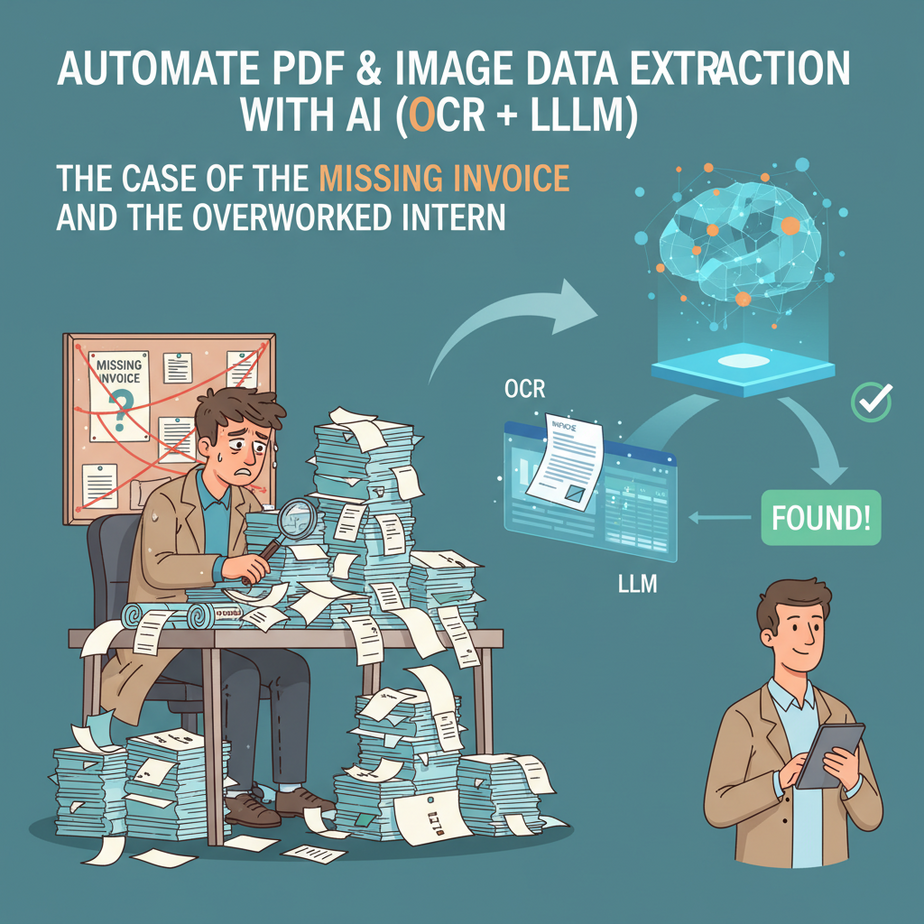
The Case of the Missing Invoice and the Overworked Intern
Alright, gather ’round, folks. Let me tell you a story. It’s a tale as old as time, or at least as old as the internet. You’ve got a growing business, things are humming, and then BAM! A pile of invoices lands on your desk. Or maybe it’s hundreds of customer application forms. Or a mountain of scanned legal documents.
And who gets to sift through this digital landfill? Usually, it’s the poor intern, Jenny. Jenny, with her bright eyes and dreams of disrupting industries, is now manually typing names, dates, amounts, and SKU numbers from blurry PDFs into a spreadsheet. Her soul is slowly being siphoned out, one keystroke at a time. Her dream job is now… glorified data entry.
Meanwhile, you’re waiting for those numbers to make a critical business decision, but Jenny’s still on invoice #74. The problem isn’t Jenny, bless her cotton socks. The problem is that we’re still using human brains for robot work. And that, my friends, is an automation crime.
Why Treating Humans Like Robots Matters (To Your Wallet and Your Sanity)
You think hiring Jenny for data entry is cheap? Think again. Every hour Jenny spends typing is an hour she’s NOT spending on strategic tasks, creative problem-solving, or actually growing your business. It’s an hour where human error can creep in (and trust me, it will). It’s an hour where your business decisions are delayed because the data isn’t ready.
This isn’t just about saving a buck; it’s about scaling without breaking. Imagine trying to process 10,000 invoices a month with humans. That’s not a team; that’s a data entry farm. But imagine processing 10,000 documents with an automated system that never tires, never makes a typo, and works 24/7. That’s not just efficiency; that’s a superpower.
This automation replaces the tedious, soul-crushing work that usually falls to interns, entry-level staff, or even you, the busy founder. It transforms a bottleneck into a high-speed data pipeline. Less manual work, fewer errors, faster insights, happier Jenny (and boss).
What This Automation (OCR + LLM) Actually Is
Okay, let’s peel back the curtain. We’re talking about a dynamic duo: OCR (Optical Character Recognition) and LLMs (Large Language Models). Think of it like this:
-
OCR: The Robot’s Eyes (Google Cloud Vision AI): This is the tech that looks at an image or a PDF and says, “Hey, that squiggly line there? That’s an ‘A’. The next one? That’s a ‘P’.” It converts pixels into plain, readable text. It’s like having a super-fast, perfectly accurate transcriber for documents. It doesn’t understand what it’s reading, it just converts it.
Example: You give it a picture of an invoice, and it spits out a big block of text: “Invoice #12345 Date: 2023-10-26 From: Acme Corp. To: My Business Total: $99.99”
-
LLM: The Robot’s Brain (OpenAI API): Once OCR has done its job, you’ve got a wall of text. That’s where the LLM comes in. The LLM’s job is to understand that text, extract specific pieces of information, and put it into a structured format you can use. It’s like giving that raw transcript to a super-smart analyst who knows exactly what data points you need.
Example: You give the LLM the raw text from the OCR and tell it, “Find the Invoice Number, Date, Supplier, and Total Amount, and put it in a JSON format.” It then intelligently sifts through the text and provides:
{"invoice_number": "12345", "date": "2023-10-26", "supplier": "Acme Corp.", "total": "99.99"}
What it does NOT do: This workflow isn’t magic. It won’t perfectly read every handwritten scribble from a doctor’s prescription unless the OCR is specifically trained for it (and even then, good luck). It won’t infer data that isn’t present. It’s powerful, but it’s not a mind-reader. It needs clear input and clear instructions.
Prerequisites (Don’t Panic, It’s Easier Than You Think)
Before we turn you into an automation wizard, you’ll need a few accounts. Don’t worry, many have generous free tiers for testing, so you won’t be breaking the bank just to learn.
- Google Cloud Account with Vision AI Enabled: This is our OCR engine. Go to Google Cloud Vision AI. You’ll need to set up a project and enable the Vision AI API. Google usually gives new users a significant free credit. You’ll also need to create a Service Account Key (JSON file) for authentication, which is how our automation talks to Google Cloud.
- OpenAI Account with API Access: This is our LLM brain. Head over to OpenAI. You’ll need to generate an API key. Remember to keep this key super secret! We’ll use this key to send text to models like GPT-3.5 or GPT-4.
- Zapier Account: This is our glue, our orchestrator. Zapier (or Make.com, if you prefer) connects all these services without a single line of code. Sign up at Zapier. The free tier will likely be enough for basic testing.
- Google Account (for Google Sheets): This is where our extracted, structured data will land. If you have a Gmail account, you’re all set.
Seriously, don’t let the API keys and service accounts scare you. It’s just like getting a digital key to open a digital door. Follow their instructions, and you’ll be fine.
Step-by-Step Tutorial: Getting Raw Text from a Document (The OCR Part)
First, let’s get our hands dirty with the OCR. We’ll use Google Cloud Vision AI because it’s robust and quite accurate. The easiest way to interact with it for testing is often via their client libraries or a simple curl command, but for this course, we’ll quickly show you how to set up the authentication and then point you to how Zapier will handle the actual request.
1. Set up Google Cloud Vision AI
- Create a Google Cloud Project: If you don’t have one, go to the Google Cloud Console and create a new project. Give it a memorable name.
- Enable Vision AI API: In your new project, search for “Cloud Vision API” in the search bar. Click on it and enable the API if it’s not already enabled.
-
Create a Service Account Key:
- Go to “IAM & Admin” > “Service Accounts”.
- Click “+ CREATE SERVICE ACCOUNT”.
- Give it a name (e.g., “vision-ocr-service”).
- Grant it the role “Cloud Vision API User” (or a custom role with permissions for
vision.documents.annotateandvision.images.annotate). - In the final step, click “CREATE KEY” and select “JSON”. This will download a JSON file to your computer. Keep this file safe and private! This is your service account key.
This JSON file contains sensitive authentication information. Treat it like a password.
2. Test Vision AI (Optional, for understanding)
While Zapier will handle the actual API calls, understanding the underlying request can be helpful. You would typically send a request that includes the image data (base64 encoded) and specify the features you want (like TEXT_DETECTION or DOCUMENT_TEXT_DETECTION for denser text like PDFs).
{
  "requests": [
    {
      "image": {
        "content": "BASE64_ENCODED_IMAGE_OR_PDF_CONTENT"
      },
      "features": [
        {
          "type": "DOCUMENT_TEXT_DETECTION"
        }
      ]
    }
  ]
}
The response from Vision AI would contain a massive JSON object with all the detected text, often broken down by pages, blocks, paragraphs, words, and even their bounding boxes. For our purposes, we’re mainly interested in the concatenated fullTextAnnotation.text field.
Complete Automation Example: Auto-Extracting Invoice Data from Google Drive to Google Sheets
This is where it all comes together. We’re going to build a Zap (that’s what Zapier calls an automation) that watches a Google Drive folder for new invoice PDFs, extracts key data using Vision AI and OpenAI, and then shoves that data neatly into a Google Sheet.
Our Goal:
Upload a PDF invoice to a specific Google Drive folder -> Zapier detects it -> Google Vision AI extracts all text -> OpenAI extracts structured data (Invoice #, Date, Total, Vendor) -> Google Sheets gets a new row with this data.
Step 1: Set up your Google Sheet
Create a new Google Sheet. Name it “Automated Invoices”. Create the following headers in the first row:
Invoice Number | Date | Total Amount | Vendor Name | Original File URLStep 2: Create a Google Drive Folder
In your Google Drive, create a new folder, e.g., “Invoices to Process”. This is where you’ll drop your PDFs.
Step 3: Build the Zap in Zapier
-
Trigger: New File in Folder (Google Drive)
- Go to Zapier and click “Create Zap”.
- App: Google Drive
- Event: New File in Folder
- Account: Connect your Google Drive account.
- Folder: Select the “Invoices to Process” folder you created.
- Test the trigger by uploading a sample PDF invoice to the folder. Zapier should find it.
-
Action 1: Send File to Google Cloud Vision AI (Webhooks by Zapier or Code by Zapier)
This is the trickiest part, as Zapier might not have a direct “Google Vision AI” integration for file processing. We’ll use “Webhooks by Zapier” (or “Code by Zapier” if you prefer Python/Node.js for a more robust integration) to make a custom API call.
- App: Webhooks by Zapier (or Code by Zapier, if comfortable with code)
- Event: POST
- URL:
https://vision.googleapis.com/v1/images:annotate(orv1/files:annotatefor batch PDF processing – check Google Vision AI docs for the exact endpoint and ensure your service account has the right permissions for files. For simplicity, let’s assume `images:annotate` which supports PDF base64). - Headers:
Content-Type:application/jsonAuthorization:Bearer YOUR_GOOGLE_CLOUD_ACCESS_TOKEN(You’ll need a preceding step to get an access token using your service account key. This is typically done with a Code by Zapier step or a custom integration setup if you’re using Make.com, or by using a Google Cloud Service Account integration if Zapier has one that provides tokens. For a true beginner, this might be simpler via a direct integration if available, or a pre-built custom step if provided by Zapier, which might handle token refresh. Let’s assume for now a simpler approach where a token is available or you hardcode a short-lived one for testing and will learn about refresh tokens later.)
- Data Payload (JSON Body): You need to base64 encode the file content from Google Drive.
{
  "requests": [
    {
      "image": {
        "content": "{{File_Content_Base64_from_Google_Drive_Step}}"
      },
      "features": [
        {
          "type": "DOCUMENT_TEXT_DETECTION"
        }
      ]
    }
  ]
}
Zapier’s Google Drive “New File” trigger typically provides a direct file URL. To get base64 content for Vision AI, you’d need an intermediate step, like a “Webhooks by Zapier (GET)” to fetch the file, or a “Code by Zapier” step to fetch and base64 encode it. For a beginner-friendly example, let’s assume Zapier *can* pass the file content directly or you’re using a specific integration that handles this. For a simple `images:annotate` call, you can often provide a `gs://` URI if the file is in a Google Cloud Storage bucket, or `content` for base64. Let’s simplify and say we use a helper app or a custom code step to provide the base64 content. For the sake of this tutorial, imagine `{{File_Content_Base64_from_Google_Drive_Step}}` is a valid output from a previous Zapier step.
- Test this step. You should get a large JSON response from Vision AI containing the extracted text. You’ll want to find the `fullTextAnnotation.text` field.
-
Action 2: Extract Structured Data (OpenAI)
- App: OpenAI
- Event: Send Prompt
- Account: Connect your OpenAI account using your API key.
- Model:
gpt-3.5-turbo(orgpt-4for higher accuracy) - User Message:
Extract the following information from the invoice text below:
- Invoice Number
- Date (format YYYY-MM-DD)
- Total Amount
- Vendor Name

Return the data as a JSON object. If a field is not found, use "N/A".

Invoice Text:
---
{{fullTextAnnotation.text_from_Vision_AI_Step}}
---
Make sure to map the `fullTextAnnotation.text` output from the previous Vision AI step into this prompt.
- Test this step. The response from OpenAI should be a JSON string.
-
Action 3: Parse JSON (Formatter by Zapier)
OpenAI returns text, even if it’s JSON. We need to parse it into usable fields.
- App: Formatter by Zapier
- Event: Text -> “Extract Pattern” or “Convert to Line Items” (or just parse the JSON in a Code step if needed)
- Transform: Convert to Line Items (JSON)
- Input: Map the text output from the OpenAI step.
- Test this step. You should now see individual fields like `Invoice Number`, `Date`, etc.
-
Action 4: Create Spreadsheet Row (Google Sheets)
- App: Google Sheets
- Event: Create Spreadsheet Row
- Account: Connect your Google Account.
- Spreadsheet: Select “Automated Invoices”.
- Worksheet: Select “Sheet1” (or whatever your sheet is named).
- Map Fields: Map the parsed output from the Formatter step to your Google Sheet headers:
Invoice Number: `{{Parsed_Invoice_Number}}`Date: `{{Parsed_Date}}`Total Amount: `{{Parsed_Total_Amount}}`Vendor Name: `{{Parsed_Vendor_Name}}`Original File URL: `{{File_URL_from_Google_Drive_Step}}` (This is useful for verification!)
- Test this step. Check your Google Sheet – a new row should appear!
Turn on your Zap, and congratulations! You’ve just automated data extraction from PDFs. Jenny can now go pursue her dreams of competitive interpretive dance, or whatever it is she does.
Real Business Use Cases (Who Needs a Robot Intern?)
This isn’t just a party trick; it’s a game-changer for practically any business drowning in documents. Here are just a few:
-
Law Firms & Legal Departments:
- Problem: Manually reviewing thousands of scanned contracts, discovery documents, or court filings to find specific clauses, dates, or party names.
- Solution: OCR all legal documents. Use an LLM to identify specific clauses (e.g., termination clauses, indemnification clauses), extract dates (effective date, expiration date), and list all involved parties. This data can then be indexed, searched, or used to flag inconsistencies automatically.
-
Small Businesses & Freelancers (Expense Management):
- Problem: Tediously saving and manually entering receipts into accounting software or spreadsheets for tax purposes.
- Solution: Snap a photo of any receipt (or upload a PDF receipt). The system OCRs the receipt, an LLM extracts the vendor, date, total amount, tax, and even categorizes the expense (e.g., “Meals,” “Office Supplies”), then automatically logs it into a Google Sheet or accounting software.
-
Healthcare Providers (Patient Form Processing – with caution for HIPAA/GDPR):
- Problem: Manual data entry from scanned patient intake forms, consent forms, or lab results into electronic health records (EHR).
- Solution: OCR scanned patient forms. An LLM extracts patient name, date of birth, contact information, insurance details, reported symptoms, or lab values. This can then populate a staging area or directly update the EHR (with proper security and compliance layers in place, of course, as patient data is highly sensitive).
-
Real Estate Agencies (Property & Tenant Management):
- Problem: Processing lease agreements, tenant applications, property deeds, or inspection reports, often filled with critical dates, names, and terms.
- Solution: OCR property documents. An LLM extracts property addresses, owner names, tenant details, lease start/end dates, rent amounts, security deposit figures, and special clauses. This data can automatically update CRM systems, tenant databases, or schedule follow-ups for renewals.
-
E-commerce & Supply Chain (Invoice & PO Matching):
- Problem: Manually reconciling hundreds of supplier invoices against purchase orders (PO) to ensure quantities, prices, and items match before payment.
- Solution: OCR incoming supplier invoices. An LLM extracts line items (product, quantity, price per unit). This extracted data is then compared against a digital PO. Any discrepancies are flagged for human review, while matching invoices proceed directly to payment processing or accounting software.
Common Mistakes & Gotchas (Don’t Trip Over the Wires)
Even with the best tools, you can stumble. Here are some pitfalls to watch out for:
- Garbage In, Garbage Out (Image Quality): If your scanned documents are blurry, crooked, or low-resolution, even the best OCR engine will struggle. Ensure your input files are as clear as possible. A badly taken phone photo of a crumpled receipt will give you nonsense.
- Vague LLM Prompts: “Extract data from this invoice” is too vague. Be excruciatingly specific. “Extract the ‘Invoice Number’ as a string, ‘Date’ in YYYY-MM-DD format, ‘Total Amount’ as a number with two decimal places, and ‘Vendor Name’ as a string. Return a JSON object with these exact keys: `invoice_num`, `invoice_date`, `total_amt`, `vendor`.” The more precise your prompt, the better the output.
- Rate Limits and Costs: Running thousands of documents can quickly hit API rate limits (how many requests you can make per minute/second) or start incurring costs, especially for higher-tier LLMs. Monitor your usage, start with smaller batches, and understand the pricing models of Google Cloud Vision AI and OpenAI.
- Security and Privacy (Sensitive Data): If you’re processing sensitive information (like medical records or financial statements), be extremely careful. Ensure your chosen tools and workflow comply with regulations like HIPAA or GDPR. Consider self-hosted or private cloud solutions for highly sensitive data, or ensure you have data processing agreements in place with your vendors. Don’t just blast patient data to a general-purpose LLM without understanding the implications.
- Complex Layouts: While modern OCR and LLMs are powerful, extremely complex or highly variable document layouts (e.g., utility bills from 50 different providers) might require custom training or more sophisticated LLM prompting. Start with simpler, more standardized documents.
How This Fits Into a Bigger Automation System (The Grand Vision)
Extracting data is just the first domino. This fundamental capability unlocks a universe of larger automation systems:
- CRM Integration: Extracted contact details from business cards or application forms can automatically create new leads or update existing customer records in your CRM (Salesforce, HubSpot, Zoho CRM). No more manual data entry for your sales team.
- Email & Communication Workflows: Imagine an invoice comes in, its data is extracted, and then an automated email is sent to the finance team for approval, or a confirmation email is sent to the supplier stating, “Invoice #123 received, payment due by [Extracted Date].”
- Voice Agents & Chatbots: If data from past interactions or documents is extracted and stored, your voice agent or chatbot can instantly retrieve answers from those documents. “What was the total on the invoice from Acme Corp. dated last Tuesday?” – the system finds it instantly.
- Multi-Agent Workflows: This is where things get spicy. One AI agent performs OCR. A second agent, an LLM, extracts data. A third agent validates that data against an existing database (e.g., check if the vendor exists). A fourth agent then routes the document or initiates further actions based on the validation. It’s a whole digital factory!
- RAG (Retrieval Augmented Generation) Systems: All that beautifully structured data you’re extracting can form a powerful knowledge base. An RAG system can then query *your specific documents* for answers, rather than relying on general internet knowledge, making your chatbots and internal tools incredibly precise and relevant to your business.
What to Learn Next (The Plot Thickens…)
You’ve successfully turned your documents from static paper (or pixels) into dynamic data. You’ve taught a robot to read and understand. That’s a huge win!
But what do we *do* with that data beyond just sticking it in a spreadsheet? How do we use it to make decisions? How do we validate it automatically? What if we need to *generate* a new document based on the extracted information?
Next time, we’re going to dive into the art of Conditional Logic and Data Validation in Automation. We’ll explore how to make your automated systems smart enough to make decisions, flag inconsistencies, and ensure the data isn’t just extracted, but *correct* and *actionable*. Because a robot that extracts data is good; a robot that extracts *and* validates and *acts* on data is unstoppable.
Stay sharp, keep experimenting, and I’ll see you in the next lesson!





