
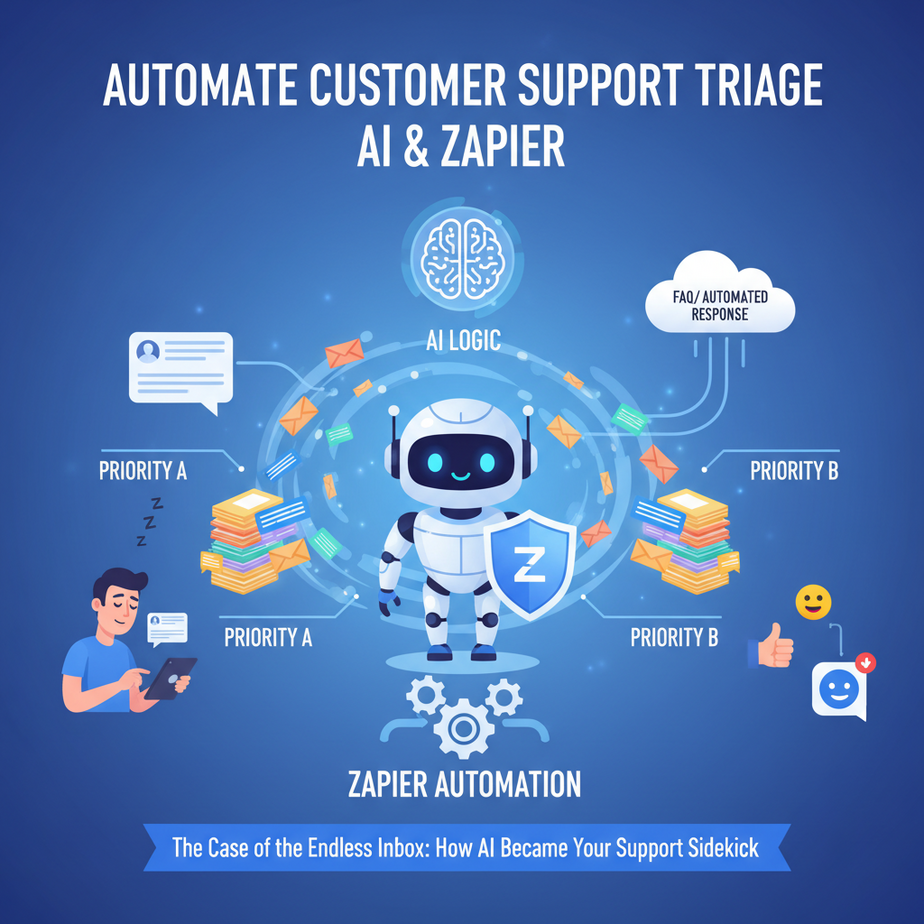
The Case of the Endless Inbox: How AI Became Your Support Sidekick
Picture this: It’s 3 AM. The only sound is the gentle hum of your laptop and the incessant, soul-crushing ‘ding!’ of incoming customer support emails. You’re trying to figure out if that new email is an urgent bug report, a grumpy customer demanding a refund, or just someone asking for your Wi-Fi password (again). Your eyes are burning, your coffee’s cold, and the intern you hired to help with ‘light administrative duties’ is asleep under their desk, dreaming of a world without inboxes. Sound familiar?
We’ve all been there. The never-ending stream of customer inquiries can quickly turn a thriving business into a triage nightmare. But what if you could have a tireless, super-smart robot intern that sorts every single email, categorizes it, and sends it to the right department, all while you’re enjoying your beauty sleep?
Well, wake up, buttercup. That’s exactly what we’re building today.
Why This Matters: Because Your Sanity (and Business) Depends On It
This isn’t just about reducing email clutter; it’s about transforming your entire customer support operation. Manually sifting through support tickets is not only a colossal waste of time but also a breeding ground for errors. Urgent issues get buried. Simple questions get delayed. Customers get frustrated. And eventually, your team burns out.
This automation:
- Saves Hours (and Money): Imagine reclaiming those precious hours spent manually sorting. That’s time your team can spend actually *solving* problems, not just identifying them. It’s like having an army of digital interns, but without the coffee runs or existential dread.
- Boosts Customer Satisfaction: Critical issues get routed immediately. Billing questions go straight to finance. Customers feel heard and helped faster, turning frowns into loyal smiles.
- Scales Effortlessly: Whether you get 10 emails a day or 10,000, your AI triage system won’t complain, get tired, or ask for a raise. It just… sorts.
- Reduces Stress: For you, for your support team, for that poor intern who just wanted to learn about spreadsheets. It brings order to the chaos.
This isn’t replacing your human support agents; it’s empowering them. It’s taking the drudgery out of their day so they can focus on the complex, empathetic, human-centric parts of their job. Think of it as replacing the ‘mailroom clerk’ function so your top agents can be ‘diplomats’ and ‘detectives.’
What This Tool / Workflow Actually Is: Your Digital Mailroom
At its core, this automation is a simple but powerful loop:
- An email comes in.
- AI reads and understands it.
- AI categorizes it and extracts key info.
- Zapier (our digital glue) takes that info and pushes it to the right place.
Let’s break down the players:
Your AI Brain (e.g., OpenAI GPT or Google Gemini)
This isn’t the AI that’s going to achieve sentience and take over the world (yet). This is a highly specialized, incredibly fast text processor. It can read, comprehend, and categorize text based on patterns it’s learned from vast amounts of data. We’ll be giving it a specific job: read this email and tell me what category it belongs to.
- What it does: Reads your customer emails, identifies the core intent (e.g., bug report, billing issue, feature request), and summarizes it.
- What it does NOT do (in this workflow): It won’t have a nuanced conversation with your customer, offer emotional support, or magically fix their software bug. It’s a sorter, not a solver.
Your Robotic Limbs (Zapier)
Zapier is the automation platform that connects thousands of apps. It’s the robot that physically picks up the email, hands it to the AI brain, takes the categorized output, and then clicks buttons in your CRM, project management tool, or Slack channel. It’s the ultimate digital go-between.
- What it does: Listens for new emails, sends them to the AI, receives the AI’s response, and then executes predefined actions based on that response (e.g., create a ticket, send a notification, add to a spreadsheet).
- What it does NOT do: It doesn’t understand context or make creative decisions. It simply follows the instructions you program into it, connecting A to B to C.
Together, they form a robust, automated customer support triage system. Your inbox goes from a digital swamp to a neatly organized filing cabinet.
Prerequisites: What You Need (It’s Easier Than You Think)
Don’t sweat it if you’re not a coding wizard. If you can click buttons and follow logical steps, you’re golden. Here’s your shopping list:
- An AI Account: You’ll need access to an AI model’s API. OpenAI (GPT-3.5 or GPT-4) or Google AI Studio (Gemini) are excellent choices. You’ll need an API key and usually some credit for usage (it’s typically very cheap for this kind of task).
- A Zapier Account: You’ll need a paid Zapier account (Starter or Professional plan is usually sufficient) because we’ll be using multi-step Zaps and potentially ‘Paths’ or ‘Filters’ which are premium features. Trust me, it pays for itself almost immediately.
- An Email Inbox: A Gmail, Outlook, or any email account that Zapier can connect to and monitor for new emails.
- A Destination App: Somewhere to send the categorized results. This could be:
- A project management tool (Trello, Asana, Jira)
- A communication tool (Slack, Microsoft Teams)
- A CRM (HubSpot, Salesforce)
- A simple Google Sheet or Airtable base
- Patience and a Cup of Coffee: You won’t need that 3 AM coffee anymore, but a fresh brew helps with learning.
Step-by-Step Tutorial: Building Your Triage Robot
Alright, let’s roll up our sleeves. We’re going to build a Zap (that’s what Zapier calls an automation workflow) that monitors your support email, sends it to AI for categorization, and then routes it accordingly.
We’ll aim for a simple scenario: categorize emails into ‘Bug Report’, ‘Feature Request’, ‘Billing Issue’, or ‘General Inquiry’ and then send a notification to Slack or create a task in a project management tool.
Step 1: The Trigger – When a New Support Email Arrives
This is where our robot ‘listens’ for new work.
- Log in to Zapier and click ‘Create Zap’.
- For your ‘Trigger’, search for and select your email app (e.g., ‘Gmail’).
- For ‘Trigger Event’, select ‘New Email’.
- Connect your email account to Zapier.
- Choose the specific mailbox or folder you want Zapier to monitor (e.g., your ‘Support’ inbox or a specific label/folder).
- Test the trigger. Send a test email to that address if you don’t have recent ones. Zapier will pull in a sample email to use for the subsequent steps.
Step 2: The Action – Send Email Content to Your AI Brain
Now, we hand the email’s content over to our smart AI assistant.
- Click the ‘+’ icon to add an ‘Action’ step.
- Search for and select ‘OpenAI’ (or ‘Google AI’ if you prefer Gemini).
- For ‘Action Event’, select ‘Conversation’ (for OpenAI) or ‘Generate Content’ (for Google AI).
- Connect your OpenAI/Google AI account using your API key. (If you haven’t, Zapier will guide you. Keep your API key safe!)
- Set up the action:
- Model: Choose a model like `gpt-3.5-turbo` (cost-effective, fast) or `gpt-4` (more powerful, but pricier). For Google, choose a `gemini` model.
- User Message: This is where the magic happens. We need to craft a clear prompt for the AI. This is what’s called ‘prompt engineering’. Be precise!
Categorize the following customer support email into ONE of these categories: "Bug Report", "Feature Request", "Billing Issue", "General Inquiry", "Urgent Technical Problem". Also, provide a concise 1-sentence summary of the email's content. Output your response ONLY as a JSON object with 'category' and 'summary' keys. If the email doesn't fit any category, use "General Inquiry".

Email Content:

{{[YOUR EMAIL BODY FIELD FROM STEP 1 HERE]}}
Professor’s Tip: Replace `{{[YOUR EMAIL BODY FIELD FROM STEP 1 HERE]}}` with the actual ‘Body Plain’ or ‘Body HTML’ field from your Gmail/Outlook trigger step. Make sure to choose the plain text body if available, as HTML can confuse the AI.
- Test this step. You should get a JSON response from the AI that looks something like:
{
  "category": "Urgent Technical Problem",
  "summary": "User cannot log in, sees a blank screen and needs immediate help."
}
Step 3: The Parser – Extract Data from AI’s JSON Response
The AI sent us a neat JSON object. Now we need to tell Zapier how to grab the `category` and `summary` from it.
- Add another ‘Action’ step.
- Search for and select ‘Formatter by Zapier’.
- For ‘Action Event’, select ‘Utilities’.
- For ‘Transform’, select ‘Parse JSON’.
- For ‘JSON String’, insert the ‘Assistant Response Message’ (or equivalent output field) from your OpenAI/Google AI step.
- Test this step. You should now see separate output fields for ‘category’ and ‘summary’.
Step 4: The Router – Create Paths for Different Categories (Optional but Recommended)
This is where our robot decides where to send the email next based on its category.
- Add another ‘Action’ step.
- Search for and select ‘Paths by Zapier’.
- You’ll create different ‘Paths’ for each category. For example:
- Path A: Name it ‘Bug Reports’. Set a rule: ‘Formatter by Zapier (Category)’ ‘Text Exactly Matches’ ‘Bug Report’.
- Path B: Name it ‘Billing Issues’. Set a rule: ‘Formatter by Zapier (Category)’ ‘Text Exactly Matches’ ‘Billing Issue’.
- And so on for ‘Feature Request’, ‘Urgent Technical Problem’, and a default ‘General Inquiry’ path.
- For each Path, you’ll then add the specific action. For example, within ‘Path A: Bug Reports’:
- Add an action: ‘Trello’ -> ‘Create Card’.
- Map the ‘Name’ of the card to the ‘Formatter by Zapier (Summary)’.
- Map the ‘Description’ to the original ‘Gmail New Email (Body Plain)’ and also the ‘Formatter by Zapier (Category)’.
- Choose your ‘Board’ and ‘List’ (e.g., ‘Bug Tracker’ board, ‘To Do’ list).
- Optionally, add a label like ‘High Priority’ if the category is ‘Urgent Technical Problem’.
- Repeat for other paths, sending to different tools (e.g., Slack for Urgent Technical Problems, Asana for Feature Requests, Google Sheet for General Inquiries).
- Make sure to have a catch-all path or a default action if the AI returns something unexpected.
Complete Automation Example: The Urgent Login Blip
Let’s walk through a real-world scenario with our newly built robot.
The Incident: A customer, Sarah, emails your `support@youramazingapp.com` address at 10:17 PM. Her email reads:
Subject: HELP! Can't log in!

Professor Ajay,

I'm trying to access my account on your app, and all I get is a blank white screen after entering my credentials. I've tried restarting my computer and clearing my cache. This is urgent, I need access to my data for a presentation tomorrow morning!

Thanks,
Sarah
How Your Automation Handles It:
- Zapier Trigger (Gmail): Your Zapier automation, constantly monitoring `support@youramazingapp.com`, detects Sarah’s new email. It pulls in the subject and body.
- AI Action (OpenAI): Zapier sends the email body to OpenAI with our prompt. The AI processes it and determines:
{ "category": "Urgent Technical Problem", "summary": "User cannot log in, sees a blank screen and needs immediate access for a presentation." } - Parser (Formatter by Zapier): Zapier’s formatter step extracts `”Urgent Technical Problem”` for the category and the summary text.
- Router (Paths by Zapier): The automation checks the category. It sees ‘Urgent Technical Problem’ and directs the workflow down the specific path you’ve configured for urgent issues.
- Path Action (Slack & Jira):
- Slack: The ‘Urgent Technical Problem’ path triggers an action to post a message to your `#on-call-support` Slack channel:
🚨 URGENT ISSUE: New Critical Ticket! Category: Urgent Technical Problem Summary: User cannot log in, sees a blank screen and needs immediate access for a presentation. Original Email: (link to email or full body paste here) - Jira: Simultaneously, it creates a P1 (Priority 1) ticket in your ‘Development Backlog’ Jira project, assigned to the ‘Support Team Lead’, with the summary as the ticket title and the full email body as the description.
- Slack: The ‘Urgent Technical Problem’ path triggers an action to post a message to your `#on-call-support` Slack channel:
The Outcome: Your on-call support engineer gets a Slack notification within minutes, even after hours. They can immediately triage the critical issue, rather than Sarah’s email getting lost in a general queue until morning. Sarah feels relieved that her urgent problem is being addressed swiftly, and you get to sleep soundly, dreaming of other automations.
Real Business Use Cases: Beyond Just Sorting Emails
The beauty of this system is its flexibility. Once you understand the core concept, you can apply it to almost any business that handles inbound communications.
- E-commerce Store:
- Problem: Drowning in emails about order status, returns, product questions, and shipping issues, especially after a sale.
- Solution: AI categorizes emails into ‘Order Tracking’, ‘Return Request’, ‘Product Inquiry’, ‘Shipping Delay’. ‘Return Requests’ automatically create a ticket in your returns system; ‘Product Inquiries’ are routed to your sales team with product details pulled from the email.
- SaaS (Software as a Service) Company:
- Problem: A mix of bug reports, feature requests, billing questions, and onboarding queries filling the general support inbox.
- Solution: AI sorts into ‘Bug Report’, ‘Feature Request’, ‘Billing Dispute’, ‘Onboarding Help’. ‘Bug Reports’ create tickets in Jira/GitHub; ‘Feature Requests’ go to your product roadmap Trello board; ‘Billing Disputes’ alert your finance team directly.
- Consulting or Agency Business:
- Problem: New client inquiries, partnership proposals, existing client updates, and general admin questions all land in one inbox.
- Solution: AI identifies ‘New Client Lead’, ‘Partnership Inquiry’, ‘Existing Project Update’, ‘Admin’. ‘New Client Leads’ automatically populate your CRM and notify the sales team; ‘Partnership Inquiries’ are forwarded to the business development lead.
- Real Estate Agency:
- Problem: Influx of property viewing requests, maintenance issues from tenants, lease inquiries, and agent contact requests.
- Solution: AI categorizes into ‘Property Viewing Request’, ‘Maintenance Issue’, ‘Lease Renewal’, ‘Agent Contact’. ‘Maintenance Issues’ create a work order in your property management software and notify the relevant contractor; ‘Property Viewing Requests’ schedule a follow-up call for an agent.
- Online Course Creator / Educator:
- Problem: Student questions, technical issues with the platform, refund requests, and potential collaborations all coming through one channel.
- Solution: AI sorts into ‘Course Content Question’, ‘Technical Platform Issue’, ‘Refund Request’, ‘Partnership Proposal’. ‘Technical Platform Issues’ go to your tech support team; ‘Refund Requests’ notify your finance department and create a review task.
Common Mistakes & Gotchas: Don’t Trip Here!
Even the smoothest automations can hit bumps. Here are some common pitfalls to watch out for:
- Vague Prompt Engineering: If your prompt to the AI is too generic, it might hallucinate categories or struggle to distinguish between similar requests. Be hyper-specific about the output format (JSON!) and the exact categories you want.
- Fix: Refine your prompt. Test it with tricky emails. Give it explicit instructions like ‘Output ONLY one of these categories: […]’.
- Forgetting AI Costs: While individual AI calls are cheap, a high volume of emails without proper filters can add up. Keep an eye on your AI API usage dashboard.
- Fix: Use Zapier’s ‘Filter’ step before the AI action if you only want to process emails with certain keywords or from specific senders.
- Not Handling Edge Cases: What if an email doesn’t fit any of your predefined categories? The AI might default to ‘General Inquiry’, which could still get lost.
- Fix: Always have a ‘fallback’ or ‘uncategorized’ path in Zapier. This might be a Google Sheet or a special Slack channel where humans can review and re-categorize.
- Over-reliance on AI for Nuance: AI is excellent at pattern matching, but it’s not human. It won’t pick up on subtle emotional cues or highly complex, multi-layered requests without very sophisticated prompting.
- Fix: This automation is for triage. The human touch is still crucial for resolution, especially for sensitive cases.
- API Key Exposure: Never hardcode your API keys directly into prompts or share them. Zapier handles API key security for you by storing them securely.
- Fix: Always use Zapier’s built-in connection methods for services like OpenAI.
How This Fits Into a Bigger Automation System: The Enterprise Brain
This automated triage system is powerful on its own, but it truly shines when integrated into a larger ecosystem. Think of it as the highly efficient receptionist for your entire digital enterprise.
- CRM Integration: Once an email is categorized, update the customer’s record in your CRM (HubSpot, Salesforce) with the inquiry type. This gives your sales and support teams a complete view of customer interactions.
- Automated Initial Responses: For ‘General Inquiries’ or common questions, the AI could categorize the email, and then a subsequent Zapier step could trigger an AI-generated, personalized (but templated) auto-response. Imagine: ‘Your billing question has been routed to our finance team, and you can expect a response within 24 hours.’
- Knowledge Base Integration (RAG): If an email is categorized as a ‘How-to’ or ‘Troubleshooting’ question, the AI could then search your internal knowledge base (a RAG system – Retrieval Augmented Generation) for relevant articles and potentially include them in an auto-response, offering instant self-service.
- Multi-Agent Workflows: This simple triage is the first step. You could envision a multi-agent system where one AI categorizes, another AI searches your product documentation, a third drafts a response, and a fourth human agent reviews and approves.
- Voice Agents: The same categorization logic used for email could be applied to transcriptions from a voice bot, ensuring callers are routed to the correct department or given accurate information.
This single automation opens the door to a truly intelligent, responsive, and scalable customer interaction system. It’s the first step on a journey to a fully orchestrated support experience.
What to Learn Next: From Sorter to Starter
You’ve just built yourself a digital support receptionist that never sleeps, never complains, and handles an endless stream of inquiries with robotic precision. Give yourself a pat on the back!
But we’re just getting started. Now that your robot can sort the mail, what if it could actually *write* the first draft of the reply? Or *find* the answer in your knowledge base and provide it directly? That’s right, we’re talking about taking this from a pure triage system to an active response assistant.
In the next lesson, we’re going to dive into using AI to generate personalized initial responses and intelligently search your internal documents, saving even more time and further delighting your customers. Get ready to turn your robot mailroom into a powerful, proactive communications hub.
This is just one cog in your future automated enterprise. Stay tuned for the next lesson in your AI Automation Academy journey!





