
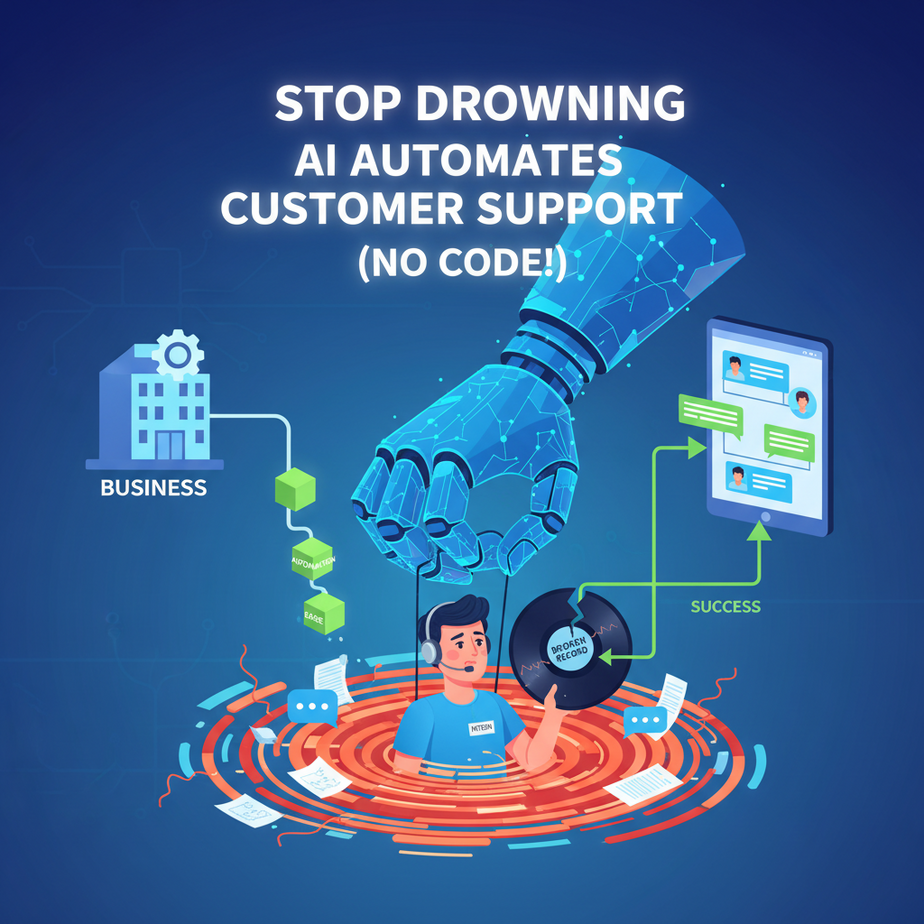
The Case of the Broken Record… and the Tired Intern
Alright, listen up, you magnificent automators-in-training. I’ve seen it a thousand times. You start a business, you’re passionate, you’re building something cool. And then… the emails start. ‘Where’s my order?’ ‘What’s your return policy?’ ‘How do I reset my password for the third time this week?’
Suddenly, you’re not a visionary entrepreneur anymore. You’re a human FAQ machine. Your inbox is a swamp, your brain feels like a broken record, and if you had an intern, they’d have quit after day two muttering about ‘soul-crushing repetition’.
It’s a universal pain, isn’t it? The grunt work that slowly, meticulously, chips away at your time, your energy, and your will to live. Well, today, we’re putting a stop to it. We’re going to build you an tireless, unflappable, AI-powered support agent that handles the boring stuff so you can get back to being a genius.
Why Drowning in FAQs is Bad for Business (and Your Sanity)
Why does this matter? Beyond the obvious sanity checks, let’s talk brass tacks:
- Time is Money: Every minute you spend manually typing out ‘Our return policy is 30 days…’ is a minute you’re NOT spending on strategy, sales, product development, or, you know, sleeping.
- Scalability Killer: As your business grows, so do the questions. You hit a wall. You either hire more people just to answer basic questions (expensive!), or your service quality tanks.
- Customer Frustration: Slow response times make customers grumpy. Grumpy customers leave. It’s that simple. An immediate, accurate answer is gold.
- Employee Burnout: If you do have a support team, imagine their joy at answering the same five questions 800 times a day. This automation frees them up for the *hard* problems, the ones that actually require a human brain.
This isn’t about replacing your entire support team with robots. It’s about letting the robots do what they’re good at – the repetitive, predictable drudgery – so your humans can focus on empathy, complex problem-solving, and building relationships. Think of it as upgrading your manual copy-pasting intern to a hyper-efficient, always-on AI assistant.
What This Automation Workflow Actually Is
At its core, this workflow is a smart receptionist for your customer inquiries. Here’s the deal:
It’s an automated system that:
- Listens: It waits for a new customer question to arrive (e.g., via a form, an email, a chat system).
- Reads & Understands: It takes that question and sends it to a powerful Artificial Intelligence (like OpenAI’s GPT models).
- Consults & Drafts: The AI then ‘consults’ a set of Frequently Asked Questions (your company’s knowledge base) that you’ve given it, and drafts a concise, helpful first-line response.
- Delivers: It then sends that AI-generated response back to the customer (or perhaps to your team for a quick review before sending).
What it IS NOT: This is NOT a fully sentient, all-knowing customer service agent that can debug your code or offer therapy. It’s designed to handle 80-90% of your most common, predictable questions. It’s a first responder, a triage nurse, an extremely well-read, always-available intern who never complains.
Prerequisites (Don’t Panic, It’s Easy)
Before we dive in, you’ll need a few things. No, not a degree in quantum physics or a coding bootcamp certificate. Just:
- An Internet Connection: (Shocking, I know).
- A Make.com Account (or Zapier): We’ll use Make.com for this tutorial because it’s visually intuitive and often more powerful for complex workflows on a free/starter plan. Sign up for free here.
- An OpenAI Account and API Key: This is how we talk to the AI brain. You’ll need to add a payment method, but initial usage is incredibly cheap (we’re talking pennies, not dollars, for basic tasks). Get your API key here. Keep it secret, keep it safe!
- A Source for Customer Questions: This could be a Google Form, a specific email address you use for support, or even a simple internal system. For our example, we’ll use a Google Form – it’s easy and free.
- Your FAQs: A list of your company’s most common questions and their concise answers. The clearer these are, the better our AI will perform.
See? Nothing scary. If you can click buttons and copy-paste text, you can do this. I promise.
Step-by-Step Tutorial: Building Your AI Support Intern
We’re going to build this on Make.com. If you’re using Zapier, the concepts are identical, just the interface looks a little different.
Step 1: Gather Your FAQs
Open a document and list out your most common customer questions and their answers. Make them clear and concise. This will be the ‘brain’ our AI consults.
Q: What's your return policy?
A: We offer a 30-day money-back guarantee on all products. Items must be in their original condition.

Q: How do I track my order?
A: Once your order ships, you'll receive an email with a tracking number. You can also log into your account to check status.

Q: Do you ship internationally?
A: Yes, we ship to most countries. International shipping rates apply and are calculated at checkout.

Q: How do I contact customer support?
A: You can reply to this email, or reach us at support@yourcompany.com or call us at 1-800-YOUR-BIZ during business hours.
Step 2: Create Your Customer Question Source (Google Form)
Go to forms.new to create a new Google Form. Add at least two fields:
- Customer Email: Short answer. (Make it ‘Required’)
- Your Question: Paragraph answer. (Make it ‘Required’)
Name it something like ‘Customer Support Request’. Submit a test entry so Make.com has data to work with.
Step 3: Set Up Your Make.com Scenario (The Automation Blueprint)
- Log into Make.com. Click ‘+ Create a new scenario’ in the top right.
- Add Your Trigger (Google Forms):
- Click the large ‘+’ in the center. Search for ‘Google Forms’ and select it.
- Choose ‘Watch New Responses’.
- Click ‘Create a webhook’. Give it a name like ‘New Support Form’.
- Click ‘Add a new connection’. You’ll need to sign into your Google account and grant permissions.
- Once connected, select your ‘Customer Support Request’ form from the dropdown.
- Click ‘OK’. Now, Make.com will wait for new form submissions.
- Click ‘Run once’ at the bottom left, then go back to your Google Form and submit a test entry. Make.com should now pull in that data.
- Add the AI Module (OpenAI):
- Click the ‘plus’ icon next to your Google Forms module.
- Search for ‘OpenAI’ and select it.
- Choose ‘Create a Chat Completion’.
- Click ‘Add a new connection’. Name it ‘My OpenAI Connection’. Paste your OpenAI API key (starts with `sk-`) into the API Key field. Click ‘Save’.
- Configure the OpenAI Module: This is where the magic happens.
- Method: `Chat`
- Model: `gpt-4o` (or `gpt-3.5-turbo` for cheaper/faster, but 4o is better).
- Messages: This is the prompt. Click ‘Add item’.
- Role: Select `System`.
- Content: Here’s our ‘robot intern’s’ instructions and brain. Paste your compiled FAQs here, preceded by instructions.
You are a helpful customer support agent for [Your Company Name]. Your goal is to provide concise, accurate, and polite first-line responses based ONLY on the provided FAQ data below. If you cannot find the answer in the FAQ, you MUST state 'I need to check with a human team member regarding your question and will get back to you shortly.' Do NOT invent information.

Here are the company FAQs:
Q: What's your return policy?
A: We offer a 30-day money-back guarantee on all products. Items must be in their original condition.

Q: How do I track my order?
A: Once your order ships, you'll receive an email with a tracking number. You can also log into your account to check status.

Q: Do you ship internationally?
A: Yes, we ship to most countries. International shipping rates apply and are calculated at checkout.

Q: How do I contact customer support?
A: You can reply to this email, or reach us at support@yourcompany.com or call us at 1-800-YOUR-BIZ during business hours.
- Click ‘Add item’ again for the next message.
- Role: Select `User`.
- Content: Click in this field. A panel will appear showing data from previous modules. Find the ‘Your Question’ field from your Google Forms module and click it. This inserts a ‘bubble’ that passes the customer’s question to the AI.
- Temperature: `0.2` (lower values make the AI more factual and less creative, perfect for support).
- Leave other settings as default for now. Click ‘OK’.
- Add Your Action Module (Gmail – Send an Email):
- Click the ‘plus’ icon next to your OpenAI module.
- Search for ‘Gmail’ and select it.
- Choose ‘Send an Email’.
- Add a new connection to your Gmail account.
- Configure the Email:
- To: Click in the field and select the ‘Customer Email’ from your Google Forms module.
- Subject: `Re: Your Support Request – [Your Company Name]`
- Content: Craft a polite email. Insert the AI’s response here.
Hi there, Thank you for contacting [Your Company Name] support! Regarding your question: "[CLICK HERE and select the 'Your Question' field from Google Forms]" Here's an initial response: [CLICK HERE and select 'Content' from the OpenAI module's 'Message' field. This is the AI's generated response.] If you need further assistance, please don't hesitate to reply to this email. Best regards, The [Your Company Name] Support Team - Click ‘OK’.
Step 4: Test and Activate!
- Click ‘Run once’ at the bottom left of your Make.com scenario.
- Go to your Google Form and submit a *new* test entry with a question that *is* in your FAQs (e.g., ‘What’s your return policy?’).
- Check your Make.com scenario execution history. Did it run successfully?
- Check the email address you used in the form. Did you receive an AI-generated response?
- Now, submit a question that is NOT in your FAQs (e.g., ‘What’s the meaning of life?’). Does the AI respond with ‘I need to check with a human…’? Perfect!
- If everything looks good, toggle the ‘ON/OFF’ switch at the bottom of your Make.com scenario to ‘ON’. Your AI intern is officially hired!
Complete Automation Example Walkthrough
Let’s recap what we just built:
Scenario: A customer visits your website, has a question, and fills out your ‘Customer Support Request’ Google Form.
- Customer Action: Fills out the form with their email (`customer@example.com`) and question (`How can I track my recent order?`). Clicks ‘Submit’.
- Make.com Trigger: The ‘Google Forms – Watch New Responses’ module instantly detects this new submission. It pulls in the customer’s email and question.
- AI Processing: The customer’s question (`How can I track my recent order?`) is sent to the ‘OpenAI – Create a Chat Completion’ module. The AI uses the prompt you gave it (acting as a support agent, only using provided FAQs) and finds the relevant FAQ about order tracking.
- AI Response Generation: OpenAI returns a response like:
Once your order ships, you'll receive an email with a tracking number. You can also log into your account to check status. - Email Delivery: The ‘Gmail – Send an Email’ module takes the customer’s email from the Google Form, and the AI’s generated response, and fires off an email:
To: customer@example.com
Subject: Re: Your Support Request - [Your Company Name]

Hi there,

Thank you for contacting [Your Company Name] support!

Regarding your question:
"How can I track my recent order?"

Here's an initial response:
Once your order ships, you'll receive an email with a tracking number. You can also log into your account to check status.

If you need further assistance, please don't hesitate to reply to this email.

Best regards,
The [Your Company Name] Support Team
All of this happens in seconds, without you lifting a finger. Your customer gets a fast answer, and you get your precious time back. Magic, isn’t it?
Real Business Use Cases (Beyond Just Forms!)
This same core automation can be adapted for countless scenarios:
-
E-commerce Store: Auto-Reply to Common Order Inquiries
Problem: Customers email `support@yourshop.com` asking about shipping times, return policies, or where to find size charts. Your team spends hours copy-pasting answers.
Solution: Set up the trigger as ‘New Email’ in a specific inbox. Pass the email body to OpenAI with your e-commerce FAQs. If the AI finds an answer, send an automated reply directly to the customer. This frees up your support team to handle complex order issues or product defects.
-
SaaS Company: Instant Answers for Basic Tech Support
Problem: Users are constantly asking how to reset passwords, upgrade plans, or find specific features. These are simple questions but clog up your ticketing system.
Solution: Integrate this workflow with your helpdesk software (e.g., Zendesk, Freshdesk). When a new ticket comes in with a common keyword, send the query to AI. The AI provides an immediate answer and updates the ticket with its response. The human agent only sees tickets requiring advanced troubleshooting.
-
Real Estate Agency: Prequalifying Inquiries
Problem: Potential clients email or fill out forms asking generic questions like ‘Is 123 Main St still available?’ or ‘What are the school ratings in this area?’
Solution: Use this automation to respond with property status, general neighborhood info from your FAQs, or even links to relevant listings. The AI can also suggest next steps like ‘Would you like to schedule a viewing?’ based on a positive match, allowing agents to focus on engaged leads.
-
Online Course Creator: Student Support Automation
Problem: Students flood your inbox with questions like ‘How do I access the course?’, ‘What’s the refund policy?’, or ‘Where is module 3?’
Solution: The AI, fed with your course FAQs and platform navigation guides, can instantly answer these. This ensures students get quick help and can continue learning without waiting, boosting satisfaction and reducing your direct involvement.
-
Local Service Business (Plumber, Electrician): Basic Information Provider
Problem: You get calls/emails asking about your service hours, service areas, or if you offer emergency services. You’re busy on jobs, so you miss potential clients.
Solution: Connect your ‘Contact Us’ form or a dedicated ‘FAQ email’ to this automation. The AI provides immediate answers about availability, service types, and payment options. It can even ask clarifying questions (in a more advanced setup) before a human has to get involved, ensuring only truly unique or urgent requests reach you directly.
Common Mistakes & Gotchas (Learn from My Scars)
Even the coolest automation has its quirks. Here’s what beginners often trip over:
- Starving the AI Brain: Not providing enough (or clear enough) FAQ data. Remember, the AI only ‘knows’ what you explicitly tell it in the system prompt. If your FAQs are vague, the AI will be vague.
- Expecting Miracles: Don’t assume the AI will intelligently infer things not in its prompt or data. It won’t. If you don’t tell it what to say if it *doesn’t* know, it might hallucinate an answer. (That’s AI talk for ‘making stuff up’). That’s why our ‘I need to check with a human’ instruction is critical.
- Forgetting to Test: You built it, you ran it once, you’re done, right? WRONG. Test with varied questions, including edge cases and questions not in your FAQs. Imagine you’re a grumpy customer trying to break it.
- Over-Automating Sensitive Queries: Never fully automate responses to complaints, refunds, or highly personal issues without a human review. The AI is a first responder, not a judge and jury.
- OpenAI API Costs: While cheap, unoptimized prompts or very high volumes can add up. Keep an eye on your usage Dashboard. Optimize your prompts for conciseness.
- Lack of Human Handoff: Always have a clear path for escalation if the AI can’t answer. A simple ‘reply to this email for human help’ or ‘we’ve escalated your ticket’ is vital for customer trust.
How This Fits Into a Bigger Automation System (The Grand Plan)
Today, you’ve built a single, powerful automation. But this is just one brick in your automation empire, my friend. Here’s how this piece connects to the grander scheme:
- CRM Integration: Instead of just sending an email, your Make.com scenario could also update a customer’s profile in Salesforce, HubSpot, or Zoho CRM. Log the AI’s response, add a tag like ‘AI-handled query’, or even change the ticket status.
- Advanced Email & Communication: What if the AI needs more info? It could trigger a follow-up email with clarifying questions, or create a draft for a human agent in a shared inbox system.
- Voice Agents & Chatbots: The exact same AI logic and FAQs you used today can power a basic voice agent on your phone system or a chatbot on your website. It’s the same brain, just a different mouth!
- Multi-Agent Workflows: Imagine this AI is ‘Agent Alpha’. If Agent Alpha can’t answer, it passes the torch to ‘Agent Beta’ (a human specialist), or ‘Agent Gamma’ (another specialized AI for refunds, for instance). This is how multi-agent systems are born.
- RAG Systems (Retrieval Augmented Generation): What you did with pasting FAQs into the prompt is a basic form of RAG. In a more advanced setup, you’d have a massive database of documents (product manuals, legal docs, past support tickets), and the AI would *retrieve* relevant snippets from that database *before* generating an answer. This scales far beyond a simple pasted FAQ list.
You’ve built a critical component of a modern, intelligent customer support pipeline. You’ve taught a robot to read, understand, and respond, thereby saving you a mountain of tedious work.
What to Learn Next (The Plot Thickens…)
Today, you’ve mastered the art of the AI-powered first responder. You’ve taken your first glorious step into transforming repetitive tasks into seamless automation. You’re no longer just a business owner; you’re an automation wizard, making mundane work disappear.
But what if your FAQs get too big to paste into a prompt? What if you need the AI to pull information from a Google Sheet, a database, or even your website? What if you want it to *create* a new lead in your CRM if it detects a sales inquiry?
In the next lesson, we’ll dive deeper into **Advanced Context & External Data Sources for AI**. We’ll explore how to feed your AI brain with dynamic, real-time information from across your business, turning your simple intern into a truly knowledgeable, hyper-integrated team member. Get ready to level up your automation game, because the possibilities are about to explode.
Stay curious, stay automating. Professor Ajay, out.
“,
“seo_tags”: “AI automation, customer support, no-code AI, Make.com tutorial, Zapier AI, OpenAI GPT, business automation, FAQ automation, save time, scale business, productivity hacks, Professor Ajay”,
“suggested_category”: “AI Automation Courses





