
the shot
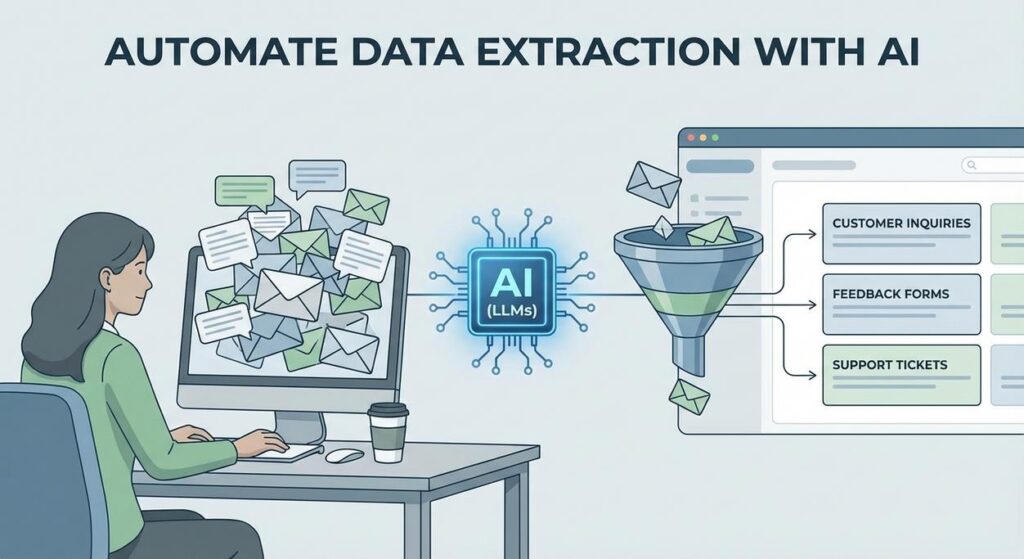
Picture this: you’re Sarah, a small business owner. Every morning, your inbox looks like a digital landfill. Customer emails asking for support, feedback forms filled with rambling thoughts, supplier invoices that are just PDF images, and social media comments that range from poetic praise to existential dread. You know there’s gold in there – insights, action items, critical details – but finding it feels like panning for gold in the Amazon with a teaspoon.
You’ve got a spreadsheet, of course. Who doesn’t? But the process is always the same: open email, squint, copy-paste customer name, copy-paste issue, try to summarize the sentiment, copy-paste product. Rinse. Repeat. For hours. Your intern, bless their heart, tried for a week before developing a nervous tic every time an email notification popped up. They quit to pursue interpretive dance, claiming it was less stressful.
Sound familiar? You’re not alone. The digital world is awash in unstructured text, and trying to make sense of it manually is like trying to drink from a firehose. It’s soul-crushing, slow, and makes you wonder if you’re actually running a business or just a data entry sweatshop.
Why This Matters
This isn’t just about saving your intern from a career in interpretive dance. This is about reclaiming your time, scaling your operations, and making smarter decisions faster. Manually extracting data from text is:
- Slow as molasses in January: Every minute spent copy-pasting is a minute you’re not strategizing, selling, or sipping margaritas.
- A money pit: Whether it’s your time or an employee’s, manual labor costs money. Lots of it.
- Prone to human error: Fatigue, typos, misinterpretations. We’re great at creativity, terrible at repetitive, precise data extraction.
- A bottleneck to scale: You can’t process 10,000 customer reviews if each one takes 5 minutes. You just can’t.
What if I told you we could train a digital ‘unpaid intern’ – one that never complains, never asks for coffee breaks, and works 24/7 – to do this grunt work for you? To read all that messy text, pick out exactly what you need, and present it neatly in a format your other systems can understand? That’s what we’re building today.
What This Tool / Workflow Actually Is
At its core, this workflow uses a Large Language Model (LLM) – the same kind of AI behind tools like ChatGPT – to intelligently read through any piece of text you throw at it and extract specific pieces of information. Think of it as giving a very, very smart librarian a precise list of facts to pull from a book, and then asking them to present those facts in a perfectly organized index card.
Here’s what it does:
- Reads unstructured text (emails, reviews, articles, reports, meeting notes).
- Identifies and extracts specific data points (names, dates, sentiment, product mentions, keywords, action items).
- Structures that extracted data into a machine-readable format, usually JSON.
- Can handle a huge variety of input texts and extraction goals, given the right instructions.
Here’s what it does NOT do (yet, anyway):
- Read your mind. You still need to tell it what you want.
- Understand context perfectly in every single edge case without any guidance.
- Replace human judgment entirely for complex, nuanced decisions.
- Act as a full database or analytics tool on its own. It’s the extractor, not the analyst.
Prerequisites
Alright, Professor Ajay is here to keep it real. What do you need to get started?
- A computer with internet access: Yes, even your grandma’s Windows XP machine could technically do this, but please don’t.
- An API Key for an LLM provider: We’ll use OpenAI for this tutorial, but others like Anthropic, Google, or Mistral work similarly. This is how your script talks to their super-smart AI brains. Don’t worry, getting one is easy and often comes with free credits to get started.
- A text editor: Notepad, VS Code, Sublime Text, whatever floats your boat. We’re writing simple Python, not a novel.
- A basic comfort with copy-pasting: If you can copy text from here and paste it into a file, you’re golden.
- Python installed (optional but recommended for this tutorial): If you don’t have it, a quick Google search for ‘install Python’ will get you there in minutes. We’ll use it to make the API calls, but remember, many no-code tools abstract this away once you understand the core logic.
Reassurance: This isn’t rocket science. If you’ve ever filled out a form, you understand the concept of extracting data. We’re just getting a robot to do the typing.
Step-by-Step Tutorial
Let’s get our hands dirty. We’ll set up a simple Python script to talk to OpenAI and extract some details.
1. Get Your OpenAI API Key
- Go to platform.openai.com/signup and create an account or log in.
- Once logged in, navigate to the API Keys section: platform.openai.com/api-keys.
- Click on "+ Create new secret key."
- Give it a name (e.g., "AutomationAcademy") and click "Create secret key."
- IMMEDIATELY COPY THIS KEY. You won’t be able to see it again. Treat it like your Netflix password – don’t share it!
2. Set Up Your Python Environment (If you haven’t already)
Open your terminal or command prompt.
pip install openai python-dotenvThis installs the OpenAI library and `python-dotenv` which is a neat little package to keep your API key out of your code (good practice!).
3. Store Your API Key Safely
Create a new file in your project directory called .env (yes, just .env, no name before the dot). Inside this file, put:
OPENAI_API_KEY="YOUR_SECRET_API_KEY_HERE"Replace YOUR_SECRET_API_KEY_HERE with the key you copied from OpenAI. This keeps your key secure and separate from your main code.
4. Write the Extraction Script
Create another file, let’s call it extract_data.py. This is where the magic happens.
import os
from openai import OpenAI
from dotenv import load_dotenv
import json

# 1. Load environment variables (including your API key)
load_dotenv()

# 2. Initialize the OpenAI client
client = OpenAI(api_key=os.getenv("OPENAI_API_KEY"))

# 3. Define the text we want to process
example_text = """
Customer Feedback: Had a terrible time trying to set up the new 'Quantum Leaper 3000' widget.
Instructions were confusing, and the app kept crashing. I'm using an iPhone 14 Pro.
Overall, I'm very frustrated. My order number is #QL3000-XYZ. Please help me fix this!
"""

# 4. Craft your prompt for extraction
def get_extraction_prompt(text):
    return f"""You are an expert data extractor.
    Your task is to extract the following information from the provided text:
    - Customer Name (if available, otherwise 'Unknown')
    - Product Name (e.g., 'Quantum Leaper 3000', 'Space Whistle 2.0')
    - Issue Description (a concise summary of the problem)
    - Device Used (e.g., 'iPhone 14 Pro', 'Android tablet')
    - Sentiment (classify as 'Positive', 'Negative', 'Neutral')
    - Order Number (e.g., '#QL3000-XYZ', '12345')

    Format the output as a JSON object with these keys. If a field is not found, use 'N/A'.

    Text: """{text}"""
    """

# 5. Make the API call
def extract_data_with_llm(text):
    prompt = get_extraction_prompt(text)
    try:
        response = client.chat.completions.create(
            model="gpt-3.5-turbo-0125", # Or "gpt-4-turbo" for better results
            response_format={ "type": "json_object" },
            messages=[
                {"role": "system", "content": "You are a helpful assistant designed to output JSON."},
                {"role": "user", "content": prompt}
            ]
        )
        # 6. Parse the JSON output
        extracted_json = json.loads(response.choices[0].message.content)
        return extracted_json
    except Exception as e:
        print(f"An error occurred: {e}")
        return None

# 7. Run the extraction and print the result
if __name__ == "__main__":
    extracted_info = extract_data_with_llm(example_text)
    if extracted_info:
        print(json.dumps(extracted_info, indent=2))
Explanation of the Script:
load_dotenv(): Grabs your API key from the.envfile. Smart.client = OpenAI(...): This sets up the connection to OpenAI’s servers.example_text: This is the messy, unstructured text we want to process. Imagine this coming from an email or a form.get_extraction_prompt(text): This is the heart of it! This is where you tell the LLM exactly what to do. Notice how explicit we are: "expert data extractor," "extract the following information," "Format the output as a JSON object." The more specific, the better.client.chat.completions.create(...): This is the actual call to the OpenAI API.model="gpt-3.5-turbo-0125": We’re telling it which specific LLM model to use. GPT-3.5 Turbo is fast and cheap. GPT-4 Turbo is smarter but costs a bit more.response_format={ "type": "json_object" }: This is CRITICAL! It forces the LLM to give you a valid JSON output, which makes parsing much easier.messages=[...]: This is how you send your instructions and text. The "system" role sets the overall persona (helpful assistant for JSON), and the "user" role contains your specific prompt and the text to extract from.json.loads(...): Once the LLM sends back its JSON string, this line converts it into a Python dictionary, which is super easy to work with.
5. Run Your Script!
Open your terminal in the directory where you saved extract_data.py and .env, and type:
python extract_data.pyYou should see a beautifully formatted JSON output right there in your terminal! Your unpaid intern just did its first job.
Complete Automation Example
Let’s take this up a notch. Imagine you run a SaaS company, and customer support tickets come in through various channels (email, web form, chat). You want to automatically categorize them, assess urgency, and assign them to the right team without a human reading every single one.
Scenario: Automated Support Ticket Triage
Problem: Manually sorting support tickets is slow, leading to delayed responses and frustrated customers. You need to quickly identify the customer, the core issue, product, and urgency.
Input: A raw support email, like this:
Subject: Urgent Bug Report: Login Broken on Desktop App

Hi Support Team,

I'm writing to report a critical issue with your desktop application, version 2.3.1.
Since yesterday, I haven't been able to log in at all. Every time I enter my credentials,
the app just freezes and then closes. I've tried reinstalling, clearing cache,
and even restarting my PC (Windows 11).

This is impacting my work significantly as I rely on the 'Project Phoenix' module daily.
My username is 'johndoe123'. Please escalate this immediately.

Thanks,
John Doe
Account: Pro Plan User
Goal: Extract customer name, product affected, issue type, urgency, operating system, and a summary into JSON.
Modified Python Script (ticket_triage.py):
import os
from openai import OpenAI
from dotenv import load_dotenv
import json

load_dotenv()
client = OpenAI(api_key=os.getenv("OPENAI_API_KEY"))

def triage_support_ticket(ticket_text):
    prompt = f"""You are an AI assistant specialized in triaging customer support tickets.
    Extract the following details from the support ticket provided:
    - Customer Name: The name of the customer.
    - Customer Username: The username mentioned (if any).
    - Product Affected: The specific product or module experiencing the issue.
    - Issue Type: Categorize the issue (e.g., 'Bug Report', 'Login Issue', 'Feature Request', 'Billing Query', 'Performance Issue').
    - Urgency: Classify as 'Critical', 'High', 'Medium', 'Low'. Look for words like 'urgent', 'critical', 'impacts work'.
    - Operating System: The OS the user is on (e.g., 'Windows 11', 'macOS', 'iOS').
    - Summary: A 1-2 sentence summary of the core problem.

    Format the output as a JSON object. If a field is not explicitly mentioned, use 'N/A'.

    Support Ticket:
    """{ticket_text}"""
    """

    try:
        response = client.chat.completions.create(
            model="gpt-3.5-turbo-0125",
            response_format={ "type": "json_object" },
            messages=[
                {"role": "system", "content": "You are a helpful assistant designed to output JSON."},
                {"role": "user", "content": prompt}
            ]
        )
        extracted_json = json.loads(response.choices[0].message.content)
        return extracted_json
    except Exception as e:
        print(f"An error occurred: {e}")
        return None

if __name__ == "__main__":
    ticket = """
Subject: Urgent Bug Report: Login Broken on Desktop App

Hi Support Team,

I'm writing to report a critical issue with your desktop application, version 2.3.1.
Since yesterday, I haven't been able to log in at all. Every time I enter my credentials,
the app just freezes and then closes. I've tried reinstalling, clearing cache,
and even restarting my PC (Windows 11).

This is impacting my work significantly as I rely on the 'Project Phoenix' module daily.
My username is 'johndoe123'. Please escalate this immediately.

Thanks,
John Doe
Account: Pro Plan User
"""

    triage_result = triage_support_ticket(ticket)
    if triage_result:
        print("\
--- Triage Result ---")
        print(json.dumps(triage_result, indent=2))

        # Example of how you'd use this data:
        if triage_result.get("Urgency") == "Critical":
            print("\
ACTION: This is a CRITICAL issue! Notify lead engineer and prioritize.")
        elif triage_result.get("Issue Type") == "Login Issue":
            print("\
ACTION: Assign to Authentication Team.")
Run this script (python ticket_triage.py), and you’ll get a beautiful, structured output that can immediately feed into your support system to route the ticket, trigger notifications, or even auto-reply with initial troubleshooting steps.
Real Business Use Cases
This single automation pattern – extracting structured data from unstructured text – is a bedrock of modern business automation. Here are just a few ways different businesses can apply it:
-
E-commerce Business: Customer Review Analysis
Problem: Thousands of customer reviews across different products and platforms. Manually reading and summarizing them for product improvements or marketing insights is impossible.
Solution: Use AI to extract product mentions, specific features praised or criticized, sentiment (positive/negative), common themes (e.g., "shipping speed," "sizing issues"), and suggested improvements from each review. The structured data can then be fed into a dashboard to visualize product strengths and weaknesses, informing development and marketing strategies.
-
Legal Firm: Contract Redlining & Summary
Problem: Lawyers spend countless hours reviewing lengthy contracts, identifying key clauses, obligations, dates, and parties involved.
Solution: Automate the extraction of parties involved, effective dates, termination clauses, specific liabilities, and key terms from legal documents. The AI can also flag clauses that deviate from standard templates or extract specific obligations into a checklist, significantly speeding up contract review and reducing human oversight errors.
-
Real Estate Agency: Property Listing Analysis
Problem: Sifting through hundreds of diverse property listings daily, which are often free-form text descriptions, to find properties matching client criteria (e.g., "3 beds, 2 baths, garage, pet-friendly").
Solution: Extract specific features like number of bedrooms/bathrooms, square footage, specific amenities (e.g., "pool," "balcony"), pet policy, neighborhood, and price range from the free-text descriptions. This structured data can then be used to automatically filter listings and match them to client preferences, saving agents hours of manual searching.
-
Marketing Agency: Social Media Listening & Trend Spotting
Problem: Tracking brand mentions, competitor activity, and emerging trends across vast amounts of social media text can be overwhelming and time-consuming.
Solution: Extract brand mentions, sentiment towards a brand/product, competitor mentions, trending keywords, and common customer questions from social media posts and comments. This allows the agency to quickly identify PR crises, capitalize on positive sentiment, understand competitor strategies, and inform content creation based on real-time public interest.
-
Healthcare Provider: Patient Feedback & Survey Processing
Problem: Collecting patient feedback via open-ended survey questions or comment cards often results in rich, but unstructured, text that is difficult to quantify and act upon.
Solution: Extract key themes (e.g., "staff helpfulness," "wait times," "facility cleanliness," "doctor communication"), sentiment, and specific suggestions from patient feedback. This enables healthcare providers to quickly identify areas for improvement, track changes in patient satisfaction, and make data-driven decisions to enhance patient care and experience.
Common Mistakes & Gotchas
Like any good robot, LLMs need clear instructions. Here’s where beginners often stumble:
- Vague Prompts: Asking "Summarize this" is okay, but "Extract customer name, email, and the 3 most common complaints, summarizing each complaint in 10 words or less, and output as JSON" is infinitely better. Be ruthlessly specific about what you want and how it should be formatted.
- Forgetting
response_format(or similar): If you don’t explicitly tell the LLM to output JSON (or XML, or whatever), it might decide to be conversational, adding introductory phrases or explanatory text, breaking your parsing script. Always force the format! - Not Handling "Not Found" Cases: What if the customer name isn’t in the text? Your prompt should tell the LLM what to do (e.g., "If not found, use ‘N/A’ or ‘Unknown’"). Otherwise, you might get missing keys in your JSON, which can break your downstream systems.
- Token Limits: LLMs have a maximum amount of text they can process at once (input + output). If your document is a 50-page legal brief, you’ll need strategies to break it into chunks or use models with larger context windows.
- Hallucinations: LLMs can sometimes make up information if they can’t find it. If accuracy is paramount, consider adding a "confidence score" to your prompt or double-checking critical extractions.
- Cost Management: API calls aren’t free. While usually cheap for smaller texts, high volumes or very long texts can add up. Monitor your usage!
- Edge Cases: Real-world text is messy. "John Doe" is easy, but "J. Doe (Customer Relations)" or "John Smith (cc: Accounting Dept)" can confuse an LLM if your prompt isn’t robust enough to handle variations. Test with diverse inputs.
How This Fits Into a Bigger Automation System
Think of this data extraction step as a crucial link in a larger assembly line. It takes raw material (unstructured text) and turns it into refined, usable components (structured JSON data) that can then be processed by other machines in your factory.
- CRM Integration: Extracted customer details (name, email, query type) can automatically update contact records in Salesforce, HubSpot, or Zoho, ensuring your sales and support teams always have the latest info.
- Email Automation: Based on extracted sentiment or intent (e.g., "refund request"), automatically trigger specific email sequences in Mailchimp or ConvertKit (e.g., "We’ve received your refund request").
- Database Population: Extracted data can directly populate fields in a database (SQL, NoSQL, Google Sheets), building a structured repository of information that was once buried in text.
- Voice Agents / Chatbots: The structured data can feed into a conversational AI. Imagine a voice agent retrieving specific contract clauses or patient feedback summaries instantly.
- Multi-Agent Workflows: This extracted data might be the input for another AI agent. For instance, an extraction agent identifies a "high urgency bug report." This data then gets passed to a "bug-routing agent" that checks engineer availability and creates a ticket in Jira or Asana.
- RAG Systems (Retrieval Augmented Generation): Before extraction, you might use a RAG system to find relevant internal documents (e.g., a knowledge base article related to the customer’s problem). You can then give the LLM both the customer’s text *and* the relevant knowledge base article, asking it to extract details and also suggest a solution based on the article. This makes your extractions even smarter and more informed.
This isn’t just a trick; it’s a fundamental capability that unlocks dozens of other automations, turning your chaotic data into a well-oiled machine.
What to Learn Next
You’ve just built your first intelligent data extractor! You’ve successfully taught a robot to read and understand, which, if you ask me, is pretty darn cool. This is a foundational skill in the AI automation academy.
Next up, we’re going to dive into how to take this structured data and actually *do something* with it without writing more code. We’ll explore connecting your AI extractors to real-world business tools using no-code automation platforms like Zapier or Make.com. You’ll learn how to:
- Automatically save extracted data to a Google Sheet.
- Trigger emails based on extracted sentiment.
- Create tasks in your project management system from support tickets.
This will bridge the gap from a cool Python script to a fully operational, integrated business automation. Get ready, because the robots are just getting started.





