
the shot
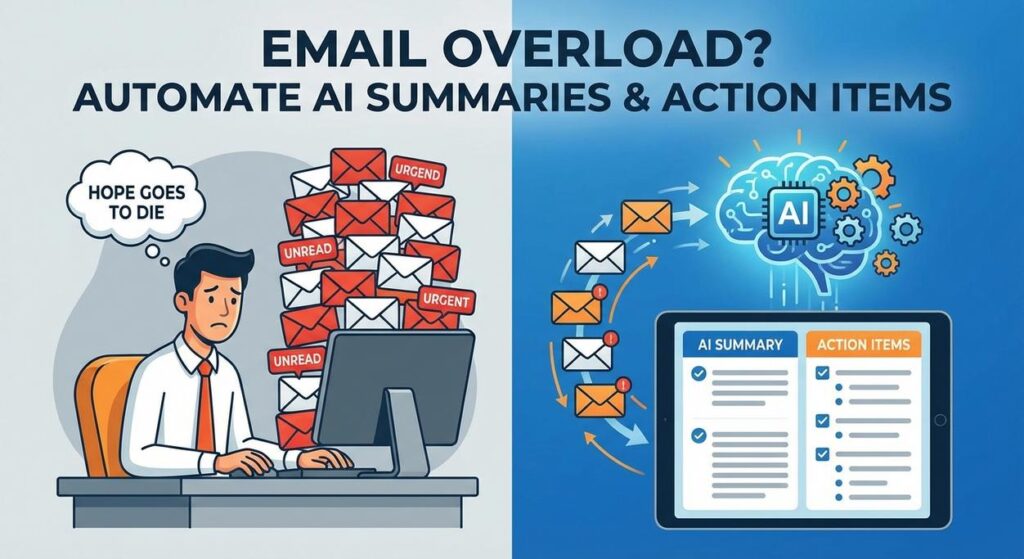
Ah, the inbox. That sacred digital space where hope goes to die, one unread message at a time. Remember that feeling? The one where you open your email client, see the towering stack of new messages, and immediately feel a tiny piece of your soul shrivel up and blow away like a tumbleweed in the desert?
It’s 9 AM. You’re fueled by lukewarm coffee and a fading dream of productivity. You tackle the first email: a 10-paragraph opus from a client about their ‘vision.’ Forty-five minutes later, you’ve extracted three actual facts and one vague action item. You sigh, moving to the next. Repeat. By lunchtime, you’ve read approximately 1,200 words, made three decisions, and now have a twitch in your left eye. And that’s just Monday. Welcome to the Groundhog Day of email management.
What if I told you there’s a way to delegate that soul-crushing summarization work? To have a tireless digital intern — one who never complains, never takes a coffee break, and actually likes reading long, rambling emails — do the heavy lifting for you? Yeah, I thought that might get your attention.
Why This Matters
Time, my friend, is the only non-renewable resource. Every minute you spend manually sifting through an email thread, trying to separate the wheat from the chaff, is a minute you’re not spending on strategic work, client calls, or, dare I say it, enjoying your life.
This isn’t just about saving time; it’s about clarity, speed, and sanity. For a business owner, it means:
- Faster Decision Making: Get the gist instantly, react quicker.
- Reduced Overwhelm: Less mental load means more focus on what truly matters.
- Better Prioritization: Clearly defined action items mean you tackle the most important tasks first, every time.
- Replacing Manual Labor: This automation replaces hours of tedious reading, freeing up your own time or the time of a junior team member who could be doing higher-value work. Think of it as upgrading your manual email intern to a hyper-efficient AI executive assistant.
- Scaling Your Attention: You can ‘process’ more information in less time, without feeling like your brain is melting.
It’s not just a productivity hack; it’s a strategic advantage.
What This Tool / Workflow Actually Is
At its core, this workflow is a smart digital assistant that intercepts your emails, feeds them to an Artificial Intelligence model, and then extracts two critical pieces of information:
- A concise summary: The ‘too long, didn’t read’ (TL;DR) version that captures the main points.
- Clear action items: Specific, actionable tasks that need to be done, pulled directly from the email’s content.
Think of it as having a highly trained analyst review every important email and present you with a bulleted brief and a to-do list, ready to go. The AI acts as a sophisticated pattern-matcher and language interpreter, understanding context, sentiment, and intent far better than a simple keyword search ever could.
What it DOES:
- Reads email content.
- Generates brief summaries.
- Identifies distinct action items.
- Can output this information in structured formats (like JSON) for easy use by other systems.
What it DOES NOT do:
- Replace your judgment: It’s a tool to assist, not to make final decisions.
- Understand nuance like a human: While advanced, complex human emotions or unspoken context might still be missed.
- Write perfect replies: It can draft, but that’s a different automation. Here, we’re focused on extraction.
- Handle attachments: We’re focusing on text content from the email body for now.
Prerequisites
Alright, let’s get real about what you’ll need. Don’t sweat it; it’s surprisingly accessible, even if your coding experience peaked with HTML in 1998.
Absolutely Essential:
- An AI Model API Key: You’ll need access to a powerful Large Language Model (LLM). OpenAI’s API (ChatGPT’s engine) is an excellent choice. Head over to platform.openai.com, sign up, and get your API key. There will be a free tier or minimal pay-as-you-go costs.
- An Email Account: Gmail, Outlook, whatever you use. Just make sure you can access its incoming messages.
Choose Your Adventure (Automation Platform):
You have two main paths. Pick the one that feels right for your comfort level:
- No-Code/Low-Code Integration Platform (Recommended for Beginners): Tools like Make.com (formerly Integromat) or Zapier are visual drag-and-drop builders. They let you connect apps without writing code. This is what we’ll mostly use in the example.
- Basic Scripting (Python): If you’re comfortable with a text editor and running simple scripts, you can build this with a few lines of Python. We’ll show you how the logic translates, but the primary example will be low-code.
That’s it. No advanced degrees, no server racks in your basement. Just a willingness to click a few buttons and copy-paste some text.
Step-by-Step Tutorial
Let’s build this beast. We’ll outline the general steps, then dive into a specific example.
Step 1: Get Your AI API Key (If You Haven’t Already)
This is your golden ticket to the AI playground. Without it, the robots won’t talk to you.
- Go to platform.openai.com and sign up or log in.
- Navigate to the API keys section (usually under your profile settings).
- Click “Create new secret key.” Copy it immediately and store it somewhere safe! You won’t see it again. Treat this like your bank account PIN.
Step 2: Choose and Set Up Your Automation Platform
For this walkthrough, we’ll use Make.com (or Zapier, the principles are identical). It’s incredibly visual.
- Sign up for a Make.com account.
- Start a “New Scenario.” This is where you’ll build your automation.
Step 3: Define Your Email Trigger
How does your automation know a new email has arrived and needs processing?
In Make.com/Zapier, this is your first module:
- Search for and select your email app (e.g., Gmail).
- Choose the trigger event: “Watch Emails” (Gmail) or “New Email” (most email apps).
- Connect your email account.
- Configure the trigger: You can specify a folder, label, sender, or even keywords to filter which emails get processed. Start broad, then refine. For example, you might only want emails going to a specific ‘inquiries@yourdomain.com’ address, or emails with a certain label like ‘AI_Process’.
Step 4: Craft the AI Prompt (The Magic Spell)
This is where you tell the AI exactly what you want. It’s like training your intern: be specific, give examples if needed, and define the output format.
Here’s a robust prompt template for summarization and action items:
You are an expert executive assistant tasked with summarizing emails and extracting clear, actionable items.

Your output MUST be in JSON format with two keys: "summary" and "action_items".
"action_items" should be an array of strings. Each action item should be specific and clearly state what needs to be done and by whom (if specified).

If no clear action items are present, the "action_items" array should be empty.

Here is the email to process:

Email Content:
---
{{EMAIL_BODY_HERE}}
---
Why this prompt works:
- Role-playing: “You are an expert executive assistant” sets the tone and expected quality.
- Clear instructions: “summarizing emails and extracting clear, actionable items.”
- Mandatory JSON format: This is CRITICAL for easy parsing by subsequent steps. No guessing game.
- Specific action item format: “array of strings,” “specific and clearly state what needs to be done.”
- Edge case handling: “If no clear action items…” ensures predictable output.
- Delimiter: The
---helps the AI clearly distinguish your instructions from the email content.
Step 5: Send Email Content to AI
This is where you bridge your email to the AI. In Make.com/Zapier:
- Add a new module: Search for “OpenAI” (or whatever LLM provider you’re using).
- Choose the action: “Create a Completion” or “Send a Prompt.”
- Connect your OpenAI account using the API key from Step 1.
- Select your AI model (e.g.,
gpt-3.5-turboorgpt-4ofor better results). - Paste your prompt from Step 4 into the “Prompt” field.
- Crucially, replace
{{EMAIL_BODY_HERE}}with the actual body of the email from your trigger module. Make.com/Zapier will let you drag and drop this or select it from a dropdown.
Step 6: Parse the AI’s Response
The AI will send back its response, which, thanks to our prompt, will be a JSON string. We need to convert that into usable data.
In Make.com/Zapier:
- Add another module: Search for “JSON” or “Parse JSON.”
- Choose the action: “Parse JSON.”
- Input the output from your OpenAI module into the “JSON String” field. Make.com/Zapier will often automatically infer the data structure if you give it an example JSON string (you can test your prompt in OpenAI’s playground first and paste the result). This makes the ‘summary’ and ‘action_items’ fields available for future steps.
Step 7: Do Something Useful with the Extracted Info
Now that you have your summary and action items, what do you want to do with them? The possibilities are endless:
- Add to a task manager: Create tasks in Asana, Trello, Todoist, Google Tasks.
- Log to a spreadsheet: Append a row to a Google Sheet with the summary and actions.
- Send a notification: Get a Slack message, SMS, or email with the brief.
- Update a CRM: Add a note to a client’s record.
For our example, we’ll log it to a Google Sheet and send a notification.
Complete Automation Example: Customer Inquiry Prioritization
Let’s say you run a small e-commerce business. Customer inquiries come in via email, and you need to quickly figure out what they need and if there’s an urgent action. This automation will:
- Monitor a specific Gmail label (e.g., “Customer Inquiries”).
- Summarize the email.
- Extract any explicit action items.
- Add the summary and actions to a Google Sheet.
- Send a Slack notification to your team with the key details.
Tools Needed:
- Gmail account
- OpenAI API key
- Make.com account
- Google Sheets
- Slack account (optional, for notifications)
Walkthrough (in Make.com):
1. Gmail – Watch Emails Module:
- Add a new module, search for “Gmail.”
- Select “Watch Emails.”
- Connect your Gmail account.
- Under “Folder,” select “Label” and choose a specific label you’ve set up, like “Customer Inquiries.” (You’ll need to create this label in Gmail and manually move a few test emails there, or set up a Gmail filter to apply it automatically.)
- Set “Mark Email as Read” to Yes if you want to avoid processing the same email twice during testing.
2. OpenAI – Create a Completion Module:
- Add another module, search for “OpenAI.”
- Select “Create a Completion.”
- Connect your OpenAI account with your API key.
- For “Method,” choose “Chat.”
- For “Model,” select
gpt-4o(recommended for best results, orgpt-3.5-turbofor lower cost). - For “Messages,” add an item. Set “Role” to “user” and paste the following prompt (make sure to replace the placeholder with the actual email body from the Gmail module):
{
  "role": "user",
  "content": "You are an expert executive assistant tasked with summarizing emails and extracting clear, actionable items.\
\
Your output MUST be in JSON format with two keys: \\"summary\\" and \\"action_items\\". \\"action_items\\" should be an array of strings. Each action item should be specific and clearly state what needs to be done and by whom (if specified).\
\
If no clear action items are present, the \\"action_items\\" array should be empty.\
\
Here is the email to process:\
\
Email Content:\
---\
{{2.text}}
---"
}
(Note: {{2.text}} assumes the email body from the Gmail module is available as ‘text’ from the second module in the sequence, which is common in Make.com. Adjust this mapping based on your specific module’s output.)
3. JSON – Parse JSON Module:
- Add a module, search for “JSON.”
- Select “Parse JSON.”
- For “JSON String,” map the “Content” output from your OpenAI module (it will be something like
{{3.choices[].message.content}}). - In the “Data Structure” field, click “Add.” Paste an example of the JSON output you expect. You can get this by running your OpenAI prompt in the OpenAI Playground and copying the result. For example:
{
  "summary": "This is a summary of the email.",
  "action_items": [
    "Action item 1: Contact customer about XYZ.",
    "Action item 2: Update internal database."
  ]
}
4. Google Sheets – Add a Row Module:
- Add a module, search for “Google Sheets.”
- Select “Add a Row.”
- Connect your Google account.
- Select your Spreadsheet and Sheet. (Create a Google Sheet first with columns like ‘Date’, ‘Sender’, ‘Subject’, ‘Summary’, ‘Action Items’, ‘Original Email Link’).
- Map the data fields:
- Date:
{{1.date}}(from Gmail) - Sender:
{{1.from[].address}}(from Gmail) - Subject:
{{1.subject}}(from Gmail) - Summary:
{{4.summary}}(from JSON parser) - Action Items:
{{4.action_items}}(from JSON parser – Make.com will automatically handle the array, often joining it with commas or newlines). You might need to use a ‘Text Aggregator’ module if you want a specific format like bullet points. - Original Email Link:
{{1.permalink}}(from Gmail)
5. Slack – Create a Message Module (Optional):
- Add a module, search for “Slack.”
- Select “Create a Message.”
- Connect your Slack account.
- Choose the Channel where you want the notification to go.
- For “Text,” create a formatted message:
*New Customer Inquiry Summary:*
*Subject:* {{1.subject}}
*From:* {{1.from[].address}}
*Summary:*
{{4.summary}}
*Action Items:*
{{join(4.action_items, '\
- ')}}  _ (This is Make.com's function to join array items with newlines and a dash)_
*Original Email:* {{1.permalink}}
Save and enable your scenario. Now, whenever an email hits that ‘Customer Inquiries’ label, your digital intern will spring into action!
Real Business Use Cases
This core automation pattern — summarize and extract action items — is a powerhouse for almost any business drowning in text.
1. E-commerce Business (Customer Support Automation)
- Problem: High volume of customer support emails (returns, order status, product questions) leading to slow response times and overwhelmed agents.
- Solution: Automate summary and action item extraction. Each incoming support email is summarized, and key actions (e.g., “Check order #XYZ”, “Initiate return for Item A”, “Escalate to tech support”) are extracted and added to a shared task list (e.g., Zendesk, Trello, Google Sheets), automatically prioritized by urgency inferred from the summary. Agents then see a pre-digested view, allowing them to jump directly to resolution.
2. Consulting Firm (Project Communication Management)
- Problem: Consultants receive numerous client emails daily, often with project updates, change requests, or new requirements buried within long threads. Missing a detail can lead to project delays or scope creep.
- Solution: Route all project-related emails through the AI. It extracts summaries of discussions, key decisions, and explicit action items (e.g., “Update project plan by EOD”, “Schedule follow-up meeting with John”, “Draft revised proposal for client X”). These are then pushed to a project management tool (e.g., Asana, Jira), ensuring nothing falls through the cracks and project managers have an instant overview.
3. Real Estate Agency (Client & Property Inquiry Management)
- Problem: Real estate agents receive hundreds of inquiries about properties, viewings, and client preferences. Manually sifting through these to schedule tours or follow up is time-consuming.
- Solution: Every new inquiry email is processed. The AI summarizes client needs (e.g., “Looking for 3-bed, 2-bath, budget $500k, prefer suburban”) and extracts action items (e.g., “Send listings for downtown properties”, “Schedule viewing for 123 Main St”, “Call client for budget clarification”). These go into the agent’s CRM (e.g., Salesforce, HubSpot) or a simple spreadsheet for immediate follow-up and tailored property suggestions.
4. Marketing Agency (Campaign Feedback & Reporting)
- Problem: Clients send lengthy emails with feedback on campaign creatives, performance reports, and strategy adjustments. It’s easy to miss a crucial piece of feedback or a requested revision.
- Solution: All client feedback emails are summarized and action items (e.g., “Change headline on ad A”, “Increase budget for Facebook campaign”, “Prepare Q3 performance review deck”) are extracted. These are then routed to the relevant team members’ task lists (e.g., ClickUp, Monday.com) or a central feedback document, ensuring every piece of client input is addressed systematically.
5. Legal Practice (Client Correspondence & Case Management)
- Problem: Lawyers and paralegals deal with extensive client correspondence, often containing critical details, new evidence, or instructions that need immediate attention.
- Solution: Emails related to specific cases are fed into the AI system. It generates a brief summary of the client’s message and extracts legal action items (e.g., “Draft discovery request for opposing counsel”, “Review contract clause 4.2”, “Prepare for deposition on Oct 15”). These actions are then added to the case management system (e.g., Clio, MyCase) for tracking and assignment, significantly improving responsiveness and case oversight. (Note: Human review is paramount in legal contexts, this just speeds up initial intake.)
Common Mistakes & Gotchas
Even though this is powerful, it’s not foolproof. Here are some traps beginners often fall into:
- Vague Prompts: If you tell the AI “summarize this,” you’ll get a generic summary. Be prescriptive about format (JSON!), length, and what type of information to focus on (e.g., “business impact,” “next steps”).
- Ignoring Token Limits: Large emails can exceed the AI model’s input limits. For most models,
gpt-3.5-turbohas a decent context window, but extremely long emails might need pre-processing (like splitting the text or using a more expensive model with a larger context window, likegpt-4-turbo). - Over-Reliance Without Review: Especially in critical business contexts, always have a human review the AI’s output initially. The AI is a tool, not a replacement for critical thinking. It can hallucinate or misinterpret.
- Privacy and Security: Be mindful of sensitive information in emails. Ensure your chosen AI provider (like OpenAI) and automation platform have robust data privacy policies. Don’t send highly confidential client data to public models without proper safeguards or specific enterprise agreements.
- Poor Error Handling: What happens if the AI fails to return JSON? Or if the email is empty? Your automation should have steps to catch errors and notify you, rather than silently failing.
- Not Iterating Your Prompt: Your first prompt might not be perfect. Run test emails, analyze the output, and refine your prompt until you get consistent, high-quality results. It’s an art and a science!
- Cost Overruns: While affordable, if you process thousands of emails with a high-end model, costs can add up. Monitor your usage. Start with cheaper models (like
gpt-3.5-turbo) and only upgrade if necessary.
How This Fits Into a Bigger Automation System
This email summarization and action item extraction workflow isn’t just a standalone party trick; it’s a foundational building block for more complex, intelligent automation systems. Think of it as the ‘intelligence’ layer at the start of a robust data pipeline:
- CRM Integration: Automatically update customer records in your CRM (Salesforce, HubSpot, Zoho) with summarized interactions, ensuring a 360-degree view of every client. Action items can automatically generate follow-up tasks for sales or support teams.
- Email Triage & Auto-Response: Combine this with an email automation tool. Summaries can determine the intent of an email, allowing a second AI agent to draft a highly relevant, personalized initial response (e.g., “Thanks for your inquiry about product X, I’ve summarized your request for our sales team who will get back to you within 24 hours”).
- Voice Agents & Chatbots: The extracted summaries and action items can be fed into a RAG (Retrieval Augmented Generation) system or a knowledge base, providing real-time context to internal voice agents or customer-facing chatbots. Imagine a bot that already knows the summarized history of your last email interaction.
- Multi-Agent Workflows: This becomes the first step in a chain. Agent 1 (our current setup) summarizes and extracts. Agent 2 reads the summary and action items, then decides who should receive the task or what internal process should be triggered. Agent 3 might then monitor the completion of those tasks.
- Enhanced Reporting & Analytics: By consistently extracting structured data from unstructured emails, you can build dashboards and analytics to spot trends in customer inquiries, common issues, or team workload, leading to strategic business improvements.
This single automation transforms unstructured noise into structured, actionable data, which is the fuel for almost every powerful AI system out there. It’s the difference between reading every page of a book to find a quote, and having a search engine deliver it instantly.
What to Learn Next
You’ve just conquered email chaos, turning your inbox into an intelligent, self-organizing machine. Feel that? That’s the power of AI automation humming in your veins. But we’re just getting started.
In the next lesson, we’re going to take those extracted insights and turn them into proactive communication. We’ll explore how to not just read emails, but to reply to them intelligently. Get ready to learn:
- Automated Email Drafting: How to use AI to generate personalized, context-aware email replies based on the summaries and action items we just extracted.
- Intent Classification: Diving deeper into understanding the purpose of an email to route it to the right department or trigger specific workflows.
- Advanced Conditional Logic: Building “if-then-else” rules that let your AI system make smarter decisions about how to handle different types of communications.
Your digital intern just got its reading glasses. Next, we’re giving it a keyboard. Don’t miss it!
“,
“seo_tags”: “AI email automation, email summarization, action item extraction, AI for business, productivity, Make.com tutorial, Zapier, OpenAI, business workflow automation”,
“suggested_category”: “AI Automation Courses





