
the shot
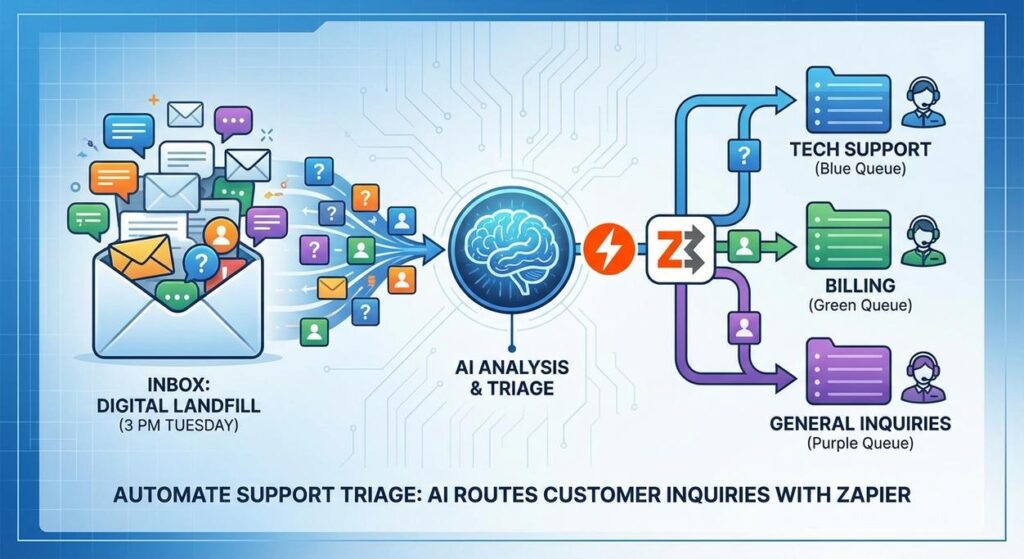
Alright, gather ’round, folks. Let me paint a picture you might find disturbingly familiar. It’s 3 PM on a Tuesday. Your inbox looks like a digital landfill. Every ding from a new email is a tiny, high-pitched scream. You’ve got customers asking about their order, screaming about a bug, wondering if you offer a discount, or just generally venting their existential dread into your ‘info@’ account.
Your poor support team (or, let’s be honest, you) is playing a game of email roulette. Is this urgent? Is it a sales lead? Is it someone asking if your product can walk their dog? You manually open each one, read it, then try to remember if it goes to Dave in Tech Support, Sarah in Billing, or the marketing intern who thinks a chatbot is a talking cat.
Mistakes happen. Urgent tickets get buried. Simple questions get bounced between departments like a hot potato. Customers get frustrated, support staff gets burned out, and you, my friend, start wondering if a career as a professional hermit is still an option. Sound familiar? Good. Because we’re about to fix that mess.
Why This Matters
This isn’t just about reducing your inbox’s anxiety levels (though that’s a nice bonus). This is about building a well-oiled machine that turns chaos into order. Think of it like this: your current support system is a single, overwhelmed post office worker trying to sort all the mail by hand. Our AI automation is like equipping that worker with a super-fast, hyper-intelligent robot intern who can read every envelope, instantly understand its contents, and toss it into the correct bin before you can even blink.
What does this mean for your business?
- Blazing Fast Response Times: No more waiting for a human to manually triage. The AI routes it instantly.
- Sky-High Customer Satisfaction: Customers get to the right person, faster. Less bouncing, less frustration.
- Supercharged Team Productivity: Your support team spends less time sifting and more time solving. They get only relevant tickets.
- Reduced Operational Costs: Less time wasted on manual tasks means less money spent on those manual tasks.
- Scalability on Steroids: Whether you get 10 emails or 10,000, your AI dispatcher doesn’t get tired or make mistakes. It just works.
This automation replaces the stressed-out intern, the ‘catch-all’ support inbox, and the general state of pandemonium. It’s about letting the robots do the boring, repetitive work so your humans can do the interesting, empathetic, problem-solving work they’re actually good at.
What This Tool / Workflow Actually Is
At its core, this workflow is an AI-powered support dispatcher. Imagine you have a highly intelligent virtual assistant sitting at the front desk of your customer service department. Every incoming email or message lands on their desk. They read it, understand the intent, categorize it (e.g., ‘billing issue,’ ‘technical support for product X,’ ‘new sales lead’), and then immediately send it to the correct team or person. No human intervention needed for the initial sorting.
We’ll be using two main tools to build this:
- Zapier: This is our digital pipeline engineer. Zapier connects different apps and services. It’s the ‘if X happens, then do Y’ maestro. It’ll watch for new messages and then orchestrate the entire process.
- OpenAI (GPT Models): This is our super-smart virtual assistant, the brain of the operation. We’ll feed it customer inquiries, and it will use its language understanding capabilities to categorize, summarize, and extract key information.
What it DOES:
- Read and understand the gist of a customer inquiry.
- Categorize inquiries into predefined types (e.g., Sales, Support, Billing, Refund).
- Extract specific details (e.g., product name, order ID, customer sentiment).
- Route the inquiry to the correct department, Slack channel, or CRM field.
What it DOES NOT do:
- Replace human empathy or complex problem-solving. It’s triage, not therapy.
- Understand subtle sarcasm or highly nuanced human emotions perfectly (yet).
- Solve all your customer’s problems directly without further human intervention.
- Magically create new products or services.
This is about automation, not replacement. It’s about upgrading your existing system, not obliterating it.
Prerequisites
Before we dive into the fun stuff, let’s make sure you’ve got your tools ready. Don’t worry, this isn’t rocket science, and you absolutely do not need to write a single line of code.
- Zapier Account: You’ll need a Zapier account. The free tier might be enough for initial testing, but for ongoing, high-volume automation, you’ll likely want a paid plan. Sign up at zapier.com.
- OpenAI API Key: This is how Zapier talks to OpenAI’s powerful language models. You’ll need an OpenAI account (likely a paid one, even if it’s just a few dollars in credits) and an API key. Get yours from platform.openai.com/account/api-keys. Just a heads up, using the API costs money, but it’s usually pennies per request, making it very cost-effective for triage.
- An Inbox or Form: You need a source for your customer inquiries. This could be a Gmail account, a form submission tool (like Typeform, Google Forms, or your website’s contact form), or even a specific support platform like Zendesk or Freshdesk. For this example, we’ll assume a standard email inbox (like Gmail) for simplicity.
- A Destination for Routed Inquiries: Where do you want the AI to send the classified inquiries? This could be a Slack channel, a specific email address, a CRM (like HubSpot or Salesforce), or a project management tool (like Asana or Trello). We’ll use Slack for our main example.
Don’t sweat it if some of these sound new. We’ll walk through connecting them step-by-step. The biggest prerequisite is simply a willingness to automate the tedious parts of your business.
Step-by-Step Tutorial
Let’s build the brain of our automated support dispatcher. This part focuses on getting Zapier to talk to OpenAI and intelligently classify an incoming message.
1. Set up Your Zapier Trigger: The Incoming Message Detector
First, we need Zapier to know when a new customer inquiry arrives. For this example, we’ll use a new email in Gmail, but you could easily adapt this to a new form submission, a new entry in a spreadsheet, or a new ticket in a support system.
- Log in to Zapier and click ‘Create Zap’.
- Search for and select ‘Gmail’ as your Trigger app.
- Choose ‘New Email’ as your Trigger Event.
- Connect your Gmail account. You might need to grant Zapier permission.
- For ‘Mailbox’, select the inbox where your customer inquiries land (e.g., ‘Inbox’ or a specific folder).
- Click ‘Test Trigger’. Send a test email to that inbox if you don’t have recent ones. This will pull in a sample email that Zapier can use for the next steps.
2. Send the Email Content to OpenAI: The Brain Work
Now that Zapier can see new emails, we need to send the email’s content to OpenAI for classification.
- Click the ‘+’ button to add an Action step.
- Search for and select ‘OpenAI’ as your Action app.
- Choose ‘Send Prompt’ or ‘Conversation’ (depending on the OpenAI Zapier integration version) as your Action Event. ‘Conversation’ is usually better for structured outputs.
- Connect your OpenAI account using your API key. (If you haven’t already, paste your API key here.)
- Configure the Action:
-
Model: Choose a powerful model like
gpt-4oorgpt-4-turbofor best results.gpt-3.5-turbois cheaper but might be less accurate for complex tasks. -
User Message: This is where you’ll craft your prompt. It needs to tell OpenAI exactly what you want it to do. Here’s a robust prompt template you can copy and paste:
You are an expert customer support triage specialist for a company that sells widgets. Your job is to analyze incoming customer inquiries and classify them into one of the following categories: "Sales", "Technical Support", "Billing", "Returns", "General Inquiry". You must also extract the primary intent of the customer and any specific product name mentioned. If a product name is mentioned for "Technical Support" or "Returns", include it. If no specific product, leave it null.

Your output MUST be a JSON object with the following keys:
- "category" (string, one of the categories listed above)
- "intent" (string, a brief summary of the customer's primary goal)
- "product_name" (string or null, if applicable)
- "urgency" (string, "High", "Medium", or "Low")

Here is the customer inquiry:

Subject: {{1.Subject}}
Body: {{1.Plain Text Body}}
Explanation of the Prompt:
- Role Assignment: We tell the AI it’s an “expert customer support triage specialist.” This helps it adopt the right persona.
- Clear Instructions: We define the exact categories we want. Being explicit is crucial.
- Output Format: We demand JSON. This is critical for Zapier to easily parse the AI’s response in the next step. We also define the keys we expect.
-
Input Mapping:
{{1.Subject}}and{{1.Plain Text Body}}are Zapier’s way of injecting the actual subject and body of the incoming email from step 1 into the prompt.
- Temperature: Set this to a low value (e.g., 0.2-0.5) for more consistent, less creative results, which is what you want for classification.
-
Model: Choose a powerful model like
- Click ‘Test Action’. This will send your sample email to OpenAI and show you the JSON response. Make sure it looks correct!
3. Parse the OpenAI Response: Making Sense of the JSON
OpenAI gives us a nice JSON object, but Zapier needs a little help to extract the individual pieces of information (category, intent, product_name) from it.
- Add another Action step.
- Search for and select ‘Formatter by Zapier’.
- Choose ‘Utilities’ as your Action Event.
- Choose ‘Run Javascript’ (if you need advanced parsing) or more simply, ‘Text’ and then ‘Extract Pattern’ or ‘Split Text’, but for JSON, a simpler method is to just map the JSON keys directly in subsequent steps if Zapier’s OpenAI integration automatically parses the JSON, which it often does. Let’s assume for a moment the OpenAI step outputs structured data directly. If it doesn’t, you’d use a Code step to parse the JSON string.
- (Alternative: Use Zapier’s built-in parsing for OpenAI output) Often, the OpenAI ‘Conversation’ or ‘Send Prompt’ action in Zapier is smart enough to detect JSON in the response and make its keys available as separate data fields. Check the output of your ‘Test Action’ for the OpenAI step. If you see ‘category’, ‘intent’, ‘product_name’ as distinct fields, you can skip a dedicated JSON parsing step and directly use them. For maximum robustness, however, let’s include a step that handles raw JSON output.
- Add another Action step.
- Search for and select ‘Code by Zapier’.
- Choose ‘Run Javascript’ as your Action Event.
- In the ‘Input Data’ field, add an input key like
openai_responseand map it to the raw JSON string output from your OpenAI step (e.g.,{{2.choices__0__message__content}}or similar, depending on how Zapier labels the raw output). - In the ‘Code’ field, paste this:
const response = inputData.openai_response; try { const parsedJson = JSON.parse(response); output = [{ category: parsedJson.category, intent: parsedJson.intent, product_name: parsedJson.product_name, urgency: parsedJson.urgency }]; } catch (e) { // Handle parsing errors, e.g., if OpenAI didn't return valid JSON output = [{ category: 'Error', intent: 'JSON Parse Error', product_name: null, urgency: 'High' }]; } - Test this step. It should now output separate fields for category, intent, etc.
4. Take Action: Routing the Inquiry
Now that we have the classified data, we can use it to route the inquiry. We’ll use Slack as an example, sending the message to a specific channel based on the category.
- Add another Action step.
- Search for and select ‘Slack’ as your Action app.
- Choose ‘Send Channel Message’ as your Action Event.
- Connect your Slack account.
- Configure the Action:
-
Channel: Here’s the clever part. Instead of picking a static channel, we’ll use a Lookup Table (Formatter by Zapier > Utilities > Lookup Table) or just conditional logic (Filters/Paths) to map categories to specific Slack channels. For simplicity, let’s use Zapier’s ‘Paths’ (available on paid plans) or multiple ‘Filters’ to route. Alternatively, you can use a single Slack step and map the channel based on a simple if/else within a Code step, or directly if you have a simple naming convention.
Simpler Method for Routing: Multiple Paths (Zapier Paid Feature)
- After your ‘Code by Zapier’ step (Step 3), add a ‘Path by Zapier’ step.
- Create a Path for each category (e.g., ‘Path A: Sales’, ‘Path B: Technical Support’).
- For ‘Path A: Sales’, set up a rule: ‘Code by Zapier: Category’ (from step 3’s output) ‘Exactly matches’ ‘Sales’.
- Inside ‘Path A’, add a Slack ‘Send Channel Message’ action. Select your ‘Sales Team’ Slack channel. Craft a message including details from the original email and the AI’s classification:
New Sales Inquiry! Category: {{3.category}} Intent: {{3.intent}} Product: {{3.product_name}} Urgency: {{3.urgency}} Original Subject: {{1.Subject}} Original Body: {{1.Plain Text Body}} Link to original: {{1.Permalink}} (if applicable) - Repeat for ‘Path B: Technical Support’ (mapping to ‘Tech Support’ Slack channel), ‘Path C: Billing’, etc.
-
Channel: Here’s the clever part. Instead of picking a static channel, we’ll use a Lookup Table (Formatter by Zapier > Utilities > Lookup Table) or just conditional logic (Filters/Paths) to map categories to specific Slack channels. For simplicity, let’s use Zapier’s ‘Paths’ (available on paid plans) or multiple ‘Filters’ to route. Alternatively, you can use a single Slack step and map the channel based on a simple if/else within a Code step, or directly if you have a simple naming convention.
- Test your path. Enable your Zap, and send a few test emails that fall into different categories to see if they route correctly!
Complete Automation Example
Let’s tie it all together with a concrete example: routing customer support emails to specific Slack channels based on their content.
Scenario: E-commerce Store Customer Support
You run an online store selling custom-designed t-shirts and mugs. Customers email support@yourstore.com with various issues: questions about designs, issues with orders, billing problems, or requests for returns.
Goal: Automatically route emails to the ‘Sales_Team’, ‘Tech_Support’, ‘Billing_Team’, or ‘Returns_Team’ Slack channels, and also send urgent issues to a dedicated ‘Urgent_Alerts’ channel.
Zap Setup Walkthrough:
1. Trigger: New Email in Gmail
- App: Gmail
- Event: New Email
- Account: Connect
support@yourstore.com - Mailbox: Inbox
- Test trigger to get a sample email.
2. Action: Classify with OpenAI
- App: OpenAI
- Event: Conversation
- Account: Connect your OpenAI API key
- Model:
gpt-4o(orgpt-4-turbo) - User Message:
You are an expert customer support triage specialist for an e-commerce store selling custom apparel. Your job is to analyze incoming customer inquiries and classify them into one of the following categories: "Sales" (for product inquiries, custom orders), "Technical Support" (for website issues, design tool problems), "Billing" (for payment issues, invoice requests), "Returns" (for return requests, damaged goods), "Shipping" (for tracking, delivery issues), or "General Inquiry". You must also extract the primary intent of the customer, any specific product mentioned (e.g., "custom t-shirt"), and assign an urgency level. If no specific product, leave it null. Your output MUST be a JSON object with the following keys: - "category" (string, one of the categories listed above) - "intent" (string, a brief summary of the customer's primary goal) - "product_name" (string or null, if applicable) - "order_id" (string or null, if an order ID is mentioned, try to extract it) - "urgency" (string, "High" if words like "urgent", "ASAP", "not working", "critical" are used; "Medium" for standard issues; "Low" for general questions or feedback) Here is the customer inquiry: Subject: {{1.Subject}} Body: {{1.Plain Text Body}} - Temperature: 0.3
- Test this step and verify the JSON output.
3. Action: Parse OpenAI JSON (Code by Zapier)
- App: Code by Zapier
- Event: Run Javascript
- Input Data:
openai_responsemaps to the OpenAI output field (e.g.,{{2.choices__0__message__content}}) - Code: (Use the Javascript provided in Step 3 of the tutorial, expanding it to include
order_id)const response = inputData.openai_response; try { const parsedJson = JSON.parse(response); output = [{ category: parsedJson.category, intent: parsedJson.intent, product_name: parsedJson.product_name, order_id: parsedJson.order_id, urgency: parsedJson.urgency }]; } catch (e) { output = [{ category: 'Error', intent: 'JSON Parse Error', product_name: null, order_id: null, urgency: 'High' }]; } - Test this step.
4. Logic: Route with Paths by Zapier
- App: Paths by Zapier
- Add multiple paths:
- Path A: Sales
- Rule:
{{3.category}}‘Exactly matches’ ‘Sales’ - Action: Slack > Send Channel Message > Channel: ‘#sales_team’
- Message: Include all extracted info and original email details.
- Rule:
- Path B: Technical Support
- Rule:
{{3.category}}‘Exactly matches’ ‘Technical Support’ - Action: Slack > Send Channel Message > Channel: ‘#tech_support’
- Message: Include all extracted info, especially
product_name.
- Rule:
- Path C: Billing
- Rule:
{{3.category}}‘Exactly matches’ ‘Billing’ - Action: Slack > Send Channel Message > Channel: ‘#billing_team’
- Message: Include
order_idif present.
- Rule:
- Path D: Returns
- Rule:
{{3.category}}‘Exactly matches’ ‘Returns’ - Action: Slack > Send Channel Message > Channel: ‘#returns_team’
- Message: Include
product_nameandorder_id.
- Rule:
- Path E: Shipping
- Rule:
{{3.category}}‘Exactly matches’ ‘Shipping’ - Action: Slack > Send Channel Message > Channel: ‘#shipping_team’
- Message: Include
order_id.
- Rule:
- Path F: General Inquiry
- Rule:
{{3.category}}‘Exactly matches’ ‘General Inquiry’ - Action: Slack > Send Channel Message > Channel: ‘#general_inquiries’
- Message: Standard details.
- Rule:
5. Additional Action (Outside Paths): Urgent Alerts
To ensure high-urgency items are seen immediately, regardless of category, we’ll add a step *after* the Paths, but before the Zap ends, using a Filter.
- App: Filter by Zapier
- Event: Only continue if…
- Rule:
{{3.urgency}}‘Exactly matches’ ‘High’ - Action (after filter): Slack > Send Channel Message > Channel: ‘#urgent_alerts’
- Message: ‘🚨 URGENT: {{3.category}} – {{3.intent}} from {{1.From Email}}’ with a link to the original email.
This setup creates a robust, automated triage system. New emails come in, the AI classifies them with impressive accuracy, and Zapier ensures they land in the right team’s lap (and alerts the right people if it’s urgent) – all without a human lifting a finger for the initial sorting.
Real Business Use Cases
This AI triage system isn’t just for e-commerce. It’s a foundational automation that can inject efficiency into almost any business that deals with incoming inquiries.
-
SaaS Company:
- Problem: Drowning in feature requests, bug reports, and billing questions coming through one contact form. Developers are sifting through sales leads, and sales reps are trying to debug software.
- Solution: The AI categorizes form submissions into ‘Bug Report’, ‘Feature Request’, ‘Billing Inquiry’, ‘Sales Lead’. Bug reports go to JIRA/GitHub, feature requests to product management, billing to finance, and sales leads to CRM.
-
Real Estate Agency:
- Problem: Incoming web form inquiries are a mix of ‘buyer interest’, ‘seller interest’, ‘rental inquiry’, ‘property management’, and ‘general questions’. Leads are often misrouted or delayed.
- Solution: AI classifies inquiries, then routes buyers to buyer’s agents, sellers to listing agents, rental inquiries to the rental team, and property management inquiries to the PM team, ensuring leads are handled by specialists immediately.
-
Online Course Creator / Coach:
- Problem: Students ask questions about course content, technical issues, payment problems, or mentorship opportunities all via one email address. Important coaching opportunities are missed.
- Solution: AI categorizes inquiries as ‘Course Content Question’, ‘Technical Issue’, ‘Billing Inquiry’, ‘Coaching Interest’. Technical issues go to support, billing to an admin, and coaching interest goes directly to the sales/onboarding team for high-touch follow-up.
-
Healthcare Clinic / Wellness Center:
- Problem: Patients email about appointment scheduling, prescription refills, billing questions, or sensitive medical queries. It’s crucial that sensitive questions go to medical staff immediately, not admin.
- Solution: AI categorizes into ‘Appointment Request’, ‘Prescription Refill’, ‘Billing Question’, ‘Medical Question’. Scheduling goes to admin, refills to the pharmacy/nurse line, billing to accounts, and medical questions (marked ‘High Urgency’) directly to a secure, designated clinical team inbox/channel. (Important: Always use secure, HIPAA-compliant systems for actual handling of PHI, AI for initial routing only).
-
Small Consulting Firm:
- Problem: New client inquiries come through the website. They might be looking for ‘Marketing Strategy’, ‘IT Consulting’, ‘Financial Advisory’, or ‘HR Solutions’. The general inbox gets swamped.
- Solution: AI classifies inquiries by service offering. Each category then triggers an email to the relevant lead consultant or creates a task in a project management tool for that specific service line, ensuring the right expert follows up.
Common Mistakes & Gotchas
Even the sharpest tools can cut you if you’re not careful. Here are some common pitfalls beginners encounter with AI triage:
- Vague Categories in the Prompt: If your categories are ‘Other’ or ‘Miscellaneous’, your AI will struggle. Be as specific as possible. Instead of ‘General’, try ‘General Inquiry – Non-Urgent’ or ‘Feedback’. The more distinct your categories, the better the AI performs.
- Not Enough Context for the AI: Sending only the subject line of an email might not be enough. Always include the plain text body. If there are other relevant fields (like a form field for ‘product type’), include those too.
- Forgetting the ‘Catch-All’ or ‘Uncategorized’: What happens if the AI truly can’t classify an inquiry? You need a fallback. In your Zapier paths, include a ‘General Inquiry’ or ‘Uncategorized’ path that always gets triggered if other conditions aren’t met. Mark these as ‘High Urgency’ for human review.
- Over-Reliance for Sensitive Issues: While AI is great for triage, sensitive customer issues (legal, medical, highly emotional) should always have human oversight. The AI routes it, but a human must handle the final response.
- Ignoring OpenAI API Costs: While usually very cheap, sending extremely long emails or having thousands of zaps run per day can add up. Keep an eye on your OpenAI usage dashboard. Prompt engineering (making your prompts concise but effective) can help.
- Not Testing Edge Cases: Test with weird emails, short emails, emails with misspellings, and emails that seem to fit multiple categories. See how your AI handles them and refine your prompt if necessary.
- Lack of Feedback Loop: Who reviews the AI’s classifications? If the AI misclassifies something, how does that feedback get back to you so you can improve the prompt? This is crucial for long-term accuracy. Start small, monitor, then scale.
How This Fits Into a Bigger Automation System
This AI triage system isn’t a standalone island. It’s a foundational piece, a critical junction box in your grand automation factory. Once you have this in place, a whole new world of possibilities opens up:
- CRM Integration: Beyond just routing, the AI can extract customer names, order IDs, and contact info, then automatically create or update records in your CRM (Salesforce, HubSpot, Zoho). A ‘Sales Lead’ inquiry can instantly become a new lead in your CRM, assigned to the right sales rep.
- Personalized Email Auto-responders: Based on the AI’s classification, you can send an immediate, category-specific auto-reply. A ‘Returns’ inquiry gets a link to your returns policy, while a ‘Technical Support’ inquiry gets a link to your troubleshooting FAQ, reducing perceived wait times.
- Voice Agent Integration: Imagine a customer calls, and a voice agent transcribes their request. You can feed that transcription to our AI triage system, letting it classify the *spoken* query and route it accordingly, even before a human hears it.
- Multi-Agent Workflows: This triage agent can hand off to a second AI agent. For example, a ‘Billing’ inquiry gets triaged, then a second AI agent drafts an initial response based on common billing FAQs. A human then reviews and sends it.
- RAG (Retrieval Augmented Generation) Systems: Once an inquiry is classified (e.g., ‘Technical Support – Product X’), the AI can then query your internal knowledge base or FAQ for ‘Product X’ related issues and retrieve relevant articles. This information can then be presented to the human agent, empowering them to respond much faster and more accurately.
- Data Analytics & Insights: By logging all classifications, you start collecting valuable data. What are the most common support issues? Which products generate the most tech support? This feedback can inform product development, marketing, and operational improvements.
This triage system is the intelligent gatekeeper that ensures every message goes to the right place, ready for the next stage of automated or human-powered action. It’s the nervous system for your digital operations.
What to Learn Next
You’ve just built a formidable, intelligent dispatcher that can save you hours of mind-numbing manual work and dramatically improve your customer experience. That, my friends, is no small feat.
But we’re just getting started. Think of this as laying the perfect foundation for a truly automated customer service powerhouse. What’s next on our automation roadmap?
In the upcoming lessons, we’ll dive into how to take this categorized information and:
- Automatically Draft Initial Responses: Learn how to have an AI generate personalized, context-aware first drafts for your support agents, slashing response times even further.
- Build Your Own AI Knowledge Base (RAG for Support): Discover how to feed your product manuals, FAQs, and past support tickets into an AI, allowing it to retrieve *exact answers* to customer questions, making your support agents superhuman.
- Integrate Triage with Your CRM for Seamless Lead Management: Turn those ‘Sales’ categories into qualified leads in your CRM, automating follow-ups and ensuring no opportunity falls through the cracks.
This is a course, not a quick tip. We’re building an empire, one intelligent automation brick at a time. So, take a moment to marvel at your new AI dispatcher, then get ready for the next level. The robots are waiting, and they’re excited to do more of your boring work for you.





