
the shot
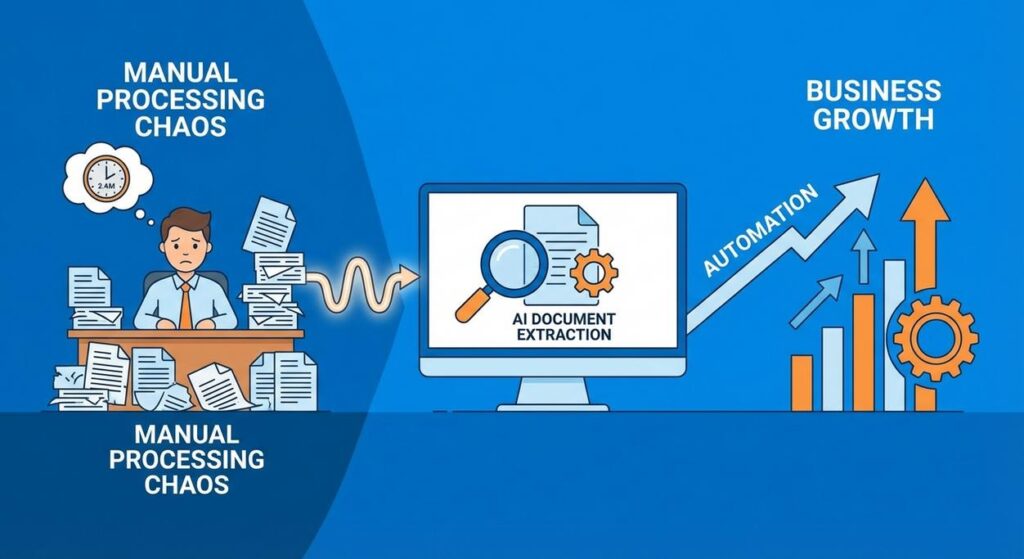
Picture this: It’s 2 AM. Your eyes are bloodshot. You’re surrounded by stacks of paper invoices, each a unique masterpiece of chaos – some handwritten, some pixelated, some just… angry-looking. Your mission, should you choose to accept it, is to type every single vendor name, invoice number, and total amount into a spreadsheet before sunrise. You feel less like a business owner and more like a data-entry goblin, whispering curses at the blurry numbers. Your ‘intern,’ bless their heart, quit last week, claiming they’d rather pursue a career in competitive thumb-twiddling.
Sound familiar? That mountain of unstructured data – sitting in PDFs, scans, emails – is a silent killer of productivity. It drains your time, introduces errors, and prevents you from actually running your business, instead turning you into a glorified copy-paster. But what if I told you there’s a robot intern waiting in the wings, one that never sleeps, never complains, and is scarily good at extracting exactly what you need from those digital paper piles?
Why This Matters
AI Document Extraction isn’t just a fancy tech buzzword; it’s a sanity-saving, profit-boosting superpower. Think about it: every minute you or your team spend manually extracting data from documents is time NOT spent on strategy, sales, customer service, or innovation. It’s literally burning money on repetitive, soul-crushing tasks.
This automation:
- Frees Up Human Hours: Say goodbye to the manual data entry goblin. Your team can focus on high-value work.
- Reduces Errors: AI, when properly trained and prompted, makes far fewer transcription mistakes than a tired human at 2 AM.
- Accelerates Operations: Get data into your systems instantly, enabling faster decision-making, quicker invoice processing, and smoother workflows.
- Scales Effortlessly: Whether you have 10 documents or 10,000, the AI doesn’t care. It scales without demanding overtime or benefits.
In essence, this replaces the need for an army of diligent, but ultimately slow and error-prone, human data extractors (or a single, overworked founder) with a lightning-fast, highly accurate AI agent.
What This Tool / Workflow Actually Is
At its core, AI Document Extraction is about teaching an intelligent system to read a document (like a PDF, image, or text file) and pull out specific pieces of information in a structured format. Imagine handing a stack of documents to a super-smart assistant and saying, “For each one, tell me the date, the total amount, and who sent it, and put it all in a neat spreadsheet row.” That’s what we’re building.
What it does:
- Takes unstructured or semi-structured data (like an invoice image)
- Identifies key fields (e.g., invoice number, vendor name, total, line items)
- Extracts that information
- Outputs it in a structured, machine-readable format (like JSON or a spreadsheet row)
What it does NOT do (yet):
- Perfectly understand truly ambiguous or illegible handwriting 100% of the time without any human oversight.
- Make complex business decisions based on the extracted data (that’s for later lessons, my friend).
- Spontaneously reorganize your entire business process (it needs to be told what to do).
We’ll be using powerful Large Language Models (LLMs) which, with the right instructions (prompts), are incredibly adept at this task. Think of them as the brain of our robot intern.
Prerequisites
Alright, cadet, no need to be nervous. Here’s what you need:
- A Computer and Internet Access: (Shocking, I know).
- A Text Editor: Like VS Code, Sublime Text, or even Notepad++.
- A Willingness to Copy-Paste: You don’t need to be a coding wizard, just follow the steps.
- An API Key for a Large Language Model (LLM): For this lesson, we’ll assume access to an OpenAI-compatible API (like GPT-4o, Claude, or even some local models if you’re adventurous). If you don’t have one, sign up for an account with OpenAI or Anthropic and generate an API key. This is your ‘robot intern’s’ brain subscription.
- A Test Document: Grab a sample invoice or receipt (one that doesn’t contain sensitive personal info, please!) from your files.
That’s it. No advanced degrees required. Just your curiosity and a dash of rebellious spirit against manual labor.
Step-by-Step Tutorial
Let’s get this robot intern up and running. Our goal is to extract specific fields from a document.
Step 1: Get Your Document Ready
First, we need to get the text *out* of your document. If it’s a PDF, you can often just copy-paste the text directly. If it’s an image (JPG, PNG) or a non-selectable PDF, you’ll need an Optical Character Recognition (OCR) tool. Many LLMs now have multimodal capabilities and can directly ingest images/PDFs, but for simplicity and broader compatibility, let’s assume we have the raw text for our example. If you have an image, consider a free online OCR tool for now, or use a tool like ‘Panda OCR’ or Adobe Acrobat to extract text.
Action: Copy the full text content from your test invoice/document into a text file or keep it handy.
Step 2: Craft Your Extraction Prompt
This is where you tell the AI *exactly* what you want. Think of it as writing very precise instructions for your new intern. The key is to be clear, specific, and ask for the output in a structured format (JSON is excellent for this).
Here’s a template for our prompt. We’ll ask for Vendor Name, Invoice Number, Invoice Date, and Total Amount.
Extract the following information from the text below and return it as a JSON object. If a field is not found, return its value as null.

Fields to extract:
- Vendor Name
- Invoice Number
- Invoice Date (format as YYYY-MM-DD)
- Total Amount (numeric value only, e.g., 123.45)

Document Text:
"""
[PASTE YOUR DOCUMENT TEXT HERE]
"""
Step 3: Make the API Call (The Robot Intern’s Workstation)
Now we’ll send our prompt and document text to the LLM. We’ll use a `curl` command for this, which is a common way to interact with web APIs directly from your terminal. Replace `YOUR_OPENAI_API_KEY` with your actual key and `YOUR_DOCUMENT_TEXT` with the text you extracted in Step 1.
Note: This example uses OpenAI’s Chat Completions API. Other LLMs will have similar endpoints but slightly different request bodies.
curl https://api.openai.com/v1/chat/completions \\
  -H "Content-Type: application/json" \\
  -H "Authorization: Bearer YOUR_OPENAI_API_KEY" \\
  -d '{
    "model": "gpt-4o",
    "messages": [
      {"role": "system", "content": "You are an expert data extractor. Extract information precisely as requested."},
      {"role": "user", "content": "Extract the following information from the text below and return it as a JSON object. If a field is not found, return its value as null.\
\
Fields to extract:\
- Vendor Name\
- Invoice Number\
- Invoice Date (format as YYYY-MM-DD)\
- Total Amount (numeric value only, e.g., 123.45)\
\
Document Text:\
\\"\\"\\"\
[PASTE YOUR DOCUMENT TEXT HERE]\
\\"\\"\\""}
    ],
    "response_format": {"type": "json_object"},
    "temperature": 0.1
  }'
Action: Open your terminal (or command prompt), paste the modified `curl` command, and press Enter.
You should get a JSON response back containing the extracted data!
Step 4: Parse the Response (Reviewing the Intern’s Work)
The output from the API will be a JSON string. You’ll need to extract the actual data from it. Look for the `content` field within the `message` object inside the `choices` array. It will contain your nicely structured JSON.
{
  "id": "chatcmpl-EXAMPLE",
  "object": "chat.completion",
  "created": 1700000000,
  "model": "gpt-4o",
  "choices": [
    {
      "index": 0,
      "message": {
        "role": "assistant",
        "content": "{\
  \\"Vendor Name\\": \\"Acme Supplies Inc.\\",\
  \\"Invoice Number\\": \\"INV-2023-1001\\",\
  \\"Invoice Date\\": \\"2023-10-26\\",\
  \\"Total Amount\\": 575.20\
}"
      },
      "logprobs": null,
      "finish_reason": "stop"
    }
  ],
  "usage": {
    "prompt_tokens": 100,
    "completion_tokens": 50,
    "total_tokens": 150
  }
}
The `content` field contains the JSON you asked for. In a real automation, you’d parse this using a programming language (Python, JavaScript) or a no-code tool’s JSON parsing capabilities.
Complete Automation Example: Invoice Processing to Google Sheet
Let’s take our `AI Document Extraction` one step further and build a full, hands-off workflow for incoming invoices.
The Goal:
Automatically extract key data from new PDF invoices sent to a specific email address and populate a Google Sheet with the extracted information.
The Tools:
- Email Parser: (e.g., Zapier Email Parser, Mailparser.io, or even a Gmail filter + App Script)
- No-code Automation Platform: (e.g., Zapier, Make.com)
- Large Language Model (LLM) API: (e.g., OpenAI GPT-4o)
- Google Sheets: For our structured data storage.
The Workflow (Conceptual Steps in Make.com/Zapier):
-
Trigger: New Email with Attachment
Set up an Email Parser or a direct email integration (e.g., in Zapier) to monitor a specific inbox (e.g.,
invoices@yourcompany.com) for new emails with PDF attachments. When an email arrives, the PDF attachment is extracted. -
Action: Extract Text from PDF
Use an OCR module (many automation platforms have them, or use a dedicated OCR service like Cloudmersive, or even some LLMs can directly process PDFs) to get the raw text content from the attached PDF. This text will be passed to our AI.
-
Action: Send Text to LLM for Extraction
This is where our custom prompt comes in. We’ll use the HTTP module in Make.com/Zapier to make a POST request to our LLM API endpoint (like OpenAI’s `chat/completions` endpoint).
Method: POST
URL:
https://api.openai.com/v1/chat/completions(or similar for your chosen LLM)Headers:
Content-Type: application/json
Authorization: Bearer YOUR_OPENAI_API_KEY
Body (JSON):
{
  "model": "gpt-4o",
  "messages": [
    {"role": "system", "content": "You are an expert data extractor. Extract information precisely as requested."},
    {"role": "user", "content": "Extract the following information from the text below and return it as a JSON object. If a field is not found, return its value as null.\
\
Fields to extract:\
- Vendor Name\
- Invoice Number\
- Invoice Date (format as YYYY-MM-DD)\
- Total Amount (numeric value only, e.g., 123.45)\
\
Document Text:\
\\"\\"\\"\
{{TEXT_FROM_PDF_STEP}}\
\\"\\"\\""}
  ],
  "response_format": {"type": "json_object"},
  "temperature": 0.1
}
(Note:
{{TEXT_FROM_PDF_STEP}}is a placeholder for the output of the previous OCR step.) -
Action: Parse LLM Response
The LLM will return a JSON string. Use the JSON parsing module in your automation platform to extract the `Vendor Name`, `Invoice Number`, `Invoice Date`, and `Total Amount` into distinct variables.
-
Action: Add Row to Google Sheet
Connect to your Google Sheet. Create a new row, mapping the extracted variables to the corresponding columns (e.g., `Vendor Name` to `Column A`, `Invoice Number` to `Column B`, etc.).
-
Optional: Notification / Review
Add a step to send a Slack message, email, or create a task in your project management tool if an invoice is processed, or if certain fields are `null` (indicating potential extraction issues for human review).
And just like that, invoices hit your inbox, disappear into the digital ether, and reappear as perfectly structured data in your Google Sheet, ready for your accounting team – all without a single keystroke from a human.
Real Business Use Cases (AI Document Extraction)
This isn’t just for invoices. The power of `AI Document Extraction` is immense across industries:
-
Accounting Firms: Expense Report Processing
Problem: Clients submit expense reports with dozens of receipts (often images or scanned PDFs), requiring manual transcription of vendor, date, amount, and category for each item.
Solution: Automate the extraction of data from individual receipts. Clients upload receipts to a shared drive, triggering an automation that OCRs the receipt, sends the text to an LLM for extraction, and then populates an expense spreadsheet, flagging any ambiguous items for human review.
-
Real Estate Agencies: Lease Agreement Summaries
Problem: Managing numerous lease agreements means manually sifting through PDFs to find key dates (start, end), rent amounts, tenant names, and specific clauses (e.g., pet policies, maintenance responsibilities).
Solution: Feed new lease PDFs into an AI extraction workflow. The AI identifies and extracts critical fields and clauses, storing them in a database. This allows agents to quickly search for specific lease terms or generate summaries without rereading entire documents.
-
Human Resources (HR): Resume Parsing
Problem: HR teams receive hundreds of resumes in various formats, making it tedious to manually extract candidate names, contact info, previous employers, roles, and skills into an applicant tracking system (ATS).
Solution: Implement an AI workflow that processes incoming resumes (PDF, DOCX). The AI extracts structured data like contact details, education, work experience, and keywords, populating the ATS automatically and enabling faster candidate screening.
-
Healthcare Providers: Patient Intake Form Processing
Problem: New patient intake forms, often handwritten or scanned, require clinic staff to manually transfer demographic information, medical history, and insurance details into electronic health records (EHR) systems, leading to delays and potential errors.
Solution: Scan new patient forms, run OCR, and then use AI to extract all relevant fields (name, DOB, address, allergies, insurance ID). This data can then be pushed into the EHR, significantly speeding up patient onboarding and reducing transcription errors.
-
E-commerce Businesses: Supplier Packing Slip Verification
Problem: When receiving inventory from suppliers, warehouse staff manually compare incoming goods against packing slips to ensure accuracy, a time-consuming and error-prone process when dealing with high volumes of varied products.
Solution: Scan incoming packing slips. AI extracts product names, SKUs, and quantities. This extracted data is then automatically compared against the purchase order data in the inventory system, flagging discrepancies immediately for human intervention, streamlining receiving and inventory management.
Common Mistakes & Gotchas
Even our smart robot intern can trip up. Here’s what beginners often mess up:
-
Vague Prompts:
Don’t just say “Extract data.” Be super specific: “Extract ‘Total Amount’ as a numeric value, ‘Invoice Date’ in YYYY-MM-DD format.” The more precise you are, the better the AI performs.
-
Expecting 100% Accuracy Out of the Box:
AI is powerful, but not magic. Especially with highly varied or low-quality documents, expect occasional errors. Plan for a human review step for critical data, or for documents with low confidence scores. This isn’t about *eliminating* humans, but *augmenting* them.
-
Not Handling Edge Cases:
What if a field isn’t present? What if the document is in a different language? Your prompt should ideally account for this (e.g., “If a field is not found, return null”). For different languages, consider translation steps first, or use a multilingual model.
-
Security & Privacy:
Don’t send sensitive, unredacted personal information (PII) or confidential client data to third-party APIs without understanding their data handling and security policies. For highly sensitive data, explore on-premise or privacy-focused LLMs.
-
Ignoring Rate Limits:
API providers have limits on how many requests you can make per minute. If you try to process 1,000 documents at once without proper handling, your automation will break. Implement retries and delays.
How This Fits Into a Bigger Automation System
This `AI Document Extraction` lesson is a fundamental building block. It’s like teaching your factory’s first robot to pick up a specific component. Here’s how it integrates into larger systems:
-
CRM & ERP Systems:
Extracted client data (from forms, contracts) can automatically populate new leads in your CRM or update existing customer profiles in your ERP. No more manual entry from sales contracts or support tickets.
-
Email & Communication:
Data extracted from customer inquiries or support tickets can be used to auto-generate personalized email responses, trigger specific follow-up actions, or update ticket status.
-
Voice Agents & Chatbots:
Imagine a voice agent needing to retrieve details from a customer’s policy document. The AI can quickly extract the relevant information and feed it back to the agent for a real-time answer.
-
Multi-Agent Workflows:
This is where it gets spicy. An initial agent extracts data from an invoice. A second agent then validates the extracted amount against a purchase order in a database. A third agent then schedules a payment, and a fourth sends an email confirmation. This single extraction skill kicks off an entire orchestrated symphony of automation.
-
RAG Systems (Retrieval Augmented Generation):
Extracted data often feeds into knowledge bases. When building a RAG system for internal knowledge, you might extract key facts, summaries, or Q&A pairs from internal documents, making them searchable and usable by an AI chatbot.
You’ve just built the sensory input system for your future AI empire. It’s collecting the raw materials that other, more advanced automations will then process, analyze, and act upon.
What to Learn Next
Congratulations, you’ve taken a huge step towards banishing manual data entry forever! You now have a foundational understanding of `AI Document Extraction` and have even sent your first command to your robot intern.
But extracting data is only half the battle. What if the data isn’t perfect? What if you need to make decisions based on it? In our next lesson, we’re going to dive into Automating Data Validation and Enrichment with AI. We’ll explore how to ensure your extracted data is clean, complete, and ready for prime time, and how to use AI to fill in the gaps or verify accuracy. This will make your `AI Document Extraction` workflows truly robust and reliable, transforming raw data into actionable intelligence.
Stay sharp, the revolution isn’t going to automate itself!





