
the shot
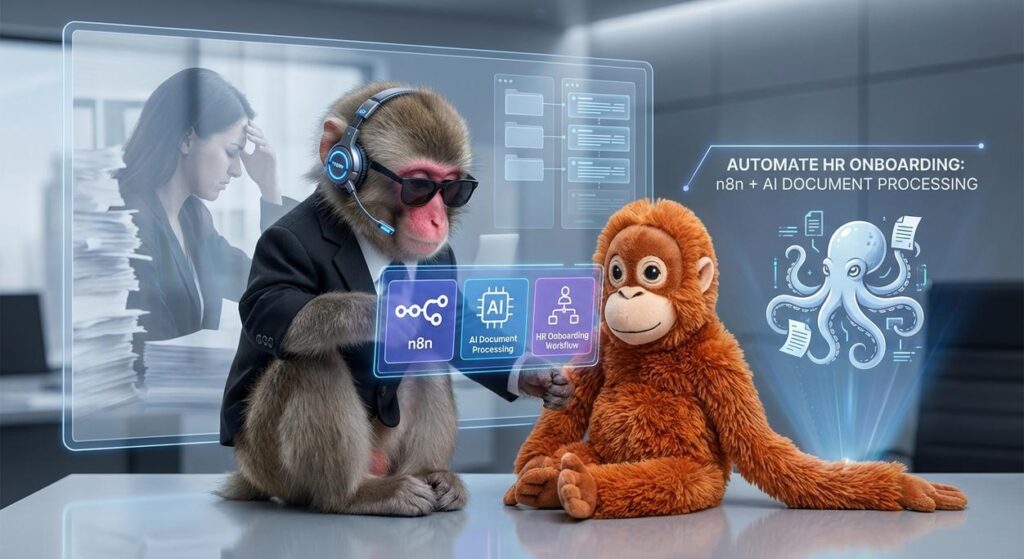
Picture this: It’s 9 AM, and Sarah, your incredible HR Manager, looks like she’s just wrestled a Kraken made of paper. Her desk is buried under stacks of new hire forms—W-4s, I-9s, direct deposit authorizations, employee handbooks acknowledgment, emergency contact sheets, NDAs… the list goes on. Each one needs to be opened, read, key data extracted, typed into the HRIS, added to payroll, filed in two different places, and then cross-referenced for compliance. Sarah is a human, not a data-entry robot, but right now, she’s performing at least four hours of mind-numbing, error-prone, completely repeatable robot work.
Meanwhile, your shiny new hire, Alex, is sitting in the lobby, coffee in hand, excited to start. But instead of a warm welcome and an instant dive into meaningful work, Alex is handed a fat folder of paper to fill out, immediately making them wonder if they’ve joined a paper factory instead of a dynamic, forward-thinking company.
This isn’t just Sarah’s problem; it’s a silent killer of productivity, compliance, and new hire experience in businesses everywhere. It’s a job for the robots, not for Sarah’s precious brainpower.
Why This Matters
HR onboarding automation isn’t just about saving Sarah’s sanity (though that’s a huge bonus). It’s about fundamental business outcomes:
-
Massive Time Savings: Imagine cutting hours (even days) of manual data entry and document handling per new hire. This frees up your HR team to focus on strategic initiatives, employee development, and actual human interaction, rather than being glorified typists.
-
Reduced Errors & Compliance Risk: Humans make mistakes. Typos in a bank account number? Missing signature on an I-9? These can lead to payroll delays, legal headaches, and hefty fines. Automation, when set up correctly, is incredibly precise, significantly reducing these risks.
-
Superior New Hire Experience: A smooth, digital onboarding process signals professionalism and efficiency from day one. New hires feel valued and can jump into their roles faster, boosting engagement and retention.
-
Scalability: Growing your team shouldn’t mean growing your HR team at the same rate. Automated HR onboarding allows you to handle 5 hires or 50 hires with the same lean, efficient process, making rapid expansion a breeze.
-
Cost Reduction: Less manual labor, fewer errors, faster time-to-productivity for new hires—it all adds up to significant cost savings for your business.
In essence, this workflow replaces the ‘kraken of paperwork’ and the stressed-out data entry clerk with an invisible, tireless digital assistant that gets it right every single time.
What This Tool / Workflow Actually Is
At its core, this workflow is your personal digital factory assembly line for processing new hire documents. We’re combining two powerful elements:
-
n8n: The Orchestrator. Think of n8n as the foreman of your digital factory. It’s a visual, low-code automation platform that connects different services. It dictates the flow: “Hey, document, go here!” then “Okay, AI, read this!” then “Excellent, now update the spreadsheet and send an email!” It’s the glue that holds everything together without requiring you to write a single line of traditional code.
-
AI Document Processing: The Intelligent Reader. This is the wizard in your factory. Instead of Sarah manually typing, an AI service uses a combination of Optical Character Recognition (OCR) and machine learning to “read” documents (like PDFs, images, or even scans of paper forms). It identifies fields (e.g., “Name,” “Address,” “Start Date”), extracts the data, and presents it in a structured format (usually JSON) that n8n can easily understand.
What This Workflow Does:
- Automatically takes new hire documents (e.g., uploaded PDFs).
- Sends them to an AI service for data extraction.
- Parses the extracted data.
- Feeds that data into your chosen HRIS, spreadsheet, or database.
- Triggers subsequent actions like sending confirmation emails or creating tasks.
What This Workflow Does NOT Do:
- Replace human judgment in complex HR decisions.
- Magically fix legal non-compliance without proper initial setup.
- Provide legal advice or HR consulting.
- Function perfectly with truly unreadable, messy handwritten documents without significant custom AI training (though modern AI is getting surprisingly good).
Prerequisites
Don’t worry, even if ‘AI Document Processing’ sounds like something out of a sci-fi movie, you absolutely don’t need a PhD in robotics to follow along. Here’s what you’ll need:
-
An n8n Instance: You’ll need access to n8n. You can sign up for their cloud service or run it locally on your machine (they have a desktop app or you can use Docker). For this tutorial, we’ll assume you have access and can log in.
-
An AI Document Processing Service: This is the brain that reads your PDFs. There are many options, from powerful cloud services like Google Cloud Document AI, AWS Textract, or Azure Form Recognizer, to more specialized SaaS products like Affinda, DocParser, or even open-source libraries like Tesseract (though the latter requires more technical setup). For simplicity, we’ll show how to integrate with an API, and you can plug in your service of choice. You’ll need an API key for your chosen service.
-
A Place to Store Documents: A Google Drive, OneDrive, SharePoint, or even an internal server where new hire documents might land. We’ll use Google Drive in our example.
-
A Google Sheet (or HRIS/Database): Somewhere to put the extracted data. We’ll use Google Sheets for its simplicity, but you can connect n8n to hundreds of other tools.
-
A Test PDF Document: Grab a sample new hire form (ensure it doesn’t contain real PII) that you want to process. Make sure it’s reasonably clear.
No actual coding is required. If you can copy-paste and click buttons, you’re golden. This is for builders, not just coders!
Step-by-Step Tutorial
Let’s build a simple, yet powerful, HR onboarding automation. Our goal: When a new signed PDF offer letter (containing basic employee info) is dropped into a specific Google Drive folder, n8n will automatically read it with AI, extract key data, and add a new row to a Google Sheet “New Hires Log.”
1. Set Up Your n8n Workflow
-
Log in to n8n: Open your n8n instance and create a new workflow.
-
Add a Google Drive Trigger Node:
- Search for “Google Drive” and select the “Google Drive Trigger” node.
- Double-click it. Under “Authentication,” click “Create New Credential” and follow the steps to connect your Google account. This gives n8n permission to interact with your Google Drive.
- Set “Watch For” to “Files.”
- Set “Events” to “New Uploaded File.”
- Crucially, specify the “Folder ID” where new offer letters will be uploaded. You can get this from the URL of your Google Drive folder (it’s the string of characters after “folders/”).
- Make sure “Binary Property” is set to a name like
data. This is where the actual file content will be stored for subsequent nodes. - Click “Execute Node” to test it. Drop a dummy PDF into your specified Google Drive folder. You should see output from the node showing details of the file.
-
Add an HTTP Request Node (for AI Document Processing):
- Search for “HTTP Request” and add it after the Google Drive Trigger. This node will send your document to the AI service.
- Method: Usually
POST. - URL: This will be the API endpoint provided by your AI document processing service (e.g.,
https://api.your-ai-service.com/v1/process_document). - Headers: You’ll typically need an
Authorizationheader with your API key (e.g.,Bearer YOUR_AI_API_KEY) andContent-Type: application/pdf(or whatever your AI service expects). - Body Parameters: You’ll need to send the binary file. In the “Body Content” section, select “Binary Data.” Then for “Binary Data,” click the ‘gear’ icon and select “Add Expression.” Enter
{{$node["Google Drive Trigger"].binary.data}}. This tells n8n to send the file content from the previous node. - Click “Execute Node.” If everything’s set up correctly, the AI service will process the document and return a JSON output containing the extracted data.
-
Add a Set Node (to Extract & Clean Data):
- Add a “Set” node after the HTTP Request node. This node helps us pick out the specific data points we need from the AI’s JSON response.
- In the “Values” section, click “Add Value.”
- Value Name:
Employee Name - Value: Click the ‘gear’ icon > “Add Expression.” Navigate through the previous node’s output (e.g.,
{{$node["HTTP Request"].json.extractedData.name}}). The exact path will depend on the JSON structure your AI service returns. - Repeat for other fields like
Start Date,Salary,Position, etc. - Click “Execute Node” to see your neatly structured data.
-
Add a Google Sheets Node (to Log New Hires):
- Add a “Google Sheets” node after the Set node.
- Set “Operation” to “Append Row.”
- Connect your Google Sheet credentials (if not already done).
- Specify the “Spreadsheet ID” and “Sheet Name” (e.g., “New Hires Log”).
- Under “Insert Row,” click “Add Row.” For each column in your spreadsheet (e.g., “Name,” “Start Date”), use expressions to pull data from your “Set” node (e.g.,
{{$node["Set"].json["Employee Name"]}}). - Click “Execute Node.” Check your Google Sheet—a new row should appear with the extracted data!
-
Activate Your Workflow: Once you’ve tested each step, toggle the workflow to “Active” in the top right corner of n8n. Now, it will run automatically whenever a new PDF is uploaded to your designated Google Drive folder.
Complete Automation Example
Let’s walk through a full, practical workflow. Imagine a small design agency, “Pixel Perfect Studios,” that is rapidly hiring. New hires sign an offer letter PDF, which HR then uploads to a specific Google Drive folder. We want to automate data extraction and update their internal tracking sheet, then send a confirmation email to the HR manager.
Workflow: “New Hire Offer Letter Processor”
Scenario: New signed offer letter PDF in Google Drive → AI extracts data → Updates Google Sheet → Notifies HR Manager.
Here’s how the n8n workflow would look and function:
{
  "nodes": [
    {
      "parameters": {
        "folderId": "YOUR_GOOGLE_DRIVE_FOLDER_ID",
        "watchFor": "files",
        "events": [
          "newUploadFile"
        ],
        "binaryPropertyName": "data"
      },
      "name": "Google Drive Trigger - New Offer Letter",
      "type": "n8n-nodes-base.googleDriveTrigger",
      "typeVersion": 1,
      "position": [250, 300],
      "credentials": {
        "googleApi": {
          "id": "YOUR_GOOGLE_CREDENTIAL_ID",
          "name": "Google Account"
        }
      }
    },
    {
      "parameters": {
        "url": "https://api.your-ai-document-service.com/v1/extract",
        "method": "POST",
        "bodyParameters": {
          "binaryData": {
            "propertyName": "data",
            "mimeType": "application/pdf",
            "fileName": "{{$node[\"Google Drive Trigger - New Offer Letter\"].json.name}}"
          }
        },
        "options": {
          "sendBinaryData": true
        },
        "headerParameters": [
          {
            "name": "Authorization",
            "value": "Bearer YOUR_AI_API_KEY"
          },
          {
            "name": "Content-Type",
            "value": "application/pdf"
          }
        ]
      },
      "name": "AI Document Processor",
      "type": "n8n-nodes-base.httpRequest",
      "typeVersion": 3,
      "position": [500, 300]
    },
    {
      "parameters": {
        "values": {
          "string": [
            {
              "name": "EmployeeName",
              "value": "={{$node[\"AI Document Processor\"].json.data.employee_name}}"
            },
            {
              "name": "StartDate",
              "value": "={{$node[\"AI Document Processor\"].json.data.start_date}}"
            },
            {
              "name": "Position",
              "value": "={{$node[\"AI Document Processor\"].json.data.position}}"
            },
            {
              "name": "Salary",
              "value": "={{$node[\"AI Document Processor\"].json.data.salary}}"
            },
            {
              "name": "DocumentURL",
              "value": "={{$node[\"Google Drive Trigger - New Offer Letter\"].json.webViewLink}}"
            }
          ]
        }
      },
      "name": "Extract & Map Data",
      "type": "n8n-nodes-base.set",
      "typeVersion": 1,
      "position": [750, 300]
    },
    {
      "parameters": {
        "spreadsheetId": "YOUR_GOOGLE_SHEET_ID",
        "sheetName": "New Hires Log",
        "operation": "appendRow",
        "row": {
          "insertRow": [
            {
              "column": "Employee Name",
              "value": "={{$node[\"Extract & Map Data\"].json.EmployeeName}}"
            },
            {
              "column": "Start Date",
              "value": "={{$node[\"Extract & Map Data\"].json.StartDate}}"
            },
            {
              "column": "Position",
              "value": "={{$node[\"Extract & Map Data\"].json.Position}}"
            },
            {
              "column": "Salary",
              "value": "={{$node[\"Extract & Map Data\"].json.Salary}}"
            },
            {
              "column": "Document Link",
              "value": "={{$node[\"Extract & Map Data\"].json.DocumentURL}}"
            }
          ]
        }
      },
      "name": "Update New Hires Log (Google Sheets)",
      "type": "n8n-nodes-base.googleSheets",
      "typeVersion": 3,
      "position": [1000, 300],
      "credentials": {
        "googleSheetsApi": {
          "id": "YOUR_GOOGLE_CREDENTIAL_ID",
          "name": "Google Account"
        }
      }
    },
    {
      "parameters": {
        "fromEmail": "noreply@pixelperfect.com",
        "toEmail": "hr@pixelperfect.com",
        "subject": "New Hire Processed: {{$node[\"Extract & Map Data\"].json.EmployeeName}}",
        "text": "Hello HR Team,\n\nA new hire offer letter for {{$node[\"Extract & Map Data\"].json.EmployeeName}} (Position: {{$node[\"Extract & Map Data\"].json.Position}}, Start Date: {{$node[\"Extract & Map Data\"].json.StartDate}}, Salary: {{$node[\"Extract & Map Data\"].json.Salary}}) has been processed and added to the New Hires Log.\n\nDocument Link: {{$node[\"Extract & Map Data\"].json.DocumentURL}}\n\nBest regards,\nYour Friendly Automation Bot"
      },
      "name": "Notify HR Manager (Email)",
      "type": "n8n-nodes-base.emailSend",
      "typeVersion": 1,
      "position": [1250, 300],
      "credentials": {
        "smtpEmail": {
          "id": "YOUR_EMAIL_CREDENTIAL_ID",
          "name": "Email Account (SMTP)"
        }
      }
    }
  ],
  "connections": {
    "Google Drive Trigger - New Offer Letter": [
      {
        "node": "AI Document Processor",
        "type": "main",
        "index": 0
      }
    ],
    "AI Document Processor": [
      {
        "node": "Extract & Map Data",
        "type": "main",
        "index": 0
      }
    ],
    "Extract & Map Data": [
      {
        "node": "Update New Hires Log (Google Sheets)",
        "type": "main",
        "index": 0
      },
      {
        "node": "Notify HR Manager (Email)",
        "type": "main",
        "index": 0
      }
    ]
  }
}
To implement this:
- Copy the JSON above.
- In your n8n instance, go to “Workflows” and click “New.”
- Click on the canvas, press
Ctrl+V(orCmd+Von Mac) to paste the workflow. - Replace Placeholders: You’ll see nodes highlighted in red. This means you need to update credentials or specific IDs:
YOUR_GOOGLE_DRIVE_FOLDER_ID: Get this from your Google Drive URL.YOUR_GOOGLE_CREDENTIAL_ID: Select your existing Google account credential or create a new one.YOUR_AI_API_KEY: Replace with your actual AI service API key.YOUR_GOOGLE_SHEET_ID: Get this from your Google Sheet URL.YOUR_EMAIL_CREDENTIAL_ID: Configure an SMTP email account in n8n and select it.- Adjust the
urlfor the AI Document Processor to your actual service endpoint. - CRITICAL: Adjust the expressions in the “Set” node (
AI Document Processor) to match the exact JSON output structure from your chosen AI document processing service. The example assumesjson.data.employee_nameetc., but your service might return something likejson.fields.name.value. Run the HTTP Request node once to see its output and build the correct expressions.
- Once all placeholders are replaced and credentials are set, save and activate the workflow!
Real Business Use Cases
The beauty of this core automation—AI document processing with n8n—is its versatility. It’s not just for offer letters!
1. Business Type: Small SaaS Startup
- Problem: Founders are wearing many hats, including HR. They’re bogged down by legal agreements (NDAs, IP assignment forms, stock option grants) for new hires and contractors. Manual data entry into their Airtable or Notion HR tracker is slow and prone to errors.
- Solution: An n8n workflow watches a shared drive for signed legal PDFs. AI extracts specific clauses, sign dates, employee/contractor names, and option grant details. This data auto-populates their Notion database, ensuring all legal terms are tracked, and automatically triggers an email reminder to accounting to issue stock options after a vesting period.
2. Business Type: Mid-sized Consulting Firm
- Problem: High volume of project-based contractors. Each requires a different set of compliance forms (W-9s, client-specific NDAs, timesheet agreements) with varying layouts. Manually verifying and cross-referencing these documents is a full-time job.
- Solution: When a new contractor folder is created, n8n triggers the workflow. AI identifies the document type (W-9, NDA, etc.), extracts relevant fields, and uses n8n to validate against predefined rules (e.g., is SSN present and valid? Is the NDA signed by both parties?). Missing info is flagged via email to the onboarding specialist, and complete data is pushed to their internal contractor management system.
3. Business Type: E-commerce Company (Warehouse Staff)
- Problem: Seasonal hiring surges for warehouse and fulfillment roles. Many applicants still prefer paper forms for basic info and emergency contacts. Digitizing these paper forms and entering data into a time-tracking system (like ADP or Gusto) is a massive bottleneck.
- Solution: Scanned paper forms (converted to PDF) are dropped into a “Scanned Hires” folder. The n8n workflow picks them up, AI extracts name, address, emergency contact, and basic payroll info. n8n then automatically creates an employee profile in their HRIS and inputs emergency contacts into a central Google Sheet accessible by shift supervisors.
4. Business Type: Healthcare Clinic Chain
- Problem: Strict regulatory compliance for medical staff. Need to track licenses, certifications, and mandatory training forms (HIPAA, CPR) with expiration dates. Manual auditing and renewal tracking is complex and high-stakes.
- Solution: When new or renewed licenses/certifications are uploaded (as PDFs), n8n and AI extract license numbers, issue dates, expiration dates, and issuing authorities. This data populates a central compliance database (e.g., SQL database or Airtable). n8n then sets up automated reminders for staff and HR 90, 60, and 30 days before expiration, preventing compliance lapses.
5. Business Type: Restaurant Franchise
- Problem: High turnover rate and decentralized hiring across multiple locations. Each new hire requires consistent data collection for payroll and operations, but local managers often use inconsistent methods.
- Solution: A standardized PDF “New Employee Data” form is provided to all managers. Once completed and uploaded to a central Google Drive folder (unique to each location), n8n and AI extract essential data like name, address, SSN, bank details for direct deposit, and position. This data is then automatically pushed to the central payroll system (e.g., Paychex, QuickBooks Payroll) and a new employee entry is created in a shared operational spreadsheet, ensuring data consistency across the franchise.
Common Mistakes & Gotchas
This automation is powerful, but like any good tool, it can be misused or misconfigured. Here are some “gotchas” to watch out for:
-
Garbage In, Garbage Out: AI is smart, but it’s not magic. If your documents are low-resolution scans, blurry photos of crumpled paper, or contain extremely messy handwriting, the AI’s accuracy will plummet. Ensure your source documents are as clear and consistent as possible.
-
Ignoring Edge Cases: What if a required field is missing from a document? What if the AI misinterprets a date? Your workflow needs error handling. n8n allows you to add “Error Handling” branches to your nodes. At a minimum, set up an email notification to HR if the AI extraction fails or if a critical field is empty.
-
Over-reliance on AI: For sensitive data like bank account numbers or SSNs, consider adding a human review step. AI is incredibly accurate, but a 99.9% accuracy rate still means one error in a thousand. For critical data, that 0.1% can be costly. n8n can integrate with approval workflows (e.g., send an email to HR with a link to review before updating payroll).
-
Security and Compliance Blunders: You’re dealing with highly sensitive Personally Identifiable Information (PII). Ensure your n8n instance is secure, your AI service is reputable and compliant (e.g., SOC 2, GDPR, HIPAA if applicable), and you’re not storing raw PII longer than necessary. Always use secure API keys and keep them out of public repositories.
-
Not Testing Thoroughly: Don’t just test with one perfect document. Test with documents that have variations, missing fields, different fonts, or slightly different layouts (if your AI supports it). The more robust your testing, the more reliable your automation.
-
Too Complex Too Soon: Don’t try to automate the entire HR lifecycle on day one. Start with one clear problem (like extracting data from offer letters), build it, test it, get it right. Then iterate and add more steps (e.g., trigger IT provisioning, send welcome emails, initiate training modules).
How This Fits Into a Bigger Automation System
This HR onboarding automation is a cornerstone, a powerful initial building block. But like a factory floor, it connects to many other departments and processes to form a truly integrated system:
-
CRM/HRIS Integration: The extracted data from new hire forms isn’t just for a spreadsheet. It should flow directly into your Human Resources Information System (HRIS) like Workday, BambooHR, ADP, or into your internal employee CRM. This automatically creates their employee profile, triggers benefits enrollment, and sets up payroll.
-
Email & Communication Automation: Beyond a simple HR notification, the successful processing of a new hire document can trigger a cascade of personalized communications: a welcome email sequence for the new hire (“Welcome to the team, Alex! Here’s your first week’s schedule…”), an email to IT for laptop provisioning, an email to the manager with onboarding checklists, and an email to facilities for desk setup.
-
Multi-Agent Workflows: Imagine the AI document processor as one specialized agent. Another AI agent could then read the employee handbook and create a personalized “First Day FAQ” document for Alex. A third agent could trigger a series of micro-learnings based on Alex’s role, all kicked off by the initial document processing.
-
RAG (Retrieval Augmented Generation) Systems: Once key policies, handbooks, and legal documents are digitized and their content extracted (and often chunked) using AI, they can form the knowledge base for an internal RAG system. New hires (or existing employees) could then ask an internal chatbot questions like “What’s the company’s WFH policy?” or “How do I submit an expense report?” and get instant, accurate answers directly from official company documents.
-
Voice Agents & Chatbots: HR teams could eventually interact with this system via voice. “Hey HR-Bot, what’s the start date for Alex Smith?” or “Remind me to follow up on Sarah Johnson’s I-9 form.” The automation we built here provides the structured data that powers such sophisticated interactions.
What to Learn Next
You’ve just tamed the HR paperwork beast and built a foundation for incredible efficiency! But the world of HR automation is vast and exciting. To truly master the art of the invisible intern, here’s what you should tackle next in our course series:
-
Advanced Error Handling & Human-in-the-Loop Approvals: Learn how to build robust workflows that gracefully handle errors, flag data for human review, and integrate approval steps for sensitive processes (like payroll setup).
-
Integrating with Specific HRIS/Payroll Systems: Move beyond Google Sheets and connect your extracted data directly into platforms like Workday, BambooHR, Gusto, or SAP SuccessFactors using n8n’s dedicated integrations or custom API calls.
-
Building a Full Multi-Step Onboarding Journey: This lesson focused on document processing. Next, we’ll explore how to orchestrate the entire onboarding journey, from pre-boarding tasks to IT provisioning and post-start date follow-ups, all automated.
Get ready to unleash even more digital assistants and transform your business from manual madness to automated mastery. The next lesson is waiting!





