
the shot
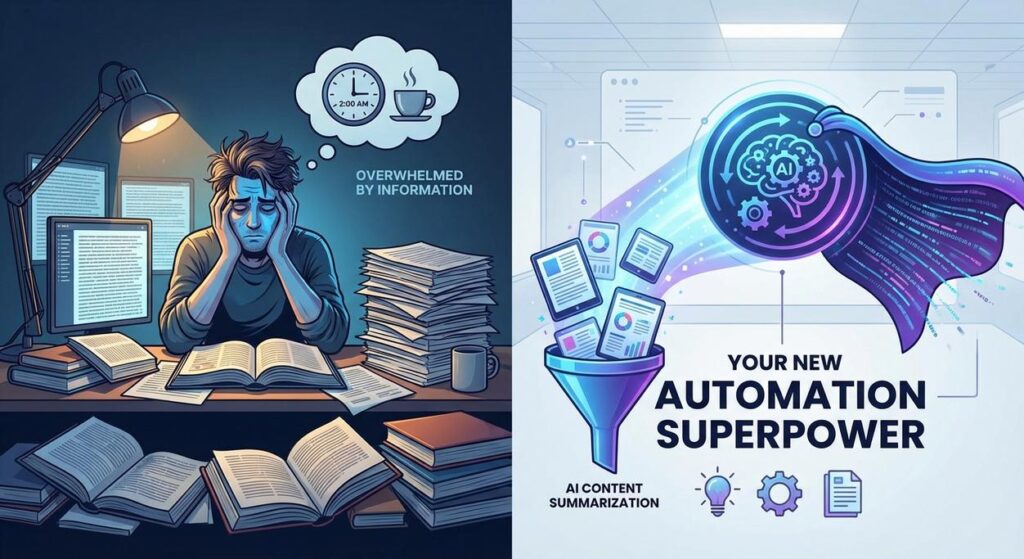
Picture this: It’s 2 AM. Your eyes are bloodshot. You’re surrounded by a fortress of unread reports, competitor analyses, client briefs, and enough meeting notes to wallpaper a small castle. You started the day with the noble intention of ‘catching up,’ and now you’re just… catching a headache. Each document is a dense jungle of jargon, and somewhere in there, buried deep like a forgotten treasure, are the actual insights you need to make a decision, craft a marketing email, or just sound halfway intelligent in tomorrow’s morning stand-up.
You wish you had a tiny, highly efficient intern whose sole job was to read all this, extract the golden nuggets, and present them on a silver platter. Well, my friend, today we’re not just wishing. We’re building that intern. And it works 24/7, never complains, and runs on electrons instead of lukewarm coffee.
Why This Matters
Let’s be brutally honest: time is money, and your sanity is priceless. Drowning in information isn’t productivity; it’s a slow, agonizing drain on your most valuable resources. AI Content Summarization isn’t just a fancy tech trick; it’s a direct upgrade to your business’s nervous system. Think about it:
- Time Savings Beyond Belief: Hours spent reading dense documents shrink to minutes. Multiply that across your team, and you’re talking about entire workdays reclaimed.
- Information Overload? What’s That?: Get the core message, the action items, the critical insights, without sifting through fluff. Make faster, more informed decisions.
- Content Repurposing on Steroids: Transform a 2000-word blog post into a punchy social media update, an email newsletter snippet, or a concise internal memo in seconds.
- Goodbye Junior Analysts (for boring tasks): That entry-level employee you hired to read industry reports? Their job just got upgraded to *analyzing* the AI-generated summaries and acting on them, not just copy-pasting.
This isn’t about working harder; it’s about working smarter, faster, and with a lot less eye strain. It’s about giving yourself the superpower to digest vast amounts of data without feeling like you’ve just run a marathon.
What This Tool / Workflow Actually Is
At its heart, AI Content Summarization is about taking a large piece of text – an article, a report, a transcript – and using a Large Language Model (LLM) to boil it down to its most critical points. It’s like having a master chef reduce a complex sauce to its essence, capturing all the flavor without the bulk.
Here’s what it does:
- Reads and understands the core themes of a given text.
- Extracts key sentences, phrases, and concepts.
- Generates a new, condensed version that preserves meaning.
- Can be tailored to extract specific types of information (e.g., action items, pros/cons, sentiment).
And here’s what it does NOT do (yet):
- It does not magically understand context beyond what’s provided in the text.
- It does not guarantee 100% factual accuracy, especially if the original text is flawed or ambiguous (always human-review critical summaries!).
- It won’t write an award-winning novel from a bulleted list (though it can certainly help outline one).
- It’s not a sentient being capable of independent thought or judgment; it’s a very sophisticated pattern-matching machine.
Our workflow will combine an LLM (specifically, OpenAI’s powerful models) with a no-code automation platform like Zapier or Make.com. This allows you to set up triggers (like a new email or a Google Sheet entry) that automatically send text to the AI and then route the summary wherever you need it.
Prerequisites
Alright, no need to dust off your old coding textbooks, unless you want to. For this lesson, we’re sticking to the low-code/no-code path, making it accessible to everyone. Here’s what you’ll need:
- An Internet Connection: Shocking, I know.
- An OpenAI Account & API Key: You’ll need to sign up for OpenAI and generate an API key. This is how your automation talks to their powerful AI models. There’s a free tier, but for consistent use, you’ll pay per usage (it’s usually pennies, sometimes less, per summary). Reassuringly, it’s not credit card roulette; you set usage limits.
- A Zapier or Make.com Account (Free Tier is Fine): These are automation platforms that connect different apps. We’ll use Zapier for our example, but Make.com works similarly. The free tier gives you enough tasks to experiment.
- Basic Copy-Pasting Skills: If you can copy text from one window and paste it into another, you’re golden.
- A Thirst for Automation: Crucial. Without this, even the simplest task feels like climbing Everest.
Seriously, that’s it. No advanced degrees, no server setups, no arcane incantations. Just follow along.
Step-by-Step Tutorial: Setting Up Your First AI Summarizer
We’re going to build a simple but powerful automation: taking a piece of text and summarizing it using OpenAI, then sending that summary to you via email. This is your foundational ‘AI Intern’ setup.
Step 1: Get Your OpenAI API Key
- Go to platform.openai.com and sign up or log in.
- Once logged in, navigate to the API Keys section (usually found under your profile icon in the top right, then ‘API keys’).
- Click ‘Create new secret key’. Name it something descriptive, like ‘Automation Academy Summarizer’.
- CRITICAL: Copy this key immediately. You will NOT be able to see it again after you close the window. Treat it like your bank PIN – keep it secret, keep it safe.
Step 2: Create a New Zap in Zapier (or Scenario in Make.com)
- Log into your Zapier account (zapier.com).
- Click the ‘Create Zap’ button on your dashboard.
- Choose Your Trigger: For our basic test, let’s use something simple. Search for ‘Webhooks by Zapier’ and select ‘Catch Hook’. This will give you a unique URL.
- Copy the provided Webhook URL. We’ll use this to send our text to Zapier.
Step 3: Connect to OpenAI via ‘AI by Zapier’ Action
- After setting up your trigger, click ‘Continue’ and then ‘Add a step’ (or the ‘+’ button).
- Search for ‘AI by Zapier’ and select it.
- Choose the ‘Conversation’ event. This is the most flexible for sending prompts to OpenAI.
- Connect your OpenAI account: Zapier will ask for your OpenAI API Key. Paste the key you saved from Step 1.
- Craft Your Prompt: This is where the magic happens. In the ‘User Message’ field, we’ll tell the AI what to do. Your prompt is everything.
Here’s a good starting prompt for summarization:
Summarize the following text into 3 concise bullet points, highlighting the main ideas and any action items. Keep it professional and objective.

Text to summarize:

{{Your Trigger Text Here}}
Replace {{Your Trigger Text Here}} with the data from your trigger. Since we used a Webhook, you’ll select the ‘data’ or ‘body’ field from the Webhook step that contains the text you sent. Zapier’s interface makes this easy – just click the field and select the webhook output.
Step 4: Send the Summary via Email
- Add another ‘Action’ step.
- Search for ‘Email by Zapier’ and select ‘Send Outbound Email’. (You can also use Gmail, Outlook, etc., if you connect those accounts).
- Configure the Email:
- To: Your email address (or your team’s).
- Subject: AI Summary: {{Your Trigger Name/Date}}
- Body: You’ll pull the output from the ‘AI by Zapier’ step. It will typically be called ‘choices__0__message__content’ or similar. This is your summary!
- Optionally, include the original text or a link to it for context.
- Test this step. Zapier will send a test email with the AI-generated summary.
Step 5: Test and Activate Your Zap
- Go back to your Webhooks trigger. Zapier will give you an option to test it.
- To manually test, you can send a POST request to your webhook URL with some text. For simple tests, a tool like webhook.site or even `curl` from your terminal works. Or, for absolute beginners, simply use an online JSON POST tool and put a `”text”: “Your long article content here.” ` in the body.
- Once Zapier confirms the test data was received and processed through all steps, turn your Zap ‘ON’.
Congratulations, you now have your own personal, on-demand AI summarization intern!
Complete Automation Example: Summarizing Meeting Notes to a Team
Let’s make this practical. Imagine you’re a team lead, and after every long meeting, you hate writing up the recap. We’ll automate summarizing Google Docs meeting notes and emailing them to the team.
The Workflow:
- A new row is added to a Google Sheet. This row contains a link to the Google Doc of the meeting notes and the email addresses of attendees.
- Zapier (triggered by the new row) retrieves the content of the Google Doc.
- The content is sent to OpenAI for summarization (e.g., into 5 key takeaways and 3 action items).
- The summary is emailed to all attendees listed in the Google Sheet.
Step-by-Step Implementation:
-
Set up Your Google Sheet:
Create a Google Sheet with columns like:
Meeting Name | Google Doc Link | Attendees Emails (comma-separated) | Status (e.g., 'Pending', 'Summarized') -
Zapier Trigger: New Google Sheet Row
- Create a new Zap.
- Trigger: ‘Google Sheets’ -> ‘New Spreadsheet Row’.
- Connect your Google account and select your sheet and worksheet.
- Test the trigger by adding a dummy row to your sheet with a valid Google Doc link (make sure the doc is shareable for ‘Anyone with the link can view’).
-
Action 1: Get Google Doc Content
- Action: ‘Google Docs’ -> ‘Get Document Content’.
- Map the ‘Document’ field to the ‘Google Doc Link’ column from your Google Sheet trigger.
- Test this step to ensure it pulls the document’s text correctly.
-
Action 2: Summarize with OpenAI
- Action: ‘AI by Zapier’ -> ‘Conversation’.
- Connect your OpenAI account.
- User Message Prompt (crucial for good AI Content Summarization!):
You are a professional meeting facilitator. Summarize the following meeting notes into 5 key discussion points and 3 clear action items, including who is responsible for each action. Format the output with bold headings for "Key Discussion Points" and "Action Items". Meeting Notes: {{Content from Google Docs step}} - Map
{{Content from Google Docs step}}to the output from your ‘Get Document Content’ step. - Test this step. Review the AI-generated summary to ensure it meets your expectations.
-
Action 3: Email the Summary
- Action: ‘Email by Zapier’ (or Gmail, Outlook) -> ‘Send Outbound Email’.
- To: Map this to the ‘Attendees Emails’ column from your Google Sheet trigger.
- Subject: Meeting Summary: {{Meeting Name from Google Sheet}}
- Body: Map this to the summary output from the ‘AI by Zapier’ step. You might also want to include the original Google Doc link for reference.
- Test this step. Check your inbox for the summary email.
-
Action 4 (Optional but Recommended): Update Google Sheet Status
- Action: ‘Google Sheets’ -> ‘Update Spreadsheet Row’.
- Select your sheet and worksheet. Map the ‘Row ID’ from your trigger.
- Set the ‘Status’ column to ‘Summarized’. This prevents re-processing and helps track.
-
Turn on Your Zap!
Now, whenever you add a new meeting entry to your Google Sheet with a link to notes, your AI intern will automatically summarize and distribute them. Pure magic.
Real Business Use Cases
The power of AI Content Summarization extends far beyond meeting notes. Here are 5+ scenarios where this exact automation (or slight variations) can be a game-changer:
-
Marketing Agency:
Problem: Drowning in client reports, case studies, and industry news that need to be distilled into concise social media posts or internal briefs.
Solution: Automate. When a new report is uploaded to a shared drive (Google Drive, Dropbox) or a specific RSS feed updates, trigger a Zap to summarize the document. Post key takeaways to a Slack channel for the content team, or even directly generate draft social media captions.
-
Consulting Firm:
Problem: Consultants spend hours reviewing lengthy research papers, legal documents, or industry analyses to extract critical information for client presentations.
Solution: Set up an automation that monitors a specific email inbox for incoming reports or a folder for new documents. Automatically summarize these documents into executive briefs, focusing on ‘key findings,’ ‘implications,’ and ‘recommendations,’ then email them to the relevant project lead.
-
eCommerce Store Owner:
Problem: Too many customer reviews to read manually, missing trends in feedback for product improvement or marketing angles.
Solution: Integrate with your e-commerce platform (if it has webhooks) or use a tool like Zapier to pull new product reviews. Send blocks of reviews (e.g., 10-20 at a time) to the AI for summarization, asking it to identify common ‘pros,’ ‘cons,’ and ‘feature requests.’ Dump these summaries into a Google Sheet for analysis.
-
Podcaster / Content Creator:
Problem: After recording a long interview, manually transcribing and then summarizing the key points for show notes, social media, or a blog post is tedious.
Solution: Once your audio transcription service (e.g., Otter.ai, Descript) finishes, have Zapier grab the transcript. Send the full transcript to OpenAI with a prompt to summarize into ‘key discussion topics,’ ‘memorable quotes,’ and ‘3 potential social media hooks.’ Output to a Google Doc, ready for editing.
-
Real Estate Agent:
Problem: Sifting through hundreds of property listings to find homes that match a client’s specific, nuanced criteria and then summarizing them effectively for the client.
Solution: Use an automation that monitors new listings from a portal or internal database. For properties that meet basic filters, send their detailed descriptions to OpenAI. Prompt the AI to summarize based on client needs (e.g., ‘Summarize property for a family of 4 looking for a large yard and good schools. Highlight pros and cons.’). Email these tailored summaries directly to the client.
-
Legal / Compliance Department:
Problem: Keeping up with new regulations, legal precedents, or contract changes requires reading exhaustive documents, risking oversight.
Solution: Set up an RSS feed monitor for regulatory bodies or an email monitor for legal updates. When new documents are identified, pass their content to OpenAI for summarization, asking specifically for ‘key changes,’ ‘risk implications,’ and ‘required actions.’ Post these summaries to a compliance team’s private Slack channel or project management tool.
Common Mistakes & Gotchas
Don’t worry, even Professor Ajay makes mistakes (usually on purpose, for teaching moments). Here’s what beginners often trip over:
-
The ‘Garbage In, Garbage Out’ Prompt:
Mistake: Using a vague prompt like “Summarize this.”
Gotcha: You’ll get a vague, generic summary. The AI needs clear instructions on *how* to summarize, *what* to focus on, and *what format* to use.
Fix: Be specific! “Summarize this into 3 bullet points, focusing on customer feedback and product features. Include any actionable insights.”
-
API Key Exposure:
Mistake: Copy-pasting your API key into publicly accessible code or sharing it accidentally.
Gotcha: Anyone with your API key can use your OpenAI account, racking up charges on your bill. Think of it as a credit card number.
Fix: Always treat API keys as confidential. Use secure environment variables for code, and let tools like Zapier handle secure storage when connecting.
-
Token Limits:
Mistake: Trying to summarize a 100,000-word novel in one go.
Gotcha: LLMs have input token limits. If your text is too long, the API will throw an error or truncate your input, leading to incomplete summaries.
Fix: For very long documents, consider breaking them into chunks and summarizing each chunk separately, then (optionally) summarizing the summaries. This requires more advanced orchestration but is doable.
-
Over-Reliance Without Review:
Mistake: Blindly trusting every AI-generated summary, especially for critical information.
Gotcha: LLMs can ‘hallucinate’ (make things up), misinterpret nuance, or simply omit crucial context if not explicitly instructed to include it. Relying on an unreviewed summary can lead to bad decisions.
Fix: Always review summaries for critical tasks, at least initially. Use the AI as a powerful first-pass filter, not the final authority.
-
Forgetting Context:
Mistake: Providing only the raw text without any surrounding context or purpose for the summary.
Gotcha: The AI doesn’t know *why* you need the summary or *who* the audience is, so it might produce a generic output.
Fix: Add context to your prompt. “Summarize this article for a busy CEO, focusing on market trends and investment opportunities.” This guides the AI much better.
How This Fits Into a Bigger Automation System
Today, you’ve built a powerful standalone piece of automation. But like a finely tuned engine, it’s designed to connect to bigger, more complex systems. Think of AI Content Summarization as a foundational layer in your automation stack:
-
CRM Integration:
Summarize lengthy customer interaction logs, support tickets, or sales call transcripts and feed them directly into your CRM. Imagine instantly seeing a concise overview of a client’s entire history before a call. This enhances personalized outreach and reduces preparation time significantly.
-
Email Management:
Automatically summarize long email threads or daily digests into key action items. You could even use the summary to draft a preliminary response, saving you precious minutes throughout the day.
-
Voice Agents / Chatbots:
For call centers, summarize entire customer service calls. These summaries can then be stored, analyzed for trends, or used to quickly onboard new agents with customer history. For chatbots, summarizing user queries before passing them to a human agent can speed up resolution.
-
Multi-Agent Workflows:
This is where it gets really interesting. Agent A summarizes an incoming report. Agent B, fed that summary, then drafts a marketing campaign. Agent C reviews and suggests improvements. Summarization is often the first step in a chain of AI-powered tasks.
-
Retrieval-Augmented Generation (RAG) Systems:
In advanced systems, your AI Content Summarization can preprocess documents stored in your knowledge base. When a user asks a question, the RAG system retrieves relevant documents, *summarizes* them, and then feeds those concise summaries to a final LLM to generate an accurate answer. This reduces token cost and improves relevance.
This single automation isn’t just a party trick; it’s a core component that supercharges other business functions. It’s the information digestor that feeds the entire automated ecosystem.
What to Learn Next
You’ve taken a huge leap today. You’ve tamed the information beast and built your first truly useful AI automation. You’re no longer just reading about AI; you’re *doing* AI. And guess what? This is just the beginning.
In our next lesson, we’re going to take these summaries and turn them into something even more powerful: **automated content expansion and repurposing.** We’ll learn how to transform those bullet-point summaries into full-blown blog post drafts, social media campaigns, or even personalized emails, all on autopilot. Get ready to not just understand information, but to *create* from it, at scale.
Your AI journey has truly begun. Keep that API key handy, and I’ll see you in the next class.
“,
“seo_tags”: “AI Content Summarization, Business Automation, LLM, OpenAI, Zapier, Productivity, Content Repurposing, Workflow Automation, No-Code AI”,
“suggested_category”: “AI Automation Courses





