
the shot
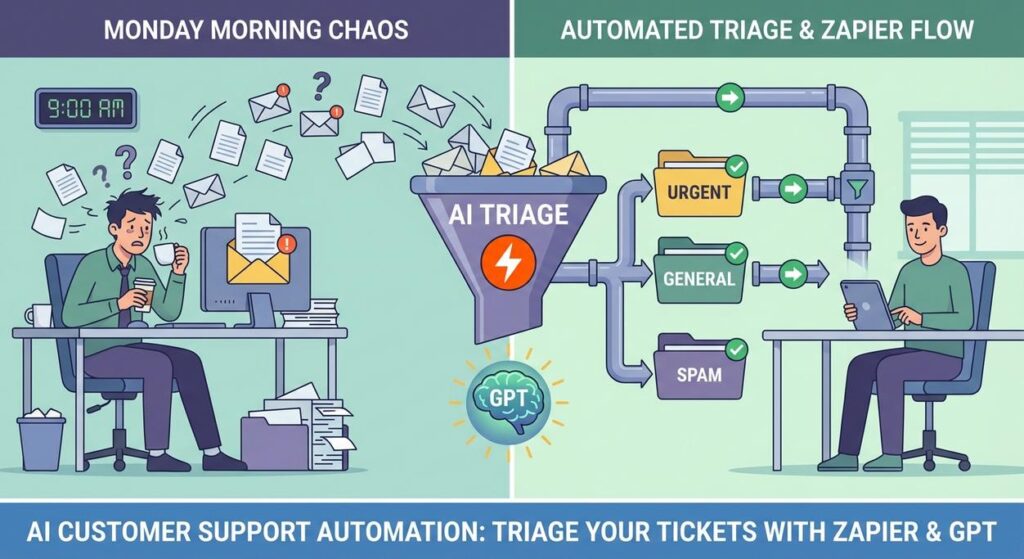
Picture this: It’s Monday morning. You’ve barely finished your lukewarm coffee, and your support inbox has already decided to stage a hostile takeover. Emails are piling up like dirty laundry, each one screaming for attention. There’s a ‘HELP! My password doesn’t work!’ from Grandma Mildred, a ‘Where’s my order?!’ from a frantic customer, and a ‘Bug Report: My widget is doing the macarena backwards!’ from a frustrated developer. Your lone support intern, bless their cotton socks, is looking like they’ve just seen a ghost, armed only with a spreadsheet and a prayer.
Sound familiar? The endless scroll, the manual categorization, the frantic forwarding to the ‘right person’ who’s probably already buried under their own digital avalanche. It’s chaos. It’s a productivity black hole. And frankly, it’s just not a good look for your business.
But what if you could have an unflappable, hyper-intelligent, never-sleeps digital assistant that instantly reads every incoming ticket, understands its essence, and routes it to exactly the right department – all before your intern has even had their first sip of coffee?
Welcome to the world of AI Customer Support Automation. Today, we’re not just building a robot; we’re building a highly efficient, perpetually caffeinated support manager who never complains about overtime.
Why This Matters
This isn’t just about making your inbox tidier. This is about injecting rocket fuel into your customer service, giving your team their sanity back, and making your customers feel heard and valued – fast.
- Time is Money (and Sanity): Think about how much time your team (or you!) spends manually reading, understanding, and forwarding tickets. Multiply that by dozens, hundreds, or even thousands of tickets a month. This AI Customer Support Automation workflow slashes that time to near zero.
- Scale Without Hiring: As your business grows, so does your support volume. Instead of hiring more people just to sort emails, you can scale your support triage system automatically. It’s like having an army of interns, but they only cost you pennies per task.
- Faster Resolutions, Happier Customers: When a technical issue goes straight to the tech team, or a billing question to finance, the customer gets an answer quicker. Quicker answers mean happier customers, fewer churns, and more glowing reviews.
- Reduced Errors: Humans make mistakes. AI, when properly prompted, is frighteningly consistent. No more misrouted tickets languishing in the wrong department’s inbox.
- Data-Driven Insights: By categorizing tickets consistently, you start to collect invaluable data on common issues, helping you improve products, services, and FAQs.
This automation replaces the tedious, error-prone manual triage work, turning your support inbox from a messy battlefield into a highly organized command center.
What This Tool / Workflow Actually Is
At its core, this workflow is a digital switchboard powered by artificial intelligence. We’re going to use two main players:
- OpenAI (Specifically GPT Models): This is the ‘brain’ of our operation. We’ll feed it the raw text of a customer support inquiry, and it will analyze it, understand the intent, categorize it (e.g., ‘Billing,’ ‘Technical Support,’ ‘Feature Request’), determine urgency, and suggest the best next step.
- Zapier: This is our workflow conductor, the maestro of our automation orchestra. Zapier will listen for new support tickets, send them to OpenAI for analysis, receive the AI’s instructions, and then execute tasks based on those instructions (e.g., create a task in a project management tool, send a Slack message, update a spreadsheet).
What it DOES do: Automatically reads, categorizes, prioritizes, and routes incoming support tickets based on custom rules you define. It acts as an intelligent first filter, ensuring tickets land in the right place, instantly.
What it DOES NOT do: It doesn’t replace your entire human support team. It won’t have empathetic conversations (yet!). It won’t solve complex problems requiring human judgment or deep product knowledge. It’s an advanced assistant, not a full replacement.
Prerequisites
Alright, let’s get you equipped. Don’t worry, even if your coding experience extends only to copy-pasting code into the console to ‘inspect element,’ you’re perfectly fine here.
- An OpenAI Account and API Key: You’ll need to sign up for an account at platform.openai.com. Make sure you add a payment method, even for the smallest models, as the free tier has limitations, and this workflow will consume a tiny bit of paid usage (usually pennies per ticket). You’ll generate your API key here. Keep it secret, keep it safe!
- A Zapier Account: You’ll need a paid Zapier account for this specific multi-step workflow. The free tier is great for simple automations, but we’re building something with more moving parts. You can start a trial if you don’t have one.
- An Incoming Channel for Support Tickets: This could be as simple as a dedicated Gmail inbox (e.g., support@yourcompany.com), a form submission tool (Google Forms, Typeform), or an actual help desk system like Zendesk or Freshdesk. For our example, we’ll use a generic “New Email” trigger, which is highly flexible.
- An Output Channel: Where do you want the categorized tickets to go? This could be a specific Slack channel, a Trello board, Asana, Google Sheets, or even just a new email to the relevant department.
That’s it. No coding bootcamps required. Just a few accounts and a willingness to automate the tedious parts of your day.
Step-by-Step Tutorial
Let’s build our digital support manager. We’ll create a Zapier automation (what Zapier calls a ‘Zap’) that listens for new support emails, asks GPT to triage them, and then acts on the AI’s recommendations.
Step 1: Get Your AI Brain Ready (OpenAI)
First, if you haven’t already, go to platform.openai.com/api-keys and click ‘Create new secret key’. Copy this key immediately and store it somewhere safe. You won’t see it again.
This key is how Zapier will talk to the powerful GPT models.
Step 2: The Workflow Conductor (Zapier)
Log into your Zapier account and click the ‘Create Zap’ button in the top left.
Step 3: The Data Input (New Support Ticket)
This is where our automation starts. We need a ‘Trigger’ event. For maximum flexibility, let’s assume support tickets arrive as emails.
- Choose App & Event: Search for ‘Email by Zapier’ (or Gmail, Outlook, whatever you use) and select it.
- Trigger Event: Choose ‘New Email.’
- Choose Account: If using ‘Email by Zapier,’ it will give you a custom email address. If using Gmail/Outlook, connect your account and select the specific inbox you want to monitor (e.g., support@yourcompany.com).
- Test Trigger: Send a test email to that address from a different email account. Make sure it contains a realistic support request. Zapier will try to find this email. If it succeeds, you’ve got your first piece of data!
Step 4: The AI Magic (OpenAI Action)
Now, let’s unleash the brainpower. This is where we send the email content to GPT for analysis.
- Choose App & Event: Search for ‘OpenAI’ and select it.
- Action Event: Choose ‘Send Prompt.’
- Choose Account: Connect your OpenAI account using the API key you generated earlier.
- Set up action: This is the crucial part – crafting the prompt. A good prompt tells the AI exactly what you need.
- Model: Select a powerful model like ‘GPT-4’ or ‘GPT-3.5 Turbo.’ (GPT-4 for precision, GPT-3.5 for speed/cost-effectiveness).
- User Message: This is where you instruct the AI. We’ll feed it the email body and ask it to categorize.
Here’s a robust prompt you can copy-paste. This prompt asks the AI to output in a structured JSON format, which makes it incredibly easy for Zapier to parse and use later.
You are an expert customer support agent specializing in triaging incoming support tickets.
Your task is to analyze the following customer inquiry and categorize it, determine its urgency, and suggest the appropriate department or next action.

Output your analysis STRICTLY as a JSON object with the following keys:
"category": (string - e.g., "Billing", "Technical Support", "Feature Request", "General Inquiry", "Returns & Refunds", "Order Status", "Complaint")
"urgency": (string - e.g., "High", "Medium", "Low")
"department": (string - e.g., "Finance", "Engineering", "Sales", "Logistics", "Customer Success")
"summary": (string - a brief 1-2 sentence summary of the issue)

Customer Inquiry:
"""
[BODY_PLAIN]
"""
Important: Replace `[BODY_PLAIN]` with the ‘Body Plain’ output from your Email by Zapier (or Gmail, etc.) trigger. Zapier will show you a dropdown of fields from the previous step. This is how the actual email content gets passed to the AI.
- Test Action: Run a test. OpenAI should return a JSON object with the categorization. This is pure magic in action!
Step 5: The Output Director (Conditional Logic / Task Creation)
Now that our AI has done its job, we need to act on its findings. We’ll use Zapier’s ‘Path’ feature (or ‘Filter’ for simpler routing) to direct the ticket based on the AI’s ‘category’ and ‘department’ output.
- Add a ‘Path’ step: Click the ‘+’ button after your OpenAI step and search for ‘Paths by Zapier.’ This allows you to create different branches in your Zap.
- Set up Path A (e.g., ‘Billing Tickets’):
- Rules: Set up a rule like: ‘OpenAI Send Prompt Output Category’ (from the dropdown) ‘Text Contains’ ‘Billing’. You can add more conditions, e.g., ‘AND’ ‘OpenAI Send Prompt Output Urgency’ ‘Text Contains’ ‘High’.
- Action (inside Path A): What should happen if it’s a billing ticket? Maybe ‘Create Task’ in Asana for the ‘Finance Team’ or ‘Send Channel Message’ in Slack to ‘#finance-support’.
- Add Path B (e.g., ‘Technical Support’):
- Rules: ‘OpenAI Send Prompt Output Category’ ‘Text Contains’ ‘Technical Support’.
- Action (inside Path B): ‘Create Issue’ in Jira or ‘Add Card’ in Trello for the ‘Engineering Team’.
- Repeat for other categories: Create as many paths as you need for different departments or issue types. You can also have a ‘catch-all’ path for ‘General Inquiry’ if none of the specific paths match.
- Test Paths: Test each path to ensure the conditions trigger the correct actions.
Turn your Zap ON! Congratulations, you’ve just automated your support triage. Your intern can now focus on important things, like perfecting their latte art.
Complete Automation Example
Let’s walk through a full example: Automatically routing emails to a specific Trello board for different teams.
Goal: New emails to `support@yourcompany.com` are analyzed by AI. If ‘Billing,’ a card is created on the ‘Finance Support’ Trello board. If ‘Technical,’ a card is created on the ‘Tech Support’ Trello board. If ‘General,’ a card is created on the ‘General Inquiries’ Trello board.
- Trigger: New Email in Gmail
- App: Gmail
- Event: New Email
- Account: Connect your Gmail account.
- Label/Mailbox: Select ‘Inbox’ (or a specific label like ‘Support’) and optionally filter by ‘To’ address: `support@yourcompany.com`.
- Test: Send a test email to `support@yourcompany.com` from a personal email with the subject “Billing question: I was overcharged!” and body “Hi, I noticed an extra charge on my last invoice. Could you please check this for me? My order ID is #12345.”
- Action: OpenAI – Send Prompt
- App: OpenAI
- Event: Send Prompt
- Account: Select your OpenAI account.
- Model: `gpt-3.5-turbo`
- User Message:
You are an expert customer support agent specializing in triaging incoming support tickets. Your task is to analyze the following customer inquiry and categorize it, determine its urgency, and suggest the appropriate department or next action. Output your analysis STRICTLY as a JSON object with the following keys: "category": (string - e.g., "Billing", "Technical Support", "Feature Request", "General Inquiry", "Returns & Refunds", "Order Status", "Complaint") "urgency": (string - e.g., "High", "Medium", "Low") "department": (string - e.g., "Finance", "Engineering", "Sales", "Logistics", "Customer Success") "summary": (string - a brief 1-2 sentence summary of the issue) Customer Inquiry: """ {insert step 1. Body Plain} """ - Test: Run the test. The output should be something like:
{
  "category": "Billing",
  "urgency": "Medium",
  "department": "Finance",
  "summary": "Customer reported an extra charge on their last invoice, requesting a check for order ID #12345."
}
- Action: Path A – Billing Tickets
- App: Paths by Zapier
- Name: ‘Path A: Billing’
- Rules: `(2. Choices Text Output Category) Contains “Billing”`
- Nested Action: Trello – Create Card
- App: Trello
- Event: Create Card
- Account: Connect your Trello account.
- Board: Select your ‘Finance Support’ board.
- List: Select ‘To Do’ (or similar).
- Name: `{2. Choices Text Output Summary}` (e.g., “Customer reported an extra charge…”)
- Description: `From: {1. From Email}
Subject: {1. Subject}
Original Email: {1. Body HTML}`
- Action: Path B – Technical Tickets
- App: Paths by Zapier
- Name: ‘Path B: Technical’
- Rules: `(2. Choices Text Output Category) Contains “Technical Support”`
- Nested Action: Trello – Create Card
- App: Trello
- Event: Create Card
- Account: Connect your Trello account.
- Board: Select your ‘Tech Support’ board.
- List: Select ‘New Issues’.
- Name: `{2. Choices Text Output Summary}`
- Description: `From: {1. From Email}
Subject: {1. Subject}
Original Email: {1. Body HTML}`
- Action: Path C – General Inquiries
- App: Paths by Zapier
- Name: ‘Path C: General’
- Rules: `(2. Choices Text Output Category) Contains “General Inquiry”`
- Nested Action: Trello – Create Card
- App: Trello
- Event: Create Card
- Account: Connect your Trello account.
- Board: Select your ‘General Inquiries’ board.
- List: Select ‘New’.
- Name: `{2. Choices Text Output Summary}`
- Description: `From: {1. From Email}
Subject: {1. Subject}
Original Email: {1. Body HTML}`
And just like that, new emails arrive, get intelligently categorized, and land directly in the right team’s queue, waiting to be tackled. All automated. All without human intervention (until it’s time to actually *solve* the problem, of course).
Real Business Use Cases
This AI Customer Support Automation isn’t just a party trick; it’s a workhorse for a diverse range of businesses:
-
E-commerce Store
Problem: A small online boutique receives hundreds of emails daily about order status, returns, product information, and payment issues. Manual sorting leads to delays and frustrated customers.
Solution: Implement AI Customer Support Automation to categorize emails into ‘Order Status,’ ‘Returns,’ ‘Product Info,’ and ‘Billing.’ Each category triggers a Zapier path that creates a task in a specific Trello list (e.g., ‘Shipping Team,’ ‘Returns Dept’) or sends a notification to the relevant internal Slack channel. Urgent ‘Returns’ automatically get assigned ‘High’ priority.
-
SaaS Startup
Problem: A rapidly growing SaaS company gets a mix of bug reports, feature requests, account management queries, and technical support questions. Developers are often sifting through general inquiries, wasting valuable coding time.
Solution: The automation triages emails into ‘Bug Report,’ ‘Feature Request,’ ‘Account Management,’ and ‘Technical Issue.’ ‘Bug Report’ and ‘Technical Issue’ tickets are automatically sent to Jira as high-priority tasks for the engineering team, while ‘Feature Requests’ go to a product roadmap backlog in Asana, and ‘Account Management’ goes to the customer success team.
-
Consulting Firm
Problem: A consulting firm receives new client inquiries, existing project support requests, and administrative questions. Leads can be lost if new inquiries aren’t routed to sales quickly.
Solution: The AI categorizes emails as ‘New Client Inquiry,’ ‘Project Support,’ or ‘Admin.’ ‘New Client Inquiries’ trigger an immediate notification to the sales team’s Slack channel and create a lead in their CRM (e.g., HubSpot). ‘Project Support’ tickets are routed to the relevant project manager via email or a project management tool. ‘Admin’ tickets go to an operations assistant.
-
Local Service Business (e.g., Plumbing, HVAC)
Problem: A busy local service company manages inbound requests for emergency repairs, routine maintenance, quotes, and general questions. Missing an emergency call or delaying a quote can mean lost business.
Solution: Incoming messages (from web forms, email) are categorized as ‘Emergency Service,’ ‘Quote Request,’ ‘Maintenance,’ or ‘General.’ ‘Emergency Service’ and high-urgency ‘Quote Requests’ immediately send an SMS notification to the on-call technician or sales rep via Zapier’s SMS integration, along with creating a job in their scheduling software. Others are added to a daily dispatch spreadsheet.
-
Online Course Platform
Problem: Students frequently ask about course access, payment issues, specific lesson content, or general platform technical problems. Support staff struggle to keep up with diverse inquiries.
Solution: The AI triages questions into ‘Course Access,’ ‘Billing,’ ‘Content Query,’ and ‘Technical Issue.’ ‘Course Access’ and ‘Billing’ often trigger an automated response via an email action in Zapier with common troubleshooting steps, while also notifying the support team. ‘Content Queries’ are routed to the instructor or content team, and ‘Technical Issues’ go to platform developers for investigation.
Common Mistakes & Gotchas
Even the best automations can have hiccups if you’re not careful. Here are some pitfalls to avoid:
- Garbage In, Garbage Out (GIGO): Your AI is only as good as the prompt you give it. If your prompt is vague or doesn’t specify the desired output format (like our JSON example), the AI might return inconsistent or unusable data. Be explicit!
- Not Handling Edge Cases: What if the AI can’t categorize something? Or it hallucinates a category? Always have a ‘default’ or ‘catch-all’ path in Zapier for tickets that don’t match any of your specific criteria. These should typically go to a human for review.
- Over-Reliance Without Oversight: Don’t just set it and forget it, especially at the start. Monitor your AI’s performance for the first few weeks. Are tickets consistently going to the right place? Is the urgency assessment accurate? Adjust your prompt or categories as needed.
- API Key Security: Treat your OpenAI API key like your credit card number. Never expose it in public code or share it carelessly. Zapier encrypts it, but be mindful of who has access to your Zapier account.
- Cost Scaling: While AI is cheap per request, if you suddenly process thousands of tickets a day with a high-end model like GPT-4, costs can add up. Start with `gpt-3.5-turbo` for most triage tasks, as it’s often sufficient and much cheaper.
- Not Testing Thoroughly: Before turning your Zap on for real, send several different types of test emails/requests. Test billing, tech, general, and even ambiguous requests to ensure your paths are working as expected.
How This Fits Into a Bigger Automation System
This AI Customer Support Automation is a powerful standalone piece, but it truly shines when integrated into a larger ecosystem. Think of it as the highly intelligent gatekeeper to your entire customer experience factory.
- CRM Integration: Once a ticket is triaged, the AI can then prompt Zapier to search your CRM (Salesforce, HubSpot, Zoho) for the customer’s record. This can then trigger an update to their ‘Last Contact’ field or even pull relevant customer history to enrich the support ticket before it reaches a human.
- Automated Email Replies: For common categories like ‘Order Status’ or ‘Password Reset,’ the AI can not only route the ticket but also trigger Zapier to send an immediate, personalized auto-reply using a pre-written template, potentially solving the issue instantly without human intervention.
- Dynamic Routing to Voice Agents: Imagine a future where the AI’s triage (e.g., ‘High Urgency Billing’) not only creates a task but also flags the customer for priority in a voice queue if they call your support line, routing them directly to a billing specialist.
- Multi-Agent Workflows: This basic triage can be the first step in a chain of AI agents. After triage, a second AI agent could be instructed to draft a personalized response based on the categorized issue and customer history, then pass it to a human for final review and sending.
- RAG (Retrieval Augmented Generation) Systems: For ‘Content Query’ or ‘Technical Issue’ categories, the AI could trigger a RAG system to search your internal knowledge base or documentation for relevant answers, providing the human agent with immediate, context-specific information to help them respond faster and more accurately.
This initial triage system is the perfect foundation. It gets the right information to the right place, ready for the next layer of automation or human expertise.
What to Learn Next
You’ve built your first highly intelligent support triage system, freeing up valuable time and ensuring customers get help faster. That’s a massive win!
But we’re just scratching the surface of what’s possible with AI and workflow orchestration. This lesson gave you the core principles of using AI to understand and route information. Next, we’ll dive deeper into:
- Building Dynamic AI Responders: How to train an AI to draft personalized email replies based on the categorized ticket, using specific business rules and pulling info from your knowledge base.
- Integrating with CRMs for Personalized Service: Beyond just routing, how to use customer data from your CRM to provide more context to your AI and human agents, leading to even better customer experiences.
- Advanced Conditional Logic and Fallbacks: Refining your Zapier paths to handle more complex scenarios, including when AI might give an ambiguous answer, ensuring no ticket ever falls through the cracks.
So, take a moment to admire your work. You’ve just replaced a whole lot of manual drudgery with a sophisticated, automated system. Now, let’s get ready to build on this foundation and push the boundaries of what your business can achieve with AI. The next lesson awaits!
“,
“seo_tags”: “AI customer support automation, Zapier, OpenAI, GPT, support ticket triage, business automation, customer service automation, workflow automation, AI for business, no-code AI, improve customer support, reduce manual work”,
“suggested_category”: “AI Automation Courses





