
the shot
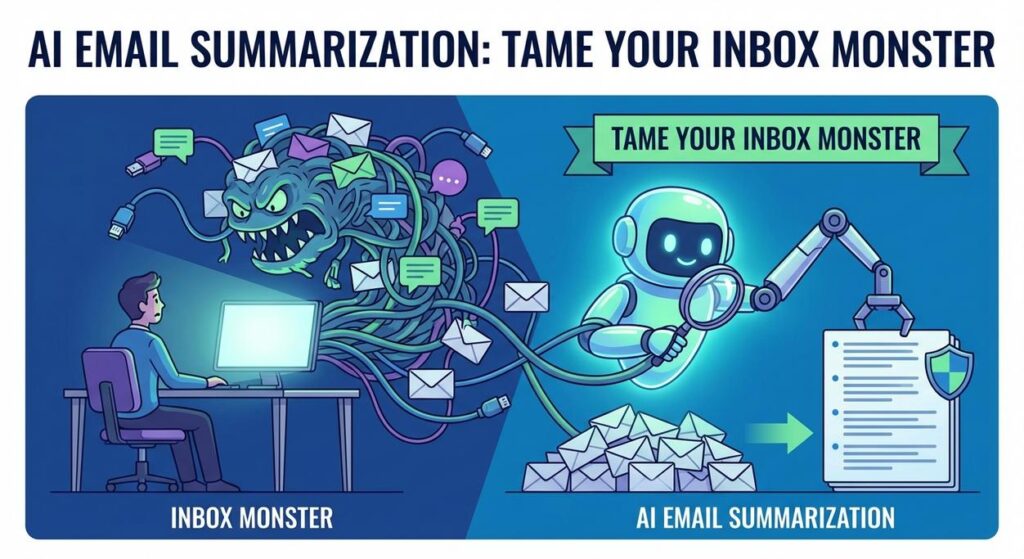
Ah, the humble email. Once hailed as the pinnacle of modern communication, now… it’s basically a digital swamp where good intentions go to die. Every morning, you log in, and there it is: a fresh avalanche of newsletters, urgent requests, vague inquiries, and the occasional email from ‘Prince Abdul-Jabbar’ offering you untold riches (if only you’d send him your bank details first, naturally).
You start scrolling. You skim. You sigh. You promise yourself you’ll ‘get to that later,’ knowing full well ‘later’ means ‘never.’ Your productivity is draining faster than a leaky bucket, and your brain feels like it’s been put through a pasta press just trying to figure out what’s actually important.
I once knew a business owner who tried to hire an intern just to read and summarize his emails. The kid lasted three days. Said he’d rather go back to flipping burgers. At least the burgers didn’t have a subject line demanding ‘URGENT: ACTION REQUIRED BY EOD – RE: Q3 SYNERGY OPTIMIZATION CALL-TO-ACTION FRAMEWORK!’
Today, we put an end to that madness. We’re not hiring interns; we’re hiring robots. And these robots? They love emails. They eat them for breakfast, digest them, and spit out exactly what you need to know. No complaints, no quitting, just pure, unadulterated efficiency.
Why This Matters
Let’s be brutally honest: every minute you spend sifting through an overcrowded inbox is a minute you’re NOT spending closing deals, innovating, building your business, or, frankly, enjoying your life. It’s a time sink, a creativity killer, and a prime source of ‘decision fatigue.’ This isn’t just about convenience; it’s about cold, hard business impact:
- Save Hours (and Money): If you or your team spend an hour a day on email triage, that’s 5 hours a week, 20 hours a month. Multiply that by your hourly rate (or your team’s), and you’re looking at a significant cost. AI can cut that by 80% or more.
- Never Miss an Important Action Item: How many times has a crucial request gotten buried under a pile of less important messages? AI doesn’t get distracted. It finds the ‘what next’ every single time.
- Scale Your Communication Effortlessly: As your business grows, so does your email volume. You can’t hire endless email readers. But you can scale your AI email automation to handle thousands of messages a day without breaking a sweat.
- Boost Team Productivity & Morale: Free your team from the mundane task of email sifting. Let them focus on high-value work. Happy team, productive team.
This automation replaces the weary intern, the overloaded assistant, or (most likely) *you*, spending precious time on a task a machine can do faster and better.
What This Tool / Workflow Actually Is
At its core, this workflow is a smart digital assistant that watches your inbox, identifies specific emails, then uses an Artificial Intelligence model (like OpenAI’s GPT series) to read, summarize, and extract key information or action items from them. Think of it as your personal email-parsing robot.
What It Does:
- Monitors your email account for new messages.
- Filters emails based on sender, subject, or content.
- Sends the relevant email body to an AI model.
- Instructs the AI to summarize the email concisely.
- Instructs the AI to identify and list any action items, questions, or critical information.
- Outputs this summarized information to a place where you can easily review it (like a spreadsheet, a task manager, or a Slack channel).
What It Does NOT Do (Automatically):
- It does NOT automatically reply to emails (unless you explicitly build that *additional* automation, which is a whole other lesson).
- It does NOT magically understand context that isn’t present in the email text itself.
- It does NOT replace human judgment for complex decisions. This is an aid, not a replacement for your brain.
Prerequisites
Alright, eager beaver, here’s what you’ll need. Don’t sweat it; it’s all straightforward, and absolutely no coding is required for this setup.
- An Email Account: Gmail, Outlook, or any email service you can connect to via a standard automation platform. (We’ll assume Gmail for our example, as it’s common and easy to integrate.)
- An OpenAI Account & API Key: This is where the AI magic happens. You’ll need to sign up for OpenAI and generate an API key. They offer free credits to start, then it’s pay-as-you-go (usually pennies per summary).
How to Get Your OpenAI API Key:
- Go to platform.openai.com/signup and create an account.
- Once logged in, navigate to ‘API keys’ in your user settings (usually under your profile icon in the top right).
- Click ‘Create new secret key’ and make sure to copy it IMMEDIATELY. You won’t see it again!
- Keep this key secret. Treat it like digital cash.
- A Low-Code Automation Platform Account: Think of this as your digital factory floor. We’ll use Make.com (formerly Integromat) for our example because it’s incredibly visual and powerful for free. Zapier is another great alternative, but Make often gives you more operations on its free tier.
How to Get Your Make.com Account:
- Go to make.com/en/register and sign up for a free account.
- It’s click-and-connect, super intuitive.
- A Google Sheet (Optional, but Recommended): To log your summaries. Just a regular Google account is needed.
- Basic Internet Literacy: You know how to click buttons, type, and copy-paste. You’re set.
See? Nothing intimidating. Just a few tools, and we’ll connect them like digital LEGOs.
Step-by-Step Tutorial
Let’s build this beast! We’re going to use Make.com as our automation orchestrator.
Step 1: Set Up Your Make.com Scenario
- Log in to Make.com.
- Click ‘+ Create a new scenario’ in the left sidebar.
- You’ll see a blank canvas. This is where we lay out our automation pipeline.
Step 2: Add the Email Trigger (New Email)
- Click the large ‘+’ in the middle of your canvas.
- Search for ‘Gmail’ and select the ‘Gmail’ app.
- Choose the ‘Watch Emails’ module. This is our trigger – it starts the automation when a new email arrives.
- Click ‘Add’ next to ‘Connection’ and follow the prompts to connect your Gmail account. Grant the necessary permissions.
- For ‘Folder’, select ‘Inbox’. You can also specify other folders or labels later, but ‘Inbox’ is a good start.
- For ‘Criteria’, you can leave it blank for now, or add specific filters (e.g., ‘From: *@yourclient.com’). For this example, let’s process *all* new inbox emails to show the full flow, but in a real scenario, you’d want to be more specific.
- For ‘Limit’, set it to ‘1’ or ‘5’ for testing, so you don’t process too many emails at once.
- Click ‘OK’.
Step 3: Add the OpenAI Module for Summarization
- Click the ‘Add another module’ button (the small half-circle on the right of your Gmail module).
- Search for ‘OpenAI’ and select the ‘OpenAI’ app.
- Choose the ‘Create a Completion’ module. (Yes, it’s called ‘completion’ even for chat models, because it’s completing a text generation task).
- Click ‘Add’ next to ‘Connection’ and paste your OpenAI API Key you generated earlier. Name your connection something like ‘My OpenAI Key’. Click ‘Save’.
- Now, configure the module:
- Method: Choose ‘GPT-4 (or GPT-3.5 Turbo)’ for chat-based interactions. GPT-4 is smarter but more expensive. Start with GPT-3.5 Turbo for cost-effectiveness and speed.
- Messages: This is where we tell the AI what to do. Click ‘Add item’.
- Role: ‘system’
- Content:
You are a highly efficient email assistant. Your task is to read the provided email, summarize its core content concisely, and extract any clear action items or key questions. Present the summary and action items clearly. - Role: ‘user’
- Content: This is where we feed the email. Click into the content box, and you’ll see a list of data from the previous Gmail module. Find and click ‘Text content’ from the Gmail ‘Watch Emails’ module. This maps the email’s body into our prompt.
- Temperature: ‘0.7’ (This controls creativity. 0.7 is a good balance for summarization; lower for more factual, higher for more creative. We want somewhat factual here.)
- Max tokens: ‘500’ (This limits the length of the AI’s response. Adjust as needed.)
- Click ‘OK’.
Step 4: Add a Google Sheets Module to Log Results
We need somewhere to store our brilliant summaries.
- Click the ‘Add another module’ button after your OpenAI module.
- Search for ‘Google Sheets’ and select the ‘Google Sheets’ app.
- Choose the ‘Add a Row’ module.
- Connect your Google Account.
- For ‘Spreadsheet’, select one you’ve already created. If you don’t have one, go to Google Sheets and create a new blank sheet. Name it ‘Email Summaries’. In the first row, add column headers: ‘Date’, ‘Sender’, ‘Subject’, ‘Summary & Actions’.
- Go back to Make.com, select your ‘Email Summaries’ spreadsheet, and then select the ‘Sheet Name’ (usually ‘Sheet1’).
- Now, map the data from our previous modules to the columns:
- Date: Select ‘Date’ from the Gmail module.
- Sender: Select ‘From: Email address’ from the Gmail module.
- Subject: Select ‘Subject’ from the Gmail module.
- Summary & Actions: Select ‘Choices[]: Message: Content’ from the OpenAI module. This is the AI’s summarized response.
- Click ‘OK’.
Step 5: Test Your Scenario
- Save your scenario (click the disk icon at the bottom left).
- Send a test email to yourself with some content that needs summarizing and an action item.
- In Make.com, click ‘Run once’ at the bottom left.
- Go to your Google Sheet. You should see a new row with the email details and the AI-generated summary/action items.
If it works, congratulations! You’ve just built your first email-taming robot.
Complete Automation Example
Let’s make this concrete. You’re a freelance web designer, and clients send you requirements, feedback, and bug reports via email. You need to quickly log these into a central sheet for tracking.
The Problem:
Client emails are often long, rambling, and contain multiple points. You spend too much time reading, manually extracting tasks, and then copying them into your project tracker.
The Solution: Automated Client Email Processing
We’ll extend our previous setup slightly.
-
Trigger: New Client Email (Gmail ‘Watch Emails’)
Instead of watching *all* emails, we’ll refine the ‘Criteria’ in the Gmail ‘Watch Emails’ module.
From: *@clientdomain.com OR From: anotherclient@email.com OR Subject: "[Project Name]"This ensures only relevant client communication triggers the automation.
-
AI Processing (OpenAI ‘Create a Completion’)
Our prompt needs to be specific to design and development requests:
You are an AI assistant for a web designer. Read the following client email carefully. Provide a concise summary of the email's purpose and key content. Then, identify and list all actionable tasks or specific requests made by the client. Format the action items as a bulleted list.

Email:
[MAP GMAIL 'Text content' HERE]
This prompt specifically asks for actionable tasks, which is crucial for project management.
-
Logging to Google Sheets (‘Add a Row’)
Our Google Sheet now looks like this:
Date Client Email Subject Summary Action Items Status New Map the OpenAI output:
- Summary: Map the first part of the AI’s response (before the action items). You might need to use Make.com’s text functions (like `split()`) to separate the summary from the action items if the AI lumps them together, or refine your prompt further to ensure distinct sections. A simple prompt like above will often give you both in one block.
- Action Items: Map the action items part of the AI’s response.
-
Notification (Optional: Slack/Email)
Add another module (e.g., Slack ‘Create a Message’) after Google Sheets to send a quick notification to your project Slack channel or directly to yourself:
New Client Email from {{1.From: Name}} ({{1.From: Email address}}):
Subject: {{1.Subject}}

Summary:
{{2.Choices[]: Message: Content}}

Check Google Sheet for details.
This keeps you instantly updated without needing to check the sheet constantly.
Now, every time a client emails you, the system automatically processes it, logs the key info, and pings you. You spend 30 seconds reviewing the sheet, not 30 minutes parsing emails.
Real Business Use Cases
This core automation pattern – email -> AI process -> output – is incredibly versatile.
-
E-commerce Store
- Problem: Customers email support with order issues (returns, damages, wrong items). Manually categorizing and assigning these is slow.
- Solution: AI summarizes the issue, extracts order numbers, and identifies the problem type (e.g., ‘return request’, ‘damaged item’, ‘shipping delay’). Logs to a sheet, and tags specific team members in a support CRM or Slack channel.
-
Consulting Firm
- Problem: Project managers receive daily client updates, meeting notes, and requests. Keeping track of all moving parts is a nightmare.
- Solution: AI processes project update emails, summarizes progress, identifies new blockers or critical decisions, and extracts follow-up actions for the team, pushing them directly into a project management tool like Asana or Trello.
-
Real Estate Agent
- Problem: Inquiries from potential buyers/renters come in via email, often with specific requirements (e.g., ‘3 bed, 2 bath, pet-friendly, budget $X, location Y’). Manually extracting these is tedious.
- Solution: AI reads inquiry emails, extracts property type, number of beds/baths, budget range, preferred locations, and specific needs (pets, yard, etc.). This data is then logged to a CRM, creating a structured lead profile.
-
Recruitment Agency
- Problem: Recruiters receive hundreds of candidate resumes and cover letters via email. Pre-screening is time-consuming.
- Solution: AI processes cover letters and relevant parts of resumes (from email attachments if extractable, or just the email body if the candidate pitches themselves there), summarizes key skills, experience, and role alignment, then populates a candidate tracking sheet or flags relevant profiles for human review.
-
Online Course Creator / Coach
- Problem: Students or clients send questions, feedback, and testimonials via email. It’s hard to track common issues or collect testimonials.
- Solution: AI summarizes student questions to identify common sticking points in a course, extracts key feedback points, and identifies genuine testimonials. Logs questions for FAQ updates, and stores testimonials for marketing purposes.
Common Mistakes & Gotchas
Even though this is straightforward, there are a few banana peels to watch out for:
-
Vague AI Prompts
Mistake: ‘Summarize this email.’
Gotcha: The AI might give you a generic summary that doesn’t focus on *your* business needs. It won’t know you specifically want action items if you don’t tell it.Fix: Be specific. ‘Summarize the email, identify any tasks for a web designer, list them as bullet points, and highlight any client deadlines.’ The more specific, the better the output.
-
Not Filtering Emails Properly
Mistake: Processing *every* email, including newsletters, spam, and internal chatter.
Gotcha: Wastes OpenAI credits, fills your Google Sheet with junk, and makes your automation less effective. Like trying to drink from a firehose.
Fix: Use robust filters in your Gmail/Outlook trigger. Filter by sender, subject keywords, or even specific email labels. Only process emails that truly need AI attention.
-
Over-Reliance Without Human Review
Mistake: Assuming the AI is 100% accurate 100% of the time, especially for critical tasks.
Gotcha: AI can hallucinate, misinterpret nuanced language, or miss subtle cues. Relying solely on it for major decisions is risky.
Fix: Always set up a human review step for critical outputs. The automation *pre-processes*, but *you* make the final call. The Google Sheet acts as your review queue.
-
Ignoring API Costs & Limits
Mistake: Sending thousands of long emails to GPT-4 without checking costs.
Gotcha: You could rack up a surprisingly large bill. Also, hitting rate limits means your automation stalls.
Fix: Start with cheaper models (GPT-3.5 Turbo is excellent for summarization). Monitor your OpenAI usage. Optimize your prompts to be concise and ensure you’re only processing necessary emails. OpenAI typically charges by ‘tokens’ (parts of words) processed, both input and output.
-
Privacy and Sensitive Data
Mistake: Sending highly confidential client data or PII (Personally Identifiable Information) to public AI models without understanding the implications.
Gotcha: Depending on the AI provider’s terms, your data might be used for training, or simply be exposed to their systems. This can be a major compliance issue.
Fix: Be mindful of the data you’re processing. For extremely sensitive data, consider on-premise solutions or highly secure enterprise-grade AI, which is beyond this beginner lesson. For most business communications, general summaries are fine, but always be aware of what you’re sending. OpenAI offers enterprise-level data privacy, but it’s crucial to understand their current policies.
How This Fits Into a Bigger Automation System
This email summarization is a foundational brick in your automation empire. It rarely stands alone; it’s designed to feed into larger systems:
-
CRM Integration (Customer Relationship Management)
Once you extract customer requests or feedback, you can automatically update their profiles in your CRM (e.g., HubSpot, Salesforce). This means sales and support teams always have the latest intel without manual data entry.
-
Task Management Systems
Action items extracted by AI can directly create tasks in Asana, Trello, Monday.com, or ClickUp, assigning them to the right team member with deadlines. No more manually transcribing to-do lists from emails.
-
Automated Email Response & Follow-ups
Once an email is summarized and categorized, a *different* AI agent (or a rule-based system) could draft a polite ‘We received your request’ response, or even a more detailed answer if the query is straightforward. This is where multi-agent workflows start getting really interesting.
-
Data Analytics & Reporting
By logging all summaries and action items, you’re building a rich dataset. You can then connect your Google Sheet to a dashboard tool (like Google Data Studio or Power BI) to visualize trends: what are common customer issues? Which projects generate the most tasks? This gives you actionable business intelligence.
-
Knowledge Base & RAG Systems (Retrieval Augmented Generation)
The summaries of complex documents or support interactions can be fed into a knowledge base. Later, when you build a RAG system, your AI agents can query this organized knowledge base to pull accurate information for internal use or even to answer customer queries automatically.
What to Learn Next
You’ve taken the first brave step into taming your inbox with AI, and frankly, you’ve done more than 90% of business owners out there. But this is just the beginning.
Next up, we’re going to dive into:
- Conditional Logic: How to make your automations smarter by adding ‘if this, then that’ rules. Imagine: ‘If email is from a VIP client, send summary to Slack AND create a high-priority task.’
- Advanced Prompt Engineering: Crafting even more powerful AI instructions to get exactly the output you need, every time, including structured JSON output.
- Multi-Step Decisions: How to chain multiple AI calls or actions to refine information, cross-reference data, and make your robots even more intelligent.
This journey isn’t just about saving time; it’s about building a digital workforce that handles the drudgery, freeing you to focus on strategy, growth, and the parts of your business you actually enjoy. The next lesson will elevate your automation game even further, turning you from a workflow builder into an Automation Architect.
Stay sharp, and I’ll see you in the next one.
“,
“seo_tags”: “AI email summarization, automate email tasks, business automation, AI productivity, OpenAI Make.com, action item extraction, email workflow, AI for business”,
“suggested_category”: “AI Automation Courses





