
the shot
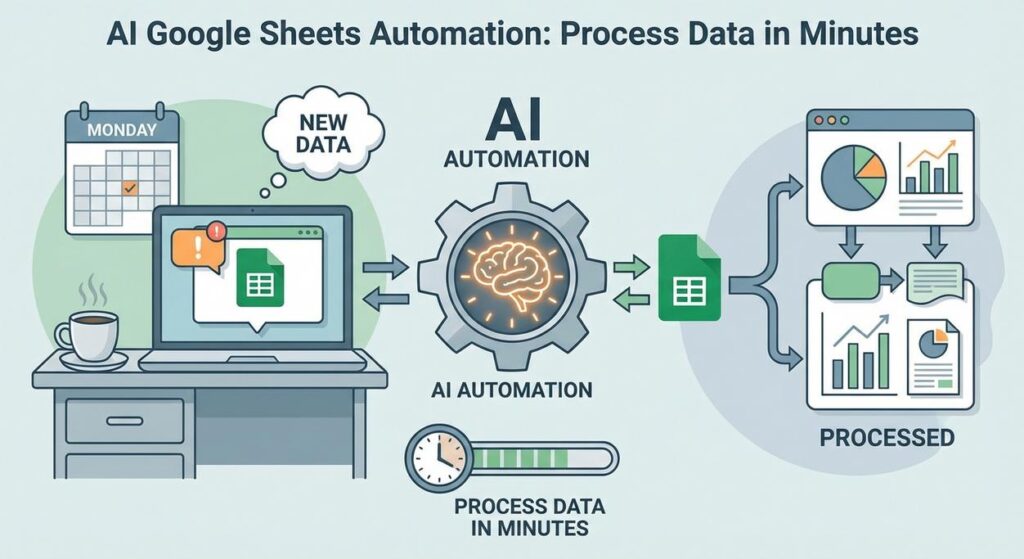
Picture this: It’s Monday morning. You’ve just poured yourself a lukewarm coffee, thinking about the glorious weekend that was. Then, a notification pops up. A new spreadsheet. A BIG one. Filled with customer feedback, product reviews, or maybe a lead list from a new campaign. And it’s… a mess. Typos, inconsistent formatting, vague comments. Your mission, should you choose to accept it, is to spend the next four hours of your life manually categorizing, cleaning, and summarizing this digital swamp.
Sound familiar? You’re not alone. I’ve seen grown adults stare at spreadsheets like they’re staring into the abyss. It’s the kind of soul-crushing, repetitive work that makes you question your life choices. You know, the kind of work you’d assign to an intern if you didn’t feel ethically compromised. What if I told you there’s a better way? A way to turn that digital swamp into a sparkling, organized lake, all while you sip your (now hot) coffee?
Why This Matters
This isn’t just about saving your sanity, though that’s a huge bonus. Manually processing data in Google Sheets is a colossal waste of time, money, and potential. Every hour you spend on manual data entry or cleanup is an hour you’re NOT spending on strategy, sales, or sipping Mai Tais on a beach. It’s literally robbing you of revenue opportunities.
Think about it:
- Time is Money: Manual processing can take hours, even days, for large datasets. This automation shrinks that to minutes.
- Scalability: Your human brain gets tired. Your AI assistant doesn’t. Process 100 rows or 100,000 rows with consistent speed and quality.
- Accuracy: Humans make mistakes, especially when bored. AI, with the right instructions, is incredibly consistent.
- Opportunity Cost: Free up your team (or yourself) to focus on high-value tasks that actually grow your business, instead of grunt work.
This workflow effectively replaces that perpetually exhausted (and potentially resentful) intern who just wants to go home. It’s like having a hyper-efficient, super-focused data analyst who works 24/7 for pennies on the dollar.
What This Tool / Workflow Actually Is
We’re going to teach you how to make Google Sheets and an AI model (like OpenAI’s GPT) best friends. This isn’t some futuristic sci-fi movie; it’s practical, today’s tech. We’ll set up a Google Apps Script that lives right inside your spreadsheet. This script acts as the messenger:
- It takes data from a cell (or a range of cells) in your sheet.
- It sends that data, along with specific instructions (a ‘prompt’), to an AI model via its API.
- The AI processes the data according to your instructions (e.g., categorizes text, extracts information, summarizes).
- The script then takes the AI’s response and writes it back into another cell in your Google Sheet.
What it does do: Clean, categorize, summarize, extract, translate, and standardize text data. It’s fantastic for qualitative data analysis, lead enrichment, content ideation, and more.
What it does NOT do: It’s not a mind-reader. It won’t magically know your business context without clear instructions (prompts). It also won’t handle complex numerical calculations or graph generation on its own – that’s still your spreadsheet’s job. Think of it as a highly capable, super-fast text processor.
Prerequisites
Alright, let’s talk brass tacks. What do you need?
- A Google Account: If you’re reading this, you probably have one. This gets you Google Sheets and Google Apps Script.
- A Google Sheet: An empty one, or one with some data you want to play with.
- An OpenAI API Key: You’ll need to sign up for an account at platform.openai.com. They offer a free trial, which is more than enough to get started. Be careful with your API key – treat it like your toothbrush; don’t share it!
That’s it. No advanced coding degrees, no server setup, no obscure software. If you can copy, paste, and follow instructions, you’re golden. Seriously, this isn’t rocket science, it’s just smart automation.
Step-by-Step Tutorial
Let’s roll up our sleeves. We’re going to create a custom function in Google Sheets that sends data to OpenAI and gets a response back. This function can then be used like any other spreadsheet function!
1. Get Your OpenAI API Key
If you haven’t already:
- Go to platform.openai.com/signup and create an account.
- Once logged in, navigate to the API Keys section (usually found under your profile icon in the top right).
- Click “Create new secret key.” Copy this key immediately. You won’t be able to see it again. We’ll store it safely in your Apps Script.
2. Open Your Google Sheet and Apps Script Editor
- Open the Google Sheet you want to automate.
- Go to
Extensions>Apps Script. This will open a new tab with the Apps Script editor.
3. Set Up Your API Key Safely
In the Apps Script editor, you’ll see a file named Code.gs. This is where our magic happens. Before we write the main function, let’s safely store your API key. We’ll use Script Properties, which are secure and not exposed in your code.
- In the Apps Script editor, on the left sidebar, click the
Project Settingsgear icon (⚙️). - Scroll down to “Script properties” and click “Add script property.”
- For “Property,” enter
OPENAI_API_KEY. - For “Value,” paste your OpenAI API key you copied earlier.
- Click “Save script properties.”
4. Write Your Custom AI Function
Now, go back to the Code.gs file. Delete any existing default code and paste this. We’ll walk through it.
/**
 * @OnlyCurrentDoc
 * This custom function sends a text input to OpenAI's GPT model
 * and returns the AI's response.
 *
 * @param {string} inputText The text from the Google Sheet cell to send to AI.
 * @param {string} instructionPrompt The specific instruction for the AI (e.g., "Summarize this:").
 * @param {string} [modelName="gpt-3.5-turbo"] The OpenAI model to use (e.g., "gpt-4", "gpt-3.5-turbo").
 * @return {string} The AI's processed response.
 * @customfunction
 */
function AI_PROCESS(inputText, instructionPrompt, modelName = "gpt-3.5-turbo") {
  const apiKey = PropertiesService.getScriptProperties().getProperty('OPENAI_API_KEY');
  if (!apiKey) {
    throw new Error("OpenAI API key not set in Script Properties. Please add it.");
  }

  const apiUrl = "https://api.openai.com/v1/chat/completions";

  const messages = [
    { "role": "system", "content": "You are a helpful assistant for data processing." },
    { "role": "user", "content": instructionPrompt + "

" + inputText }
  ];

  const requestBody = {
    model: modelName,
    messages: messages,
    temperature: 0.7, // Adjust creativity (0.0 for deterministic, 1.0 for creative)
    max_tokens: 500   // Max length of the response
  };

  const options = {
    method: "post",
    headers: {
      "Content-Type": "application/json",
      "Authorization": "Bearer " + apiKey
    },
    payload: JSON.stringify(requestBody),
    muteHttpExceptions: true // Don't throw errors for HTTP issues, we'll check response
  };

  try {
    const response = UrlFetchApp.fetch(apiUrl, options);
    const responseText = response.getContentText();
    const jsonResponse = JSON.parse(responseText);

    if (jsonResponse.choices && jsonResponse.choices.length > 0) {
      return jsonResponse.choices[0].message.content.trim();
    } else if (jsonResponse.error) {
      Logger.log("OpenAI API Error: " + jsonResponse.error.message);
      return "ERROR: " + jsonResponse.error.message;
    } else {
      Logger.log("Unexpected OpenAI API response: " + responseText);
      return "ERROR: Unexpected API response.";
    }
  } catch (e) {
    Logger.log("Error calling OpenAI API: " + e.message);
    return "ERROR: " + e.message;
  }
}
5. Understand the Code
AI_PROCESS(inputText, instructionPrompt, modelName): This is our custom function name. You’ll use this directly in your Google Sheet like=AI_PROCESS(...).inputText: The actual data from your sheet that you want the AI to process.instructionPrompt: This is CRITICAL. It tells the AI what to do. Be clear, specific, and provide examples if needed.modelName: Defaults to"gpt-3.5-turbo"(cost-effective, fast). You can change it to"gpt-4"for more advanced reasoning (but higher cost and slower).PropertiesService.getScriptProperties().getProperty('OPENAI_API_KEY'): This safely retrieves your API key.UrlFetchApp.fetch(): This is the Apps Script command to make an HTTP request to the OpenAI API.messages: This is where we construct the conversation for the AI. Asystemrole sets the overall tone/instruction, and auserrole provides the specific query.temperature: Controls creativity. 0 is very factual/deterministic, 1 is more creative.max_tokens: Limits the length of the AI’s response.
6. Save and Authorize Your Script
- In the Apps Script editor, click the floppy disk icon (💾) to save your project.
- The first time you run a script that accesses external services (like
UrlFetchApp.fetch), Google will ask for authorization. You’ll typically get a prompt saying “Authorization required.” - Click “Review permissions,” select your Google Account, and then click “Allow.” This grants your script permission to connect to external services. Don’t worry, it’s safe if you’re using the code provided here.
Complete Automation Example
Let’s put this into practice. Imagine you have a sheet with raw customer feedback in Column A, and you want to categorize it (Positive, Negative, Neutral, Suggestion) and get a short summary in Column C.
Scenario: Cleaning Customer Feedback Data
- Prepare Your Google Sheet:
Create a new sheet (or use an existing one). Let’s say your raw feedback is in Column A, starting from cell A2. - Add a Header Row:
In A1:Raw Feedback
In B1:Sentiment Category
In C1:Summary - Populate with Sample Data:
In A2:"The product is amazing, fast shipping, and great quality!"
In A3:"I received a broken item and customer service was unhelpful."
In A4:"It's okay, nothing special. Could be cheaper."
In A5:"You should really add feature X, it would make it perfect." - Use the
AI_PROCESSFunction:
Now, in cell B2, enter the following formula:=AI_PROCESS(A2, "Categorize the following customer feedback into one of these categories: 'Positive', 'Negative', 'Neutral', 'Suggestion'. Only return the category name.") - For the Summary:
In cell C2, enter this formula:=AI_PROCESS(A2, "Summarize the following customer feedback in 15 words or less.") - Drag Down to Apply:
Select cells B2 and C2, then drag the fill handle (the small square at the bottom right of the selected cells) down to apply the formulas to the rest of your data (B3:C5).
Watch as your sheet magically populates with categorized sentiments and concise summaries! Each time you add new feedback to column A, the AI will automatically process it (though it might take a moment to update, as it’s making an API call for each cell). This is AI Google Sheets Automation in action!
Real Business Use Cases
This simple AI_PROCESS function is a powerful building block. Here are 5 ways businesses can leverage it:
- E-commerce Store:
- Problem: Thousands of raw product reviews, hard to quickly gauge overall sentiment or recurring issues.
- Solution: Use
=AI_PROCESS(A2, "Categorize this product review as 'Positive', 'Negative', 'Mixed', or 'Question'. Also, extract any mentioned product features.")to quickly segment reviews and identify feature requests or common complaints.
- Marketing Agency:
- Problem: Client lead lists often have inconsistent company names, job titles, or missing industry information.
- Solution: Use
=AI_PROCESS(A2, "Standardize the company name and extract the industry and primary role from this LinkedIn profile description:")to clean and enrich lead data for better targeting.
- Real Estate Brokerage:
- Problem: Receiving property descriptions from various sources (MLS, private listings) with inconsistent formatting and key details buried in text.
- Solution: Use
=AI_PROCESS(A2, "Extract the number of bedrooms, bathrooms, and square footage from this property description. If not found, indicate 'N/A'. Format as 'Beds: X, Baths: Y, SqFt: Z'.")to quickly standardize property data for comparison.
- HR Department:
- Problem: Processing open-ended employee feedback surveys or exit interviews, manually identifying themes and sentiment.
- Solution: Use
=AI_PROCESS(A2, "Analyze the sentiment of this employee feedback (Positive, Negative, Neutral) and identify up to 3 key themes mentioned. Format as 'Sentiment: X, Themes: Y, Z'")to gain quick insights into workplace satisfaction and areas for improvement.
- Content Creator / Blogger:
- Problem: Brainstorming new content ideas based on a list of broad topics or keywords.
- Solution: Use
=AI_PROCESS(A2, "Generate 5 unique blog post titles and 3 brief content angles for the following keyword/topic:")to rapidly generate content outlines and headlines, saving hours of ideation.
Common Mistakes & Gotchas
Even though this is straightforward, there are a few common pitfalls to avoid:
- Exposing Your API Key: NEVER hardcode your API key directly into your Apps Script code or share your Google Sheet publicly if the key is exposed. Using
PropertiesServiceas shown is the secure way. - Vague Prompts: “Do something with this text” will give you garbage. “Summarize this review in 2 sentences, focusing on pros and cons, and assign a sentiment score from 1-5” will give you gold. Be specific, give examples, and define output formats.
- Rate Limits: If you process thousands of rows at once, OpenAI (or any API) might temporarily block you due to rate limits. For very large datasets, consider processing in batches or using a time-driven trigger in Apps Script to space out requests.
- Cost Overruns: While GPT-3.5-turbo is cheap, large volumes of requests, especially with longer inputs/outputs, can add up. Keep an eye on your OpenAI usage dashboard. GPT-4 is more powerful but significantly more expensive.
- Forgetting to Save/Authorize: Your script won’t work if you haven’t saved it or granted the necessary permissions the first time you ran it. Check the Apps Script editor for error messages.
- Circular References: Don’t try to use
AI_PROCESSin the same cell you’re feeding it data from. Stick to processing data from one column and writing results to another.
How This Fits Into a Bigger Automation System
Congratulations, you’ve built a fundamental AI data processing engine right inside your Google Sheet! But this isn’t just a standalone party trick. This cleaned, categorized, and enriched data is prime fuel for bigger automation systems:
- CRM Integration: Use tools like Zapier or Make to automatically push your newly categorized customer feedback (from your Sheet) into your CRM (e.g., Salesforce, HubSpot). This could trigger follow-up tasks for sales or support.
- Email Automation: Based on the sentiment or extracted features, you could trigger personalized email campaigns. Negative feedback? Send an apology. Positive? Ask for a referral.
- Voice Agents/Chatbots: The structured data from your sheets can be used to train or inform more intelligent chatbots or voice agents, providing them with up-to-date, categorized information about products or customer issues.
- Multi-Agent Workflows: This sheet could be the first step in a chain. AI processes data here, then passes it to another AI agent that writes a draft response, which then goes to a human for final review.
- RAG (Retrieval Augmented Generation) Systems: Imagine your sales team needs to quickly answer customer questions. Your AI-processed product review summary sheet could be a data source for a RAG system, allowing it to retrieve relevant insights instantly.
Your Google Sheet, now powered by AI, transforms from a static data graveyard into a dynamic, intelligent hub for your business. It’s the central nervous system for your data, ready to feed insights to every other part of your digital operation.
What to Learn Next
You’ve just automated a core data processing task. Feel the power? Good. This is just the beginning. In the next lesson, we’re going to take this a step further.
Now that your data is sparkling clean and perfectly categorized, how do you make it *move*? We’ll explore how to automatically send this structured data from your Google Sheet to other business tools, like your CRM or an email marketing platform, using no-code integration platforms. Get ready to connect your AI brain to the rest of your digital factory!
Stay sharp, automate everything you can, and keep building.





