
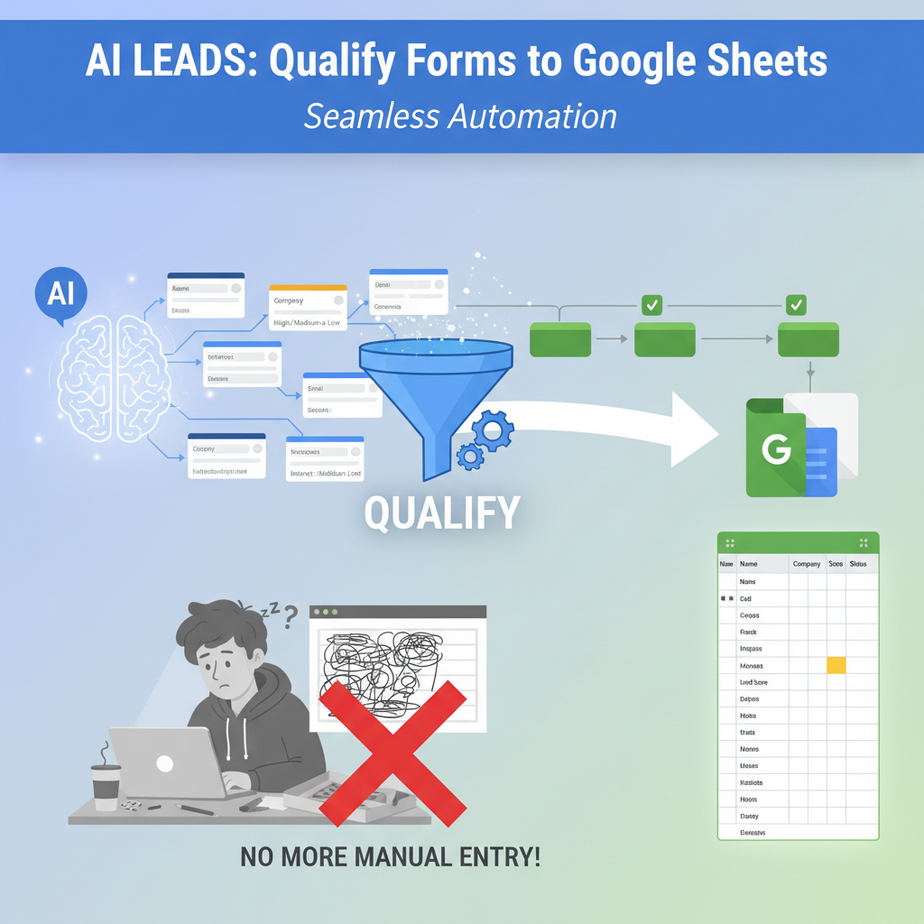
The Case of the Overworked Intern and the Messy Spreadsheet
Picture this: It’s 2 AM. Your poor intern, bless their soul, is hunched over a laptop, eyes glazed, fueled by cold pizza and questionable energy drinks. Their mission? To painstakingly copy-paste lead data from every form submission, then *try* to figure out if ‘hey interested in your thing, how much does it cost‘ is a serious inquiry or just a bored teenager. The result? A messy Google Sheet, missed opportunities, and an intern who’s questioning their life choices.
Sound familiar? That’s the painful reality of manual lead qualification and data entry. It’s slow, error-prone, soul-crushing, and frankly, a waste of perfectly good human brainpower. But what if I told you there’s a better way? A way to have a tireless, intelligent robot do all that boring grunt work for you, 24/7, without a single complaint about the cold pizza?
Why This Matters: Stop Drowning in Data, Start Swimming in Qualified Leads
Look, your business runs on leads. But leads are only valuable if you can process them efficiently and understand who’s genuinely interested. Manual qualification and data entry isn’t just a time sink; it’s a bottleneck. It means:
- Slow Response Times: High-intent leads go cold because you’re still sifting through the noise.
- Missed Opportunities: Good leads get buried or miscategorized.
- Wasted Sales Effort: Your sales team chases unqualified prospects.
- Burnout: Your team (or you!) spends hours on repetitive, low-value tasks.
- Scalability Issues: You can’t handle a sudden influx of leads without hiring more interns (and buying more pizza).
This automation replaces the manual copy-pasting intern, the overwhelmed data entry clerk, and the chaos of an unsorted inbox. It creates a robust, scalable system that ensures every lead gets a fair, intelligent assessment and lands exactly where it needs to be – structured, qualified, and ready for action.
What This Tool / Workflow Actually Is: Your AI Lead Qualification Robot
This isn’t some futuristic sci-fi dream. This is a practical, implementable workflow that connects your web forms (think Typeform, Google Forms, your website’s contact form) to a smart AI, and then directly into a structured Google Sheet. In simple terms:
- A lead fills out your form.
- That data is instantly sent to an automation platform (like Zapier or Make.com).
- The automation platform hands the raw data to an AI.
- The AI reads the message, qualifies the lead (e.g., “High-Intent,” “Low-Intent”), and extracts key details (e.g., “Company Size,” “Budget,” “Project Scope”).
- The qualified, extracted data is then neatly organized and written into specific columns in your Google Sheet.
Think of it as hiring an extremely fast, highly intelligent, and perfectly unbiased junior analyst who never sleeps, never complains, and works for pennies on the dollar. It takes unstructured text (the customer’s message) and turns it into structured, actionable data.
What it does NOT do:
- It does NOT magically close sales for you.
- It does NOT replace human judgment for complex, nuanced cases.
- It does NOT initiate contact or send emails (though it can be a trigger for other automations that do).
Prerequisites: Let’s Get Our Toolkit Ready
Don’t worry, we’re not building a rocket ship here. You won’t need to write a single line of traditional code for this core setup. Here’s what you’ll need:
- A Google Account: For Google Sheets (obviously). You probably have one already.
- An Automation Platform Account: Either Zapier or Make.com (formerly Integromat). Both offer free tiers or trials. We’ll use Zapier for this walkthrough as it’s often more intuitive for beginners.
- An OpenAI API Key: This is how we talk to the AI. You can get one from OpenAI’s developer platform. You’ll likely need to add a payment method, but initial usage is very cheap, often just a few cents per qualified lead. Reassure nervous readers: It’s just like a credit card for an online service; you only pay for what you use.
- A Web Form Tool: Something that can send data via a webhook or connect directly to Zapier/Make.com. Examples: Typeform, Google Forms, Jotform, your website’s contact form plugin (e.g., Contact Form 7, WPForms, Gravity Forms), or even a custom HTML form.
Step-by-Step Tutorial: Building Your AI Lead Robot
Let’s build this thing, piece by glorious piece.
Step 1: Set Up Your Google Sheet (The Data Destination)
This is where your qualified leads will land. Create a new Google Sheet and add columns for the data you want to capture. Be specific.
Example Columns:
TimestampLead NameLead EmailOriginal MessageQualification Status(e.g., High-Intent, Low-Intent, Spam)Extracted Company SizeExtracted Project BudgetExtracted Key RequestAI Confidence Score
Step 2: Create Your Web Form (The Data Source)
Use your preferred form builder. Make sure it collects the necessary information like Name, Email, and a free-text message field where the lead can describe their needs. For this example, let’s assume you have a ‘Message’ field where the AI will do its magic.
Step 3: Set Up Your Zapier Trigger (When the Magic Starts)
Log into Zapier (or Make.com) and create a new Zap (or Scenario).
- Choose your App & Event: Search for your form tool (e.g., “Typeform” or “Webhooks by Zapier” if your form sends webhooks). Choose an event like “New Entry” or “Catch Hook.”
- Connect Your Account: Follow the prompts to connect your form tool to Zapier.
- Test Your Trigger: Submit a test entry to your form. Zapier will pull in sample data, which we’ll use for the next steps. This confirms your form is talking to Zapier.
Step 4: Add the OpenAI Action (The AI Brain)
This is where our AI intern gets to work.
- Choose App & Event: Search for “OpenAI” and select “Send Prompt.”
- Connect Your OpenAI Account: You’ll be asked for your OpenAI API Key. Paste it in.
- Set Up Prompt: This is the most crucial part. We’re telling the AI what to do.
- Model: Choose a powerful model like
gpt-3.5-turboorgpt-4ofor best results. - User Message: This is where you craft your instructions for the AI, *and* inject the data from your form.
Here’s a detailed prompt example. Copy-paste this and replace {{Original Message from Form}} with the actual field from your Zapier trigger (you’ll click to insert it).
You are an expert lead qualification specialist. Your task is to analyze incoming messages from potential leads, classify their intent, and extract key information. Always output the result as a JSON object.

Here are the rules:
- Read the 'Lead Message' carefully.
- Classify 'qualification_status' as 'High-Intent', 'Medium-Intent', 'Low-Intent', or 'Spam/Irrelevant'.
- If high-intent, try to extract 'company_size' (e.g., '1-10', '11-50', '51-200', '200+'), 'project_budget' (e.g., 'Under $1k', '$1k-$5k', '$5k-$20k', '$20k+'), and 'key_request_summary'. If these aren't explicitly mentioned, try to infer or leave as 'N/A'.
- Provide a 'confidence_score' for your classification from 1 (low) to 5 (high).
- Ensure the output is *only* the JSON object, with no additional text.

Lead Message:
"""
{{Original Message from Form}}
"""

JSON Output:
The """ syntax helps delineate the message, and asking for JSON output is key for easy parsing later.
Step 5: Add a Formatter Step (Optional, but Recommended for Robustness)
If you’re using Make.com, this is often handled slightly differently with specific JSON parsing modules. In Zapier, we often use the ‘Formatter’ step if the AI’s JSON output needs a little extra love, or if we need to extract specific parts. For the prompt above, Zapier often handles direct JSON parsing, so you might skip this for now.
If Zapier doesn’t directly parse the JSON output from OpenAI (it usually does for simple JSON), you’d add a “Formatter by Zapier” step, choose “Utilities” -> “Extract Pattern” or “Text” -> “Split Text,” but usually, the next step directly accesses the OpenAI response properties.
Step 6: Add the Google Sheets Action (The Data Organizer)
Finally, we push the qualified data into our sheet.
- Choose App & Event: Search for “Google Sheets” and select “Create Spreadsheet Row.”
- Connect Your Google Account: Connect the Google account that owns the spreadsheet.
- Set Up Action:
- Spreadsheet: Select the sheet you created in Step 1.
- Worksheet: Select the specific tab within the sheet.
- Map Fields: This is where you match your Google Sheet columns to the data from previous steps.
Timestamp: Use Zapier’s built-inZapier Date/Timeoption.Lead Name: Map from your form data.Lead Email: Map from your form data.Original Message: Map from your form data.Qualification Status: Map this from the OpenAI step’s output (e.g.,5. qualification_status).Extracted Company Size: Map from OpenAI output (e.g.,5. company_size).Extracted Project Budget: Map from OpenAI output (e.g.,5. project_budget).Extracted Key Request: Map from OpenAI output (e.g.,5. key_request_summary).AI Confidence Score: Map from OpenAI output (e.g.,5. confidence_score).- Test Your Action: Zapier will send a test row to your Google Sheet. Check your sheet to ensure everything looks correct.
Step 7: Turn On Your Zap!
Once everything is tested and working, hit that “Publish Zap” or “Turn on Zap” button. Your AI Lead Qualification Robot is now live!
Complete Automation Example: The SaaS Trial Signup Qualifier
Let’s run through a full scenario.
Business: A SaaS company offering project management software.
Problem: Many users sign up for a free trial, but their ‘Company Size’ or ‘Primary Use Case’ isn’t always clear from their signup form. Support often spends time manually emailing to qualify.
Goal: Automatically qualify trial users into ‘SMB,’ ‘Enterprise,’ or ‘Freelancer’ based on their signup message/notes, and extract their primary challenge.
- Form Setup: A Typeform for trial signups, includes fields for Name, Email, and a free-text field: “Tell us a bit about your team and what you hope to achieve with our software.”
- Google Sheet: Columns:
Timestamp,Name,Email,Original Message,Qualified Segment,Primary Challenge,AI Confidence. - Zapier Trigger: “Typeform – New Entry.”
- OpenAI Action (Prompt):
You are an expert user segmenter for a SaaS product. Your task is to analyze a user's signup message, classify them into a business segment, and extract their primary challenge. Always output as a JSON object. Rules: - Classify 'segment' as 'SMB' (Small-Medium Business), 'Enterprise', or 'Freelancer/Solo'. - Extract 'primary_challenge' as concisely as possible. - Provide a 'confidence_score' from 1-5. User Message: """ {{Typeform: Tell us a bit about your team and what you hope to achieve}} """ JSON Output: - Sample Form Submission: “We’re a team of 15 designers struggling to keep track of client feedback and project timelines. Need something collaborative.”
- Expected OpenAI Output:
{ "segment": "SMB", "primary_challenge": "Tracking client feedback and project timelines", "confidence_score": 5 } - Google Sheets Action: Map
{{Typeform: Name}}toName,{{Typeform: Email}}toEmail,{{OpenAI: segment}}toQualified Segment,{{OpenAI: primary_challenge}}toPrimary Challenge, etc.
Now, every new trial signup is instantly qualified and their core need is identified, ready for your sales or onboarding team.
Real Business Use Cases (Beyond the Obvious)
This core “form to AI to sheet” automation is a powerhouse across industries:
-
Freelance Consultant (Web Developer, Designer, Marketer):
Problem: Influx of project inquiries, many from clients who aren’t a good fit or have unrealistic budgets. Wastes time on discovery calls that go nowhere.
Solution: Use the automation on your ‘Request a Quote’ form. AI qualifies leads as ‘High Budget, Good Fit,’ ‘Low Budget, Potential Fit,’ or ‘Not a Fit,’ extracting project type, estimated budget, and timeline. This allows you to prioritize outreach and send automated “not a fit” responses. -
E-commerce Store (Custom Product Orders):
Problem: Customers submit detailed custom order requests (e.g., custom jewelry, bespoke furniture). Manually reading each one to assess complexity and feasibility is slow.
Solution: The AI processes ‘Custom Order Request’ form submissions, extracting ‘Product Type,’ ‘Customization Details,’ ‘Complexity Level’ (Low, Medium, High), and ‘Required Materials.’ This streamlines the quoting process and flags high-complexity orders for immediate human review. -
Coaching/Mentorship Program:
Problem: Many applications for limited spots or specialized programs. Manually reading each application to assess alignment with program goals or a coach’s expertise is time-consuming.
Solution: The AI analyzes application essays or ‘Why do you want to join?’ fields. It extracts ‘Candidate Goals,’ ‘Experience Level,’ ‘Area of Interest,’ and ‘Program Fit Score,’ helping program administrators quickly identify the best candidates. -
Real Estate Agency:
Problem: Website inquiries for properties. Many are just browsing, some are serious buyers/sellers, and some are just curious. Sales agents spend too much time on tire-kickers.
Solution: The AI processes ‘Property Inquiry’ forms, extracting ‘Intent’ (e.g., Buyer, Seller, Renter, Information Seeker), ‘Property Type Preference,’ ‘Budget Range,’ and ‘Urgency.’ High-intent leads are flagged immediately for agent follow-up, while low-intent leads get automated drip campaigns. -
Event/Conference Organizer:
Problem: Managing speaker applications. Sifting through proposals to find relevant, high-quality speakers for specific tracks or themes is a huge undertaking.
Solution: The AI processes ‘Speaker Proposal’ forms. It extracts ‘Topic,’ ‘Speaker Bio Summary,’ ‘Target Audience,’ ‘Relevance to Theme,’ and provides a ‘Speaker Quality Score.’ This allows organizers to quickly short-list speakers and streamline the review process.
Common Mistakes & Gotchas (Beware the AI Gremlins)
Even the best robots have their quirks. Here’s what beginners often trip over:
-
Vague AI Prompts:
If you tell the AI “Qualify this lead,” it’ll do its best, but its “best” might not be what *your business* needs. Be explicit with instructions, desired output format (JSON!), and categories. “Good garbage in, garbage out” applies to prompts too.
-
Not Handling Edge Cases:
What if the form field is empty? What if the message is gibberish? The AI might return ‘N/A’ or an empty field. Ensure your Google Sheet can handle this, or build in conditional logic in Zapier/Make.com (e.g., “If qualification_status is empty, default to ‘Unclassified'”).
-
Over-Reliance Without Human Review:
Especially initially, *always* spot-check the AI’s work. The AI is a tool, not a guru. It can misinterpret, miss nuance, or get confused. Human oversight is key, especially for high-value leads.
-
API Rate Limits:
If you get a sudden flood of thousands of leads, your OpenAI API might hit rate limits. For most small-to-medium businesses, this isn’t an issue, but it’s something to monitor as you scale. Upgrade your OpenAI plan or introduce delays in your automation if needed.
-
Security/Privacy (PHI):
Be mindful of sending Personally Identifiable Information (PHI) or sensitive customer data through public AI models. While OpenAI has data privacy policies, always exercise caution and avoid sending highly sensitive information if possible, or use enterprise-grade AI solutions.
How This Fits Into a Bigger Automation System
This AI lead qualification robot isn’t a standalone wonder; it’s a critical component in a larger, interconnected automation factory. Once your leads are qualified and structured in Google Sheets, the possibilities explode:
-
CRM Integration:
Instead of (or in addition to) Google Sheets, you can push qualified leads directly into your CRM (Salesforce, HubSpot, Pipedrive). Imagine a new lead appearing in your CRM with “High-Intent” status and “Project Budget: $20k+” already populated – your sales team will love you.
-
Automated Email Sequences:
Based on the
Qualification Status, trigger different email sequences. High-intent leads get a personalized “Book a Demo” email; low-intent leads get a nurturing sequence or a “here’s some helpful content” email. -
Internal Notifications:
Send a Slack message or Teams notification to your sales team the moment a “High-Intent” lead lands, complete with all the AI-extracted details. This enables lightning-fast follow-up.
-
Voice Agents / Chatbots:
The extracted data can inform a subsequent AI voice agent or chatbot. If the AI identified ‘Budget $20k+’ and ‘Project type: Custom Software’, your chatbot can be pre-loaded with relevant questions or links to case studies.
-
Multi-Agent Workflows:
This qualification can be the first step in a chain. Agent 1 (our current setup) qualifies. Agent 2 then might search your internal knowledge base for relevant case studies based on the ‘Key Request’ and suggest them to Agent 3, who composes a personalized follow-up.
-
RAG (Retrieval Augmented Generation) Systems:
Imagine the AI qualification extracts a specific industry need. This can then trigger a RAG system to pull relevant whitepapers or product features from your documentation to include in an automated response, making it incredibly precise and helpful.
What to Learn Next: Supercharging Your Follow-Up
You’ve successfully built your first AI lead qualification robot! Give yourself a pat on the back. You’ve just reclaimed hours of manual work and set the stage for incredible efficiency.
But what good are perfectly qualified leads if they just sit in a spreadsheet? In our next lesson, we’re going to take these perfectly qualified leads and show you how to build an AI-powered email outreach system. We’ll leverage the extracted data to craft personalized, high-converting emails automatically, ensuring your best leads get the attention they deserve, instantly.
Get ready to turn those static spreadsheet rows into active sales conversations. Your automation journey is just beginning, and trust me, it gets even more exciting from here.
“,
“seo_tags”: “AI automation, lead qualification, Google Sheets, Zapier, Make.com, OpenAI, business automation, data entry automation, sales automation, marketing automation, productivity, workflow automation”,
“suggested_category”: “AI Automation Courses





