
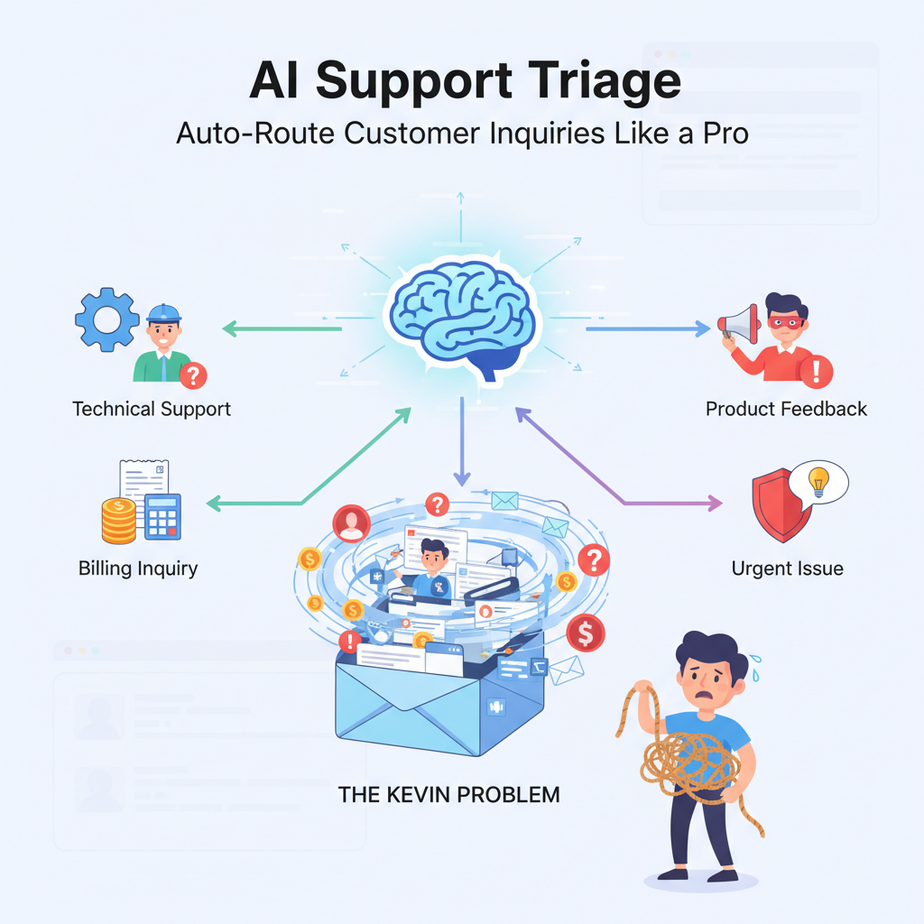
The Kevin Problem: Your Inbox, a Digital Battlefield
Alright, class, gather ’round. Let me tell you about Kevin. Kevin’s our new intern. Eager, well-meaning, and absolutely drowning in the customer support inbox. Every morning, he stares at a tsunami of emails: ‘WHERE IS MY PACKAGE!?’, ‘My app is broken!’, ‘Can I get a refund?’, ‘Do you guys offer enterprise plans?’. Kevin tries his best, bless his cotton socks, but he’s just one guy. He’s forwarding, tagging, asking ‘who handles this?’ on Slack, and generally creating more chaos than calm.
Sound familiar? Your customer support inbox isn’t a serene garden; it’s a digital battlefield. Tickets are piling up, urgent matters get buried, and customers are left wondering if their message disappeared into the digital ether. And frankly, your team is getting burnt out just trying to figure out who needs to see what.
Why You Need a Robotic Butler for Your Inbox
This isn’t about firing Kevin. It’s about giving Kevin a superpower. Imagine a world where every single incoming customer inquiry is instantly read, understood, categorized, prioritized, and sent to the exact right person or department, all before Kevin’s even had his first coffee. That’s not science fiction; that’s AI automation for customer support triage.
Why does this matter? Well, let’s count the ways:
- Faster Response Times: No more waiting for a human to manually sort. Customers get answers (or at least an acknowledgement and routing confirmation) in minutes, not hours.
- Higher Customer Satisfaction: When customers feel heard and their issues addressed promptly by the right expert, they’re happier. Happy customers stick around and spend more.
- Reduced Operational Costs: Less time spent on manual sorting means your team can focus on actually solving problems, not just shuffling papers. You can scale your support without scaling your headcount at the same rate.
- Improved Team Morale: Your support agents will thank you. No more sifting through irrelevant tickets or dealing with misrouted issues. They get to do the work they’re actually good at.
- Scalability on Autopilot: As your business grows, so does your inbox. This automation scales effortlessly. No matter if you get 100 emails or 10,000, your AI butler handles it.
This workflow replaces the frantic human intern, the endless Slack pings, and the general state of ‘support chaos’ with a calm, efficient, and always-on system.
What This ‘AI Triage System’ Actually Is
So, what exactly are we building here? Think of it as a super-intelligent digital receptionist for your customer support. When an email or message comes in, this system:
- Reads: It ingests the text of the message.
- Understands: It uses advanced AI to comprehend the intent, sentiment, and key topics within the message.
- Categorizes: It assigns the message to a predefined category (e.g., ‘Billing Inquiry’, ‘Technical Bug Report’, ‘Sales Question’, ‘Refund Request’).
- Prioritizes: It assigns a priority level (e.g., ‘High’, ‘Medium’, ‘Low’) based on urgency or impact.
- Routes: It then sends the message (or a notification) to the correct department, agent, or specific queue within your ticketing system.
What it DOES NOT do: This system doesn’t *solve* the customer’s problem (yet!). It doesn’t write detailed replies (though we’ll get to that in a future lesson). It doesn’t replace human empathy or complex problem-solving. Its job is purely to be the ultimate digital gatekeeper, ensuring the right problem gets to the right human, fast.
Your Starting Toolkit (Don’t Panic, It’s Easy)
This isn’t rocket science, folks. You don’t need to be a coding wizard, or even particularly tech-savvy. If you can click buttons and copy-paste, you’re golden. Here’s what you’ll need:
- An Email Inbox or Ticketing System: This is where your customer messages currently land. Think Gmail, Outlook, Zendesk, HubSpot, etc.
- An Automation Platform: Tools like Zapier or Make (formerly Integromat). These are the digital glue that connects everything without code. If you haven’t used them before, sign up for a free trial. They’re indispensable.
- An AI Service Provider: For the ‘brain’ of our operation. OpenAI (the folks behind ChatGPT) is a great choice. You’ll need an API key, which you can get for free to start, then pay-as-you-go for usage. Don’t worry, the costs are usually pennies per classification.
- A Destination for Routed Tickets: This could be a Slack channel, a specific email address, a Trello board, a Google Sheet, or a dedicated queue in your existing ticketing system.
- Curiosity and a willingness to try: The most important tool in your arsenal.
Reassuring, right? No Python. No servers. Just smart connections.
Step-by-Step Tutorial: Building Your AI Triage Bot
Let’s build this. I’ll walk you through the conceptual flow, and then we’ll dive into a concrete example.
Step 1: The ‘New Message’ Trigger – Spotting the Incoming Wave
First, we need to tell our automation platform (Zapier or Make) to keep an eye on your support inbox. This is the ‘trigger’ that starts the whole process.
- Choose Your App: In Zapier/Make, search for your email or ticketing system (e.g., ‘Gmail’, ‘Zendesk’).
- Select the Trigger Event: Choose ‘New Email’, ‘New Ticket’, or similar.
- Connect Your Account: Authenticate your email or ticketing system.
- Specify Inbox/Queue: Tell it which specific inbox or queue to monitor (e.g., ‘support@yourcompany.com’).
Why this step: This is the starting gun. Without it, our AI wouldn’t know when to start working. It’s like Kevin hearing the notification for a new email.
Step 2: The ‘AI Brain’ – Understanding the Message
Now that we have the message, we send it to our AI for analysis. This is where the magic happens.
- Add an Action: Search for ‘OpenAI’ (or similar AI service) in your automation platform.
- Select the Event: Choose ‘Send Prompt’ or ‘Create Chat Completion’.
- Connect OpenAI Account: Paste in your OpenAI API key.
- Craft Your AI Prompt: This is crucial. This is where you tell the AI exactly what you want it to do. You’ll feed it the message content and ask it to categorize and prioritize.
Why this step: This is our digital intern Kevin, but with the combined knowledge of every support expert ever. It reads the email and figures out what’s going on.
Here’s a battle-tested prompt you can use. Adapt the categories and priorities to your business:
You are an expert customer support agent specializing in triage. Your task is to analyze an incoming customer message, determine its primary category, assign a priority, and identify any urgent keywords.

Here are the allowed categories:
- Billing Inquiry (e.g., charges, invoices, refunds, subscriptions)
- Technical Support (e.g., bug reports, login issues, software problems, error messages)
- Sales Inquiry (e.g., pricing, demo requests, product features, new client interest)
- General Question (e.g., "how-to" questions, basic information, general feedback)
- Feature Request (e.g., suggestions for new functionality, product improvements)
- Account Management (e.g., profile updates, password reset, user management)
- Other (for anything that doesn't fit the above)

Here are the allowed priorities:
- High (Urgent: indicates severe impact, system down, cannot use product)
- Medium (Important: requires attention soon, impacting workflow, frustrating but not critical)
- Low (Standard: general questions, feedback, non-urgent inquiries)

Identify if any of these urgent keywords are present: ['urgent', 'down', 'broken', 'error', 'cannot log in', 'critical', 'refund now', 'emergency'].

Output your response in a JSON object with the following keys:
'category': [one of the allowed categories]
'priority': [one of the allowed priorities]
'urgent_keywords_present': [true/false]
'summary': [a brief, one-sentence summary of the customer's issue]

Customer Message:
"""
[INSERT_CUSTOMER_MESSAGE_HERE]
"""
Step 3: The ‘Router’ – Directing Traffic
Once the AI has classified the message, we use that information to decide where it goes next. This is like a traffic controller.
- Add a ‘Router’ or ‘Filter’ Step: In Zapier, this is a ‘Path’. In Make, it’s a ‘Router’ module. This lets you create conditional logic.
- Set Up Filters/Conditions: For each path, you’ll set a condition based on the AI’s output. For example: ‘If OpenAI Category is equal to “Billing Inquiry”‘.
Why this step: We need to translate the AI’s smart classification into actual action. This ensures ‘Billing’ goes to billing, ‘Technical’ to tech, etc.
Step 4: The ‘Action’ – Sending it to the Right Desk
Finally, each path from your router will lead to a specific action – creating a ticket, sending a notification, forwarding an email.
- Choose Your App & Action: For each path, select the app (e.g., ‘Slack’, ‘Jira’, ‘Google Sheets’) and the action (e.g., ‘Send Channel Message’, ‘Create Issue’, ‘Add Row’).
- Map the Data: Use the information from the original email and the AI’s output to populate the action fields. For instance, put the AI’s ‘category’ and ‘priority’ into your Jira ticket fields.
Why this step: This is the end destination. It’s Kevin physically handing the relevant email to the right department, but instantaneously and without needing to leave his desk.
Complete Automation Example: Email to Classified Slack Alert & Ticketing System
Let’s walk through a real-world setup using Zapier (the concepts are identical in Make).
Scenario: A growing SaaS company wants to route incoming support emails to specific Slack channels and create tickets in their CRM based on AI classification.
-
Zapier Trigger: New Email in Gmail
Set up a trigger for ‘New Email’ in your support Gmail inbox (e.g.,
support@yourcompany.com). -
Zapier Action: Send Email Content to OpenAI for Classification
Connect your OpenAI account. Use the ‘Conversation’ or ‘Send Prompt’ action.
// Configuration for OpenAI Action Model: gpt-3.5-turbo (or gpt-4 for better accuracy) User Message: You are an expert customer support agent specializing in triage. Your task is to analyze an incoming customer message, determine its primary category, assign a priority, and identify any urgent keywords. Here are the allowed categories: - Billing Inquiry (e.g., charges, invoices, refunds, subscriptions) - Technical Support (e.g., bug reports, login issues, software problems, error messages) - Sales Inquiry (e.g., pricing, demo requests, product features, new client interest) - General Question (e.g., "how-to" questions, basic information, general feedback) - Feature Request (e.g., suggestions for new functionality, product improvements) - Account Management (e.g., profile updates, password reset, user management) - Other (for anything that doesn't fit the above) Here are the allowed priorities: - High (Urgent: indicates severe impact, system down, cannot use product) - Medium (Important: requires attention soon, impacting workflow, frustrating but not critical) - Low (Standard: general questions, feedback, non-urgent inquiries) Identify if any of these urgent keywords are present: ['urgent', 'down', 'broken', 'error', 'cannot log in', 'critical', 'refund now', 'emergency']. Output your response in a JSON object with the following keys: 'category': [one of the allowed categories] 'priority': [one of the allowed priorities] 'urgent_keywords_present': [true/false] 'summary': [a brief, one-sentence summary of the customer's issue] Customer Message: """ {{[Your Gmail Trigger].Body Plain}} """ -
Zapier Action: Formatter by Zapier – Extract Values (JSON)
Use the ‘Formatter by Zapier’ to parse the JSON output from OpenAI. Select ‘Utilities’ -> ‘Extract Values’ -> ‘JSON’.
Map the `category`, `priority`, `urgent_keywords_present`, and `summary` keys to individual output fields. -
Zapier Action: Router (Paths)
Create paths based on the ‘category’ extracted from the OpenAI response.
-
Path A: Billing Inquiry
Condition: `Category` (from Formatter) `Text Contains` `Billing Inquiry`
- Action: Slack – Send Channel Message to `#billing-support`
New Billing Inquiry from {{[Your Gmail Trigger].From Name}} ({{[Your Gmail Trigger].From Email}}) Summary: {{[Formatter].summary}} Priority: {{[Formatter].priority}} Link to Email: {{[Your Gmail Trigger].Permalink}} - Action: HubSpot (or other CRM) – Create Ticket
              Subject: Billing Inquiry: {{[Formatter].summary}}
              Description: {{[Your Gmail Trigger].Body Plain}}
              Pipeline: Support
              Stage: New
              Priority: {{[Formatter].priority}}
              Category: Billing
              Contact Email: {{[Your Gmail Trigger].From Email}}
- Action: Slack – Send Channel Message to `#billing-support`
-
Path B: Technical Support
Condition: `Category` (from Formatter) `Text Contains` `Technical Support`
- Action: Slack – Send Channel Message to `#tech-support`
NEW TECHNICAL BUG/ISSUE from {{[Your Gmail Trigger].From Name}} ({{[Your Gmail Trigger].From Email}}) Summary: {{[Formatter].summary}} Priority: {{[Formatter].priority}} Urgent Keywords: {{[Formatter].urgent_keywords_present}} Link to Email: {{[Your Gmail Trigger].Permalink}} - Action: Jira (or other Project Management Tool) – Create Issue
              Summary: Tech Support: {{[Formatter].summary}}
              Description: {{[Your Gmail Trigger].Body Plain}}
              Issue Type: Bug Report
              Priority: {{[Formatter].priority}}
              Reporter Email: {{[Your Gmail Trigger].From Email}}
- Action: Slack – Send Channel Message to `#tech-support`
-
Path C: Sales Inquiry
Condition: `Category` (from Formatter) `Text Contains` `Sales Inquiry`
- Action: Gmail – Forward Email to
sales@yourcompany.comSubject: NEW SALES LEAD: {{[Your Gmail Trigger].Subject}}
Body: (Include original email body)
- Action: Salesforce (or other CRM) – Create Lead
              First Name: (Parse from email if possible, or leave blank)
              Last Name: (Parse from email if possible, or leave blank)
              Email: {{[Your Gmail Trigger].From Email}}
              Company: (Parse from email if possible)
              Lead Source: AI Triage System
              Description: {{[Formatter].summary}}
- Action: Gmail – Forward Email to
-
Path D: Other / General Question (Fallback)
Condition: No specific condition, this path catches anything not matched above.
- Action: Slack – Send Channel Message to `#general-support`
              General Inquiry / Unclassified from {{[Your Gmail Trigger].From Name}} ({{[Your Gmail Trigger].From Email}})
              Summary: {{[Formatter].summary}}
              Priority: {{[Formatter].priority}}
              Link to Email: {{[Your Gmail Trigger].Permalink}}
- Action: Slack – Send Channel Message to `#general-support`
-
Path A: Billing Inquiry
-
Optional Final Step: Automated Customer Acknowledgment
After the router, you could add another step to send an automated ‘We received your message and routed it to the right team!’ email back to the customer. This provides immediate peace of mind.
See? Kevin just became a super-admin without lifting a finger (other than setting this up once).
Real Business Use Cases: Beyond Just Kevin’s Inbox
This same AI triage principle applies across a vast array of businesses:
-
E-commerce Store
- Problem: A single customer service inbox handles everything from ‘Where’s my order?’ to ‘I want a refund’ to ‘Do you sell blue widgets?’. Manual sorting leads to delays and frustrated customers.
- Solution: AI classifies ‘Order Status’ messages and routes them to an order fulfillment team, ‘Refund’ requests to billing, and ‘Product Questions’ to a sales or product specialist. Urgent ‘I need a refund now!’ gets a ‘High’ priority and alerts a manager.
-
SaaS Company (Software as a Service)
- Problem: Developers get bogged down with ‘how-to’ questions, while critical bug reports are missed. Feature requests are lost in general feedback.
- Solution: AI routes ‘Bug Report’ to the engineering team’s Jira board, ‘Feature Request’ to the product team’s Trello board, ‘Account Issue’ to customer success, and ‘How-To’ questions to a knowledge base suggestion system (more on this in later lessons!).
-
Real Estate Agency
- Problem: Buyer inquiries, seller inquiries, and maintenance requests for rental properties all hit the same email. Agents waste time sorting leads.
- Solution: AI identifies ‘Looking to Buy’ and routes to a buyer’s agent, ‘Selling Property’ to a listing agent, and ‘Broken Washer’ to the property management team’s maintenance system.
-
Online Course Provider / Education Platform
- Problem: Students ask about course content, billing, technical issues with the platform, and certificate questions, overwhelming a small support team.
- Solution: AI routes ‘Course Content’ questions to the specific instructor or a teaching assistant, ‘Billing’ to finance, ‘Technical Platform Issue’ to IT, and ‘Certificate Inquiry’ to an admin specialist.
-
Local Service Business (e.g., HVAC Repair, Cleaning Service)
- Problem: New job requests, existing job follow-ups, and urgent breakdowns all arrive via email or web form. Dispatchers are overwhelmed.
- Solution: AI categorizes ‘New Job Request’ and adds it to a sales pipeline, ‘Follow Up on Job #123’ to the relevant technician’s queue, and ‘URGENT: No Heat!’ with ‘High’ priority directly to the emergency dispatch line’s Slack channel.
Common Mistakes & ‘Gotchas’ for Beginners
Even with great tools, there are a few potholes you can hit. Avoid these:
-
Vague or Insufficient AI Prompts
Mistake: Just saying, ‘Categorize this email.’ The AI will try its best, but it won’t know *your* specific categories or priorities. It’s like telling Kevin to ‘deal with it’ without any training.
Fix: Be explicit. Define your categories, priorities, and desired output format (JSON is best for automation) clearly in the prompt. Give examples if necessary.
-
Over-Complicating the Logic
Mistake: Trying to classify into 50 sub-categories or adding too many conditions in your automation platform’s router.
Fix: Start simple. Begin with 5-7 broad categories. You can always refine and add more nuance later as you see what works. Keep your automation steps clear and distinct.
-
Ignoring the ‘Other’ or ‘Fallback’ Category
Mistake: Assuming the AI will always classify perfectly into your predefined buckets. Sometimes, a message just doesn’t fit.
Fix: Always have a ‘catch-all’ category (like ‘Other’ or ‘Unclassified’). Route these to a general human review queue. It’s better to have a few messages reviewed manually than completely lost.
-
Not Testing Enough
Mistake: Setting it up and immediately turning it on for live customer emails without thorough testing.
Fix: Test with dozens of real (or realistic) past customer emails. See how the AI classifies them. Adjust your prompt and routing rules as needed. Only deploy when you’re confident.
-
Expecting 100% Perfection
Mistake: Getting frustrated when the AI occasionally misclassifies something. AI is powerful, but it’s not infallible, especially with nuanced human language.
Fix: Aim for 80-90% accuracy to start. The goal is significant improvement, not absolute perfection. Human oversight is still important, especially for ‘High’ priority items.
How This Fits Into a Bigger AI Automation System
This triage system isn’t a standalone robot; it’s the efficient brain of a much larger, more sophisticated operation. Think of it as the air traffic controller for your entire customer communication pipeline:
- CRM Integration: Once an inquiry is routed, the AI can update the customer’s profile in your CRM, logging the interaction type and priority. This enriches your customer data for sales and marketing.
- Email Marketing & Personalization: Knowing what customers inquire about can feed into your marketing. If someone frequently asks about integrations, you can segment them for relevant product updates.
- Voice Agents & Chatbots: The same classification logic you use for email triage can power your voice or chatbot systems, directing callers/chatters to the right live agent or specific self-service option.
- Multi-Agent Workflows: This triage bot can be the first step in a chain. Triage identifies the problem, then passes it to another AI agent to draft an initial response, which then goes to a human for review and personalization.
- RAG (Retrieval Augmented Generation) Systems: Once an inquiry is classified, it can be immediately routed to a RAG system designed to pull relevant information from your knowledge base to *auto-answer* common questions, further reducing human workload. (We’ll build this in a future lesson, of course.)
This is just the beginning of truly intelligent customer service. It’s about building a fully automated, adaptive system, not just a series of disconnected tricks.
What’s Next in the Academy: From Triage to Talk
You’ve just built yourself a digital support gatekeeper. Your inbox is no longer a wild west, but a well-oiled machine. You’re saving hours, delighting customers, and probably giving Kevin a much-needed break.
But what if the AI didn’t just route the message? What if it could also *draft a personalized, accurate response* based on the classification and your knowledge base?
That’s exactly what we’re tackling next. We’ll take this foundation and add a powerful layer of AI-driven content generation. Get ready to turn your triage bot into a conversation starter.
Your homework? Set up your own AI triage system. Test it. Break it. Fix it. Understand it. The next lesson builds directly on this foundation, so don’t skip your practice!
“,
“seo_tags”: “AI customer support, automation, support triage, customer service AI, OpenAI automation, Zapier AI, Make AI, business productivity, inbound routing”,
“suggested_category”: “AI Automation Courses





