
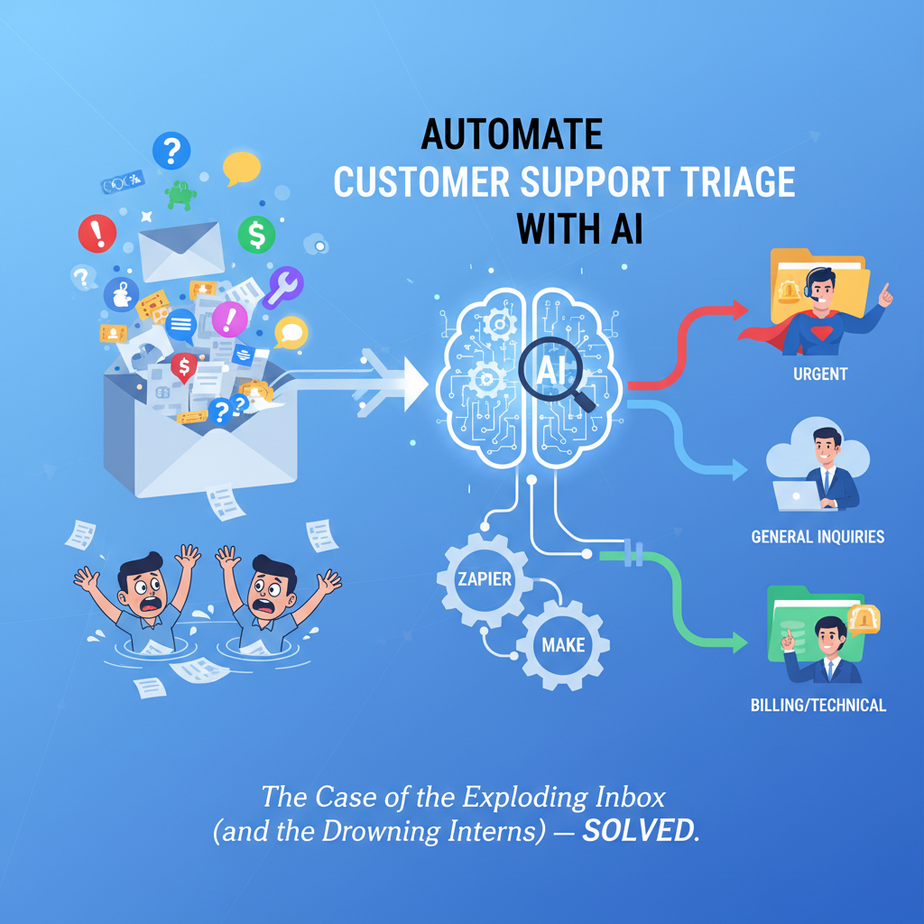
The Case of the Exploding Inbox (and the Drowning Interns)
Picture this: It’s Monday morning. Your customer support inbox looks like a digital landfill, piled high with inquiries ranging from “MY ORDER IS ON FIRE!” to “Can I pet your office cat?” Your support team, bless their cotton socks, are sifting through it all manually. It’s like watching someone trying to empty a swimming pool with a teaspoon.
Worst of all? Critical issues get buried under a mountain of fluff. High-value customers wait for basic answers. Your team is stressed, your customers are frustrated, and somewhere, a junior intern named Kevin is having an existential crisis about whether he’s destined to be a human email router forever.
Sound familiar? Good. Because today, we’re going to rescue Kevin (and your business) from the email avalanche. We’re going to build an AI-powered digital bouncer for your customer support – one that reads, understands, and routes every incoming message, automatically.
Why This Matters (Beyond Saving Kevin’s Sanity)
This isn’t just about making your life easier, though it absolutely will. This automation is a strategic weapon:
- Speed & Efficiency: Critical issues get to the right person, right now. No more waiting hours for an email to be manually triaged. Response times plummet.
- Customer Satisfaction: Happy customers return. When they feel heard and helped quickly, their loyalty skyrockets. You’re effectively giving every customer a VIP pass.
- Team Productivity: Your support team can focus on actually solving problems, not playing digital postman. This reduces burnout and boosts morale.
- Cost Savings: Less manual work means fewer hours spent on repetitive tasks. It’s like having an incredibly smart, tireless intern who never asks for coffee breaks (or salary).
- Scalability: As your business grows, your inbox doesn’t have to become a black hole. This system scales with you, handling 10 emails or 10,000 without breaking a sweat.
This replaces the human-powered “first pass” triage, the email-forwarding merry-go-round, and the general chaos of a growing support desk.
What This Tool / Workflow Actually Is
At its core, we’re building an intelligent router. Think of it as a highly trained AI receptionist who stands at the entrance of your support system. When an email or message comes in, our AI receptionist:
- Reads the message.
- Understands its intent (Is it a sales question? A technical bug? A billing issue? A refund request?).
- Directs it to the precise team or individual best equipped to handle it.
We’ll use two main components:
- AI (specifically, a Large Language Model like OpenAI’s GPT): This is our “brain.” It reads the text and makes the classification decision.
- Zapier or Make (a no-code automation platform): This is our “nervous system.” It connects everything, triggers the AI, reads its response, and then performs the routing actions (sending emails, posting to Slack, creating tasks, etc.).
What it does NOT do: This workflow isn’t solving the customer’s problem. It’s not writing a full response (yet!). It’s not replacing your support agents. It’s simply getting the right message to the right human, faster and more reliably.
Prerequisites (Don’t Panic, It’s Easier Than You Think)
You don’t need to be a coding wizard for this. If you can click buttons and copy-paste text, you’re golden. Here’s what you’ll need:
- A Zapier or Make Account: Both offer free tiers to get started. Choose one you prefer. (I’ll refer to Zapier mostly, but the logic applies directly to Make).
- An OpenAI API Key: This is how Zapier/Make talks to the AI brain. You’ll need to sign up for an account at platform.openai.com, enable billing (even if you just use the free credits initially), and generate an API key. Keep this key safe!
-
An Incoming Support Channel: This could be:
- A shared Gmail inbox (e.g., support@yourcompany.com)
- A form submission (e.g., Google Form, Typeform, Webflow form)
- A basic helpdesk platform (e.g., Freshdesk, Zendesk – though this lesson focuses on direct email/forms for simplicity)
- A simple Google Sheet where new rows are added manually or via another tool.
-
An Outgoing Routing Channel: This is where the classified messages go. Examples:
- Specific email addresses (e.g., sales@company.com, billing@company.com)
- Slack channels (e.g., #support-sales, #support-tech)
- Project management tools (e.g., Trello, Asana, Monday.com)
- Another Google Sheet or database.
No Python, no JavaScript, no obscure command-line incantations. Just good old-fashioned logical thinking.
Step-by-Step Tutorial: Building Your AI Triage System
Step 1: Get Your OpenAI API Key
If you don’t have one already:
- Go to platform.openai.com/signup and create an account.
- Once logged in, navigate to the API Keys section (usually under your profile in the top right, then ‘API keys’).
- Click ‘Create new secret key’. Copy this key immediately and save it somewhere secure! You won’t be able to see it again.
Step 2: Set Up Your Trigger in Zapier/Make
This is the starting gun for your automation. For this example, let’s use a new email in Gmail.
- Log in to Zapier (or Make).
- Start a new Zap (or Scenario in Make).
-
Choose your App & Event: Search for ‘Gmail’ and select ‘New Email’.
Why this step? This tells Zapier: “Hey, pay attention! Every time a new email lands in *this* inbox, I want you to wake up and do something.”
- Choose Account: Connect your Gmail account. Select the inbox you want to monitor (e.g., your ‘support@’ inbox).
- Test Trigger: Send a test email to that inbox and click ‘Test Trigger’ in Zapier to pull in a sample email. This gives us data to work with in the next steps.
Step 3: Introduce the AI (OpenAI Action)
Now for the smart part. We’ll send the email content to OpenAI and ask it to classify it.
-
Add an Action Step: Search for ‘OpenAI’ and choose ‘Send Conversation’. (In Make, it might be ‘Create a Chat Completion’).
Why this step? We’re literally asking a highly intelligent robot a question about the email. Its answer will guide our next actions.
- Connect your OpenAI Account: You’ll use the API key you saved earlier.
-
Set up the Prompt: This is the crucial bit. We need to tell the AI exactly what we want it to do. Use the ‘User Message’ field. Here’s a powerful prompt you can copy-paste and adapt:
You are an expert customer support triaging AI. Your task is to classify incoming customer messages into one of the following categories:

- SALES_INQUIRY
- TECHNICAL_SUPPORT
- BILLING_QUESTION
- REFUND_REQUEST
- GENERAL_FEEDBACK
- URGENT_ISSUE
- PARTNERSHIP_INQUIRY
- OTHER

Carefully read the customer message below and respond with ONLY the most appropriate category. If the message falls into multiple categories, choose the most prominent one. If the message explicitly mentions an urgent problem (e.g., "broken," "down," "critical," "can't access"), classify it as URGENT_ISSUE.

Customer Message:

{{2.Body Plain}}
Explanation of the prompt:
- We’re giving the AI a clear role (‘expert customer support triaging AI’).
- We provide a strict list of categories it MUST choose from. This is vital for reliable automation.
- We give it specific instructions on how to decide (e.g., ‘most prominent’, ‘URGENT_ISSUE’ keywords).
{{2.Body Plain}}is a placeholder from Zapier that inserts the plain text body of the email from Step 2. (In Make, you’d map the corresponding field).
- Test Action: Run the test. OpenAI should respond with one of your defined categories (e.g., ‘SALES_INQUIRY’). If not, refine your prompt and categories.
Step 4: Route the Message (Zapier ‘Path’ or Make ‘Router’)
Now that our AI has classified the message, we need to direct it. Zapier uses ‘Paths’ and Make uses ‘Routers’.
-
Add a ‘Path’ (Zapier) or ‘Router’ (Make) step: Search for ‘Paths’ in Zapier and add it. (In Make, simply add a Router module).
Why this step? This is our decision-maker. It looks at the AI’s classification and says, “Aha! If it’s this category, go down Path A. If it’s that category, go down Path B.”
-
Set up Path Rules: For each path (e.g., ‘Path A: Sales’), you’ll define a rule.
- Condition: The ‘Choice’ field from your OpenAI step (e.g.,
{{3.Choices Text}}) - Rule: ‘Text Contains’ or ‘Exactly Matches’
- Value: One of your defined categories (e.g., ‘SALES_INQUIRY’)
- Condition: The ‘Choice’ field from your OpenAI step (e.g.,
- Repeat for each category: Create a new path for each classification (e.g., Path B: Technical Support, Path C: Billing, etc.). Don’t forget an ‘OTHER’ or ‘Fallback’ path if the AI returns something unexpected.
Step 5: Define Actions for Each Path
Inside each path, you’ll set up what actually happens. This is where the email gets sent, the Slack message gets posted, or the task gets created.
-
Inside ‘Path A: Sales’:
- Add an Action: Choose ‘Gmail’ and ‘Send Email’.
- Configure: Set ‘To:’ to
sales@yourcompany.com. For ‘Subject’ and ‘Body’, you can map the original email’s subject and body from Step 2, and maybe add ‘AI Classified: SALES INQUIRY’ to the subject.
-
Inside ‘Path B: Technical Support’:
- Add an Action: Choose ‘Slack’ and ‘Send Channel Message’.
- Configure: Select your ‘#support-tech’ channel. Add the original email details to the message, perhaps with a link back to the full email.
-
Inside ‘Path C: Urgent Issue’:
- Add an Action: Choose ‘Trello’ and ‘Create Card’ (or your preferred task manager).
- Configure: Select your ‘Urgent Support’ board and list. Set the card name to the email subject, and the description to the email body.
- Optional: Add another action to ‘Send SMS’ to the on-call support manager for truly critical issues (using an SMS app like Twilio).
- Continue for all paths. Make sure every possible classification has a defined action.
That’s it! Activate your Zap/Scenario, and watch your new AI receptionist get to work.
Complete Automation Example: E-commerce Store Support
Let’s walk through a common scenario for a small online boutique, “TrendyThreads,” which sells artisanal clothing.
The Problem:
TrendyThreads receives hundreds of emails daily to hello@trendythreads.com. Their small team is overwhelmed, and customers are complaining about slow responses, especially for urgent order issues or refund requests getting lost in the shuffle.
The Solution (Our Automation):
-
Trigger (Zapier): A new email arrives in their
hello@trendythreads.comGmail inbox. -
Action (OpenAI): The email body is sent to OpenAI with this prompt:
You are an expert customer support triaging AI for an artisanal clothing store. Classify the following customer message into ONE of these categories. Prioritize "URGENT_ORDER_ISSUE" if keywords like "missing", "wrong item", "damaged", "urgent", "return needed" are present.

Categories:
- ORDER_STATUS_QUERY
- PRODUCT_INFORMATION
- REFUND_EXCHANGE
- URGENT_ORDER_ISSUE
- COLLABORATION_INQUIRY
- GENERAL_QUESTION

Customer Message:

{{2.Body Plain}}
Example AI Output: If the email says, “My blue dress arrived green! This is completely wrong!”, the AI would respond with
URGENT_ORDER_ISSUE. -
Router (Zapier Paths): Based on the AI’s classification, the email is routed:
-
Path 1: URGENT_ORDER_ISSUE
- Action 1: Slack: Post to the
#fulfillment-alertsSlack channel: “🚨 URGENT ORDER ISSUE! Subject: {{2.Subject}} From: {{2.From Email}} Body: {{2.Body Plain}}” - Action 2: Google Sheets: Add a new row to the ‘High Priority Orders’ Google Sheet with subject, sender, and body.
- Action 1: Slack: Post to the
-
Path 2: REFUND_EXCHANGE
- Action 1: Gmail: Forward the email to
returns@trendythreads.com. - Action 2: Trello: Create a new card on the ‘Returns & Exchanges’ board.
- Action 1: Gmail: Forward the email to
-
Path 3: ORDER_STATUS_QUERY
- Action 1: Gmail: Forward the email to
order-tracking@trendythreads.com.
- Action 1: Gmail: Forward the email to
-
Path 4: PRODUCT_INFORMATION
- Action 1: Gmail: Forward the email to
sales-info@trendythreads.com.
- Action 1: Gmail: Forward the email to
-
Path 5: COLLABORATION_INQUIRY
- Action 1: Gmail: Forward the email to
partnerships@trendythreads.com.
- Action 1: Gmail: Forward the email to
-
Path 6: GENERAL_QUESTION
- Action 1: Gmail: Forward the email to the general
support-queue@trendythreads.com.
- Action 1: Gmail: Forward the email to the general
-
Path 1: URGENT_ORDER_ISSUE
Result: Critical order issues are immediately flagged for the fulfillment team, refund requests are centralized, and general queries are sent to the appropriate queues, all without a human touching the initial email. Kevin is now focused on solving problems, not just sorting them.
Real Business Use Cases (Beyond TrendyThreads)
This core “classify & route” automation is incredibly versatile:
-
SaaS Company (Software as a Service):
- Problem: Customers email a generic support address with bugs, feature requests, onboarding help, and billing questions, all mixed together.
- Solution: AI classifies into ‘BUG_REPORT’, ‘FEATURE_REQUEST’, ‘ONBOARDING_HELP’, ‘BILLING’. Bug reports go to the dev team’s Jira/GitHub; feature requests go to a product roadmap Trello board; onboarding questions go to customer success; billing goes to accounting.
-
Real Estate Agency:
- Problem: Inquiries from prospective renters/buyers, maintenance requests from current tenants, and landlord queries all hit one inbox.
- Solution: AI classifies into ‘PROPERTY_INQUIRY’, ‘MAINTENANCE_REQUEST’, ‘TENANT_QUESTION’, ‘LANDLORD_QUERY’. Property inquiries create leads in a CRM for agents; maintenance requests go to the facilities team’s task system; tenant/landlord queries go to property managers.
-
Online Course Creator:
- Problem: Students email with technical platform issues, content questions, refund requests, and upsell interest.
- Solution: AI classifies into ‘TECH_ISSUE’, ‘COURSE_CONTENT’, ‘REFUND_REQUEST’, ‘UPGRADE_INTEREST’. Tech issues alert support specialists; content questions go to the instructor; refund requests create a high-priority task for admin; upgrade interests go to a sales nurture sequence.
-
Consulting / Freelance Business:
- Problem: New client inquiries, existing project updates, partnership proposals, and spam all arrive at a single email.
- Solution: AI classifies into ‘NEW_LEAD’, ‘CLIENT_UPDATE’, ‘PARTNERSHIP’, ‘SPAM’. New leads create a CRM entry and notify a sales consultant; client updates go to the relevant project manager’s inbox; partnership inquiries go to business development; spam is archived.
-
Local Restaurant / Café:
- Problem: Reservation requests, catering inquiries, job applications, and customer feedback (good and bad) come through a general contact form.
- Solution: AI classifies into ‘RESERVATION’, ‘CATERING_INQUIRY’, ‘JOB_APPLICATION’, ‘CUSTOMER_FEEDBACK_POSITIVE’, ‘CUSTOMER_FEEDBACK_NEGATIVE’. Reservations go to the booking system; catering inquiries go to the manager; job applications go to HR; feedback is routed to a sentiment dashboard or direct to management based on positive/negative.
Common Mistakes & Gotchas (Learn from My Scars)
Even the smoothest automations can hit bumps. Here are some common pitfalls:
- Vague AI Prompts: If you don’t give the AI clear instructions and a strict list of categories, it will get creative. And ‘creative’ in automation usually means ‘unreliable’. Be precise! Use specific keywords the AI should look for.
- Not Testing Enough Edge Cases: Test with short emails, long emails, emails in different languages (if applicable), emails with typos, and emails that genuinely fall between categories. What happens then?
- No Fallback Path: Always, ALWAYS have an ‘OTHER’ or ‘UNCLASSIFIED’ path. If the AI returns something unexpected (or nothing), you need somewhere for that message to go so it’s not lost. Send it to a ‘human review’ inbox.
- Over-Reliance on AI for Critical Decisions: For *truly* life-or-death issues (e.g., someone reporting a data breach), the AI can classify it as urgent, but the ultimate decision-making and action still needs human oversight. AI is a filter, not always the final judge.
- API Key Exposure: Treat your OpenAI API key like your bank PIN. Never share it publicly, and use Zapier/Make’s secure connection features. Regenerate it immediately if you suspect it’s compromised.
- Rate Limits: If you’re processing thousands of emails a minute, you might hit OpenAI’s (or Zapier’s/Make’s) API rate limits. Monitor your usage and upgrade your plan if necessary. For most small to medium businesses, this won’t be an issue initially.
How This Fits Into a Bigger Automation System
This triage system isn’t an island; it’s a foundational piece of a larger, smarter operational machine:
- CRM Integration: Once an email is classified, the automation can update a customer’s record in your CRM (e.g., HubSpot, Salesforce). Did they just have a refund issue? Log it. Are they a potential sales lead? Create a new deal.
- Email & Marketing Automation: Customer support interactions often reveal customer intent. A ‘PRODUCT_INFORMATION’ query could trigger an automated email sequence with more details. A ‘REFUND_REQUEST’ could add them to a ‘win-back’ campaign (after the issue is resolved, of course).
- Voice Agents & Chatbots: This classification logic can be the first step for a voice agent or chatbot. Instead of asking customers to manually select a department, the AI can listen to their initial query, classify it, and then route them to the correct chatbot flow or live agent.
- Multi-Agent Workflows: For complex issues, a classified message might trigger a mini-workflow. For example, an ‘URGENT_TECHNICAL_ISSUE’ could first notify a support lead, then create a task in an engineering team’s project management tool, and finally send an automated ‘we’re on it!’ email to the customer.
- RAG Systems (Retrieval Augmented Generation): After classifying a message (e.g., ‘PRODUCT_INFORMATION’), the AI can then query an internal knowledge base (a RAG system) to pull the most relevant answer and present it to a human agent, or even draft a first-pass response for review. This speeds up response *creation*, not just routing.
Think of it: the AI doesn’t just sort the mail; it also whispers context into the ears of your other digital assistants. Pretty neat, right?
What to Learn Next (The Plot Thickens!)
You’ve built your first intelligent support bouncer, a solid piece of the automation puzzle. You’re already miles ahead of most businesses still drowning in manual triage.
But what if the AI could not just classify, but also extract key information from the email? What if it could identify the product mentioned, the order number, or the customer’s sentiment? That’s when things get *really* interesting.
In our next lesson, we’ll dive into Advanced Data Extraction with AI. We’ll learn how to pull out specific details from unstructured text, turning a messy email into clean, structured data that can power even more sophisticated automations. Get ready to turn those emails into actionable insights!
This is just one step on our journey through the Academy. Keep building, keep learning, and keep automating!





