
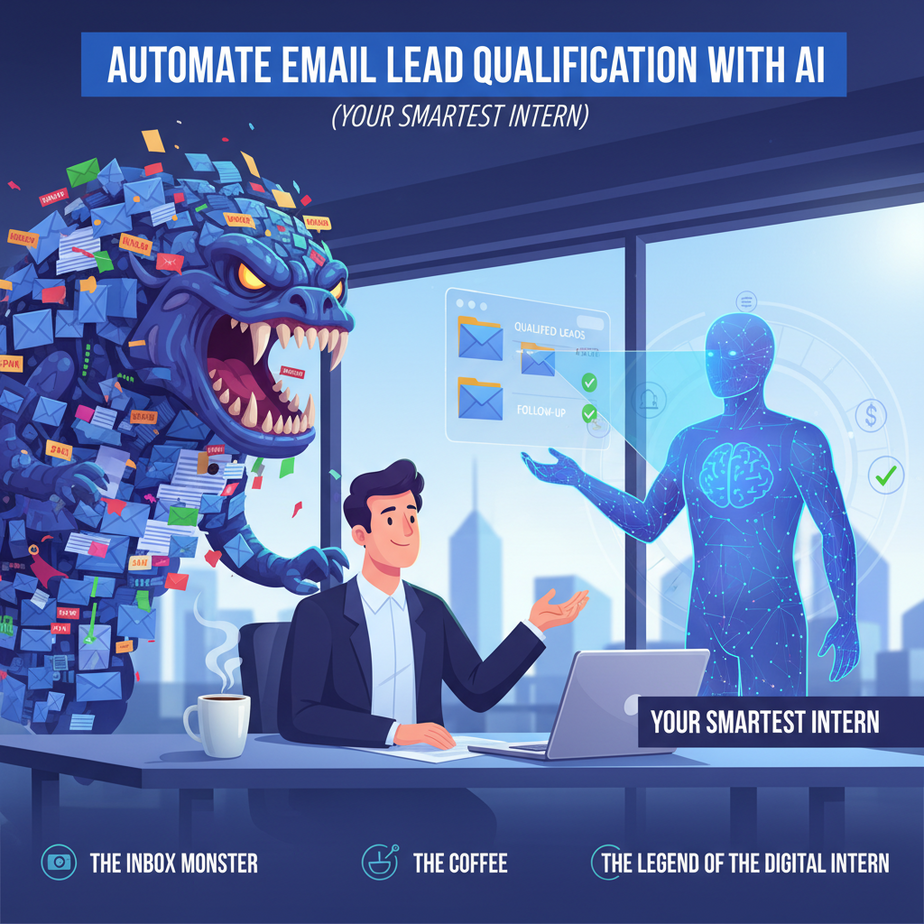
The Inbox Monster, the Coffee, and the Legend of the Digital Intern
Ah, the dreaded inbox. You know the one. It’s 9 AM, you’ve just poured your first (or third) coffee, and it’s already got 50 new messages. Ten are from your team, five are actual leads, thirty are spam, and the rest… well, they’re just there, lurking. Each one demands a precious moment of your attention, a tiny chip off your soul, just to figure out if it’s worth a reply.
I remember one time, I had an intern – bless her enthusiastic heart – whose sole job for a week was to go through my ‘leads’ inbox. She was a champ, but by Thursday, her eyes had developed a permanent twitch. She swore she saw an email from a Nigerian prince asking for investment in her dreams. That’s when I knew: humans are simply not built for this kind of mind-numbing, soul-crushing repetitive task. We need to deploy robots. Not the scary, T-1000 kind, but the digital, highly efficient kind.
Today, we’re building that robot. Your own ‘digital intern’ who never complains, never gets tired, and never falls for the Nigerian prince scam (unless you tell it to). We’re going to teach AI to read your incoming emails, qualify the leads, and make sure only the genuinely promising ones land on your desk, or better yet, directly into your CRM, ready for your sales team to pounce.
Why This Matters: Stop Drowning in Digital Noise, Start Surfing the Revenue Wave
Let’s be brutally honest: every minute you or your team spends manually sifting through emails, trying to determine if it’s a hot lead, a tire-kicker, a support request, or just pure spam, is a minute you’re NOT closing deals, innovating, or, you know, enjoying your coffee while it’s still hot.
This isn’t just about saving time; it’s about:
- Accelerating Sales Cycles: Hot leads get routed instantly, not hours later.
- Boosting Team Morale: Your sales team gets pre-qualified leads, not a pile of ‘maybe-somethings’. They can focus on selling, not on email forensics.
- Improving Response Times: Quick replies to legitimate inquiries make you look professional and increase conversion chances.
- Scaling Without Hiring: Need to handle 10x more inquiries? Your digital intern scales instantly, for pennies.
- Reducing Missed Opportunities: No more ‘golden’ leads accidentally overlooked in the deluge.
Think of it as having a highly discerning, lightning-fast gatekeeper for your sales funnel. This gatekeeper replaces not just manual work, but the chaos, the missed opportunities, and the endless ‘are you sure this is a lead?’ debates.
What This Tool / Workflow Actually Is
At its core, this workflow is an intelligent email processor. It’s a pipeline that:
- Listens: Waits for new emails in a specific inbox (e.g., sales@yourcompany.com).
- Reads: Extracts the subject and body of the email.
- Thinks: Sends that text to an Artificial Intelligence (like OpenAI’s models) with specific instructions to analyze, qualify, and categorize the lead based on criteria *you* define.
- Decides: Based on the AI’s assessment, it triggers an action – create a CRM record, send a personalized follow-up, forward to a specific team member, or archive it.
What it IS: A powerful, customizable lead qualification engine. Your personal AI consultant for every inbound email. A productivity superpower.
What it IS NOT: A magic bullet that removes the need for human sales expertise. It won’t close deals for you (yet). It won’t spontaneously understand obscure industry jargon unless you train it. It needs your guidance, your rules, and your initial setup. Think of it as a super-smart assistant, not a replacement for the CEO.
Prerequisites (Don’t Panic, It’s Easier Than Assembling IKEA Furniture)
Before we dive in, let’s gather our tools. Don’t worry, even if you’re allergic to ‘tech speak,’ you’ll find this straightforward. No coding required, just a bit of copy-pasting and button-clicking.
Here’s what you’ll need:
- An Email Account: The one where your leads land. This could be a shared inbox like
sales@or your personal work email. - An Automation Platform Account: I recommend Zapier or Make.com (formerly Integromat). These are no-code platforms that connect different apps. For this tutorial, I’ll mostly refer to Zapier, but the concepts apply to Make.com too. You can start with a free trial.
- An OpenAI API Key: This is our AI brain. You’ll need an account on OpenAI’s platform and a paid API plan. Don’t worry, the costs are usually pennies per qualification, but you do need to have billing set up.
- A CRM (Optional but Recommended): Something like HubSpot, Salesforce, Pipedrive, or even a Google Sheet, if you want to automatically add qualified leads to your pipeline. We’ll show you how to connect one.
Reassurance for the nervous: If you can sign up for an email account and follow instructions, you can do this. I promise. We’re building a digital LEGO set, not launching a rocket.
Step-by-Step Tutorial: Building Your Digital Intern
Let’s get this digital intern off the ground. We’ll be using Zapier for this walkthrough, but the logic is nearly identical for Make.com.
Step 1: Set Up Your Trigger – ‘New Email’ Arrives
This is where our digital intern starts its shift. It waits patiently for new messages.
- Log in to Zapier: Go to your Zapier dashboard and click ‘Create Zap’.
- Choose Your App & Event: Search for ‘Email by Zapier’ (or Gmail, Outlook, etc., if you prefer).
- Select Trigger Event: Choose ‘New Email’ (if using Email by Zapier, it will give you a unique email address to forward to) or ‘New Email’ in Gmail/Outlook.
- Connect Your Account: If you chose Gmail/Outlook, connect your email account.
- Test Your Trigger: Send a test email to your designated inbox. Zapier will pull it in to confirm the connection. This is crucial; it provides sample data for the next steps.
Step 2: The Brain – Send Email Content to OpenAI for Analysis
Now our intern has the email; it’s time for it to ‘read’ and ‘think’.
- Add an Action Step: Click the ‘+’ button after your trigger.
- Choose Your App: Search for ‘OpenAI’.
- Select Action Event: Choose ‘Send Prompt’.
- Connect Your OpenAI Account: You’ll need your OpenAI API Key here. Find it on the OpenAI platform.
- Set up the Prompt: This is where the magic happens. We’re telling the AI exactly what to do.
- Test This Step: Run a test. OpenAI should return a JSON object based on the sample email from Step 1. Inspect the output carefully to ensure it’s structured as you expect.
Model: Select a suitable model, like gpt-3.5-turbo or gpt-4 for higher accuracy.
User Message (The Prompt): Craft your instructions carefully. This is the most critical part. Your prompt needs to be clear, specific, and ask for structured output (e.g., JSON) to make the next steps easy.
You are an expert lead qualification specialist for [YOUR COMPANY TYPE, e.g., a SaaS company selling marketing automation software].
Your task is to analyze an incoming email and determine if it represents a qualified sales lead, a support request, or junk/spam.

A qualified sales lead meets ALL of the following criteria:
- Expresses interest in [YOUR PRODUCT/SERVICE CATEGORY, e.g., marketing automation, CRM, consulting services].
- Appears to be from a legitimate business or professional.
- Asks about pricing, features, demo, trial, or partnership potential.
- Is NOT a current customer seeking support.

For each email, output a JSON object with the following fields:

{
  "lead_type": "qualified_sales_lead" | "support_request" | "junk_spam" | "other",
  "qualification_score": "high" | "medium" | "low" | "n/a",
  "summary": "Brief summary of the email's intent and key points.",
  "action_needed": "Sales follow-up" | "Customer support" | "Archive" | "Review manually",
  "extracted_email": "Sender's email address if clearly identifiable and relevant, otherwise null.",
  "extracted_name": "Sender's name if clearly identifiable, otherwise null."
}

Email Subject: {{1.Subject}}
Email Body:
{{1.Body Plain}}
Temperature: Set this low (e.g., 0.2) for more deterministic, less creative answers. We want accuracy, not poetry.
Step 3: Parse the AI’s Output – Making Sense of the ‘Brain’s’ Thoughts
The AI gave us JSON. Now we need to extract the data points (like lead_type and action_needed) so we can use them.
- Add an Action Step: Click the ‘+’ button.
- Choose Your App: Search for ‘Formatter by Zapier’.
- Select Action Event: Choose ‘Text’.
- Transform: Select ‘Parse JSON’.
- Input: In the ‘JSON String’ field, select the output from your OpenAI step (e.g., ‘Choice Text’).
- Test This Step: Run a test. You should now see individual fields like ‘lead_type’, ‘qualification_score’, etc., ready to be used.
Step 4: Act on the Decision – Routing the Leads
This is where your digital intern puts the email in the right pile. We’ll use ‘Paths’ (Zapier) or ‘Routers’ (Make.com) for conditional logic.
- Add a ‘Path’ Step: Click the ‘+’ button and search for ‘Paths by Zapier’.
- Set Up Path A (e.g., ‘Qualified Sales Lead’): Define the rules for this path.
- Rule: ‘lead_type’ (from Formatter step) ‘Text Contains’ ‘qualified_sales_lead’.
- Add Actions within Path A: If the email is a qualified sales lead:
- Action 1: Create CRM Record: Connect your CRM (HubSpot, Salesforce, Pipedrive). Create a new ‘Contact’ or ‘Lead’ using the extracted name, email, and summary from the AI.
- Action 2: Notify Sales Team: Send a Slack message, an internal email, or create a task in your project management tool.
- Action 3 (Optional): Send Personalized Follow-up: Connect your email marketing tool (e.g., Mailchimp, ActiveCampaign) or use Gmail/Outlook to send a pre-written, personalized email to the lead.
- Set Up Path B (e.g., ‘Support Request’):
- Rule: ‘lead_type’ (from Formatter step) ‘Text Contains’ ‘support_request’.
- Add Actions within Path B: Create a support ticket in Zendesk/Intercom, or forward the email to your support team’s inbox.
- Set Up Path C (e.g., ‘Junk/Other’):
- Rule: ‘lead_type’ (from Formatter step) ‘Text Contains’ ‘junk_spam’ OR ‘Text Contains’ ‘other’.
- Add Actions within Path C: Archive the original email, or send it to a ‘manual review’ folder if you’re feeling cautious.
Important: Test each path thoroughly with different types of emails to ensure your rules and actions work as expected.
Complete Automation Example: The Inbound Demo Request Machine
Let’s walk through a concrete example: You run a SaaS company, and potential customers submit demo requests via email to demos@yourcompany.com. Your goal is to qualify these, add them to your CRM, and notify the right sales rep – all automatically.
- Trigger: New Email in Gmail/Outlook
When a new email arrives in
demos@yourcompany.com. - Action: Send Email Content to OpenAI
Prompt to OpenAI:
You are an expert sales lead qualification specialist for a SaaS company selling marketing automation software. Your primary goal is to identify genuine demo requests and filter out spam, support queries, or unrelated messages. A genuine demo request will: - Explicitly ask for a demo, presentation, or meeting to discuss our software. - Include details about their company, role, or specific needs that indicate a serious inquiry. - Not be a current customer seeking support. Categorize the email as 'Demo Request', 'Support Inquiry', 'Spam/Other'. If it's a 'Demo Request', extract the sender's name, company (if mentioned), and a brief reason for the demo. Output in JSON format: { "category": "Demo Request" | "Support Inquiry" | "Spam/Other", "sender_name": "[Extracted Name]", "sender_company": "[Extracted Company]", "demo_reason": "[Brief reason for demo]", "sender_email": "{{1.From Email}}" } Email Subject: {{1.Subject}} Email Body: {{1.Body Plain}} - Action: Parse JSON Output from OpenAI
Extracts
category,sender_name,sender_company,demo_reason,sender_email. - Action: Paths by Zapier
Path A: If ‘category’ is ‘Demo Request’
- Action: Create Contact in HubSpot
Map
sender_nameto First Name,sender_emailto Email,sender_companyto Company Name. Set ‘Lead Source’ to ‘AI Qualified Email’. Adddemo_reasonto a custom field or notes. - Action: Create Deal in HubSpot
Create a new deal associated with the contact, stage ‘New Lead – AI Qualified’.
- Action: Send Slack Message to Sales Team
“🚨 New AI-Qualified Demo Request! 🚨 From: [
sender_name] at [sender_company]. Reason: [demo_reason]. Check HubSpot!” - Action (Optional): Send Automated Welcome Email (from Gmail/Outlook)
To
sender_email. Subject: “Thanks for your Demo Request, [sender_name]! What to Expect Next.” Body: A friendly message confirming receipt and what happens next (e.g., a sales rep will contact them within X hours, or a Calendly link).
Path B: If ‘category’ is ‘Support Inquiry’
- Action: Create Ticket in Zendesk/Intercom
Map email subject and body to ticket details. Assign to ‘Support Queue’.
Path C: If ‘category’ is ‘Spam/Other’
- Action: Archive Email in Gmail/Outlook
Move the original email to an ‘AI Junk’ folder.
- Action: Create Contact in HubSpot
Boom! You’ve just built a fully automated, AI-powered sales qualification engine. Your sales team can now focus on calls and demos, not email triage.
Real Business Use Cases (Beyond the Demo Request)
This same core automation can be adapted for countless scenarios. Think of any situation where you receive inquiries via email and need to sort them.
- Consulting Firm: Project Proposal Sorting
Problem: Inbound emails often range from serious project inquiries to students asking for free advice. Manual sorting is a time sink for senior consultants.
Solution: AI analyzes emails for keywords like ‘RFP,’ ‘budget,’ ‘timeline,’ ‘project scope,’ ‘serious,’ ‘urgent,’ ‘proposal.’ Qualified leads are sent to senior consultants’ calendars/CRMs; general inquiries go to a junior associate or a knowledge base auto-responder.
- E-commerce Business: Customer Service Routing
Problem: A single customer service email inbox gets flooded with questions about orders, returns, product details, and marketing pitches. Agents waste time re-routing.
Solution: AI categorizes emails into ‘Order Status,’ ‘Return Request,’ ‘Product Inquiry,’ ‘Technical Issue,’ ‘Wholesale Inquiry,’ ‘Marketing/Spam.’ Each category triggers a specific action: an automated order status lookup, a return form link, assignment to a product specialist, or archiving.
- Recruiting Agency: Candidate & Client Sourcing
Problem: Recruiters receive thousands of resumes and client inquiries. Identifying top talent or serious client mandates is like finding a needle in a haystack.
Solution: AI scans incoming resumes for specific skills, experience levels, and industry keywords, assigning a ‘fit score.’ It also qualifies client inquiries based on budget, role seniority, and urgency. Top candidates get added to a ‘hot leads’ talent pool; high-value clients are flagged for immediate outreach by senior recruiters.
- Real Estate Agency: Buyer vs. Seller Leads
Problem: An agent’s inbox receives inquiries from potential buyers, sellers, renters, and even spam from other agents. Each requires a different follow-up strategy.
Solution: AI identifies intent: ‘looking to buy,’ ‘want to sell,’ ‘interested in rental,’ ‘investment property.’ Buyer leads get an automated email with curated listings; seller leads are routed to a listing agent; rental inquiries get information on rental application processes.
- Event Management Company: Speaker & Vendor Applications
Problem: Managing hundreds of applications for speakers, sponsors, and vendors for a large event is a logistical nightmare.
Solution: AI analyzes applications for relevance, experience, and alignment with event themes. It can score speakers based on their previous talks, or vendors based on their offerings. High-scoring applicants are moved to a ‘review’ board; irrelevant ones receive an automated polite decline or archive.
Common Mistakes & Gotchas (Learn from My Intern’s Twitch)
Even your digital intern can stumble if you don’t set it up right. Here are some common pitfalls:
- Vague Prompts: “Is this a good lead?” is a terrible prompt. “Analyze this email and classify it as ‘Qualified Sales Lead’ if it explicitly asks for a demo, mentions budget, or is from a decision-maker, otherwise classify as ‘Other'” is much better. Be precise with your criteria.
- Not Testing Enough Edge Cases: Test with spam, legitimate questions that aren’t leads, support requests, and actual leads. What if someone just says “hi”? What if they write a novel?
- Over-Reliance Without Oversight: Especially when starting, keep an eye on what the AI is doing. Don’t just trust it blindly. Review its categorizations weekly. Adjust your prompts as you learn.
- Ignoring Output Structure: If your prompt doesn’t ask for a structured output (like JSON), you’ll have a nightmare trying to parse the AI’s response in later steps. Always ask for JSON!
- API Key Security: Never hardcode your API key into publicly accessible code. Use environment variables or Zapier/Make’s secure credential storage.
- Rate Limits: If you receive thousands of emails per minute, you might hit OpenAI’s rate limits. For most small to medium businesses, this isn’t an issue, but be aware it exists for very high volume.
- Privacy Concerns: Be mindful of sensitive data in emails. If you’re dealing with PII or confidential information, ensure your use of external AI services complies with privacy regulations (GDPR, HIPAA, etc.). You might need to explore self-hosted solutions or enterprise AI models.
How This Fits Into a Bigger Automation System
This AI-powered email qualification is a powerful standalone automation, but it truly shines when integrated into your existing business systems.
- CRM Integration: We touched on this. Qualified leads directly create new contacts and deals in your CRM, pre-populating fields. This isn’t just a record; it’s a launchpad for your sales team.
- Marketing Automation: Once a lead is qualified, they can be added to specific email sequences in your marketing automation platform (e.g., ActiveCampaign, Mailchimp) tailored to their interest, nurturing them until they’re ready for a human touch.
- Voice Agents/Chatbots: An email might just be the start. If the AI qualifies a lead, the next step could be to initiate an AI-powered outbound call to schedule a meeting, or trigger a custom chatbot interaction on your website for further qualification.
- Multi-Agent Workflows: This simple workflow can evolve into complex multi-agent systems. For instance, if an email is a ‘qualified sales lead’ but from a very large enterprise, a secondary AI agent might be tasked to research the company and the sender’s LinkedIn profile *before* creating the CRM record, enriching the data even further.
- RAG (Retrieval Augmented Generation) Systems: If the email is a complex product inquiry, your AI could first query an internal knowledge base (a RAG system) to find the most relevant information, then use that information to draft a highly accurate and personalized response, all before a human ever sees it.
Think of this lesson as laying the first pipe in your automation factory. It’s a critical piece, but it connects to many other pieces, creating an incredibly powerful, interconnected system.
What to Learn Next: Unleashing AI’s Creativity
You’ve mastered the art of training your digital intern to qualify leads with precision. But what if we could teach it to *write* as well? Imagine an AI that not only identifies a hot lead but then drafts a perfectly tailored, personalized email response, ready for a quick human review and send.
In our next lesson, we’ll dive into the world of AI-powered email generation. We’ll explore how to leverage AI to craft compelling, context-aware responses, saving you even more time and ensuring every communication is top-notch. Get ready to turn your digital intern into a copywriter!
“,
“seo_tags”: “AI email automation, lead qualification, sales automation, AI workflow, Zapier tutorial, OpenAI API, email processing, CRM automation, productivity, business automation, Professor Ajay, digital intern”,
“suggested_category”: “AI Automation Courses





