
the shot
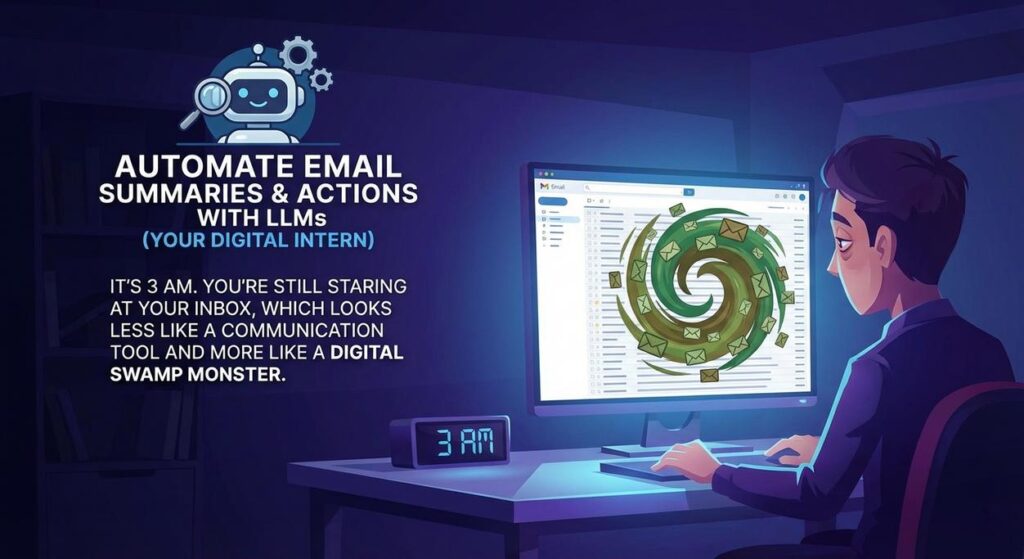
It’s 3 AM. You’re still staring at your inbox, which looks less like a communication tool and more like a digital swamp monster. Each new email is another tentacle wrapping around your brain, threatening to drag you into the murky depths of forgotten tasks and vague requests.
You remember that one time you missed a critical client deadline because the key instruction was buried three paragraphs deep in an email subject-lined “Quick Question”. Or the other time, you spent an entire afternoon just “processing” emails, only to realize you hadn’t actually done anything. Just sorted, skimmed, and sighed.
Your brain screams, “There HAS to be a better way!”
And you’re right. There is. Welcome to your escape raft from the email swamp.
Why This Matters
Manual email processing is a productivity black hole. It’s where ambition goes to die, one subject line at a time. Every hour you spend sifting through long threads, trying to identify what’s important, what’s urgent, and what’s just Jim from accounting asking about the office printer—is an hour you’re not spending building, creating, or relaxing.
This automation replaces:
- Your “human scanner” intern: The poor soul you hired to read every email and give you the cliff notes.
- Lost opportunities: Never miss a crucial detail or action item again.
- Mental fatigue: Stop using your precious brainpower for information extraction. Let the robots do the boring stuff.
- The “email anxiety” monster: Know you’re on top of things, even with a full inbox.
We’re talking about saving hours every week, improving decision-making speed, and regaining your sanity. It’s like having a hyper-efficient, slightly sarcastic digital assistant whose only job is to ensure you never have to read a full email again unless it’s absolutely necessary.
What This Tool / Workflow Actually Is
Alright, let’s get technical, but not “Ph.D. in quantum physics” technical. What we’re building is a simple, yet incredibly powerful, automation pipeline:
- It listens: It waits for new emails to hit your inbox (or a specific inbox).
- It reads: When an email arrives, it grabs the entire content.
- It thinks (kind of): It sends that email content to a Large Language Model (LLM) — think of an LLM like ChatGPT, but behind the scenes, without the chat interface. This LLM is our “digital intern.”
- It extracts: The LLM reads the email and, based on our instructions (a “prompt”), spits out a concise summary and a clear list of action items.
- It delivers: Finally, it takes that summary and those action items and sends them to a place where you’ll actually see them and act on them — Slack, Notion, a Google Sheet, your task manager, whatever floats your boat.
What it DOES: It intelligently processes text, summarizes, and identifies specific data points (action items, requests, deadlines).
What it DOES NOT do: It doesn’t write replies (unless you build another step for that), it doesn’t judge your grammar, and it won’t brew your coffee. It’s a text processing robot, not a sentient office manager… yet.
Prerequisites
Alright, let’s get you suited up for this digital safari. Nothing too wild, I promise.
- An Email Account: Obvious, right? Gmail or Outlook are the easiest to connect.
- An LLM API Key: You’ll need access to a Large Language Model. OpenAI (for GPT models) is the most common and easiest to start with. Go to platform.openai.com/account/api-keys to generate one. There’s a free tier, but expect minimal costs if you’re processing a lot of emails.
- An Automation Platform Account: We’ll be using a “no-code” platform like Zapier or Make.com. If you don’t have an account, sign up for a free one. They both offer generous free tiers to get started.
- A Place for the Output: Where do you want your summaries to go? A Slack channel, a Notion database, a Google Sheet, Asana, Trello? Pick one.
Reassurance: “No-code” really means “connecting blocks.” You won’t be writing Python from scratch. Just clicking, typing, and connecting. If you can order a pizza online, you can do this.
Step-by-Step Tutorial
Let’s build this beast. We’ll use Zapier as our example, but the concepts are identical for Make.com or similar platforms.
Step 1: Get Your LLM Superpowers (OpenAI API Key)
- Go to platform.openai.com/account/api-keys.
- Click “+ Create new secret key.”
- Give it a name (e.g., “Email Summarizer”), then copy the key. Keep this safe! You won’t see it again.
Step 2: Choose Your Automation Canvas (Zapier/Make.com)
- Sign up for Zapier (zapier.com) or Make.com (make.com).
- Once logged in, look for “Create a Zap” (Zapier) or “Create a new scenario” (Make).
Step 3: The Tripwire: New Email Alert
- In your chosen platform, search for your email provider (e.g., “Gmail” or “Microsoft Outlook”) as the “Trigger” app.
- Choose the trigger event: “New Email” or “New Labeled Email” (if you want to process specific emails only, e.g., emails with a “Review” label).
- Connect your email account when prompted.
- Test the trigger to pull in a recent email. This will give us real data to work with in the next steps.
Step 4: The Brain Surgery: Crafting the LLM Prompt
This is where we tell our digital intern exactly what to do. The quality of your output depends heavily on the quality of your prompt. We’ll use a “system message” for instructions and then provide the email content.
In Zapier, search for “OpenAI” as your “Action” app. Choose “Conversation” as the action event.
Configure it like this:
- Model: Choose “gpt-4o” or “gpt-3.5-turbo” (gpt-4o is better but pricier).
- User Message: This is where you’ll inject the email content from your trigger. Click the “+” or “insert data” button and select “Body Plain” (or similar for the raw email text) from your email trigger step.
- Assistant Message: Leave blank.
- System Message: This is your instruction manual for the AI. Copy and paste this exact prompt:
You are an expert administrative assistant. Your task is to summarize the following email and extract all actionable items. Format your response clearly. If no explicit action items are present, state "No explicit action items found."

SUMMARY:
[One concise paragraph summary of the email's main topic and purpose.]

ACTION ITEMS:
[List each action item clearly, including who is responsible (if mentioned), what needs to be done, and any deadlines. Use bullet points.]
Why this prompt works:
- We define its “role” (expert administrative assistant).
- We clearly state its “task” (summarize, extract actions).
- We provide a “format” for its output, making it easy to parse later.
- We handle edge cases (“No explicit action items found”).
Step 5: The Processing Chamber (Test Your LLM Action)
- Continue and test your OpenAI step.
- It should process the sample email from your trigger and return a formatted summary and action items.
- Inspect the output carefully. If it’s not quite right, tweak your “System Message” in Step 4.
Step 6: The Delivery Service (Send Output to Your Destination)
- Add another “Action” step. Search for your desired destination (e.g., “Slack,” “Notion,” “Google Sheets,” “Asana”).
- Choose the appropriate action event (e.g., “Send Channel Message” for Slack, “Create Database Item” for Notion, “Create Spreadsheet Row” for Google Sheets).
- Connect your account.
- Map the fields: When configuring the message/item/row, use the “+” or “insert data” button to pull the “Reply” (or similar field name for the LLM’s full output) from your OpenAI step. You can also parse out just the “SUMMARY” or “ACTION ITEMS” if your destination allows for more granular mapping.
For example, if sending to Slack, you might do:
*New Email Summary from {{Trigger App Name}}!*

Original Subject: {{Email Subject}}
From: {{Email From Name}} ({{Email From Address}})

{{OpenAI Reply}}
Test this final step, then turn your Zap/Scenario “ON.” Congratulations, you’ve just automated your first digital intern!
Complete Automation Example
Scenario: Sales Inquiry Triage
You run a small e-commerce business. Your sales inbox is flooded with inquiries, some genuinely hot leads, others just casual questions. You need to quickly identify the key details from each inquiry so your sales team can prioritize and respond efficiently, without manually reading every word.
The Automation Workflow:
- Trigger: New Email in “sales@yourcompany.com” (or a specific label like “Sales Lead”).
- Action 1 (LLM Processing): Send the email content to OpenAI with a custom prompt.
- Action 2 (Delivery): Post the summarized inquiry and extracted requests to a dedicated “#sales-leads” Slack channel.
Specific LLM Prompt for Sales Triage:
You are a highly efficient sales assistant. Summarize the following customer inquiry email, extract the customer's main needs, requested products/services, any specific questions, and any timeline mentioned. Format the output clearly for a sales team member to quickly understand and prioritize.

CUSTOMER INQUIRY SUMMARY:
[Concise summary of the customer's background, their overall request, and their apparent level of interest (e.g., "exploring options," "ready to purchase").]

KEY REQUESTS & QUESTIONS:
- Product/Service Interest: [Specific product, service, or general area of interest. If multiple, list them.]
- Quantity/Scale: [Any indication of project size, number of units, or scope.]
- Timeline/Urgency: [Any deadline, desired completion date, or statement of urgency.]
- Budget Indication: [Any mention of budget or price sensitivity.]
- Specific Questions Asked: [List any direct questions the customer asked.]

NEXT STEPS SUGGESTED:
[Briefly suggest immediate next steps for the sales team, e.g., "Follow up with product catalog," "Schedule discovery call."]

EMAIL CONTENT:
---
{{email.body.plain}}
---
Example Output in Slack:
*NEW SALES LEAD ALERT!* 🚀

Original Subject: Need info on your custom widgets for bulk order
From: Acme Corp (jane.doe@acmecorp.com)

CUSTOMER INQUIRY SUMMARY:
Jane Doe from Acme Corp is interested in a bulk order of custom widgets for a new project. She's currently exploring options and seems keen to understand pricing and customization possibilities.

KEY REQUESTS & QUESTIONS:
- Product/Service Interest: Custom Widgets (specifically mentioning "Series X" from the website).
- Quantity/Scale: Bulk order for a "new company-wide initiative".
- Timeline/Urgency: Needs information "within the next two weeks" to present to her team.
- Budget Indication: "Looking for competitive pricing for large volumes."
- Specific Questions Asked: What are the customization options? What's the lead time for a bulk order? Can you provide a quote for 500 units?

NEXT STEPS SUGGESTED:
Follow up with detailed customization options and a preliminary quote for 500 units of Series X widgets. Schedule a 15-min discovery call to understand project specifics.
Imagine the time saved! Your sales team now sees a perfectly formatted, pre-digested summary in Slack, ready for immediate action, without opening a single email.
Real Business Use Cases
This “email summarizer and action extractor” isn’t just a party trick; it’s a foundational automation. Here are 5 business types that can immediately benefit:
-
Freelancer / Consultant
Problem: Drowning in client emails, trying to keep track of project changes, feedback, and deliverables across multiple projects. Critical details get lost, leading to rework or missed deadlines.
Solution: Automate summaries of all client communication. Action items (e.g., “Revise mockup by Friday,” “Send invoice”) are extracted and pushed directly to your project management tool (Asana, Trello, Todoist) or a “Client Actions” Google Sheet. You quickly see what needs doing, who said what, and when.
-
Small Business Owner (e.g., E-commerce Store)
Problem: Managing customer support requests, product inquiries, and supplier communications. The sheer volume makes it hard to prioritize urgent issues or identify common customer pain points without manually reading every email.
Solution: Route all incoming customer support emails through the LLM. Summaries and extracted problems (e.g., “Broken widget, needs replacement,” “Shipping delay inquiry”) are sent to a dedicated “Support Triage” channel in Slack or a ticketing system. This allows rapid prioritization and ensures no customer is left hanging.
-
Marketing Team Lead
Problem: Receiving weekly or monthly performance reports from various ad platforms, content agencies, or social media managers. These reports are often dense, and extracting key wins, losses, and next steps requires significant reading time.
Solution: Set up the automation to process incoming reports. The LLM summarizes overall performance trends and pulls out “Recommended Next Steps” or “Key Findings” directly from the report text. These insights are then posted to a shared Notion page or Google Doc, providing a streamlined digest for team meetings.
-
HR Department
Problem: Sifting through hundreds of job applications, inquiry emails from candidates, or internal staff requests. Identifying key qualifications, specific questions, or urgent needs can be time-consuming.
Solution: For candidate applications, the LLM can summarize resumes (if attached as text or pulled from email body) and extract key qualifications (e.g., “5 years Python experience,” “PMP certified”). For internal requests, it can pull out “Urgent PTO Request,” “Benefits Question,” and route them to the correct HR specialist via a Slack message or a dedicated HR system.
-
Project Manager
Problem: Keeping up with project update emails from team members, stakeholders, and vendors. Buried in long threads are critical roadblocks, dependencies, and subtle changes to deadlines.
Solution: All project-related emails (e.g., sent to a project alias or with specific subject line keywords) are summarized. The LLM extracts “Roadblocks,” “Dependencies,” “Deadline Changes,” and “Completed Tasks.” This consolidated info is pushed to a “Project Daily Digest” email or a project dashboard, giving the PM a real-time pulse without having to read every detail.
Common Mistakes & Gotchas
You’re now wielding powerful tools, but with great power comes the potential for epic faceplants. Avoid these common blunders:
-
The “Garbage In, Garbage Out” Prompt
If your LLM output is vague or misses key details, 99% of the time, the problem is your prompt. The LLM isn’t a mind-reader (yet). Be explicit. Tell it its role, its task, its desired format, and what to do if it can’t find something.
-
Over-Reliance on LLM for Critical Decisions
This automation is a powerful assistant, not a CEO. Don’t use LLM summaries as the *sole* basis for mission-critical decisions without human review. Always cross-reference crucial information, especially in legal, financial, or sensitive contexts.
-
Ignoring Privacy and Security
If you’re processing sensitive client or internal data, be mindful of the LLM provider’s data privacy policies. Most enterprise-grade LLMs offer strong guarantees, but always check. Avoid sending highly confidential information to public LLMs without understanding the risks.
-
Not Handling Attachments
This automation primarily works with email *text*. It won’t summarize PDFs, Word docs, or images attached to emails without additional steps (which involve OCR for images/scans, or dedicated document summarization APIs). If your critical info is always in attachments, you’ll need to expand this workflow.
-
Rate Limits and Costs
LLM APIs aren’t free, and they have rate limits (how many requests you can send per minute/hour). For high-volume inboxes, monitor your usage and costs. You might need to upgrade your API plan or adjust your automation’s frequency.
-
Forgetting to Test Edge Cases
What happens if an email is empty? What if it’s just spam? What if it’s in a different language? Test your automation with various types of emails to ensure it behaves gracefully, or at least doesn’t break.
How This Fits Into a Bigger Automation System
Think of this email summarization engine as a powerful, specialized sensor in your automation factory. It’s collecting and pre-processing raw data (emails) into actionable intelligence. Here’s how it integrates with bigger systems:
-
CRM Integration
The extracted summaries and action items can automatically update contact records in your CRM (Salesforce, HubSpot, Zoho). Imagine every client interaction being summarized and logged against their profile without a single copy-paste. This provides rich context for future engagements.
-
Task Management & Project Management
Those “ACTION ITEMS” aren’t just for reading. They can directly create tasks in your project management software (Asana, Trello, ClickUp, Jira), assigning them to the relevant team member with deadlines based on the email content. Your to-do list builds itself.
-
Smart Email Routing & Prioritization
Beyond simple summaries, the LLM can “categorize” emails (e.g., “Sales Lead,” “Support Issue,” “Billing Question”) and even “prioritize” them (e.g., “High Urgency”). This allows for dynamic routing to different teams or flagging urgent items for immediate human review.
-
Personalized Email Responses (Multi-Agent Workflows)
Once an email is summarized and actions are extracted, you can feed this processed information to a *second* LLM agent whose job is to draft a personalized reply or acknowledgement based on the summary and identified actions. This turns a single “read” automation into a “read-understand-respond” workflow.
-
Voice Agent / Chatbot Context
If you have a customer service voice agent or chatbot, these email summaries can be used to provide instant context. When a customer calls, the agent already has a concise understanding of their recent email interactions, leading to faster and more relevant support.
-
Reporting & Analytics
By capturing structured summaries and action items, you can aggregate data over time. Identify common customer issues, track response times, or analyze trends in sales inquiries. This transforms unstructured email data into valuable business intelligence.
What to Learn Next
You’ve successfully tamed the email swamp and deployed your first digital intern. Pat yourself on the back, but don’t get too comfortable. This is just the beginning of what’s possible.
In our next lessons, we’ll dive deeper. We’ll explore:
- Advanced Prompt Engineering: How to fine-tune your prompts for even more precise and nuanced extractions. We’ll turn your digital intern into a specialist.
- Custom Email Parsing: What if you need to extract specific fields like “Order ID” or “Tracking Number” every single time? We’ll look at structured data extraction beyond simple summarization.
- Connecting to Retrieval-Augmented Generation (RAG) Systems: Imagine your LLM intern not just summarizing, but also pulling relevant information from your own internal knowledge base to enrich the summary or suggest a more informed action.
This journey from email chaos to automated clarity is a marathon, not a sprint. You’ve built a critical component of your personal automation factory. Keep experimenting, keep learning, and prepare to elevate your productivity to levels you didn’t think possible.





