
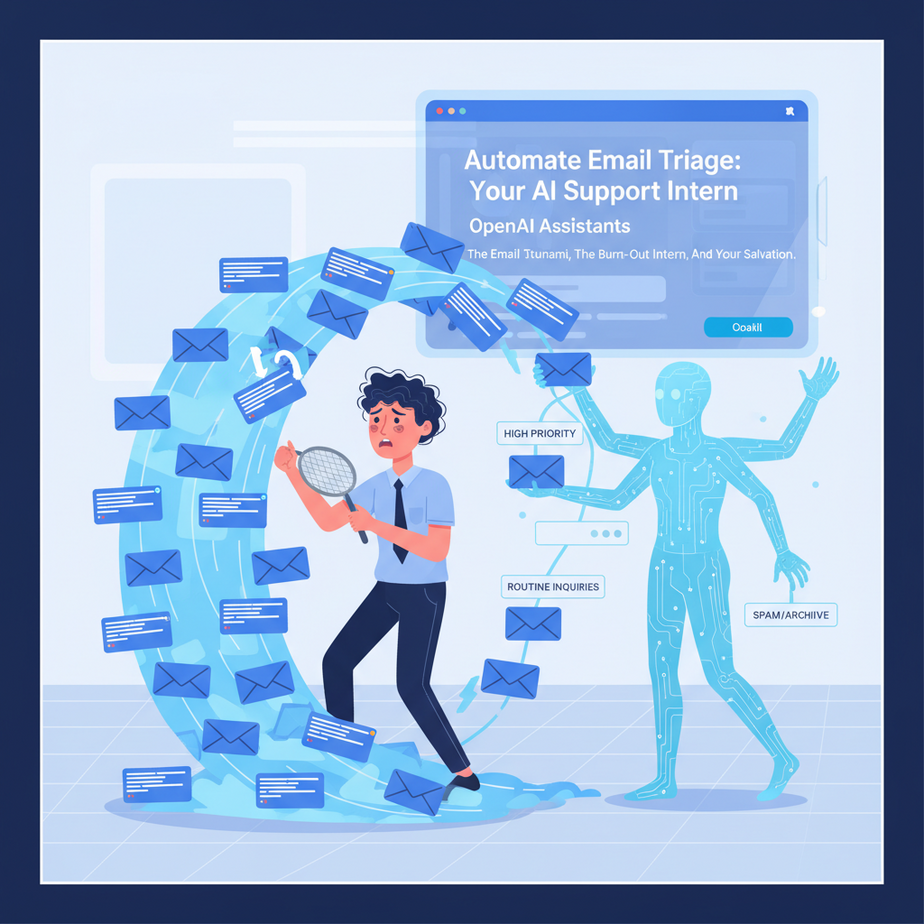
The Email Tsunami, The Burnt-Out Intern, And Your Salvation
Remember that scene in The Matrix where Neo suddenly sees the code in everything? Yeah, well, if you’ve ever managed an inbox for a growing business, you’ve probably seen a different kind of code: an endless stream of unread emails, each one a ticking time bomb of customer frustration or a missed opportunity.
It’s usually handled by an actual human. Often, a new hire. An intern. Full of hope, ready to conquer the world… until day three, when they realize their sole purpose is to classify, forward, and reply to hundreds of emails, most of which are asking the same five questions.
Their spirit breaks. They quit. You hire another. The cycle continues. It’s an unsustainable mess, a drain on resources, and frankly, a waste of perfectly good human potential.
But what if I told you there’s a way to break that cycle? A way to have a tireless, lightning-fast, incredibly accurate digital intern who loves sifting through emails, classifying them, extracting key details, and routing them to the right place, all before you’ve even had your first sip of coffee?
Why This Matters: Reclaim Your Sanity, Scale Your Business
This isn’t about replacing humans. It’s about replacing the soul-crushing, repetitive, brain-numbing tasks that make humans want to quit. By automating email triage, you instantly impact your business in several profound ways:
- Speed & Efficiency: Emails are classified and routed in seconds, not hours. Customers get faster responses, even if it’s just an automated ‘we got your message and forwarded it’.
- Reduced Human Error: No more accidentally sending a billing inquiry to the product development team because someone was tired on a Monday morning.
- Cost Savings: Free up your support staff, sales team, or that poor intern to focus on complex, high-value interactions that actually require human empathy and problem-solving.
- Data & Insights: Consistent classification means you start building structured data on your customer inquiries. This is gold for identifying trends, common problems, and areas for improvement.
- Scalability: Whether you get 10 emails a day or 10,000, your AI intern doesn’t get overwhelmed, ask for a raise, or complain about lunch breaks. It just works.
This isn’t just about saving time; it’s about building a robust, scalable system that puts your business light-years ahead.
What This Tool / Workflow Actually Is
At its core, we’re building an intelligent email dispatcher. Think of it as a super-smart post office sorter for your inbox. It uses two main components:
-
OpenAI Assistants API: This is our digital brain. We’ll set up an ‘Assistant’ specifically instructed to act as an email triage expert. It will read email content, understand its intent, extract crucial information (like order numbers, customer names, specific requests), and then output this information in a structured, machine-readable format (JSON).
What it DOES:
- Understand natural language (the email body).
- Classify emails into categories you define (e.g., ‘Billing’, ‘Support’, ‘Sales’, ‘Returns’).
- Extract specific data points (e.g., order IDs, email addresses, product names).
- Follow precise instructions on output format.
What it DOES NOT do:
- Read your mind. Its effectiveness depends on your instructions.
- Spontaneously develop empathy or emotional intelligence.
- Replace complex human problem-solving or sensitive customer interactions.
- Write entire novels (though it could draft replies, that’s a future lesson!).
- Zapier (or Make.com): This is our digital plumbing. Zapier connects your email inbox to your OpenAI Assistant and then takes action based on the Assistant’s classification. It acts as the orchestrator, saying, “Hey AI, read this!” and then, “Okay AI, you said it’s a ‘Billing’ issue? Right, send it to the billing team’s Slack channel and update the support sheet.”
Together, they form a powerful, automated workflow that handles the monotonous task of initial email processing, leaving your human team to focus on meaningful work.
Prerequisites: What You Need (Don’t Panic, It’s Easy)
No coding degree required, just a willingness to click a few buttons and follow instructions. Think of it as setting up some digital LEGOs.
-
An OpenAI Account: You’ll need an API key and sufficient credits. If you don’t have one, head over to platform.openai.com. You’ll need to set up billing, as the Assistants API isn’t free (but it’s incredibly cheap for this kind of work).
- Reassurance: Creating an account and getting an API key is straightforward. You only pay for what you use.
-
A Zapier Account: A free account might work for basic testing, but you’ll likely need a paid plan for continuous operation and more complex ‘Zaps’. If you’re new, go to zapier.com.
- Alternative: Make.com is a powerful alternative with similar capabilities and often more flexible pricing. The principles here apply to both.
-
An Email Account: The one you want to automate (e.g., a dedicated support email like
support@yourcompany.comor your personal Gmail/Outlook for testing). - A Google Sheet (Optional but Recommended): For logging classified emails, which we’ll use in our full example. A free Google account gives you access to Google Sheets.
That’s it. No mysterious command-line incantations. Just web interfaces and a clear head.
Step-by-Step Tutorial: Building Your AI Email Dispatcher
Let’s get our hands dirty and build this thing. We’ll start with the brain, then connect the plumbing.
Step 1: Create Your OpenAI Assistant (The Brain)
This Assistant will be your expert email triager.
- Go to platform.openai.com/assistants and click + Create new Assistant.
-
Name: Give it a descriptive name like
EmailTriageBotorSupportEmailClassifier.Why this step? A clear name helps you identify it later, especially as you build more Assistants.
-
Instructions: This is the most crucial part. Tell your Assistant precisely what you want it to do and how to respond. Copy and paste the following, or adapt it to your specific needs:
You are an expert email triage assistant for a company called 'Acme Corp'. Your job is to read incoming customer support emails, understand the user's intent, extract key details, and suggest the best department or action. ALWAYS respond with a JSON object. Ensure the JSON is valid and only contains the specified fields. If a detail isn't present, use 'N/A'.

Your JSON output should have the following structure:
{
  "intent": "[e.g., 'Billing Issue', 'Product Support', 'Sales Inquiry', 'Return Request', 'General Inquiry']",
  "priority": "[e.g., 'High', 'Medium', 'Low']",
  "customer_email": "[Extracted customer email if present, otherwise N/A]",
  "order_id": "[Extracted order ID if present, otherwise N/A]",
  "product_name": "[Extracted product name if present, otherwise N/A]",
  "summary": "[A brief 1-2 sentence summary of the email's core request]",
  "suggested_action": "[e.g., 'Route to Billing', 'Create Support Ticket', 'Forward to Sales', 'Process Return', 'Escalate to Manager']"
}

Prioritize based on urgency keywords like 'urgent', 'critical', 'ASAP', or if it mentions a service outage. Default to 'Medium' if no explicit priority is mentioned.
Why these instructions? We’re giving it a clear persona, a specific task, and most importantly, forcing it to output structured JSON. This makes it incredibly easy for Zapier to parse and use the information.
-
Model: Select a powerful model like
gpt-4oorgpt-4-turbofor best results. If you’re on a tight budget and emails are simple,gpt-3.5-turbocan work.Why this model? More advanced models are better at understanding nuanced language and consistently formatting output.
-
Tools: For this basic triage, you can leave ‘Code Interpreter’ and ‘Retrieval’ **off**. We’re relying purely on the instructions and the model’s intelligence. Function Calling *could* be used to strictly enforce JSON, but the system prompt is usually sufficient for Assistants.
Why leave tools off? Simplicity. We don’t need these advanced capabilities for basic classification, reducing complexity and cost.
- Click Save Assistant.
Step 2: Set Up Your Zapier Workflow (The Plumbing)
Now, let’s connect your inbox to your shiny new AI brain.
- Log in to Zapier and click Create Zap.
-
Trigger: New Email
- App: Search for your email provider (e.g.,
Gmail,Microsoft Outlook,Email by Zapier). - Event: Select
New Email. - Account: Connect your email account.
- Set up trigger: Choose the inbox/folder you want to monitor (e.g., ‘Inbox’ for support@yourcompany.com).
- Test trigger: Send a test email to that inbox and let Zapier find it. This provides sample data for the next steps.
Why this step? This is the “listening” part. Zapier waits for new emails to arrive, kicking off the whole process.
- App: Search for your email provider (e.g.,
-
Action: Send Email Content to OpenAI Assistant
- App: Search for
OpenAI. - Event: Select
Create Assistant Message. - Account: Connect your OpenAI account (you’ll need your API Key from platform.openai.com/api-keys).
-
Set up action:
- Assistant: Select your
EmailTriageBot(or whatever you named it). - Thread: For simple, one-off interactions like this, you can leave ‘Thread’ blank or generate a new one. For a true conversation, you’d manage threads. Let’s keep it simple: just create a new one each time.
- User Message: Map the incoming email content here. Use fields like
SubjectandBody Plainfrom your email trigger.
A good format is:
Subject: {{2.Subject}}

            Body: {{2.Body Plain}}
- Assistant: Select your
- Test action: Zapier will send your test email to the Assistant and get a response. Inspect the output – you should see a JSON string in the message content!
Why this step? This is where our digital intern reads the email. We send the full email text to the Assistant, which then applies its instructions.
- App: Search for
-
Action: Parse the JSON Response from OpenAI
The Assistant sends back a string that looks like JSON. We need to convert it into actual structured data that Zapier can use.
- App: Search for
Code by Zapier. - Event: Select
Run Javascript. -
Set up action:
- Input Data: Define an input variable. Name it
assistant_responseand map it to the output from the previous OpenAI step, specifically the Assistant’s message content. It’s usually something like{{4.choices__0__message__content}}(the exact path might vary slightly, so look for the field that contains your JSON string). - Code: Paste the following Javascript code:
const responseString = inputData.assistant_response;

try {
  const parsedJson = JSON.parse(responseString);
  output = { ...parsedJson }; // Spread parsed JSON into output
} catch (e) {
  console.error("JSON parsing error:", e);
  output = { error: "Failed to parse JSON", raw_response: responseString };
}
- Input Data: Define an input variable. Name it
- Test action: Run the test. If successful, you should see individual fields like
intent,priority,customer_emailavailable as outputs from this step. If not, double-check your Assistant’s instructions and the input data mapping.
Why this step? OpenAI Assistant responses come as text. This step is crucial for converting that text into usable, structured data that subsequent Zapier steps can understand and manipulate.
- App: Search for
-
Action (Example): Log to Google Sheet
- App: Search for
Google Sheets. - Event: Select
Create Spreadsheet Row. - Account: Connect your Google account.
- Set up action:
- Spreadsheet: Select an existing sheet or create a new one in Google Drive (e.g., ‘Email Triage Log’). Make sure it has columns like ‘Timestamp’, ‘Subject’, ‘Intent’, ‘Priority’, ‘Customer Email’, ‘Order ID’, ‘Summary’, ‘Suggested Action’.
- Worksheet: Select the relevant sheet.
- Map the outputs from your ‘Code by Zapier’ step to the corresponding columns in your Google Sheet. For example:
Timestamp: {{zap_meta_human_now}}(Zapier’s current time)Subject: {{2.Subject}}Intent: {{5.intent}}Priority: {{5.priority}}Customer Email: {{5.customer_email}}Order ID: {{5.order_id}}Summary: {{5.summary}}Suggested Action: {{5.suggested_action}}
- Test action: Confirm a new row appears in your Google Sheet with the classified data.
Why this step? This is one of many potential actions. Logging everything provides a central record, auditing, and valuable data for analysis.
- App: Search for
-
Action (Example): Send Internal Notification (Conditional)
Now, let’s route emails based on their classification.
- Add a Filter by Zapier step after the ‘Code by Zapier’ step.
- Filter rules: Set a condition, e.g.,
Only continue if: {{5.intent}} (Text Contains) Billing Issue. - If the filter passes, add another action:
- App: Search for
SlackorGmail. - Event: Select
Send Channel Message(for Slack) orSend Email(for Gmail). - Set up action: Send a message to your ‘Billing’ Slack channel or an email to the billing team, including details like
Subject,Summary,Customer Email, andOrder IDfrom the previous steps.
- App: Search for
Why this step? This is where the automation really shines. Based on the AI’s classification, different teams get notified, ensuring the right people see the right emails immediately.
- Finally, Publish Your Zap. Your AI intern is now on duty!
Complete Automation Example: E-commerce Order Support
Let’s walk through a common scenario for an online store: a customer emails about a missing order.
The Problem:
Acme Widgets receives an email: “Subject: Where is my order? – #ACME12345. Body: Hi, I ordered a widget last week, order #ACME12345. It hasn’t arrived. Can you help? My email is customer@example.com.” This email needs to go to shipping support, potentially prioritized if the customer is angry, and logged.
The Automation Workflow:
-
Trigger (Zapier): A new email arrives in
support@acmewidgets.com.Data captured: Subject: “Where is my order? – #ACME12345”, Body: “Hi, I ordered a widget last week, order #ACME12345. It hasn’t arrived. Can you help? My email is customer@example.com.”, From:
customer@example.com. -
Action 1 (Zapier -> OpenAI Assistant): Zapier sends the Subject and Body to the
EmailTriageBotAssistant. -
AI Processing (OpenAI Assistant): The Assistant reads the email and, based on its instructions, returns a JSON object like this:
{ "intent": "Shipping Inquiry", "priority": "Medium", "customer_email": "customer@example.com", "order_id": "ACME12345", "product_name": "Widget", "summary": "Customer inquired about missing order ACME12345, purchased last week.", "suggested_action": "Route to Shipping Support" } - Action 2 (Code by Zapier): The JSON string is parsed into individual data fields.
- Action 3 (Zapier -> Google Sheets): A new row is added to the ‘Email Triage Log’ Google Sheet with all the extracted data.
-
Action 4 (Zapier -> Filter for Shipping): A filter checks if
intentis “Shipping Inquiry”. It passes. -
Action 5 (Zapier -> Slack): A message is posted to the
#shipping-supportSlack channel:NEW SHIPPING INQUIRY (Medium Priority) Customer: customer@example.com Order ID: ACME12345 Summary: Customer inquired about missing order. - Result: Within seconds, the email is logged, classified, and the relevant team is notified, all without human intervention. The customer gets a faster resolution because the right person sees it immediately.
Real Business Use Cases (Beyond Just Support)
This core automation pattern – email in, AI classifies/extracts, Zapier takes action – is incredibly versatile.
-
E-commerce Store
- Problem: High volume of customer emails regarding returns, order status, product defects, and sizing questions. Manual sorting is slow and leads to delays.
- Solution: AI classifies emails into ‘Return Request’, ‘Order Status’, ‘Defective Product’, ‘Sizing Inquiry’. ‘Return Request’ emails automatically generate a ticket in the returns system and notify the returns department. ‘Order Status’ emails might trigger an automated response with tracking info if the order ID is extracted.
-
SaaS Company
- Problem: User feedback and bug reports come through general support, often mixed with feature requests and billing questions. Hard to prioritize.
- Solution: AI classifies emails into ‘Bug Report’, ‘Feature Request’, ‘Billing Inquiry’, ‘Technical Support’. ‘Bug Report’ emails are automatically forwarded to the QA team’s inbox and logged in a bug tracker (e.g., Jira). ‘Feature Requests’ go to a product roadmap Trello board. Critical billing issues are escalated immediately.
-
Consulting/Agency Business
- Problem: Inbound inquiries from various channels (website contact form, direct email) need to be qualified and routed to the correct sales or service specialist.
- Solution: AI extracts client name, company, project type (e.g., ‘Website Design’, ‘SEO’, ‘PPC’), and budget (if mentioned). High-value ‘Website Design’ inquiries are immediately routed to the senior design consultant’s calendar booking link, while lower-priority ‘General Inquiry’ emails get a standard info pack.
-
Real Estate Agency
- Problem: Property inquiries come through email, requiring agents to manually sift through them, identify properties, and schedule viewings.
- Solution: AI identifies the property address or MLS ID, extracts desired viewing times, and the potential client’s contact info. Inquiries for specific agents’ listings are routed directly to them, and viewing requests can be pre-filled into a calendar booking system.
-
Non-Profit Organization
- Problem: Donor inquiries, volunteer applications, event RSVPs, and general information requests flood a single inbox.
- Solution: AI classifies into ‘Donor Inquiry’, ‘Volunteer Application’, ‘Event RSVP’, ‘Media Request’. ‘Volunteer Applications’ are forwarded to the volunteer coordinator and logged in a specific database, while ‘Donor Inquiries’ go to the fundraising team for personalized follow-up.
Common Mistakes & Gotchas (Save Yourself Some Headaches)
Even the pros hit bumps. Here’s what beginners often trip over:
- Vague Assistant Instructions: If your Assistant’s instructions aren’t crystal clear about what to extract and how to format it, it will guess. And AI guesses are often wrong. Be explicit! Tell it to ALWAYS output JSON, specify the fields, and provide examples.
- Expecting Too Much (or Too Little) from the AI: Don’t expect it to write a 10-page legal brief, but also don’t underutilize its ability to extract complex data. Start simple, then iterate.
-
Incorrect JSON Parsing: This is the most common hang-up. The OpenAI Assistant might return a perfectly valid JSON string, but if Zapier’s subsequent step isn’t set up to correctly
JSON.parse()it, you’ll get errors. Ensure your ‘Code by Zapier’ step is correctly configured and tested. - Testing, Testing, Testing: Don’t just set it and forget it. Send multiple test emails with different intents, varying language, and missing information. See how the AI handles edge cases. Does it still produce valid JSON? Does it classify correctly?
- Ignoring Edge Cases: What happens if an email has *no* discernible intent? Or contains conflicting information? Refine your Assistant’s instructions to handle these, e.g., default to ‘General Inquiry’ or ‘Unclassified’.
- API Rate Limits: While unlikely for a small business, high volumes of emails might hit OpenAI’s rate limits. Be aware of your plan’s limits and consider batching if necessary (though Zapier handles individual triggers well).
How This Fits Into a Bigger Automation System
This email triage bot isn’t a standalone robot; it’s a specialist in a larger automated factory. Here’s how it connects to the bigger picture:
- CRM Integration: Once an email is triaged and customer details are extracted, this data can be pushed directly into your CRM (HubSpot, Salesforce, Zoho). New leads can be created, existing contact records updated, and interactions logged automatically.
- Ticketing Systems: Instead of just notifying Slack, a ‘Support Ticket’ intent can automatically create a new ticket in Zendesk, Intercom, or Freshdesk, pre-populating fields like subject, customer, and priority.
- Multi-Agent Workflows: This triage bot is just Agent 1. Agent 2 could be an AI that drafts a personalized response based on the triaged intent and extracted details. Agent 3 could be a ‘sentiment analysis’ agent that flags highly emotional emails for immediate human review.
- Knowledge Base (RAG Systems): Imagine your triage bot, after classifying an email as ‘Product Support’, could also query your internal knowledge base (a RAG system) for relevant articles and suggest them in a draft reply, or even send them directly.
- Dynamic Data Enrichment: If an email contains a company name, you could use another automation to look up that company’s details (industry, size, revenue) via a data enrichment API before routing it to sales.
- Voice Agents & Chatbots: The same core classification logic you teach your email triage bot can be repurposed for voice agents or chatbots to understand customer intent from spoken or typed queries.
This is just the first domino. Once you have structured data flowing, the possibilities for creating highly intelligent, interconnected systems are virtually endless.
What to Learn Next: Beyond Triage, Towards Intelligent Replies
You’ve built your first AI intern, a tireless email sorter that handles the grunt work. Pretty neat, right?
But what if this same AI intern could also draft intelligent, personalized responses based on its classification? What if it could pull information from your knowledge base to answer common questions without a human lifting a finger?
In our next lesson, we’ll dive into how to leverage the same OpenAI Assistant technology to generate context-aware, human-quality email replies. We’ll explore:
- Crafting prompts for effective response generation.
- Integrating your knowledge base for accurate answers (a sneak peek into RAG).
- Automating personalized follow-ups based on email intent.
Get ready to supercharge your customer communication. For now, bask in the glory of your perfectly triaged inbox. The future of automation is here, and you’re building it, one intelligent system at a time.
“,
“seo_tags”: “AI automation, OpenAI Assistants, Zapier, email triage, customer support automation, business productivity, no-code AI, workflow automation, support automation”,
“suggested_category”: “AI Automation Courses





