
Hook
Alright, class, gather ’round. Ever felt like you’re drowning in a digital ocean of text? Emails, articles, reports, meeting notes, that 300-page industry whitepaper your boss ‘suggested’ you read? You scroll, you skim, you highlight, and eventually, your brain just turns into a lukewarm bowl of ramen noodles.
I remember this one intern I had, bless his cotton socks. His job? Read every single industry news article, summarize it into three bullet points, and email it to the team. Monday to Friday, 9 to 5, he was basically a human summarization machine. Efficient? Yes. Soul-crushing? Absolutely. One day, I found him staring blankly at a wall, muttering something about ‘the infinite scroll.’ That’s when I knew. We needed a better way.
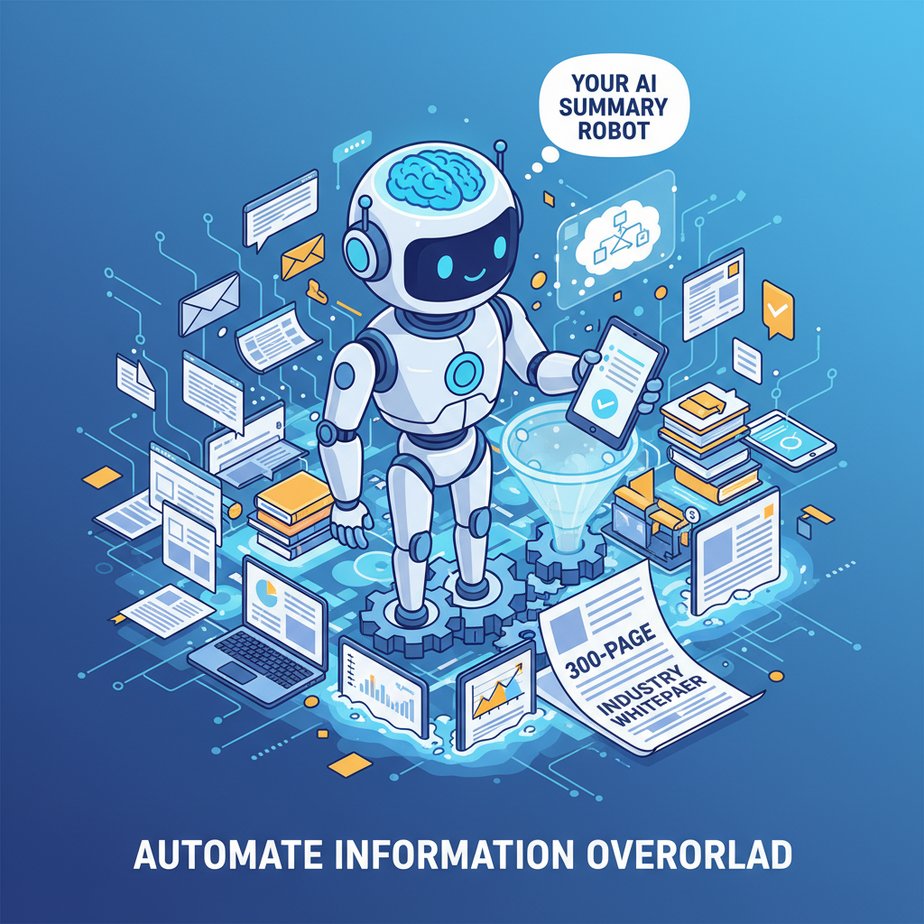
What if I told you that you could clone that intern, give him infinite stamina, make him work 24/7 without coffee breaks, and he’d do it all for pennies? And he’d never even complain about the infinite scroll? Welcome to your first day as a benevolent robot overlord. Today, we’re building your personal AI summary robot.
Why This Matters
This isn’t about firing interns (unless you want to, I won’t judge). This is about reclaiming your most precious resource: time. And sanity.
- Time Savings: Imagine cutting down hours of reading into minutes of understanding. What would you do with those extra hours? Focus on strategy? Spend time with your actual human family? Finally learn to play the ukulele?
- Information Advantage: Stay on top of industry trends, competitor moves, and client needs without feeling overwhelmed. Make faster, better-informed decisions.
- Content Fuel: For content creators, this is pure gold. Quickly distill competitor articles, research papers, or long-form interviews into actionable insights for blog posts, social media updates, or video scripts.
- Scalability: You can process ten articles or a hundred. The robot doesn’t get tired. It scales with your ambition, not your caffeine intake.
In short, this replaces the soul-crushing manual work of information digestion with an automated, hyper-efficient system. It turns chaos into clarity, and effort into effortless insight.
What This Tool / Workflow Actually Is
At its core, this workflow uses two main components:
- A Large Language Model (LLM) like OpenAI’s GPT: Think of GPT as our super-smart, highly educated intern. You feed it a massive block of text, give it some instructions (like ‘summarize this’), and it spits out a concise version. It’s incredibly good at understanding context and rephrasing complex ideas simply.
- A No-Code Automation Platform (e.g., Make.com, Zapier): This is our workflow manager, the little project manager robot that connects everything. It’s like the nervous administrative assistant who makes sure the super-smart intern (GPT) gets the right documents and puts the summaries in the right place. It watches for new information (e.g., a new article link), grabs the text, sends it to GPT, and then takes the summary and puts it wherever you need it (a Google Sheet, an email, a Slack channel, etc.).
What it does NOT do: It won’t read your mind, it won’t invent facts, and it won’t replace critical human analysis entirely. It’s a powerful *assistant*, not a replacement for your brain. You still need to review the output, especially for critical decisions.
Prerequisites
Brutally honest, right? Here’s what you need:
- A Computer and Internet Access: (Shocking, I know.)
- An OpenAI Account and API Key: You’ll need to sign up for OpenAI and generate an API key. This is how our automation platform talks to GPT. It costs a few cents per summary, usually. Sign up here.
- A Make.com Account (Free Tier is Fine): This is our no-code platform of choice for today. It’s powerful and visually intuitive. Sign up here. (Zapier works similarly if you prefer that.)
- A Google Account: We’ll use Google Sheets as our input/output today, which is free.
Nervous about API keys? Don’t be. I’ll walk you through it. It’s just a digital password for your robots to use. No coding experience is needed for this entire setup. If you can click buttons and copy-paste, you’re golden.
Step-by-Step Tutorial
Let’s get our hands dirty (metaphorically, of course – no actual grease involved, unless you’re eating snacks while you work). We’re going to build a simple scenario in Make.com that takes an article URL, extracts its text, summarizes it with GPT, and then puts the summary into a Google Sheet.
1. Get Your OpenAI API Key
- Go to platform.openai.com and sign up or log in.
- Once logged in, navigate to the API Keys section: platform.openai.com/api-keys.
- Click "+ Create new secret key".
- Give it a name (e.g., "Make.com Summary Robot") and click "Create secret key".
- IMMEDIATELY COPY THIS KEY. You won’t be able to see it again. Treat it like a password. Save it somewhere secure for now (like a temporary text file, but delete it after you’ve used it in Make.com).
2. Prepare Your Google Sheet
Create a new Google Sheet. Name it "Article Summaries" or something similar. In the first row, create these column headers:
Article URL
Raw Article Text
AI Summary
Key Takeaways
3. Create a New Scenario in Make.com
- Log in to Make.com.
- Click "+ Create a new scenario" on your dashboard.
- Click the large "+" button in the center to add your first module.
4. Set Up the Google Sheets Trigger (Our Input)
- Search for "Google Sheets" and select it.
- Choose the trigger module: "Watch New Rows". This tells Make.com to look for new entries in our sheet.
- Click "Create a hook" to connect your Google account. Follow the prompts to sign in and grant permissions.
- Once connected, select your "Article Summaries" Spreadsheet.
- Select the correct Sheet Name (usually "Sheet1").
- Set "Trigger column" to "Article URL". This means Make.com will trigger when a new URL is added.
- Set "Max number of retrieved rows" to 1 (we want to process one article at a time).
- Click "OK".
- Right-click the Google Sheets module, select "Run this module only", and then add an article URL to your sheet in the "Article URL" column (e.g.,
https://www.theverge.com/23971954/openai-safety-superalignment-superintelligence-ai-risk). Click "OK" when prompted to choose where to start. This will pull in that first row as test data.
5. Extract Article Content (Our Web Scraper Robot)
GPT needs the actual text, not just the URL. We use an HTTP module for this.
- Click the half-moon icon next to the Google Sheets module to add another module.
- Search for "HTTP" and select it.
- Choose the action module: "Get a file".
- In the URL field, click the field to open the mapping panel. Select the "Article URL" item from your Google Sheets module. This passes the URL from the sheet to the HTTP module.
- Click "OK".
- Run this module only (right-click -> "Run this module only") to ensure it fetches the content. You should see `data` output containing the HTML.
6. Summarize with OpenAI (Our Super-Smart Intern)
- Click the half-moon icon next to the HTTP module to add another module.
- Search for "OpenAI" and select it.
- Choose the action module: "Create a Completion" (for older GPT models) or "Create a Chat Completion" (for newer models like GPT-3.5-turbo or GPT-4). Let’s go with "Create a Chat Completion" as it’s more flexible.
- Click "Add" next to "Connection". Name your connection (e.g., "My OpenAI Connection"). Paste your OpenAI API Key you saved earlier into the "API Key" field. Click "Save".
- Model: Select a model like
gpt-3.5-turboorgpt-4(GPT-4 is better but more expensive). - Messages: This is where you "talk" to GPT. We’ll add two messages:
- Message 1 (Role: System): Think of this as giving instructions to a new intern.
- Message 2 (Role: User): This is the actual text we want GPT to process.
- Temperature: Set this to
0.7for a good balance between creativity and accuracy. (Lower is more factual, higher is more creative.) - Click "OK".
- Run this module only (right-click -> "Run this module only"). Cross your fingers! You should see the summary and key takeaways in the output.
You are an expert summarizer. Your task is to read the provided article content and generate a concise summary and 3-5 key takeaways. The summary should be no more than 150 words. The key takeaways should be bullet points.Summarize the following article:
Article Content:
{{1.data}}In the "Article Content" part, click into the field and map the data output from the HTTP module (it will be labeled something like 1.data, where 1 is the module number for HTTP). This injects the raw article text.
7. Update Google Sheets (Our Output Robot)
Now we need to put the summary back into our sheet.
- Click the half-moon icon next to the OpenAI module.
- Search for "Google Sheets" and select it again.
- Choose the action module: "Update a Row".
- Select your Google Connection, Spreadsheet, and Sheet Name again.
- Row Number: Map this to the
Row Numberoutput from your initial Google Sheets trigger module (e.g.,1.rowNumber). This ensures we update the *same* row where the URL came from. - Raw Article Text: Map this to the
dataoutput from the HTTP module (2.data). - AI Summary: Map this to the
choices[]textorchoices[]message[]contentoutput from the OpenAI module (e.g.,3.choices[]message[]content). You might need to parse the response if it contains both summary and takeaways. A simple trick here is to use the `replace` function to split them if you included them in one output. For now, let’s assume OpenAI gives us one block. - Key Takeaways: If your OpenAI prompt specifically generated separate takeaways, map that output here. If not, you might need to refine your OpenAI prompt to output them separately or use a separate "Create a Chat Completion" module for takeaways. For simplicity, let’s assume our current prompt gives us a combined output which we’ll put into "AI Summary" for now.
- Click "OK".
8. Test and Activate!
- Click "Run once" at the bottom left of the Make.com editor.
- Go back to your Google Sheet. Add a new article URL in the "Article URL" column.
- Watch the magic happen! After a few seconds, the "Raw Article Text" and "AI Summary" columns in that new row should populate.
- If it works, click the "ON/OFF" toggle switch at the bottom of the editor to turn your scenario ON. Now it will automatically watch for new rows.
Complete Automation Example
Let’s refine the summary output and separate it, as it’s a common need. Our goal: Read an article, get a summary AND separate key takeaways.
Modified Google Sheet:
Article URL
Raw Article Text
AI Summary
Key Takeaways
Make.com Scenario:
- Google Sheets – Watch New Rows: (Same as before) Trigger column: "Article URL"
- HTTP – Get a file: (Same as before) URL:
{{1.Article URL}} - OpenAI – Create a Chat Completion (Summary):
- Model:
gpt-3.5-turbo - System Message:
You are an expert summarizer. Read the provided article and create a concise summary, no longer than 150 words. Focus on the core message and main arguments. - User Message:
Summarize the following article:

Article Content:
{{2.data}}
- Model:
- OpenAI – Create a Chat Completion (Key Takeaways): (Add a new OpenAI module here)
- Model:
gpt-3.5-turbo - System Message:
You are an expert analyst. Read the provided article and extract 3-5 critical key takeaways in bullet point format. Each takeaway should be a single sentence. - User Message:
Extract key takeaways from the following article:

Article Content:
{{2.data}}
- Model:
- Google Sheets – Update a Row:
- Row Number:
{{1.rowNumber}} - Raw Article Text:
{{2.data}} - AI Summary:
{{3.choices[]message.content}}(Output from first OpenAI module) - Key Takeaways:
{{4.choices[]message.content}}(Output from second OpenAI module)
- Row Number:
This setup sends the article text to GPT twice with different instructions, allowing for tailored outputs. Run it once with a new URL in your sheet, and watch your robot populate both the summary and key takeaways!
Real Business Use Cases (MINIMUM 5)
This isn’t just a neat trick; it’s a productivity superpower for real businesses.
-
Content Marketing Agency
Problem: Staying ahead of industry trends, quickly understanding competitor strategies, and efficiently repurposing long-form content for social media or newsletters.
Solution: Automate an RSS feed of competitor blogs or industry news sites. Each new article is automatically summarized and key takeaways extracted into a Google Sheet or Trello board. Content strategists can then quickly scan hundreds of articles, identifying patterns and generating ideas for their clients without reading every word.
-
E-commerce Store Owner
Problem: Analyzing customer reviews (e.g., from Amazon, Etsy) to find common pain points or popular features, or quickly understanding detailed product specifications from suppliers.
Solution: Feed review data (copy-pasted into a sheet, or pulled via an API if available) into the automation. GPT summarizes hundreds of reviews into common themes. For product specs, links to PDF documents (if convertible to text) or web pages are summarized, highlighting material, dimensions, and unique selling points, saving time when sourcing new inventory.
-
Consultant / Analyst
Problem: Rapidly digesting lengthy client documents, market research reports, or legal texts to prepare for meetings or deliver insights.
Solution: Upload documents to a cloud storage (like Google Drive) with a specific trigger keyword. Our automation picks up the text, summarizes it, and extracts key findings or action items into a report template or a task manager. This means consultants walk into meetings already armed with the core facts, looking like absolute wizards.
-
Real Estate Agent
Problem: Keeping up with local market reports, summarizing complex property disclosures for clients, or extracting key features from new listings quickly.
Solution: An agent adds links to market reports or new listing pages to a sheet. The AI summarizes the key statistics (average price, days on market) or property features (number of beds/baths, unique amenities). This allows the agent to quickly communicate essential information to potential buyers/sellers and stay informed about dynamic market conditions.
-
Educator / Course Creator
Problem: Summarizing academic papers, research articles, or student submissions, or creating concise intros/outros for long video lectures or course modules.
Solution: Instructors can feed academic papers (from URLs or text files) into the system for quick summaries of methodologies and findings. Course creators can take full lecture transcripts, automatically summarize them, and pull out key learning objectives, making it faster to build engaging course material and study guides.
Common Mistakes & Gotchas
Every robot has its quirks. Here’s what beginners often trip over:
- Poor Prompting: "Summarize this" isn’t enough for consistent, high-quality output. Be specific! "Summarize this for a 5th grader," "Summarize for a busy executive, focusing on action items," "Summarize into three bullet points, each under 20 words." The more precise your instructions to GPT, the better the output.
- Forgetting About Context Window Limits: GPT models have a "context window," meaning they can only process so much text at once (like a limited short-term memory). Very long articles might get truncated. For longer documents, you’d need more advanced techniques (like chunking the text) that we’ll cover in a future lesson.
- Over-Trusting the AI: While powerful, AI can "hallucinate" (make up facts) or misinterpret nuance. ALWAYS review critical summaries. It’s a first draft, not infallible truth.
- API Key Exposure: Never hardcode your API key into publicly accessible code or share it. Make.com handles it securely in connections.
- Rate Limits: If you try to process hundreds of articles per minute, OpenAI might temporarily block you. For most small businesses, this isn’t an issue, but be aware when scaling up.
- Handling Different Website Structures: The HTTP "Get a file" module is great, but some websites are complex and might not return clean text or might block automated requests. For advanced web scraping, you might need dedicated tools or more sophisticated parsing.
How This Fits Into a Bigger Automation System
This summary robot is just one cog in a much larger, more powerful machine. Think of it as the tireless researcher that feeds intelligence to other parts of your automated enterprise:
- CRM Integration: Imagine summarizing customer support tickets or recent client meeting notes from your CRM (e.g., HubSpot, Salesforce) before a sales call. Instantly know the client’s history without digging.
- Email Automation: Automatically summarize incoming emails from specific senders (e.g., support, press releases) and push the highlights to a Slack channel for quick team triage.
- Voice Agents / Chatbots: If you have a customer-facing AI agent, it could summarize relevant internal documents on the fly to provide quick, accurate answers to complex queries.
- Multi-Agent Workflows: This summary robot could feed into a "Decision Agent" that then analyzes the summary for sentiment, or a "Drafting Agent" that takes the summary and generates an initial email response or social media post.
- RAG (Retrieval Augmented Generation) Systems: Before generating a response to a complex user query, a RAG system retrieves relevant internal documents. Our summarizer could then quickly distill those retrieved documents into core facts for the final response, ensuring accuracy and conciseness.
This single skill of AI summarization becomes a critical data pre-processing step for almost any advanced AI application.
What to Learn Next
You’ve just built your first intelligent automation! Give yourself a pat on the back. You’ve tamed the information beast and put a robot to work for you.
But what if instead of just *summarizing* existing information, you wanted your AI to *create* new information? Or extract specific entities like names, companies, and dates from unstructured text? Or even analyze the sentiment of a customer review?
Next time, we’ll dive into the art of AI-powered Data Extraction and Content Generation. We’ll teach our robots to pick out precise pieces of information and then use that information to write initial drafts of emails, social media posts, or even product descriptions. Get ready to turn your robot from a diligent summarizer into a creative content assistant. This is just the beginning of building your own automated empire.





