
The Lead That Fell Through the Cracks
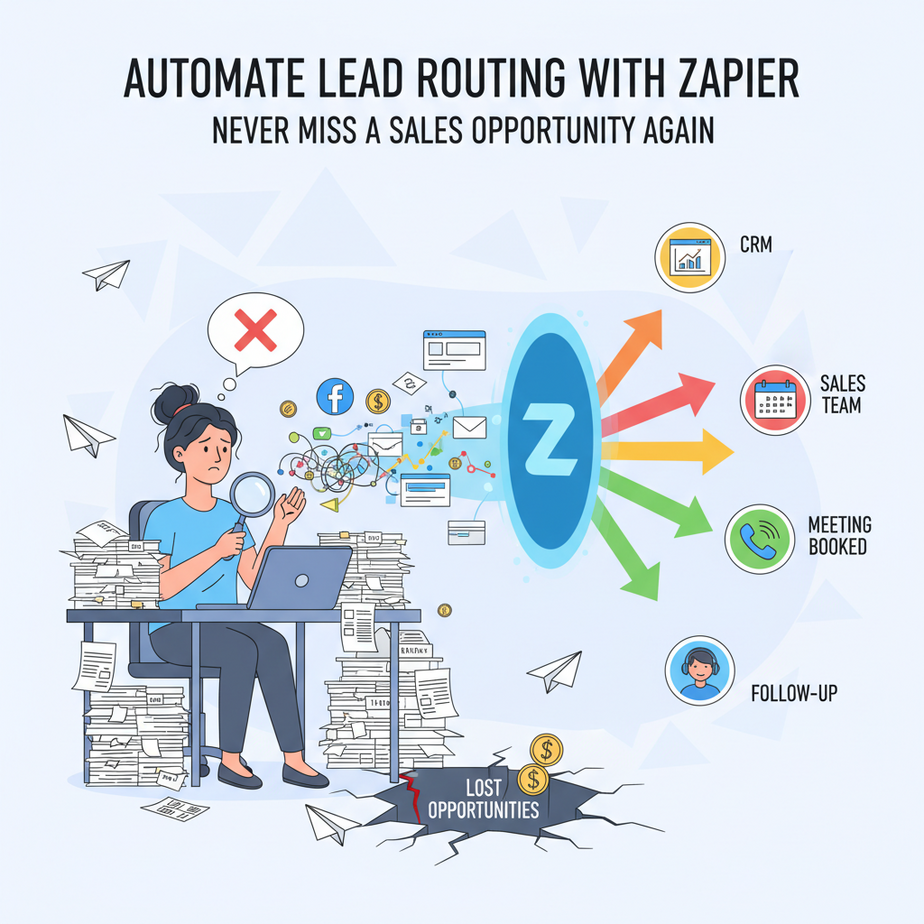
Picture this: Sarah’s marketing agency just spent \$5,000 on Facebook ads. The leads are flooding in. Her inbox has 47 form submissions. She’s manually forwarding them to her three salespeople: Mike in New York, Lisa in LA, and Raj in London. It’s 2 PM. Mike is in a client call. Lisa is at lunch. Raj is asleep. Three qualified leads go cold by the time anyone sees them. That’s not just inefficient—it’s burning cash faster than a fire pit in a silicon valley startup.
Meet your new intern: the Zapier automation. This digital assistant works 24/7, assigns leads instantly based on geography or expertise, and never needs coffee. Today, we’re building this system from scratch. By the end, you’ll have a workflow that routes leads, notifies your team, and logs everything in a spreadsheet—so you can focus on closing deals, not playing email ping-pong.
Why This Matters: Your Leads Are Bleeding Time and Money
Manual lead routing is a silent revenue killer. Here’s what it costs you:
- Time Loss: Every hour spent manually assigning leads is an hour not selling. That’s \$100–\$500 per hour lost for most businesses.
- Scale Ceiling: As you grow, manual routing becomes chaos. 50 leads a day is manageable. 500 leads a day? Nightmare.
- Sanity Drain: Your team doesn’t need another admin task. They need to talk to humans, not emails.
This automation replaces the need for a full-time intern to play traffic cop. It creates a pipeline that routes leads like a factory assembly line—fast, precise, and scalable.
What This Automation Actually Is
What it does: When a lead submits a web form (like from a contact page, landing page, or pricing inquiry), Zapier automatically:
- Grabs the lead’s details (name, email, company, message).
- Assigns them to the right salesperson based on rules (e.g., geography, product interest, company size).
- Sends an email/SMS to the salesperson with the lead info.
- Logs the lead in a Google Sheet for tracking.
What it does NOT do: It doesn’t send follow-up emails, nurture leads, or close deals. It simply hands the baton to the right person in your sales team—fast.
Prerequisites: What You Need to Bring
This is beginner-friendly. You don’t need to code. You just need:
- A Zapier account (free plan works for up to 100 tasks/month).
- A web form tool (Google Forms, Typeform, Wufoo, or a form on your website).
- An email account (Gmail, Outlook, etc.) for notifications.
- A Google Sheet to log leads (optional but recommended).
Don’t have a form? No problem. You can use Google Forms as a stand-in. It’s a 2-minute setup.
Step-by-Step Tutorial: Building Your Lead Router
We’ll create a Zap that triggers from a Google Form and assigns leads based on a “Location” dropdown. You can adapt this to any trigger (Typeform, WordPress form, etc.).
Step 1: Set Up Your Trigger
- Go to Zapier.com and click “Create Zap.”
- Search for “Google Forms” and select “New Response in Spreadsheet.”
- Connect your Google account and select your form. (Create a dummy form first if needed—just fields for Name, Email, Company, and a Location dropdown.)
- Test the trigger. Fill out your form and click “Continue.” Zapier should show the test data.
Step 2: Add a Path for Conditional Routing
We’ll use “Paths” (a Zapier feature) to route leads conditionally.
- Click the “+” under your trigger and add a “Path.”
- Set a rule: Path 1 = If Location equals “New York.”
- Path 2 = If Location equals “Los Angeles.”
- Path 3 = If Location equals “London.”
Pro tip: Always create a “Default Path” for leads that don’t match any condition. Assign them to a general inbox.
Step 3: Configure Each Path
For each path, we’ll send an email notification. Let’s build Path 1 (New York).
- Inside Path 1, click “+” and add “Gmail” (or Outlook) as your app.
- Select “Send Email.”
- Set the “To” field to your salesperson’s email (e.g., mike@yourcompany.com).
- Compose your subject: “New Lead: {{Name}} from {{Company}}”
- Compose your body:
Hi Mike, You have a new lead! Name: {{Name}} Email: {{Email}} Company: {{Company}} Location: {{Location}} Message: {{Message}} Reach out within 1 hour for highest conversion. - Test this step. Zapier will send a test email to your salesperson’s address.
Step 4: Add a Logging Step (Optional but Powerful)
- Click “+” after the Gmail step and add “Google Sheets.”
- Select “Create Row.”
- Choose your spreadsheet (create one with columns: Timestamp, Name, Email, Company, Location, Assigned To).
- Map the columns:
Timestamp → {{Timestamp}} Name → {{Name}} Email → {{Email}} Company → {{Company}} Location → {{Location}} Assigned To → Mike (New York) - Test this step. Check your Google Sheet—a new row should appear.
Step 5: Repeat for Other Paths
Copy the Gmail and Google Sheets steps for each path, updating the recipient email and assigned person. For the Default Path, send to a general inbox (e.g., sales@company.com).
Step 6: Turn on Your Zap
Click “Turn on Zap.” Now, every time someone fills out your form, they’ll be routed automatically.
Complete Automation Example: The 24/7 Sales Assistant
Here’s a real-world setup for a SaaS company selling to enterprise clients:
- Trigger: Form submission from “Book a Demo” page (using Typeform).
- Condition: Routes based on company size (100-500 employees, 500+ employees, or <100 employees).
- Action:
- 100-500 → Email senior salesperson with a personalized message.
- 500+ → Email director + send Slack notification for high-priority leads.
- <100 → Email junior salesperson for smaller deals.
- Logging: All leads go to a shared Google Sheet, tagged by rep and date.
Result? Lead response time drops from 24 hours to 15 minutes. Conversion rate increases by 30% because leads are handled by the right person immediately.
Real Business Use Cases
- Real Estate Agency: Routes inquiries from Zillow/REDfin forms to agents based on property zip code. Each agent gets leads in their territory instantly.
- E-commerce Store: Routes customer service queries from a contact form to either “Returns,” “Shipping,” or “Technical Support” team based on keywords in the message.
- Consulting Firm: Routes proposal requests by industry (e.g., healthcare vs. finance) to specialized consultants. Assigns “Healthcare” leads to the healthcare expert.
- Freelancer (e.g., designer or developer): Routes new client inquiries from a Typeform to “Small Project” or “Large Project” track based on budget range. Automatically books a call via Calendly for large projects.
- Nonprofit Organization: Routes volunteer sign-up forms to local chapter coordinators based on zip code, automatically sending a welcome email and next steps.
Common Mistakes & Gotchas
- Forgetting the Default Path: Always account for every possible condition. If a lead doesn’t match, where does it go? Create a “catch-all” path.
- Over-Engineering Too Soon: Start simple: one condition, one email. Add complexity (like Slack or SMS) only after testing.
- Not Testing with Real Data: A form test with “Test Name” won’t reveal issues. Test with an actual submission to ensure all fields map correctly.
- Zapier Task Limits: On the free plan, you only get 100 tasks/month. Monitor usage! Each form submission = 1 task (plus any actions). Upgrade if needed.
- Missing Data Mapping: If you add a new field to your form, remember to update the Zap to capture it.
How This Fits Into a Bigger Automation System
This lead router is the entry point of your sales automation engine. Here’s how it scales:
- CRM Integration: After assigning the lead in Zapier, add a step to create a contact in HubSpot, Salesforce, or Pipedrive. Now your sales team has all context in one place.
- Multi-Agent Workflow: Chain this Zap to another one: once the salesperson responds, trigger a follow-up sequence via email marketing tools (like Mailchimp or ActiveCampaign).
- Voice Agent Backup: If no response in 1 hour, trigger a voice agent (like Vapi) to call the lead and book a meeting. This creates a “sales safety net.”
- RAG System Enhancement: Log all lead interactions in a vector database. When a salesperson follows up, they can query the entire history: “What did this lead ask about last time?” for personalized outreach.
Your lead router isn’t a standalone trick—it’s the first domino in a chain that automates sales from lead to close.
What to Learn Next
You’ve just built your first business-critical automation. In our next lesson, we’ll expand this: How to Turn This Lead Router into a Full Sales CRM with Automated Follow-ups.
We’ll add:
- Automated follow-up emails if the lead isn’t contacted within 24 hours.
- Integration with calendar booking tools (like Calendly) to schedule meetings instantly.
- Automated win/loss tracking to analyze which lead sources are profitable.
Imagine: Every lead gets a response, a meeting, and a follow-up—without you lifting a finger. That’s not just automation. That’s scaling your sales engine while you sleep.
Now, go enable that Zap. Your leads are waiting.
“,
“seo_tags”: “Zapier automation, lead routing, business automation, sales pipeline, Zapier tutorial, no-code, lead management, business growth”,
“suggested_category”: “AI Automation Courses





