
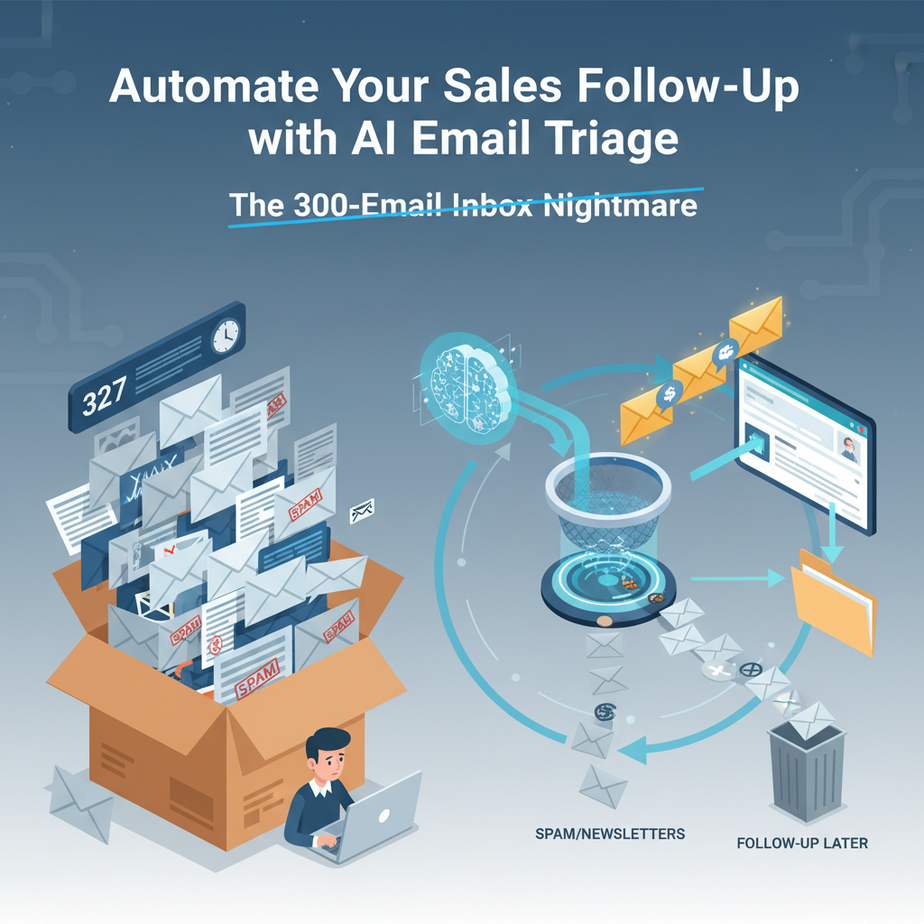
The 300-Email Inbox Nightmare
It’s 9 AM. You open your inbox. The count: 327 unread emails. Scrolling, you find five legitimate sales inquiries buried under newsletters, spam, and that one colleague who CC’s the entire universe. By the time you manually sort and reply, it’s 10 AM. The hot lead from yesterday already moved on. This isn’t email management; it’s digital whack-a-mole.
Why This Matters: From Chaos to System
A manual inbox is a business liability. Every email you miss is a missed revenue opportunity. Every slow reply signals disorganization. An AI triage system acts like a professional sales assistant who:
- Sorts instantly: Knows the difference between “Urgent: Pricing Question” and “Weekly Newsletter #42”.
- Prioritizes ruthlessly: Flags high-intent leads (like “Can we implement this next week?”) while shelving low-priority ones.
- Automates the first touch: Drafts a professional, personalized response before you even touch the keyboard.
It replaces the mental energy of triage with a simple, actionable dashboard.
What This Automation Actually Is
It IS: An AI workflow that fetches new emails, analyzes their content and intent, and returns a structured report with a draft response.
It IS NOT: A magic black box. It doesn’t send emails autonomously (we control that). It doesn’t replace human conversation for closing deals. It’s the ultimate filter and first draft engine.
Prerequisites: No Excuses
If you can browse the web and copy-paste code, you can do this. We’ll use:
- A Gmail Account: Any account with a few sales emails.
- Google Apps Script: Free, built into Google Workspace, runs our code.
- OpenAI API Key: You’ll need an account (free tier works) and a secret key from OpenAI’s dashboard.
That’s it. No servers, no cloud platforms, no complex deployments.
Step-by-Step Tutorial: Build Your AI Email Intern
Step 1: Set Up Your Google Apps Script Project
- Go to script.google.com.
- Click “New Project.” Rename it “Sales Email Triage AI.”
- On the left menu, click the “+” next to “Services” and add “Gmail API.”
Step 2: Create Your First Function
Delete the default code and paste this. This is our first draft—it will test fetching a recent email.
function testEmailFetch() {
  // Get the most recent 5 emails from your inbox
  const threads = GmailApp.search('in:inbox is:unread', 0, 5);

  // Loop through each thread
  threads.forEach(thread => {
    const messages = thread.getMessages();
    const message = messages[0]; // Get the latest message in the thread

    console.log('--- Email Subject ---');
    console.log(message.getSubject());
    console.log('--- From ---');
    console.log(message.getFrom());
    console.log('--- Body (First 500 chars) ---');
    console.log(message.getPlainBody().substring(0, 500));
  });
}
Why this step? It verifies you can read email data. Run the function by clicking the play button (▶). Check the “Execution” logs. If you see your email details, you’re golden.
Step 3: Add the AI Brain (OpenAI Integration)
Now we add the intelligence. We’ll send the email text to GPT-4o and ask it to classify intent and draft a response. First, get your OpenAI API key.
// Add this above your function. NEVER share this key publicly.
const OPENAI_API_KEY = 'sk-proj-xxxxxxxxxxxxxxxxxxxxxxxxxxxxx'; // PASTE YOUR KEY HERE

function classifyEmailWithAI(emailText, subject, sender) {
  const prompt = `
    You are a sales assistant. Analyze this sales inquiry.

    Email Subject: ${subject}
    From: ${sender}

    Email Body:
    ${emailText}

    Provide a JSON response with these fields:
    - "urgency": "High", "Medium", or "Low"
    - "intent": "Pricing Question", "Demo Request", "Technical Support", "Generic Inquiry"
    - "draft_reply": A professional, concise email response (max 150 words). Use the sender's name if available.
    - "next_action": "Schedule a call", "Send pricing sheet", "Ask clarifying questions", "Nurture"

    Output ONLY the valid JSON, no extra text.
  `;

  const url = 'https://api.openai.com/v1/chat/completions';
  const payload = {
    model: 'gpt-4o-mini', // Use gpt-4o-mini for cost-efficiency
    messages: [{ role: 'user', content: prompt }],
    temperature: 0.3,
    response_format: { type: 'json_object' }
  };

  const options = {
    method: 'post',
    headers: {
      'Authorization': 'Bearer ' + OPENAI_API_KEY,
      'Content-Type': 'application/json'
    },
    payload: JSON.stringify(payload)
  };

  try {
    const response = UrlFetchApp.fetch(url, options);
    const result = JSON.parse(response.getContentText());
    const aiResponse = JSON.parse(result.choices[0].message.content);
    return aiResponse;
  } catch (error) {
    console.error('AI Error:', error);
    return null;
  }
}

// Update testEmailFetch to use AI
function testEmailFetchWithAI() {
  const threads = GmailApp.search('in:inbox is:unread', 0, 3);

  threads.forEach(thread => {
    const messages = thread.getMessages();
    const message = messages[0];
    const subject = message.getSubject();
    const sender = message.getFrom();
    const body = message.getPlainBody().substring(0, 1000); // Limit for API

    const analysis = classifyEmailWithAI(body, subject, sender);
    console.log('--- Email Analysis ---');
    console.log(JSON.stringify(analysis, null, 2));
  });
}
Step 4: Build the Full Triage Dashboard
Let’s create a function that processes all unread emails and logs the results to a spreadsheet or even a sidebar UI.
function processInboxWithAI() {
  // Get all unread emails in a specific label (create a "Sales Inbox" label if needed)
  const threads = GmailApp.search('in:inbox is:unread', 0, 20);
  const results = [];

  for (let i = 0; i < threads.length; i++) {
    const thread = threads[i];
    const messages = thread.getMessages();
    const message = messages[0];

    // Skip very long or automated messages
    if (message.getPlainBody().length < 50) continue;

    const analysis = classifyEmailWithAI(
      message.getPlainBody().substring(0, 2000),
      message.getSubject(),
      message.getFrom()
    );

    if (analysis) {
      // Mark as read after processing
      thread.markRead();

      // Add to our results array
      results.push({
        subject: message.getSubject(),
        from: message.getFrom(),
        urgency: analysis.urgency,
        intent: analysis.intent,
        draftReply: analysis.draft_reply,
        nextAction: analysis.next_action
      });
    }
  }

  // Log results to Google Sheets
  if (results.length > 0) {
    const ss = SpreadsheetApp.openById('YOUR_SPREADSHEET_ID'); // Replace with your Sheet ID
    const sheet = ss.getSheetByName('Inbox_Triage') || ss.insertSheet('Inbox_Triage');

    // Clear and write headers
    sheet.clear();
    sheet.appendRow(['Time', 'From', 'Subject', 'Urgency', 'Intent', 'Next Action', 'Draft Reply']);

    // Write data
    results.forEach(row => {
      sheet.appendRow([
        new Date(),
        row.from,
        row.subject,
        row.urgency,
        row.intent,
        row.nextAction,
        row.draftReply
      ]);
    });

    console.log(`Processed ${results.length} emails. Dashboard updated.`);
  }
}
Complete Automation Example: From Inbox to Action
Imagine this workflow running every 30 minutes:
- New Lead Email Arrives: “Hi, we need to implement a document search system for our 10-person team. What’s your pricing and availability for a call this week?”
- AI Reads It Instantly: The script is triggered by a time-driven trigger (e.g., every 30 min).
- Analysis & Triage: AI tags it as: Urgency: High, Intent: Demo Request + Pricing, Next Action: Schedule a call.
4. Drafts a Reply: “Hi John, Thanks for reaching out. I’d be happy to discuss your document search needs and schedule a demo this week. Are you available for a 15-minute call on Tuesday or Wednesday afternoon? Best, [Your Name]”
5. Dashboard Update: The data is logged to your Google Sheet. You see it flagged as “High Urgency.” You click a link to schedule the call directly from the sheet. The email thread is marked read.
Result: You spend 2 minutes instead of 20, and the lead feels an instant, professional response.
Real Business Use Cases
- Freelance Web Developer: Fielding dozens of “How much for a website?” emails. The AI automatically drafts a reply asking for project specs and links to your portfolio, while flagging complex projects as “High” for manual follow-up.
- Consulting Firm: Managing inbound requests. The system categorizes leads by budget (from email content clues) and urgency, drafting responses to either book an intro call or send a proposal PDF.
- E-commerce Customer Support: Triaging support emails. “Where’s my order?” gets an auto-draft with a tracking link. “Product is broken” gets escalated to a human ticket.
- Real Estate Agent: Parsing inquiries from listings. “Interested in 123 Main St.” gets a draft with property details and available viewing times. “What are the taxes?” gets a draft with a link to the county assessor.
- Startup Founder: Filtering investor pitches. The AI can identify cold emails and draft a polite pass, while flagging emails from known VCs for immediate personal attention.
Common Mistakes & Gotchas
- API Key Exposure: NEVER paste your API key publicly or share your script file. If you do, go to OpenAI and rotate the key immediately.
- Over-Processing Costs: Running this on every single email (including newsletters) will burn through your API budget. Start by filtering only emails with specific labels or from unknown senders.
- Drafts Need a Human Review: Never auto-send. Use the drafts as a starting point. Always read and tweak.
- Gmail Rate Limits: Google Apps Script has daily quotas. For high volume, you may need to batch processes or use a paid Workspace account.
- PII Privacy: Be cautious with sensitive data. For compliance, consider redacting parts of the email before sending to an external API like OpenAI.
How This Fits Into a Bigger Automation System
This email triage is the front door of your sales automation pipeline. Here’s how it connects:
- CRM Integration: Instead of just logging to Sheets, push the “High Urgency” lead and draft reply directly into your CRM (HubSpot, Salesforce) using their API.
- Calendar Sync: For “Demo Request” intents, the next automation step could be checking your calendar availability and offering specific slots.
- Voice Agent Handoff: If a lead replies “Yes, I’m available Tuesday,” this could trigger a calendar booking event, then notify a voice AI to call and confirm the appointment.
- Multi-Agent Workflow: Imagine a system where this triage agent hands off to a “Pricing Agent” that pulls real-time pricing data from your database and appends it to the draft reply.
- RAG System Enhancement: The AI can query your knowledge base (via RAG) to answer specific technical questions in the draft reply, making it hyper-accurate.
What to Learn Next
You’ve just built the sensory system for your business. It sees, it thinks, it prioritizes. But a triage system is only as good as what happens next. In our next lesson, we’ll connect this to your calendar and build an AI that schedules the meeting for you.
We’re building a full AI sales team, one lesson at a time. Your homework? Run the `testEmailFetchWithAI()` function right now and see the analysis on your own emails. Notice the patterns. See the potential.
The chaos is ending. The system is beginning.
“,
“seo_tags”: “AI Automation, Email Automation, Sales Process, Google Apps Script, OpenAI, Business Productivity”,
“suggested_category”: “AI Automation Courses





