
the shot
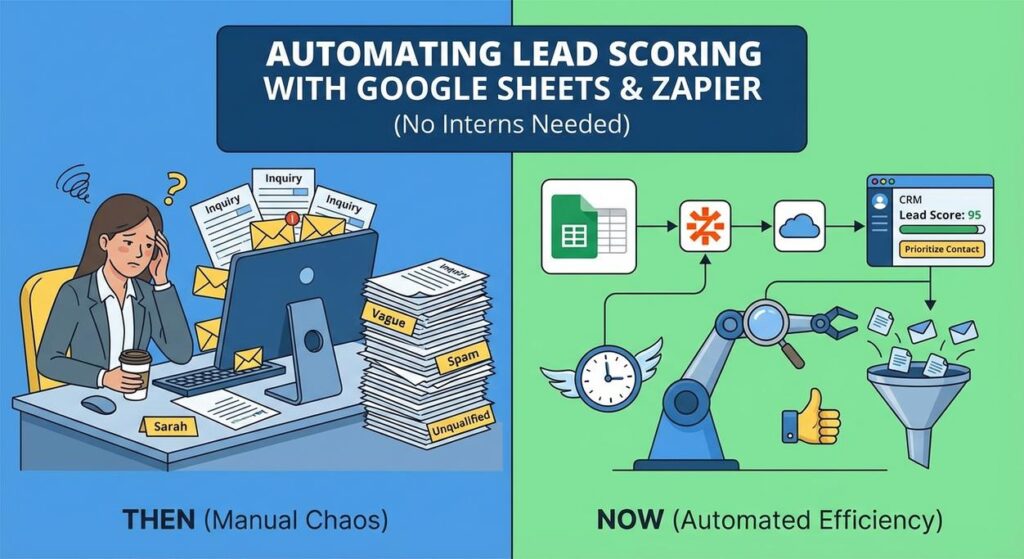
Picture this: It’s Monday morning, and Sarah, your top salesperson, stares at her inbox. Another 50 ‘inquiry’ forms have landed from the weekend. Most are vague, some are spam, and a precious few are actually gold. Her mission? To manually sort through this digital hayfield, find the needles, and then maybe, just maybe, start selling by lunchtime.
Meanwhile, Gary, the perpetually overworked intern, is hunched over a spreadsheet, copy-pasting answers, trying to remember if ‘just curious’ means ‘worth a call’ or ‘send to the spam abyss’. He’s muttering something about a ‘budget’ field, a ‘timeline’ field, and the sheer audacity of people who fill out forms with ‘N/A’. The whole process is slower than dial-up internet and about as accurate as a dart throw in the dark.
This isn’t just a waste of time; it’s a drain on morale, a bottleneck in your sales pipeline, and frankly, an insult to anyone who actually wants to buy something from you. Imagine if Sarah only got leads that were *actually* worth her time. Imagine if Gary could focus on something more valuable than being a human filter.
Why This Matters
This isn’t about firing Gary (unless he really likes filtering, which is unlikely). This is about giving Sarah her superpowers back and freeing up your team to do what they do best: building relationships and closing deals. Manual lead qualification is the digital equivalent of sifting flour with your bare hands – messy, inefficient, and you’re bound to miss something crucial.
Automating lead scoring means:
- Massive Time Savings: Your sales team spends less time on tire-kickers and more time on high-potential prospects.
- Higher Conversion Rates: By focusing on the right leads, your sales team’s efforts become more targeted and effective.
- Scalability: Handle hundreds, even thousands, of leads without drowning in manual labor. Your business can grow without your qualification process breaking.
- Consistency: No more subjective ‘gut feelings.’ Every lead gets evaluated against the same, objective criteria.
- Happier Humans: Your sales team isn’t frustrated, and Gary isn’t contemplating a career in competitive cheese rolling.
This replaces the tedious, error-prone work of manual data entry and subjective judgment, upgrading it into a precise, always-on qualification machine.
What This Tool / Workflow Actually Is
We’re building a digital filter for your leads. Think of it as a bouncer at the VIP section of your business, politely redirecting the casual browsers while rolling out the red carpet for the serious players.
Here’s the lowdown:
- Google Sheets: This is our brain and our database. It’s where we store all the lead data, define our scoring rules with simple formulas, and calculate each lead’s potential. It’s surprisingly powerful for this kind of logic.
- Zapier: This is our digital messenger and task-master. Zapier acts as the glue, connecting your lead source (e.g., a website form) to Google Sheets. It’ll grab new lead data, shove it into your sheet, and then, crucially, watch for changes in the sheet to trigger the next action for a qualified lead.
What it does: It automatically captures new leads, evaluates them based on criteria you define (like budget, role, urgency), assigns a score, and then categorizes them (e.g., Hot, Warm, Cold). Most importantly, it can then automatically trigger follow-up actions based on that score.
What it does NOT do: This isn’t a replacement for human sales strategy, a crystal ball for predicting the future, or a magical AI that reads minds. It’s a structured, rules-based system designed to automate the initial qualification process, giving your humans a huge head start.
Prerequisites
Relax, this isn’t rocket science. If you can click buttons and understand basic concepts, you’re golden. Here’s what you’ll need:
- A Google Account: You’ll need this for Google Sheets. If you have Gmail, you’re already set.
- A Zapier Account: The free tier is usually sufficient to get started with basic automations. You can always upgrade if you need more tasks or advanced features.
- A Lead Source: This could be a Google Form, a Typeform, a contact form on your website (as long as it connects to Zapier), or even a basic spreadsheet where you manually drop leads for now.
- Your Brain: Specifically, a clear idea of what constitutes a ‘good’ lead for your specific business. What questions should you ask? What answers indicate intent, budget, and authority? This is the most critical prerequisite!
Don’t worry about complex formulas; I’ll give you the exact ones you need. We’re going to make this as copy-paste-friendly as possible.
Step-by-Step Tutorial
Alright, let’s build our lead-scoring robot!
Step 1: Define Your Lead Scoring Criteria
Before touching any tools, sit down and identify what makes a lead valuable to you. What questions on your form provide insights into budget, authority, need, and timeline?
For example, let’s say you’re a consulting agency. Your criteria might be:
- Budget: ($500-1k = 1pt, $1k-5k = 3pts, $5k+ = 5pts)
- Role: (Student = 0pts, Manager = 2pts, Owner/Director = 4pts)
- Urgency: (Just exploring = 0pts, Within 3-6 months = 1pt, Within 1 month = 3pts)
Write these down. This is your blueprint.
Step 2: Set Up Your Google Sheet
Create a new Google Sheet. Rename the tab to ‘Leads’.
Set up your columns. You’ll need columns for all the data you collect from your lead source, plus some new ones for scoring:
- Lead Data Columns: Match these to your form fields (e.g., `Timestamp`, `Name`, `Email`, `Company`, `Role`, `Budget`, `Urgency`).
- Scoring Columns: Create a column for each scoring criterion (e.g., `Role Score`, `Budget Score`, `Urgency Score`).
- Total Score: A column to sum all individual scores (e.g., `Total Score`).
- Qualification Status: A column to categorize the lead based on its total score (e.g., `Status`).
Here’s what your header row might look like:
Timestamp | Name | Email | Company | Role | Budget | Urgency | Role Score | Budget Score | Urgency Score | Total Score | StatusStep 3: Add Your Scoring Formulas to Google Sheet
This is where the magic happens. We’ll use simple `IF` statements. Start with row 2 (assuming row 1 is your headers).
Let’s use our example criteria from Step 1. Assume `Role` is in column E, `Budget` in F, `Urgency` in G.
a. Role Score (Column H2):
=IF(E2="Owner/Director",4,IF(E2="Manager",2,IF(E2="Student",0,0)))Explanation: If cell E2 contains ‘Owner/Director’, assign 4 points. Else, if E2 contains ‘Manager’, assign 2 points. Else, if E2 contains ‘Student’, assign 0 points. Otherwise (for anything else, like blank or unknown), assign 0 points.
b. Budget Score (Column I2):
=IF(F2="$5k+",5,IF(F2="$1k-5k",3,IF(F2="$500-1k",1,0)))Explanation: Similar logic for budget ranges.
c. Urgency Score (Column J2):
=IF(G2="Within 1 month",3,IF(G2="Within 3-6 months",1,IF(G2="Just exploring",0,0)))Explanation: And for urgency.
d. Total Score (Column K2):
=SUM(H2:J2)Explanation: Simple sum of all individual scores for the row.
e. Qualification Status (Column L2):
Now, let’s define thresholds for ‘Hot’, ‘Warm’, ‘Cold’. Let’s say:
- Hot: Total Score >= 7
- Warm: Total Score >= 3 and < 7
- Cold: Total Score < 3
=IF(K2>=7,"Hot",IF(K2>=3,"Warm","Cold"))Explanation: If Total Score is 7 or more, it’s ‘Hot’. Else, if it’s 3 or more (but less than 7), it’s ‘Warm’. Otherwise, it’s ‘Cold’.
Apply Formulas Down: Once you’ve entered these formulas in row 2, click the small blue square at the bottom-right corner of each cell and drag it down to apply the formula to subsequent rows. Or, simply copy-paste them down to a few hundred rows to be ready.
Step 4: Connect Lead Source to Google Sheet via Zapier
- Log in to Zapier: Go to Zapier.com and click ‘Make a Zap’.
- Trigger: New Lead (e.g., Google Forms)
- App & Event: Search for your lead source (e.g., ‘Google Forms’). Select ‘New Form Response’.
- Account: Connect your Google Account.
- Trigger: Select the specific Google Form that collects your leads.
- Test Trigger: Submit a test response to your form, then click ‘Test trigger’ in Zapier to pull in sample data.
- Action: Add Row to Google Sheet
- App & Event: Search for ‘Google Sheets’. Select ‘Create Spreadsheet Row’.
- Account: Connect the same Google Account you used for Sheets.
- Action: Select your ‘Lead Scoring Workbook’ and the ‘Leads’ worksheet.
- Set up action: Map the fields from your Google Form to the corresponding columns in your Google Sheet (Timestamp to Timestamp, Name to Name, etc.). Importantly, do NOT map anything to your scoring columns (H, I, J, K, L). Those are generated by formulas in Sheets.
- Test Action: Run a test. Go to your Google Sheet and verify that a new row appeared with the test data, and crucially, that your scoring columns (H-L) automatically calculated their values!
- Turn on your Zap! Give it a descriptive name and flip the switch.
Step 5: (Optional but Highly Recommended) Trigger Actions Based on Qualification Status
This is where automation gets really powerful. Instead of just scoring, let’s *do something* with those ‘Hot’ leads.
- Create a New Zap: Back in Zapier, ‘Make a Zap’.
- Trigger: Google Sheets – New or Updated Row
- App & Event: Search for ‘Google Sheets’. Select ‘New or Updated Spreadsheet Row’. (We’re using this instead of ‘New Row’ because we want to trigger *after* the formulas have run and potentially updated the ‘Status’ column).
- Account: Connect your Google Account.
- Trigger: Select your ‘Lead Scoring Workbook’ and the ‘Leads’ worksheet. For ‘Trigger Column’, select the ‘Status’ column (L). This means Zapier will watch for changes specifically in the qualification status.
- Test Trigger: Make a manual change to a `Status` cell in your sheet (e.g., type ‘Hot’ in L2), then test the trigger in Zapier.
- Filter: Only Continue if Status is ‘Hot’
- App & Event: Search for ‘Filter’.
- Filter: Set the condition to `Status (Text) Contains Hot`.
- Test Filter: Test with your sample data. It should only pass if the status is ‘Hot’.
- Action: Notify Sales Team (e.g., Email or Slack)
- App & Event: Search for ‘Email by Zapier’ (for a quick email) or ‘Slack’ (if your sales team uses it). Select ‘Send Outbound Email’ or ‘Send Channel Message’.
- Account: Connect your Email or Slack account.
- Action: Craft a message to your sales team. Include all the relevant lead details from your Google Sheet!
To: sales@yourcompany.com Subject: NEW HOT LEAD: {{2.Name}} from {{2.Company}} Body: Hey team, We've got a new Hot Lead who just scored high on our qualification matrix! Name: {{2.Name}} Email: {{2.Email}} Company: {{2.Company}} Role: {{2.Role}} Budget: {{2.Budget}} Urgency: {{2.Urgency}} Total Score: {{2.Total Score}} Status: {{2.Status}} Get on it! This one looks promising. Cheers, Your Automation Robot (Professor Ajay's creation) - Test Action: Send a test notification.
- Turn on your Zap! Give it a descriptive name.
Complete Automation Example
Let’s tie it all together with a practical scenario: A small SaaS company that offers a project management tool. They get demo requests via a form on their website.
The Goal: Instantly identify high-potential companies for a personalized demo scheduling, and send low-potential leads to a self-service resource center.
1. Lead Source: Typeform Demo Request
The form asks:
- Your Name
- Your Email
- Company Name
- Company Size (1-10, 11-50, 51-200, 201+)
- Your Role (Intern, Team Member, Manager, Director, C-level)
- What’s your biggest project management challenge? (Free text)
2. Google Sheet Setup (‘Demo Leads’ Tab)
Timestamp | Name | Email | Company | Company Size | Role | Challenge | Company Size Score | Role Score | Total Score | Status3. Google Sheet Formulas (Row 2)
Company Size Score (Column H2):
=IF(E2="201+",5,IF(E2="51-200",3,IF(E2="11-50",2,IF(E2="1-10",1,0))))Role Score (Column I2):
=IF(F2="C-level",5,IF(F2="Director",4,IF(F2="Manager",2,IF(F2="Team Member",1,0))))Total Score (Column J2):
=SUM(H2:I2)Status (Column K2):
=IF(J2>=8,"Hot - Urgent Call",IF(J2>=4,"Warm - Nurture Sequence","Cold - Resources"))4. Zapier Workflow 1: Typeform to Google Sheets
- Trigger: Typeform -> New Entry -> Select ‘Demo Request Form’.
- Action: Google Sheets -> Create Spreadsheet Row -> Select ‘Demo Leads’ Sheet.
- Map Typeform ‘Name’ to Sheet ‘Name’, ‘Email’ to ‘Email’, etc.
- Crucially, leave ‘Company Size Score’, ‘Role Score’, ‘Total Score’, ‘Status’ unmapped. These will be populated by your sheet formulas.
5. Zapier Workflow 2: Google Sheets to Sales/Marketing Actions
- Trigger: Google Sheets -> New or Updated Spreadsheet Row -> Select ‘Demo Leads’ Sheet, Trigger Column: ‘Status’ (K).
- Filter 1: (Path A) Hot – Urgent Call
- Filter only if `Status` (Text) `Contains` `Hot`.
- Action: Slack -> Send Channel Message (to #sales-hot-leads channel) with all lead details and a call to action.
- Action: Gmail -> Send Email (to specific sales rep, personalized).
- Action: Google Calendar -> Create Event (for immediate follow-up by a specific rep).
- Filter 2: (Path B) Warm – Nurture Sequence
- Filter only if `Status` (Text) `Contains` `Warm`.
- Action: Mailchimp/ActiveCampaign -> Add Subscriber to List/Tag -> Add lead to ‘Warm Leads – Demo Follow Up’ list/tag, triggering an automated email sequence.
- Filter 3: (Path C) Cold – Resources
- Filter only if `Status` (Text) `Contains` `Cold`.
- Action: Mailchimp/ActiveCampaign -> Add Subscriber to List/Tag -> Add lead to ‘General Resources’ list, sending a generic welcome email with links to help docs and FAQs.
Now, every demo request is automatically scored and routed to the correct sales or marketing action without a single human touch. Sarah only sees the “Hot” leads, and Gary can go back to… whatever interns do.
Real Business Use Cases
This same simple, powerful automation can be adapted for almost any business:
-
SaaS Company (Onboarding/Support Qualification)
Problem: Overwhelmed support team with requests from both free users and enterprise clients, all mixed together. Enterprise clients need VIP treatment.
Solution: When a support ticket comes in via a form (e.g., Zendesk, Intercom), use a Zapier connection to pull user data (plan type, company size, feature usage) into a Google Sheet. Score based on ‘plan type’ (Free = 1pt, Pro = 3pts, Enterprise = 5pts) or ‘impact level’. ‘Hot’ tickets (Enterprise plan, high impact) automatically trigger a Slack notification to a dedicated enterprise support channel and get flagged in the CRM for immediate attention. Lower-scoring tickets get routed to the general queue or an AI chatbot for initial triage.
-
Consulting or Agency (Project Proposal Qualification)
Problem: Too much time spent preparing proposals for clients who aren’t serious or don’t have the budget. Leads are scattered across various intake forms.
Solution: Centralize all initial project inquiry forms (website, LinkedIn, email parsed by Zapier) into a Google Sheet. Score leads based on answers to questions like ‘Estimated Budget Range’, ‘Project Deadline’, ‘Specific Goals’, ‘Referral Source’. High-scoring leads automatically get a ‘Proposal Call Scheduled’ task in your project management tool (e.g., Asana, Trello) and a personalized email template sent for a follow-up. Low-scoring leads receive an automated email with links to case studies or a standard pricing guide.
-
Real Estate Agent (Property Inquiry Prioritization)
Problem: Receiving hundreds of inquiries for properties, many from casual browsers, making it hard to prioritize serious buyers/renters.
Solution: For every property inquiry form submission (Zillow, custom website form), pull data into a Google Sheet. Score based on ‘Desired Price Range’, ‘Move-in Date’, ‘Pre-qualified for Loan’, ‘Specific Features Desired’. ‘Hot’ leads (pre-qualified, specific needs, urgent timeline) trigger an immediate SMS alert to the agent and are added to a ‘Priority Call List’ in a CRM like HubSpot. ‘Warm’ leads get added to a nurture email sequence about new listings. ‘Cold’ leads might receive an automated email with general market info.
-
Online Course Creator / Educator (Student Application Vetting)
Problem: Manual review of applications for advanced, high-ticket courses, which is time-consuming and subjective.
Solution: Use a Google Form for course applications. Pull responses into a Google Sheet. Score based on ‘Prior Experience Level’ (Beginner = 0, Intermediate = 2, Advanced = 4), ‘Specific Goals’, ‘Commitment Level’ (e.g., hours per week). ‘Hot’ applicants (high score, clear goals) automatically get an interview slot booked via Calendly/Zapier and a personalized email. ‘Warm’ applicants receive supplementary materials to prepare for the course, and ‘Cold’ applicants are gently redirected to foundational free resources.
-
E-commerce (B2B Wholesale Account Qualification)
Problem: Many small businesses apply for wholesale accounts, but only larger volume orders are truly profitable to onboard manually.
Solution: Create a ‘Wholesale Application Form’. Data goes to a Google Sheet. Score based on ‘Estimated Monthly Order Volume’, ‘Years in Business’, ‘Type of Business’ (e.g., small boutique vs. national chain). ‘Hot’ applicants (high volume, established business) trigger an email to the B2B sales manager for a personal call and are added to a CRM list. ‘Warm’ applicants receive an automated email with standard wholesale terms and conditions, and ‘Cold’ applicants are directed to the public retail site.
Common Mistakes & Gotchas
Even the simplest automation can bite you if you’re not careful. Here’s what beginners often trip over:
- Over-Complicating Scoring Rules: Don’t try to build the ultimate AI algorithm on day one. Start with 3-5 clear criteria. You can always refine them later. A simple `IF` statement is your friend.
- Garbage In, Garbage Out (GIGO): If your intake form questions are vague, your scoring will be useless. Make your questions clear, ideally with multiple-choice or dropdown options to ensure consistent data for scoring.
- Forgetting to Drag Formulas Down: This is classic. Your first lead gets scored, but then every subsequent lead comes in unscored because you only put the formulas in row 2. Remember to apply them to thousands of rows, or use Google Sheet’s array formulas for dynamic expansion (a bit more advanced, but worth learning later).
- Zapier Polling Intervals: Zapier on free/lower tiers checks for new data every 5-15 minutes. This means your ‘Hot’ lead notification isn’t always instant. Manage expectations or upgrade for instant triggers.
- Not Testing Thoroughly: Create multiple test leads with different scores (Hot, Warm, Cold) and run them through your entire Zapier workflow. Did the emails send? Did the CRM update? Did Slack get the message? Don’t assume.
- Ignoring the ‘Why’: Your scoring criteria should align directly with your business goals. What truly indicates a high-value customer? Review your scoring effectiveness every few months. Are your ‘Hot’ leads actually converting at a higher rate? Adjust as needed.
- Hardcoding Email Addresses in Zaps: If your sales team changes, or you want to rotate reps, having a static email in your Zapier actions is a pain. Instead, pull the sales rep’s email from a lookup table in another sheet based on lead type, or use a CRM integration to assign leads intelligently.
How This Fits Into a Bigger Automation System
This automated lead scoring is just one cog in a much larger, more powerful machine. Think of it as the initial quality control checkpoint in your customer acquisition factory. Here’s how it connects:
- CRM (Customer Relationship Management): The ‘Hot’ leads you identify are immediately pushed into your CRM (e.g., Salesforce, HubSpot, Zoho CRM) with all their rich qualification data. This ensures your sales team has all the context they need for a personalized outreach, without any manual data entry.
- Email Marketing & Nurturing: ‘Warm’ leads, or those not immediately ready for a sales call, are automatically added to specific email nurture sequences in your email marketing platform (e.g., Mailchimp, ActiveCampaign, ConvertKit). This keeps your brand top-of-mind and moves them closer to becoming ‘Hot’.
- Personalized Outreach: The detailed scoring data can be used to dynamically customize email templates, LinkedIn messages, or even initial phone scripts. Knowing a lead’s budget or role upfront allows for much more relevant communication.
- Voice Agents & Chatbots: A ‘Hot’ lead could trigger an AI voice agent to make an immediate call to schedule a demo, or route them to a specialized chatbot designed to handle advanced queries for high-value prospects.
- Multi-Agent Workflows: This simple scoring can serve as the first layer of a more complex multi-agent system. Once a lead is ‘Hot’, a second AI agent could be tasked with researching the company further, drafting a personalized intro email, or finding the relevant sales collateral based on their stated needs.
- RAG Systems (Retrieval Augmented Generation): The structured data from your qualified leads can be fed into a RAG system. When a sales rep needs to craft a pitch, the RAG system can pull up relevant case studies, product documentation, or FAQs tailored specifically to the lead’s industry, company size, or stated problem.
This single automation acts as the intelligent dispatcher, ensuring every lead, regardless of temperature, gets the appropriate, automated follow-up.
What to Learn Next
You’ve just built a lead-qualification powerhouse! You’re no longer wasting precious sales time, and you’ve significantly upgraded your lead handling process. But we’re just getting started.
To take this to the next level in our academy, you’ll want to explore:
- Dynamic Email Personalization: Learn how to use this rich lead data to craft hyper-personalized email sequences that convert ‘Warm’ leads into ‘Hot’ ones. We’ll go beyond basic name fields.
- Building Dashboards: Turn your Google Sheet into a visual dashboard using Google Data Studio (now Looker Studio) or even within Sheets itself, to track lead volume, conversion rates, and the effectiveness of your scoring.
- Advanced Conditional Logic: Dive deeper into Google Sheets’ capabilities, including `ARRAYFORMULA`, `VLOOKUP`/`XLOOKUP`, and more complex nested `IF` statements to handle even more nuanced scoring scenarios.
- CRM Integration Deep Dive: Master pushing these qualified leads into specific stages of your CRM and automating task assignment to your sales team.
This automated lead scoring is a fundamental building block. Keep practicing, keep building, and get ready for the next lesson where we’ll turn these qualified leads into even more revenue!





