
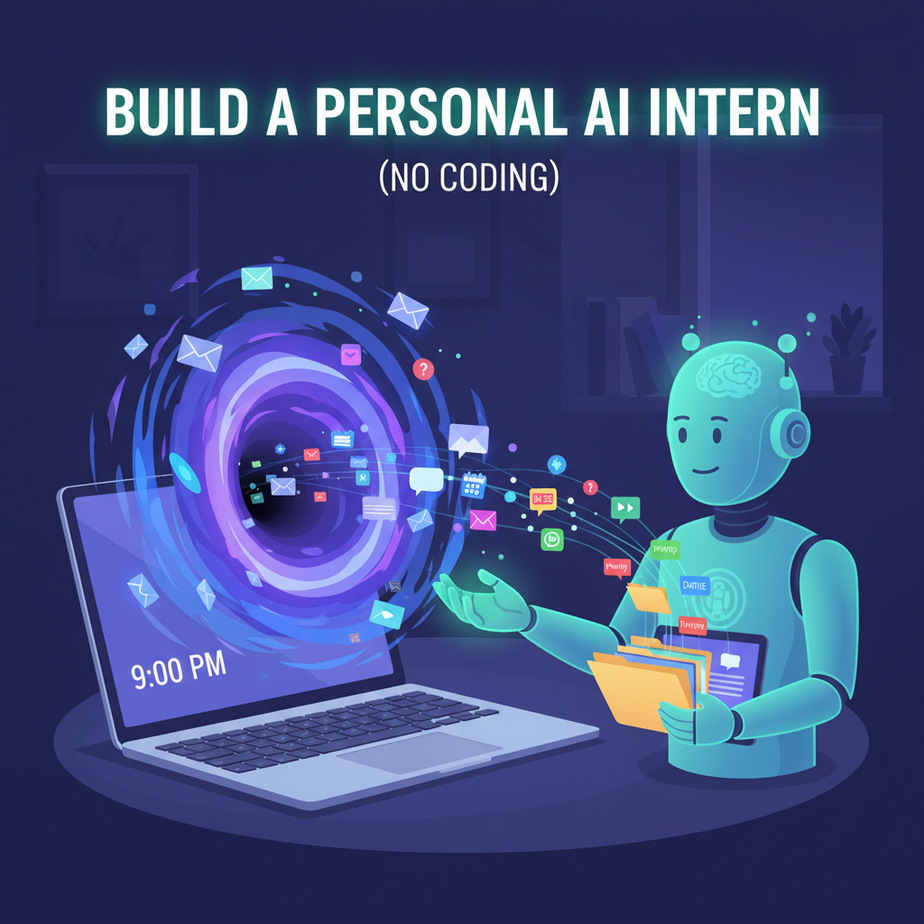
Hook: The Email Black Hole
It’s 9 PM. You’re exhausted. You open your email and see 47 unread messages. “Urgent: Project Update.” “Meeting follow-up.” “Can we chat tomorrow?” “Invoice attached.” You close the tab. You’ll deal with it tomorrow. But tomorrow brings 53 more. You’re now a digital janitor, not a business owner.
Meet Dave, a consultant who spent 2 hours a day managing his inbox. He felt busy but wasn’t building anything new. He was trapped in reactive mode. His business needed him to strategize, not just sort. He delegated the grunt work… to a robot he built himself.
Why This Matters: From Janitor to Architect
Think of your inbox as a factory conveyor belt. Your brain is the single worker trying to sort every item. It’s inefficient, exhausting, and leads to mistakes. An AI intern is a series of specialized robots on that belt, each doing one task perfectly.
What you gain:
- Time: Reclaim 5-10 hours per week. That’s 260+ hours a year.
- Focus: Work on deep tasks while your intern handles the noise.
- Scale: Handle 5x the emails without burning out.
- Sanity: Never miss a critical email again.
Who it replaces: A part-time assistant (at $15+/hour), or your own limited attention.
What This Tool/Workflow Actually Is
We are building an AI-powered email triage system. It does NOT:
- Send emails without your final approval (in this version).
- Read emails from hackers (your privacy is key).
- Replace complex, nuanced human conversation.
It DOES:
- Read & Categorize: Identify urgent emails, newsletters, meeting invites, and receipts.
- Draft Replies: Generate 80% complete responses based on email context.
- Summarize Threads: Give you the gist of long conversations.
- File & Archive: Organize emails into folders automatically.
We’ll use a free, powerful platform called N8n (a visual workflow builder) and connect it to your Gmail. It’s like giving your Gmail a brain and a set of hands.
Prerequisites: What You Need to Know (It’s Easy)
Honest Check: If you can use a smartphone, you can build this.
- An N8n Account: Sign up for a free n8n.cloud account. They have a generous free tier.
- A Gmail Account: That’s it. This works with any Gmail, or Google Workspace.
- An OpenAI Account: For the AI brain. You’ll need an API key (don’t worry, we guide you).
- A Finished Mindset: You are building a tool. Your first version might be 70% good. That’s perfect. We’ll improve it later.
You will NOT need to write Python or JavaScript. We’re using a drag-and-drop interface. Think of it like Lego for automations.
Step-by-Step Tutorial: Building Your Intern
Open N8n in a new tab. Let’s go.
Step 1: Get Your AI Brain (OpenAI API Key)
1. Go to platform.openai.com/api-keys. Sign up if needed.
2. Click “Create new secret key.” Name it “Email Intern.”
3. Copy the key. SAVE THIS in a safe password manager. You can’t see it again.
4. Go to N8n > Credentials > Add Credential > OpenAI. Paste your API key. Test it. Done.
Step 2: Connect Your Gmail
1. In N8n, go to Credentials > Add Credential > Gmail.
2. You’ll be guided to connect your Google account. Allow N8n to access your Gmail (it only reads emails you tell it to).
3. Test the connection. You should see a green checkmark. Now your intern can see your inbox.
Step 3: Build the Core Workflow (The Triage Robot)
We’ll create a workflow that runs every 10 minutes, checks for new emails, and sends them to the AI for categorization.
- Start Node: Add a “Start” node. This is the trigger.
- Schedule Trigger Node: Connect it to a “Schedule Trigger” node. Set it to run “Every 10 minutes.”
- Gmail Node: Connect a “Gmail” node. Set operation to “List.” Set “What to list” to “unimportant” and “max results” to 10. This gets new, unread emails.
- For Loop Node: Connect an “Each Pair” node to process each email one by one. Connect its “Data” input to the Gmail node’s output.
- AI Categorization Node: Connect an “OpenAI” node (call it “Categorize Email”).
– Use Model:gpt-4o-mini(cheap & smart).
– Connect the “Text” input to the For Loop’s Email Body.
– Prompt: “You are an expert email triage assistant. Analyze this email and return a JSON object with ‘category’, ‘priority’, and ‘summary’. Categories: ‘urgent’, ‘meeting’, ‘receipt’, ‘newsletter’, ‘other’. Priority: ‘high’, ‘medium’, ‘low’. Keep summary under 10 words.” - Filter Node: Add a “Filter” node. Use this code to only process emails where the AI found an ‘urgent’ category. This is our logic gate.
Step 4: Create the Drafting Sub-Workflow (The Writer)
When an email is ‘urgent’ or needs a reply, our intern drafts a response.
- Add another OpenAI Node: Connect it to the “urgent” output from the Filter.
– Prompt: “You are a professional assistant. Draft a polite, concise reply to this email. Acknowledge receipt, state the next step, and ask a clarifying question if needed. Start with ‘Hi [Sender Name],’.”
– Use the email’s subject and body as context. - Create a Draft in Gmail: Add a “Gmail” node. Set operation to “Create.” Use the draft from the AI and the original sender’s email as the recipient.
- Optional: Label the Original: Add another Gmail node to add the label “AI-Draft-Needed” to the original email.
Step 5: Activate and Test
Click the “Workflow” toggle at the top to activate. Send a test email to yourself with a subject like “URGENT: Project deadline moved!” Watch your N8n dashboard. In 10 minutes, you should see it process, categorize, and create a draft reply.
Complete Automation Example: The Client Onboarding Chain
Let’s run through a full scenario. A new lead emails you: “Hi, I saw your website. I need help with social media. Can we talk?”
- Trigger: Email arrives. Your N8n workflow kicks in (or you can set a different trigger for new emails).
- AI Analysis: The AI reads it, categorizes it as “Meeting”, priority “high”.
- Action 1 (Internal): It creates a draft reply: “Hi [Name], Thanks for reaching out! I’d love to help with your social media. Does Thursday at 2 PM or Friday at 10 AM work for a 15-minute chat?”
- Action 2 (CRM Integration): This is the advanced part. The workflow can also connect to a Google Sheet (your simple CRM). It adds the lead’s name and email to a “New Leads” tab, marking the status as “Drafted Reply.”
- Action 3 (Follow-up): You review the draft in your Gmail ‘Drafts’ folder. You tweak it, hit send. The workflow can then wait 2 days and schedule a follow-up email if you haven’t received a response, nudge them again.
You’ve just automated the first 3 steps of client onboarding. The lead feels attended to, and you spent 30 seconds reviewing, not 15 minutes composing.
Real Business Use Cases (MINIMUM 5)
- E-commerce Store Owner: Problem: 50+ daily emails about orders, shipping, returns. Solution: AI categorizes them: “Shipping Delay” (urgent, draft apology), “Return Request” (needs tracking #), “Product Question” (draft response with FAQ link). Automation files them by order ID.
- Freelance Consultant: Problem: Missing initial emails from potential clients in a sea of spam. Solution: AI flags any email with keywords like “project,” “quote,” “hire.” It instantly drafts a professional “Thanks for your interest” reply and adds the sender to a “Potential Client” Google Sheet.
- Real Estate Agent: Problem: Listings, showings, and client questions flood the inbox. Solution: AI sorts emails into folders: “New Listings,” “Showing Requests,” “Client Feedback.” For “Showing Requests,” it drafts a reply: “Thanks for your interest in 123 Main St. Are you available for a tour this weekend?”
- Non-Profit Director: Problem: Donor inquiries, event volunteer requests, and grant proposals mixed together. Solution: AI identifies “Donor” emails for immediate personal follow-up (high priority), drafts polite “Thanks for volunteering!” replies, and archives grant notifications for weekly review.
- Podcast Host: Problem: Guest pitches, listener feedback, and sponsorship requests are hard to manage. Solution: AI filters guest pitches (looking for key info like topic, bio link), drafts “We’ll review your pitch” replies, and compiles positive listener feedback into a “Best Testimonials” document weekly.
Common Mistakes & Gotchas
- Over-Automation: Don’t automate sensitive emails (like financial or legal matters). Keep a human in the loop for critical categories.
- Prompt Drift: The AI’s drafts can become generic. Regularly review and adjust your prompts. Add personality: “Write in a friendly, not-too-formal tone.”
- API Costs: OpenAI charges per token. With gpt-4o-mini, 10,000 emails might cost $1-2. It’s cheap, but monitor usage.
- Context Window: The AI can’t read 10-page emails. Keep the email body short for analysis, or summarize the conversation first.
- Gmail Rate Limits: Don’t check for new emails every second. Every 5-15 minutes is fine for most users.
How This Fits Into a Bigger Automation System
Your AI Email Intern is a powerful team member. But imagine it’s part of a larger team:
- CRM Integration: New leads from emails auto-populate your HubSpot or Salesforce. This is the next step in our course.
- Calendar Scheduling: When a meeting is booked, the intern can read calendar invites and block time.
- Voice Agent Handoff: A client calls, the voice agent logs a summary to an email. Your intern reads it, files it, and alerts you.
- Multi-Agent Workflow: Your intern categorizes, then the “Calendar Agent” schedules, and the “Finance Agent” extracts invoice details into accounting software.
- RAG System Enhancement: Future versions can search your internal documents (like project briefs) to draft smarter, more context-aware replies.
This single automation is the foundation of an autonomous business admin layer.
What to Learn Next: From Inbox to CRM
You’ve just built your first intelligent automation. You’ve freed up hours of your week. You’ve turned reactive chaos into proactive order. That feeling? That’s the power of AI automation.
In our next lesson, we’re going to take this further. We’ll connect your AI email intern to a **smart CRM**. We’ll build a system where your intern not only files emails but automatically updates contact profiles, tracks deal stages, and reminds you of follow-ups. It’s the difference between having a tool and building a business engine.
Stay curious. Keep building. Your new intern is waiting for its next assignment.
“,
“seo_tags”: “AI email automation, business productivity, N8n tutorial, OpenAI, Gmail automation, workflow automation, inbox zero, AI assistant”,
“suggested_category”: “AI Automation Courses





